Agent tools
Agent tools are built-in capabilities that an Enterprise h2oGPTe agent can call during a conversation to complete tasks that require real-world actions. Unlike chat mode, where the model generates a response from training data alone, an agent with tools can interact with external sources, execute code, and produce tangible outputs.
You do not need to select tools manually. Describe your task in natural language; the agent selects and invokes tools based on the request. If your task involves multiple steps, the agent coordinates the sequence of tools without extra input from you.
Tools are grouped into the following categories:
- Web and research — Search Google, Bing, Wikipedia, academic journals, and more.
- Data and AI — Run Python scripts, analyze datasets, and execute AutoML experiments.
- Content and media — Generate images, create presentations, and transcribe audio and video.
- Documents — Ask questions about uploaded files, extract insights, and summarize content.
- External services — Connect to third-party APIs and databases through MCP servers.
- Code and automation — Write and debug code, run shell scripts, and orchestrate multi-step workflows.
These categories are conceptual groupings used in this documentation. The Agents > Tools page in the UI lists tools individually without category labels.
For an overview of each category, see Agents overview.
Chat mode vs. agent mode
Use the table below to decide whether chat mode or an agent with tools is the right choice for your task:
| Task | Chat mode | Agent with tools |
|---|---|---|
| Web research | Answers from training data only | Searches the web in real time |
| Data analysis | Describes how to analyze | Runs Python code and returns results |
| File processing | Reads pasted text | Opens uploaded files directly |
| Content creation | Generates text responses | Produces images, presentations, and diagrams |
| Complex multi-step work | Answers each question separately | Plans and executes a full workflow end to end |
Enable the Use Agent toggle when your task requires real-time data, file processing, code execution, or multi-step workflows. For simple questions and summaries, chat mode is faster.
Viewing and managing tools
You can view and control tools from the Agents page (shows all tools available on your system) and Chat Settings (lets you choose which tools are active for a specific chat session).
Browsing available tools
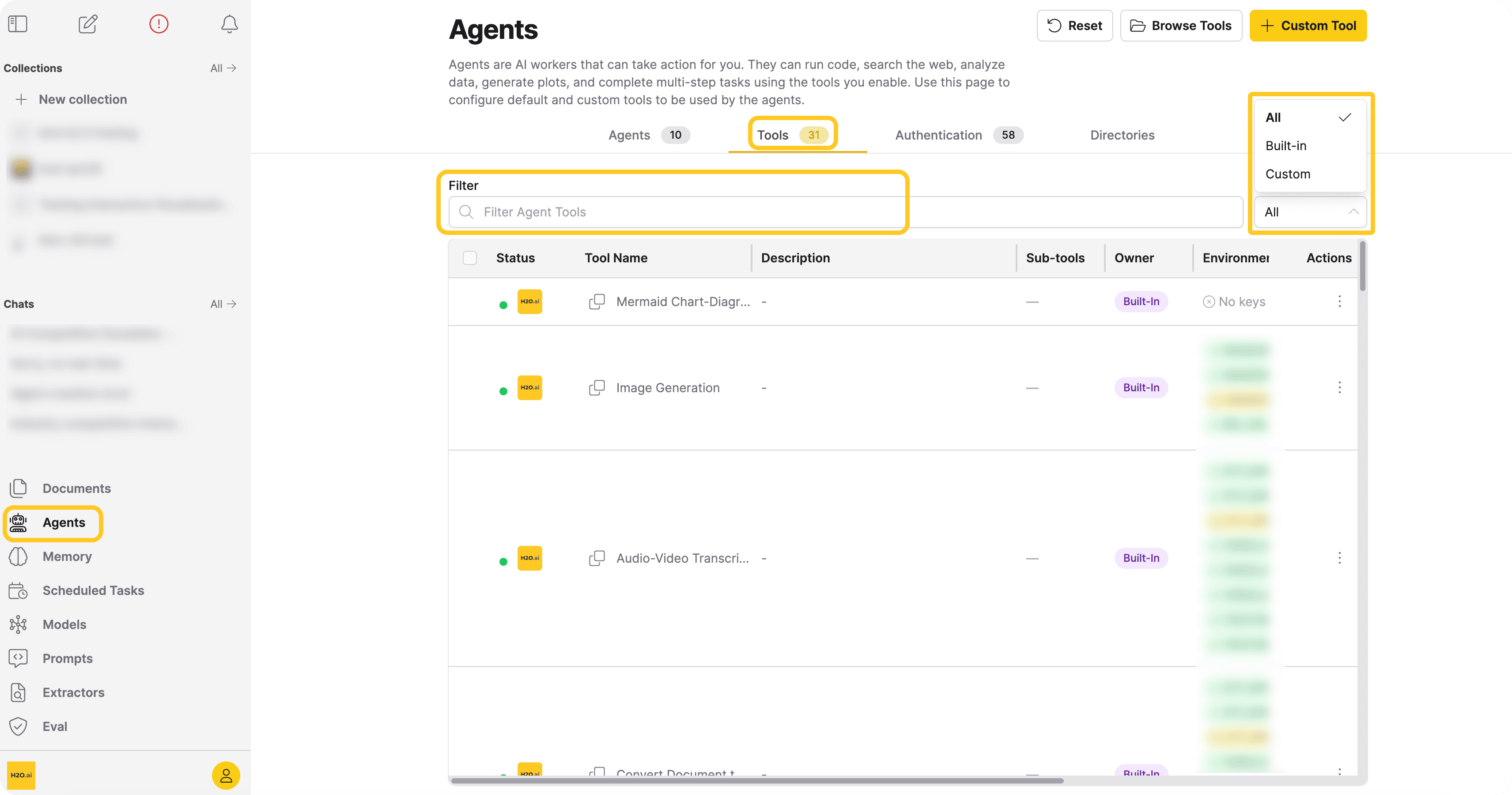
The Tools tab lists every tool enabled by your administrator. Use it to discover what is available before starting a session.
- In the navigation menu, click Agents.
- Click the Tools tab. You can view and browse the tool list.
- Use the Filter Agent Tools search box to find a tool by name.
- Use the Owner dropdown to narrow results to Built-in or Custom tools.
Tool availability depends on how your administrator has configured the system. If a tool you expect is not listed, contact your administrator. For configuration details, see Agent tool configuration.
Selecting tools for a chat session
When the Use Agent toggle is on, you can choose which tools the agent uses for the current chat. Tools you enable here do not affect other users or other chats; they are active only for the duration of that session.
-
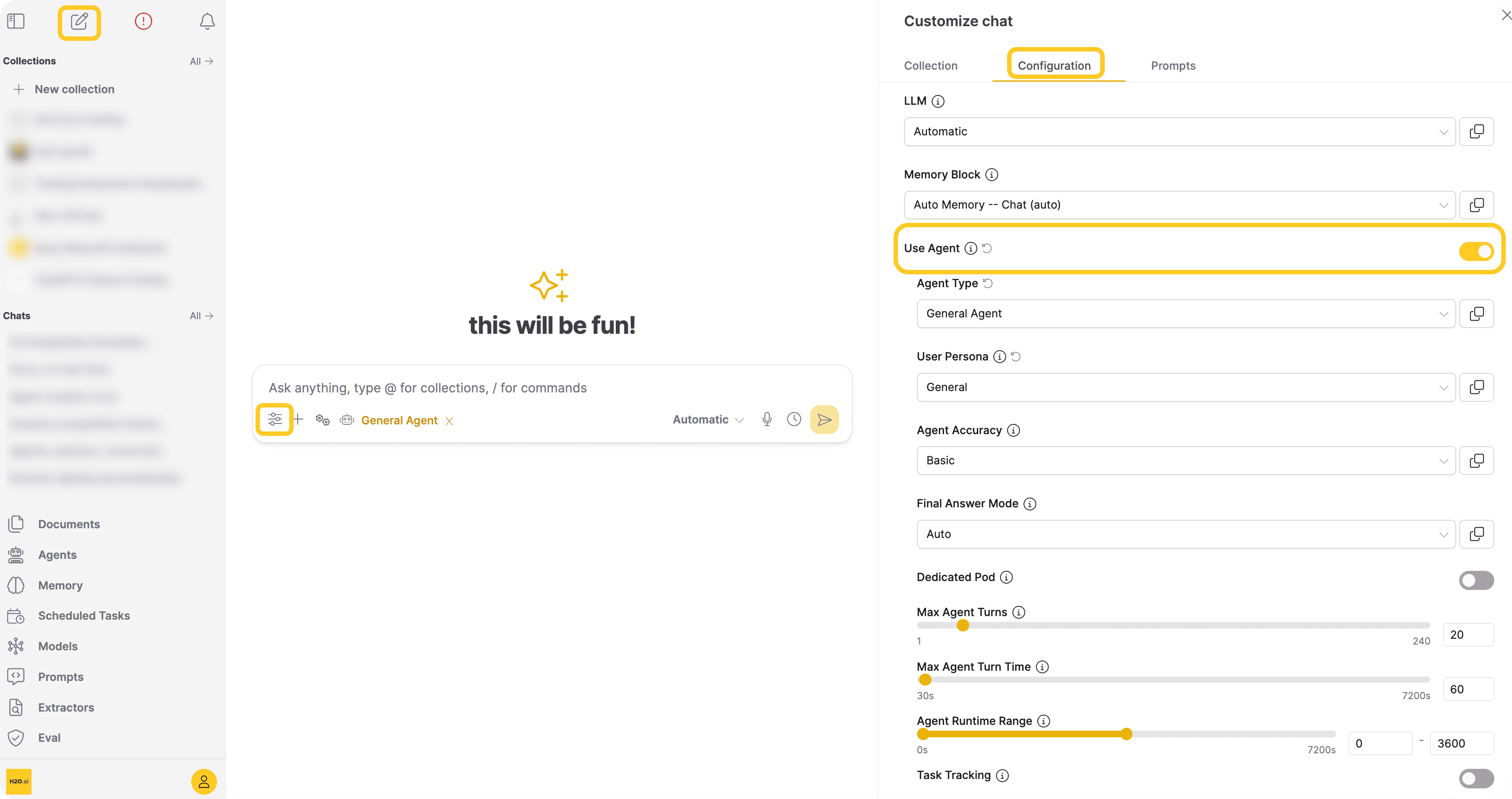
Open or create a chat session.
-
Click the Customize icon to open the Customize pane.
-
In the Configuration tab, toggle Use Agent to On.
-
Scroll down and select the tools you want the agent to use for this session from the Tools list. Selected tools appear highlighted or checked.
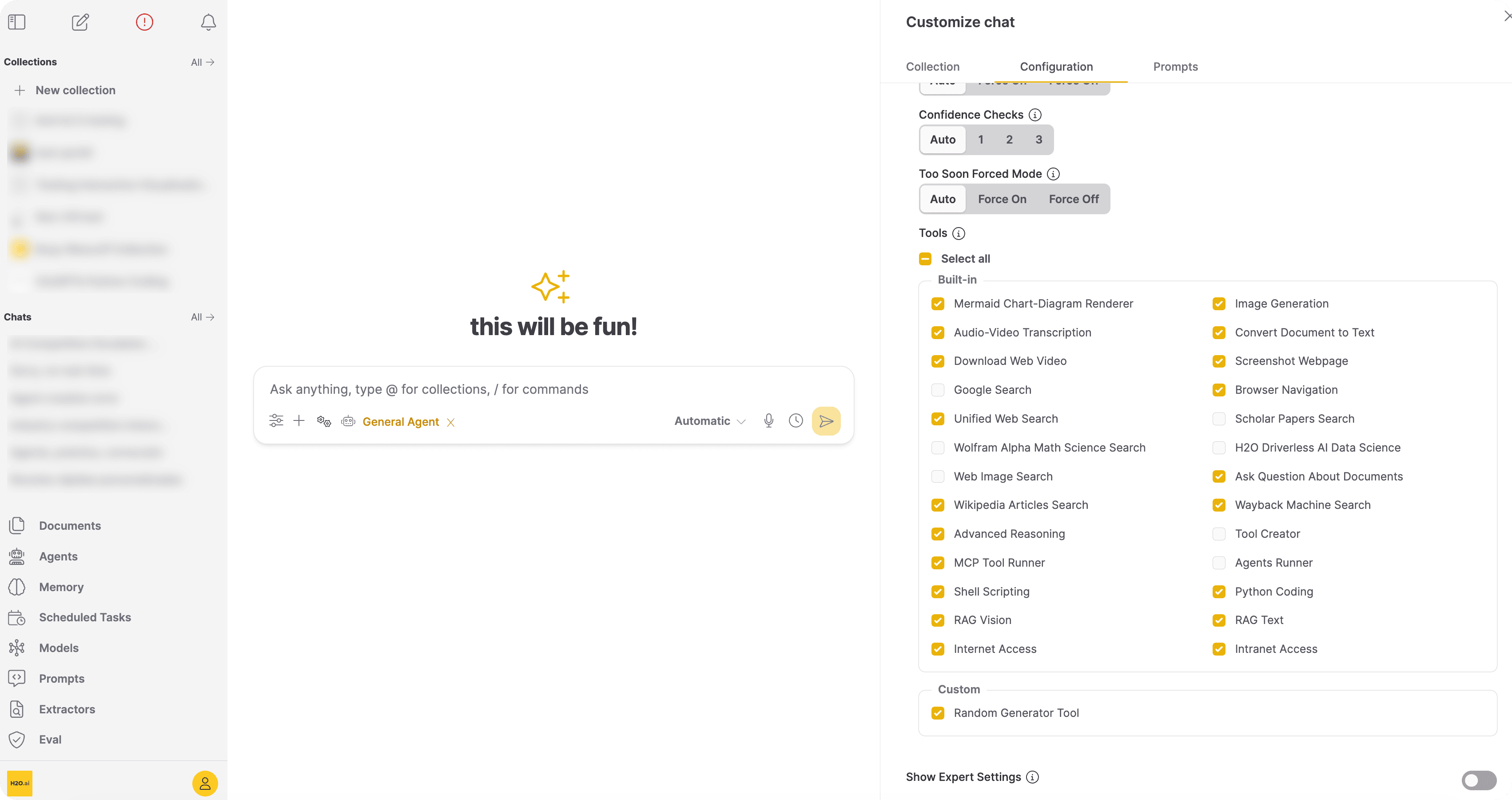
You do not need to invoke tools explicitly. The agent automatically chooses among these enabled tools when processing your requests.
For a full reference of all Chat Settings options, see Customize a Chat session.
Invoking tools
When the agent is active, describe what you want in natural language and the agent determines which tools to call. You do not need to select or activate individual tools.
To get the most useful results, keep these tips in mind when writing your prompts:
- Be specific about the output you want: "Summarize the findings in three bullet points" yields more targeted results than "tell me about this."
- Mention sources when relevant: Specifying "search the web" or "use my uploaded documents" steers the agent toward the right tool category.
- State constraints upfront: If you need results from the last six months, or a Python script under 50 lines, include that in the prompt rather than a follow-up.
- State the full goal in one prompt: You do not need to chain multiple messages; describe the full goal in one prompt and let the agent plan the steps.
- Iterate on specifics, not on tool selection: If the first response is not quite right, refine the goal or the constraints; do not try to override which tool ran.
When a task spans multiple capabilities — for example, searching for recent data, running analysis on the results, and generating a chart — the agent orchestrates the sequence automatically. It selects the appropriate tools, passes outputs between them, and returns a unified response. You issue one prompt; the agent handles the rest.
Tool examples
The following prompts illustrate the range of tasks each tool category can handle. Use them as starting points and adapt the specifics to your own data and goals. For Driverless AI (DAI)-powered AutoML experiments, see Agent tool calling and Driverless AI integration.
Web and research
Recent news or trend summary:
Search the web for the latest developments in large language model efficiency research from the
past 3 months and summarize the key findings.
Academic literature lookup:
Find peer-reviewed articles on the long-term health effects of sleep deprivation published since
2020 and list the main conclusions.
Fact-checking or quick reference:
Look up the current population of the 10 largest cities in Europe and display the results as a
ranked list.
Data and AI
Dataset analysis and visualization:
Load the attached CSV file, calculate summary statistics for each numeric column, and produce a
bar chart of the top five categories by total value.
Step-by-step reasoning task:
Given a customer acquisition cost of $45, average revenue per user of $120, and a 60% retention rate, is this business model sustainable? Walk through the unit economics.
AutoML experiment (brief reference):
Train a classification model on my dataset to predict customer churn and report the validation
accuracy and top feature importances.
Content and media
Image generation:
Generate a photorealistic illustration of a mountain landscape at sunrise with fog in the valleys,
suitable for a presentation title slide.
Audio or video transcription:
Transcribe the attached meeting recording, then produce a bullet-point list of action items with
the name of the person responsible for each.
Diagram creation:
Draw a Mermaid sequence diagram showing the OAuth 2.0 authorization code flow between a browser,
an authorization server, and a resource server.
Documents
Document Q&A:
Based on the uploaded contract, what are the termination conditions and what notice period is
required?
Cross-document synthesis:
Compare the methodology sections of the three attached research papers and highlight where they
agree and where they differ.
External services
Third-party API lookup:
Using the configured CRM MCP server, fetch all open opportunities closing this quarter, group
them by account owner, and return a table with total pipeline value per owner.
Database query via MCP:
Use my Snowflake MCP connection to query monthly active users for the last 12 months, calculate
month-over-month growth, and summarize any significant drops.
Code and automation
Codebase bug-fix workflow:
Scan my repository for failing unit tests, identify the root cause of the first failure, propose
a minimal fix, apply the patch, and explain what changed.
Shell automation task:
Automate a release-prep workflow: run lint and tests, generate a changelog draft from recent
commits, and output a checklist of anything that still needs manual review.
Troubleshooting
Understand common tool-calling behavior during a chat session.
- How to tell a tool ran: Agent responses include visible step updates and tool-use activity while the task is running, followed by a final answer that summarizes the results.
- When no tool matches your request: The agent returns a text-only response, asks a clarifying question, or explains that it cannot complete the task with the currently enabled tools.
- Common issues and quick fixes:
- Tool is not enabled in this chat session: Open Customize > Configuration > Tools and enable it.
- Tool is unavailable in your environment: Check the Agents > Tools page, then contact your administrator if it is missing.
- Request is too broad or ambiguous: Add clear constraints, expected output format, and relevant source hints (for example, "search the web" or "use uploaded documents").
- External service tool fails: Verify credentials, MCP server configuration, and network access, then retry.
Related documentation
- Agent tool configuration — Helm and environment configuration for administrators
- Agent tool calling and Driverless AI integration — DAI-specific examples and advanced workflows
- MCP Servers — Extend agent capabilities with external tools and services
- Submit and view feedback for this page
- Send feedback about Enterprise h2oGPTe to cloud-feedback@h2o.ai