Custom agent tools
Enterprise h2oGPTe lets you extend agents beyond their built-in capabilities by adding custom tools. Custom tools run your own code, connect to external services, or automate browser interactions; all invocable by the agent during a conversation.
There are four types of custom tools. Each type has a different delivery mechanism and is suited to a different class of task. This page introduces each type and helps you choose the right one for your use case.
Tool types at a glance
| Tool type | What you provide | How it runs | Best for |
|---|---|---|---|
| General Code Tool | Python file or ZIP | Executed directly in the agent runtime | Custom business logic, internal APIs, bespoke file generation |
| Local MCP Tool | ZIP with a server.py, index.ts, or index.js entry point | MCP server running inside the Enterprise h2oGPTe environment | Proprietary integrations, offline tools, multi-function packages |
| Remote MCP Tool | JSON config pointing to an external server | MCP over stdio, HTTP, or SSE | Third-party services, shared team servers, cloud APIs |
| Browser Action Tool | Python file or ZIP | Playwright-driven browser automation | Web scraping, form submission, UI testing, login-gated sites |
When to use each type
General Code Tool — Choose this when you have existing Python logic you want the agent to call. It is the simplest option: upload a script, write a system prompt, and the agent imports and runs your function. No server setup required.
Local MCP Tool — Choose this when your tool exposes multiple callable functions, needs to stay within your environment for security or compliance reasons, or is already packaged as an MCP server. The agent discovers all functions from the server automatically.
Remote MCP Tool — Choose this when the tool is hosted externally (a cloud API, a shared team server, or a third-party service). You provide a JSON config; Enterprise h2oGPTe connects to the server over the network without running any code locally.
Browser Action Tool — Choose this when the task requires interacting with a real browser: navigating to a URL, logging in, filling forms, or extracting content from pages that cannot be reached by a plain HTTP request.
Accessing custom tools
All custom tools are created and managed from the Agents > Tools page.
- In the navigation menu, click Agents.
- Click the Tools tab.
- Click + Custom Tool to open the tool type menu.
- Select the tool type you want to create.
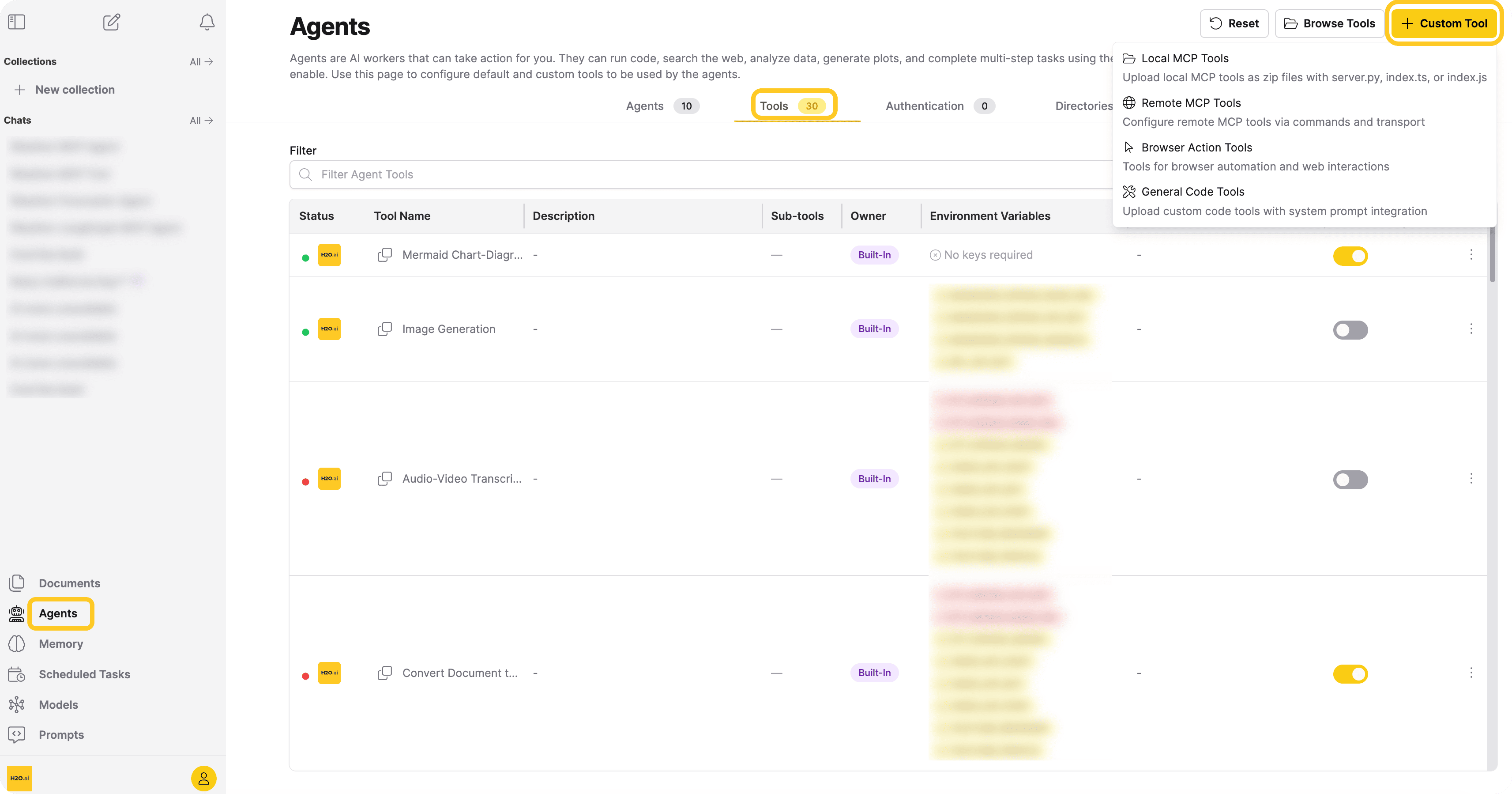
Each option in the dropdown opens a dedicated configuration dialog for that tool type. For step-by-step instructions, follow the guide for your chosen type in the Related documentation section below.
Known limitations
- No cross-user management: Custom tools are ownership-scoped. A user with the Add and edit custom agent tools permission can only create and edit their own tools; deletion requires the Delete custom agent tools permission and is similarly restricted to tools the user owns. Only administrators can manage tools belonging to other users. There is no finer-grained role-based sharing.
- No cross-user tool sharing: Custom tools are not shared across users. A tool created by one user is not visible or available to other users.
Related documentation
- General code tools — Step-by-step guide for creating and configuring general code tools
- Browser action tools — Full walkthrough for creating and configuring browser action tools
- Local MCP Tools — Full walkthrough for packaging and uploading a local MCP tool
- Remote MCP Tools — JSON config reference and transport options for remote MCP tools
- MCP servers overview — How MCP servers work and how agents discover their functions
- Agent tool configuration — Administrator guide for enabling and securing tools in production
- Submit and view feedback for this page
- Send feedback about Enterprise h2oGPTe to cloud-feedback@h2o.ai