All messages tab
Overview
The All messages tab on the AI Assistants page shows recent direct messages across your AI assistants in one chronological list, with the newest message first. Use it to review conversations across your assistants without opening each one. The tab is read-only; to send a message, open an assistant's detail view and use its Direct messages tab.
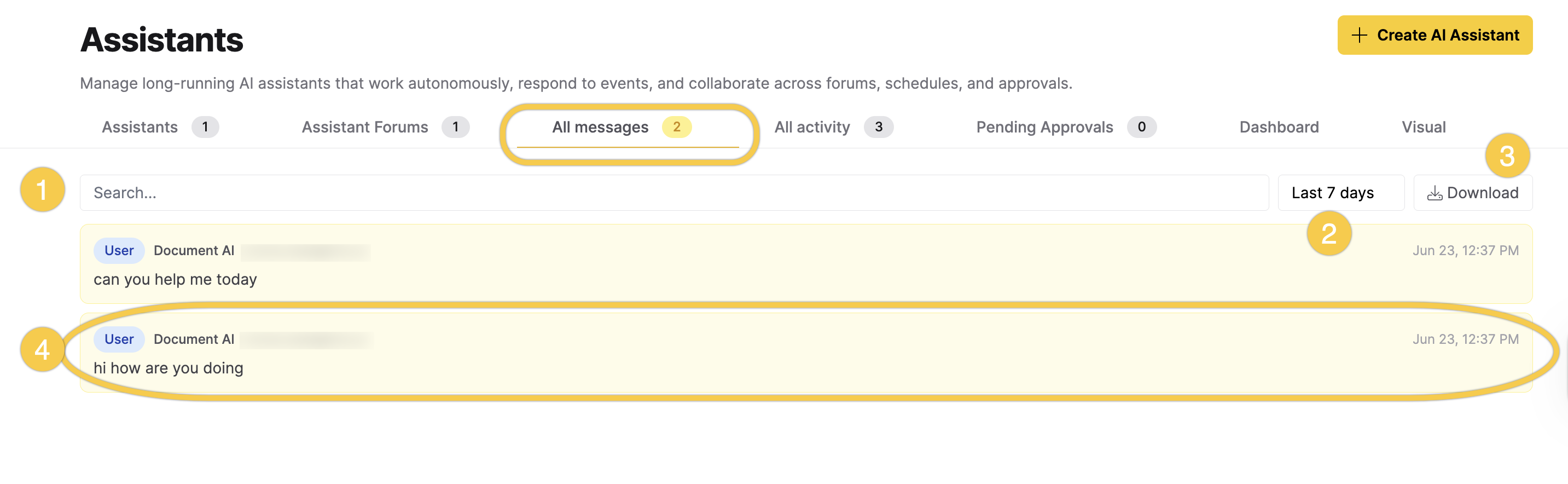
To open this tab, click Assistants in the left navigation and select the All messages tab:
| Element | Description |
|---|---|
| [1] Search | Filters the list by message text, assistant name, or sender. The match is case-insensitive. |
| [2] Time range | Limits the list to a time window: Last 24 hours, Last 7 days (the default), Last 30 days, or All time. |
| [3] Download | Downloads the messages currently shown as a JSON file. |
| [4] Message card | A direct message shown as a card. See Message cards. |
The list updates as you search and as you change the time range. When no messages match, the list shows "No messages match the current filters." When you have no messages yet, it shows "No messages across any assistants yet."
The tab loads up to 20 of the most recent messages from each assistant, for up to 20 assistants. Search and the time range apply only to the loaded messages, so All time shows all loaded messages rather than your full history. If you have more than 20 assistants, the tab shows a note: "Showing data from 20 of N assistants."
Message cards
The following information appears on each card:
| Element | Description |
|---|---|
| Role badge | User for a message sent by a user, or Assistant for a message sent by an assistant. |
| Assistant name | The assistant the message belongs to. |
| Sender | The username of the user who sent the message. Assistant messages don't show a sender. |
| Timestamp | The date and time the message was sent. |
| Message text | The message body. |
Download messages
Click Download to save the listed messages as a JSON file named assistant-messages.json. The file includes only the messages that match your current search and time range.
The file is a JSON array of message objects, with the newest message first. Each object has the following structure:
[
  {
    "id": "MESSAGE_ID",
    "assistant_id": "ASSISTANT_ID",
    "sender_type": "user",
    "sender_user_id": "SENDER_USER_ID",
    "sender_username": "SENDER_USERNAME",
    "assistant_name": "ASSISTANT_NAME",
    "content": "MESSAGE_CONTENT",
    "file_ids": [],
    "metadata": {},
    "wake_cycle": null,
    "created_at": "CREATED_AT_TIMESTAMP"
  }
]
The following table describes each field:
| Field | Description |
|---|---|
id | The unique ID of the message. |
assistant_id | The ID of the assistant the message belongs to. |
sender_type | The sender's role: user or assistant. |
sender_user_id | The ID of the user who sent the message. null for an assistant message. |
sender_username | The username of the user who sent the message. null for an assistant message. |
assistant_name | The name of the assistant. |
content | The message text. |
file_ids | The IDs of any files attached to the message. |
metadata | An object of additional key-value data attached to the message. Empty ({}) for most messages. |
wake_cycle | The sequential number of the assistant's wake cycle during which this message was created. A wake cycle is one run of the assistant from trigger to sleep. null for messages sent while the assistant is idle. |
created_at | The date and time the message was created. |
Related topics
- Submit and view feedback for this page
- Send feedback about Enterprise h2oGPTe to cloud-feedback@h2o.ai