How admins can set user permissions
Role and permission settings
The business user role, which is a predefined role, grants users access to the Business Dashboard experience. Administrators can assign this role via the Roles and permissions page.
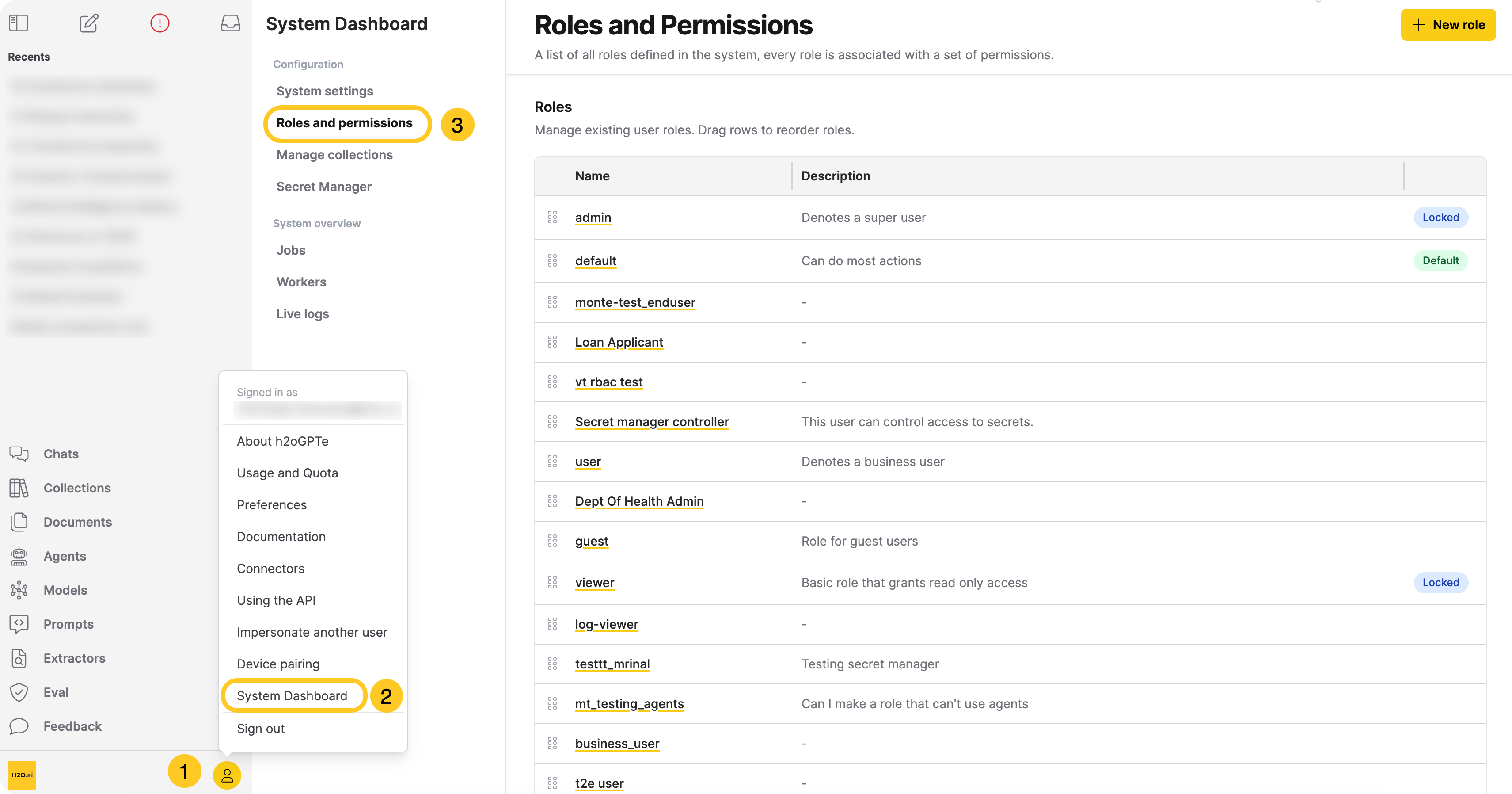
- In Enterprise h2oGPTe, click Account Circle.
- Select System Dashboard.
- In the System Dashboard navigation menu, click Roles and permissions.
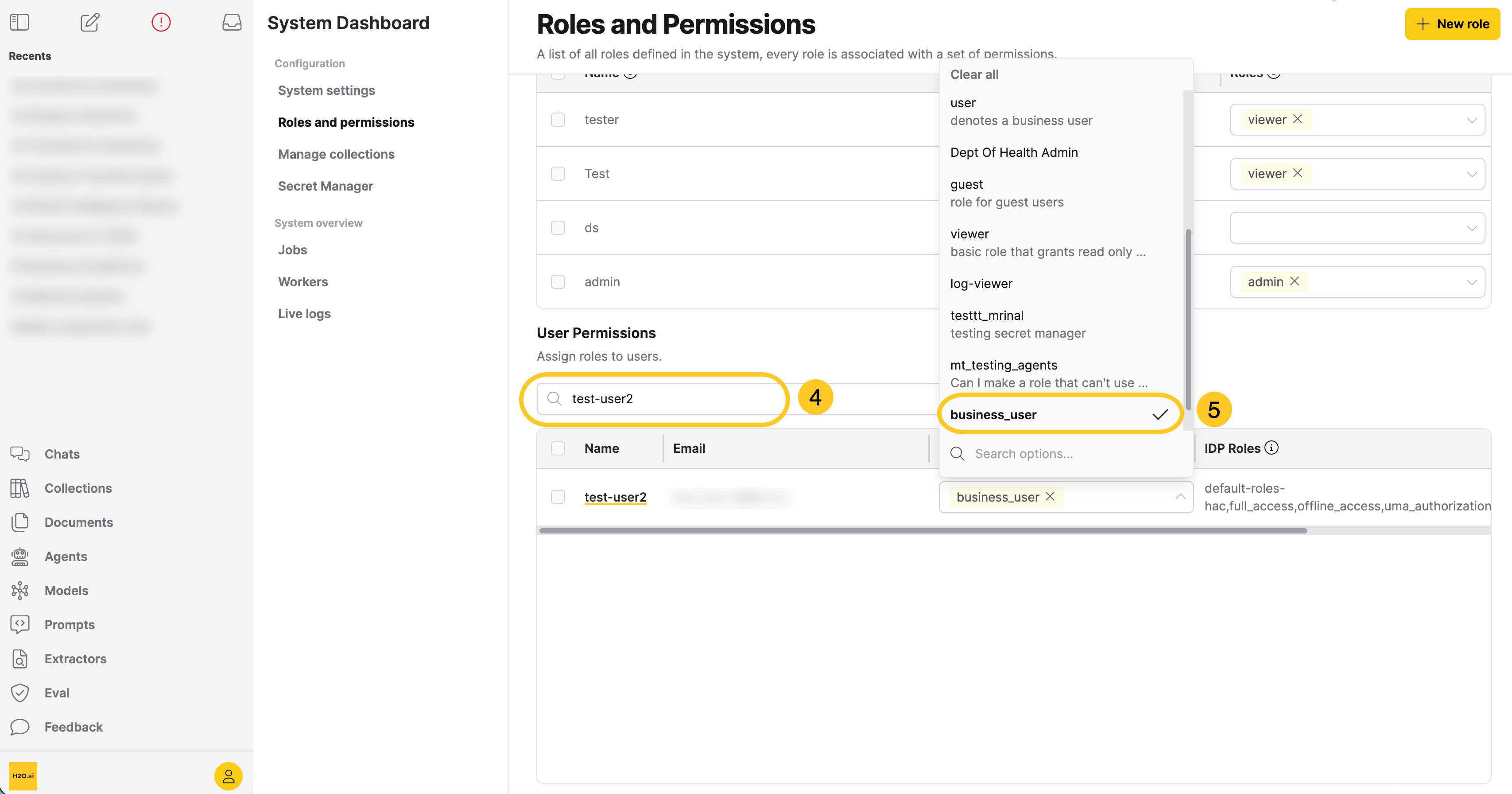
- In the User Permissions table, search for the user you want to assign the role of Business user.
- In the Roles list, select business_user.
Sharing a Collection with a business user
Administrators can share selected Collections with business users.
To share a collection,
- In the Enterprise h2oGPTe navigation menu, click Collections.
- Locate the Collection you want to share and click Share (or open the Collection and click Share collection).

- Click the Users tab.
- Click + Add user.
- In the Users list, select a user to share the Collection with.
- Click Save.
Next steps
To learn more about sharing Collections, go to: Share a collection
Feedback
- Submit and view feedback for this page
- Send feedback about Enterprise h2oGPTe to cloud-feedback@h2o.ai