Automatically archive a Chat session
Overview
Enterprise h2oGPTe can archive a Chat session automatically once the Chat sits unused for too long or reaches a date you choose. The Auto-Archive tab controls this behavior for a single Chat.
Two deadlines drive auto-archiving:
- Chat Inactivity Interval: The number of days of inactivity your administrator allows. You can view this value, but you cannot change it here.
- Chat Expiry Date: A fixed date that you set yourself.
Whichever deadline arrives first archives the Chat. The tab states which deadline applies, for example This chat will be archived on <date> based on the inactivity interval.
Read the Auto-Archive this chat toggle carefully. It controls whether archiving happens, not whether the Chat survives:
- Toggle on lets Enterprise h2oGPTe consider this Chat eligible for archiving automatically. The Chat is archived only once a deadline applies to it: a global inactivity limit, a Chat expiry date, or an expiry date or inactivity interval on its Collection. If none of these applies, the tab shows
Nothing is scheduled to archive this chat. Set a chat expiry date below to schedule one.and the Chat is never archived automatically, even with the toggle on. - Toggle off preserves the Chat, and nothing archives it automatically.
Turn the toggle off for a Chat you want to keep indefinitely.
Prerequisites
- You own the Chat, or you have administrator privileges. Anyone else can open the Auto-Archive tab but cannot change the settings on it.
- To turn auto-archiving off, you also need the Preserve chat sessions from global expiration permission. Without it, the toggle stays read-only. Ask your administrator to grant it. For more information, see Roles and Permissions.
Open the auto-archive settings
To open the auto-archive settings for a Chat, follow these steps:
- In the Enterprise h2oGPTe navigation menu, click Chats.
- In the Recent Chats table, open the Chat session you want to change.
- Click Customize.
- Click the Auto-Archive tab.
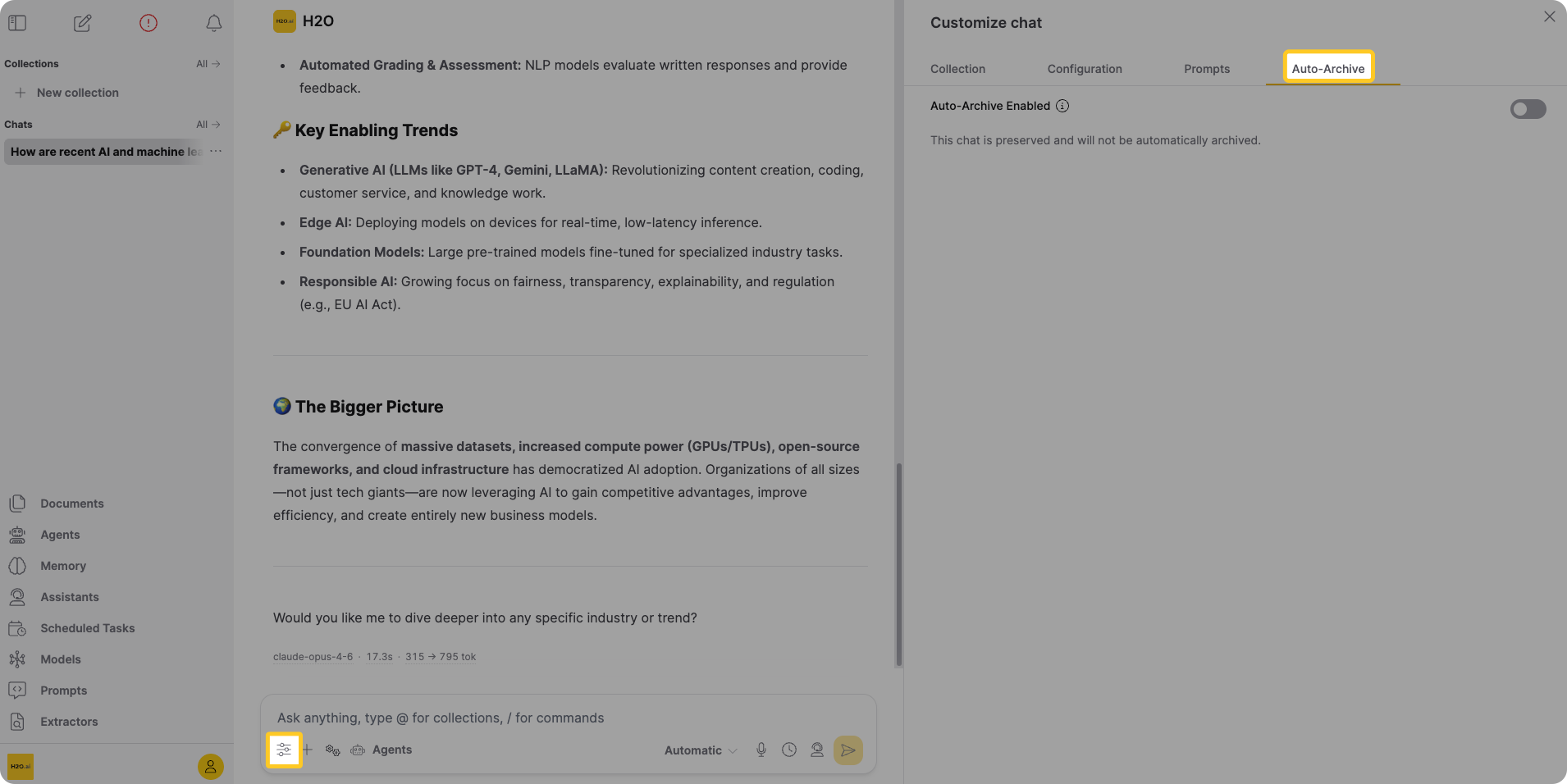
The Customize button requires the developer settings permission (h2ogpte/display/developer_settings). Without it, manage auto-archiving from the Chats list instead. See Manage auto-archiving from the Chats list.
Preserve a Chat from archiving
To keep a Chat indefinitely, turn Auto-Archive this chat off. The tab replaces the deadline fields with the message This chat is preserved and will not be automatically archived., and the Chat shows a Preserved status in the Chats list.
If the Chat has an expiry date, a confirmation first names the date that preserving clears. Turning the toggle off also:
- Clears the Chat expiry date, if you set one.
- Clears the inactivity interval.
- Returns the Chat to Active status if the Chat had already started counting down.
Turning the toggle back on restarts the inactivity clock from that moment and reapplies whatever global inactivity limit is in force. It does not restore a Chat expiry date you cleared. If the Chat's Collection deadline has already passed, a confirmation warns that the Chat will be archived shortly.
Preserving a Chat protects it from the automatic sweep, not from every action. An administrator can run an on-demand cleanup with a force option, which deletes preserved Chats along with the others.
Set a Chat expiry date
Set an expiry date when a Chat should archive on a specific day, ahead of the inactivity deadline.
- Turn on auto-archiving
Open the Auto-Archive tab and check that Auto-Archive this chat is on. The deadline fields appear only while auto-archiving is on.
- Pick the date
Click the Chat Expiry Date field and pick a date.
The date picker accepts dates from tomorrow up to the window your administrator sets, 30 days ahead by default. Picking a date outside that window fails, and the error states how many days ahead you can go. The picker reads dates in your browser's time zone.
To clear the date, click Remove next to the field. The Chat then relies on the inactivity interval alone.
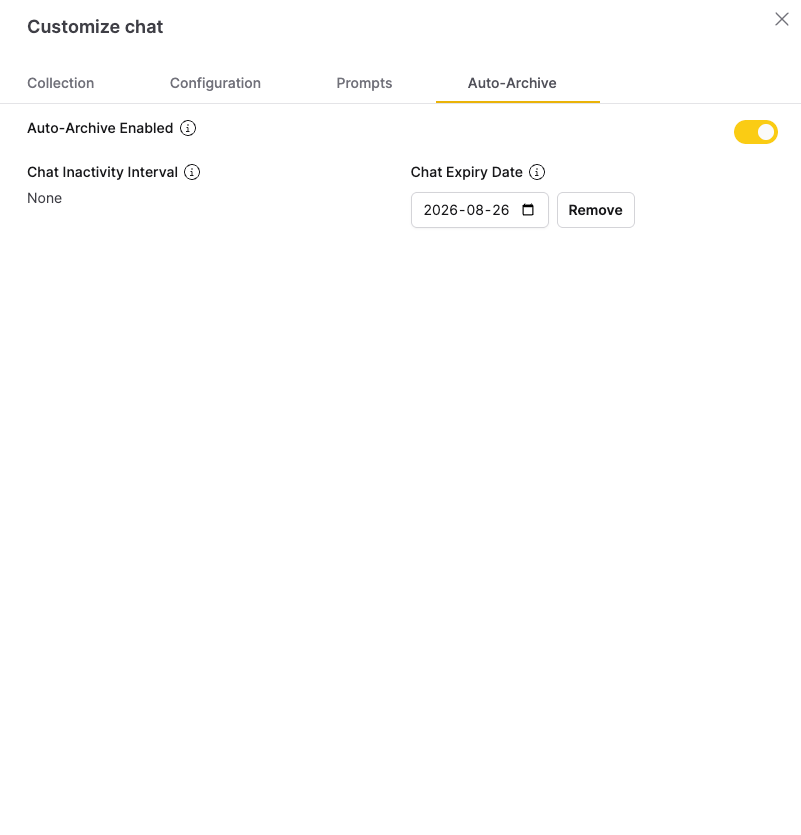
You cannot set an expiry date on a preserved Chat. Turn Auto-Archive this chat on first, then set the date.
How the deadlines interact
- The inactivity interval and the Chat expiry date run in parallel. The earlier one archives the Chat.
- For a Chat that belongs to a Collection, the Collection's own expiry date and inactivity interval count as well. Enterprise h2oGPTe compares each against the Chat's own value and takes the earlier deadline on both. For more information, see Collection lifecycle.
- If an administrator exempts a Collection from Chat expiry, the tab shows the message
Chat sessions in this collection are exempt from the global chat inactivity limit.The global inactivity limit stops applying to that Collection's Chats. A Chat expiry date that you set explicitly still applies. - Moving a Chat into or out of a Collection restarts its inactivity clock and re-applies the current global limit, along with any exemption on the Collection you move it into.
What archiving does to a Chat
A Chat moves through three statuses:
- Active: Normal state. No deadline is close.
- Expiring: A warning window opens ahead of the deadline. The window is 30 days wide by default, and your administrator can change it.
- Archived: Enterprise h2oGPTe marks the Chat archived and starts the grace period that ends in permanent deletion.
While a Chat sits in Expiring, using it again pushes the inactivity deadline out, and the Chat returns to Active once every deadline falls outside the warning window. A Chat expiry date does not move, so continued use alone does not rescue a Chat with a near expiry date. Clear the date or preserve the Chat instead.
Archiving a Collection archives its Chats with it, whatever state they were in and without a warning window. Preserved Chats are the exception. Recovering the Collection brings those Chats back, though not the expiry dates they carried.
Once a Chat is archived, it disappears from your Chats list. Only an administrator can recover it, and only administrators see the Archived Chats filter in the Chats list. Ask your administrator to recover a Chat you still need.
A background sweep applies these transitions at startup and about once an hour after that, so a status change can take up to an hour to show up.
Enterprise h2oGPTe deletes an archived Chat permanently once it stays archived past the grace period, 30 days by default. After that, nobody can recover it, including an administrator.
Manage auto-archiving from the Chats list
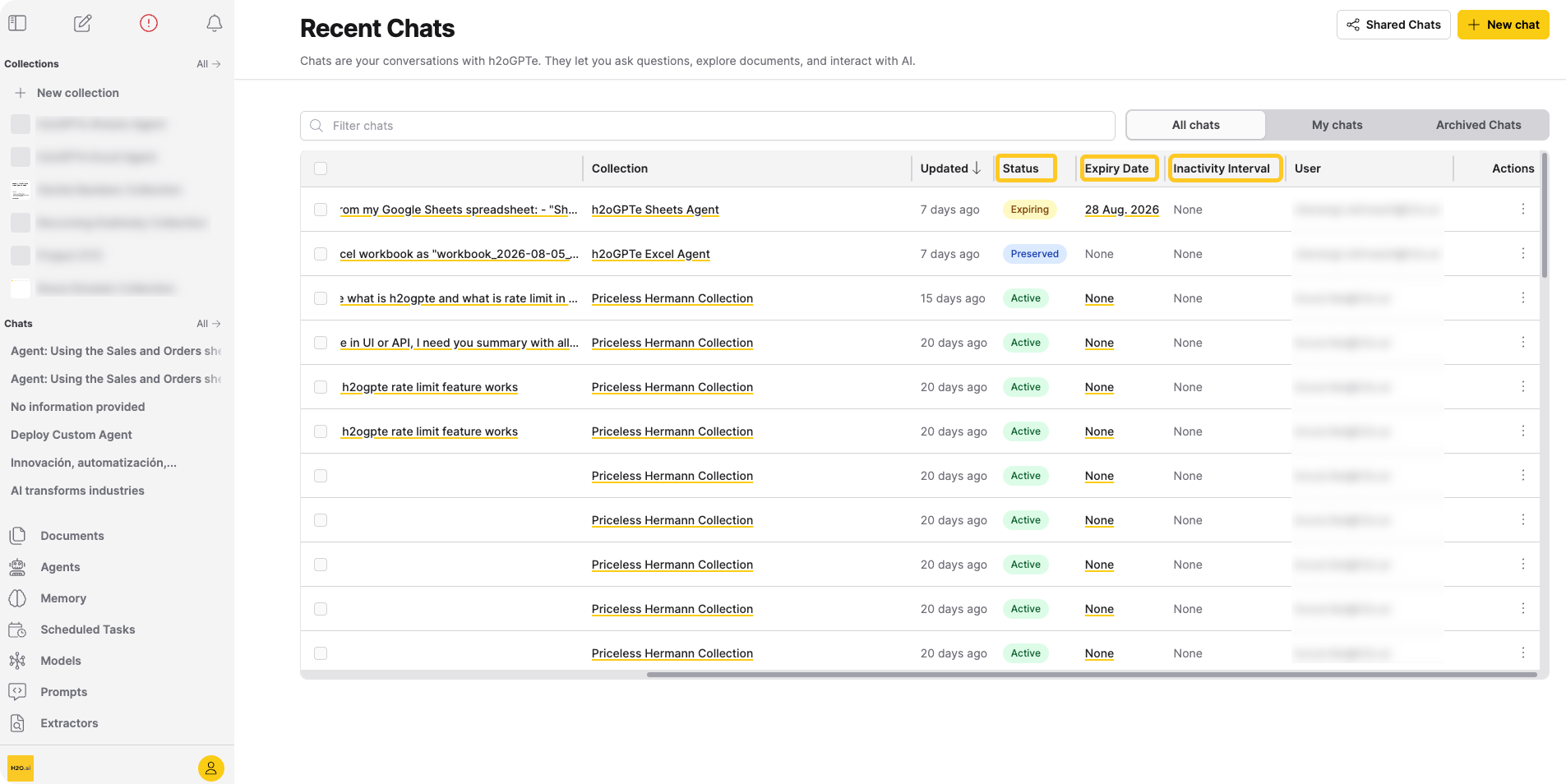
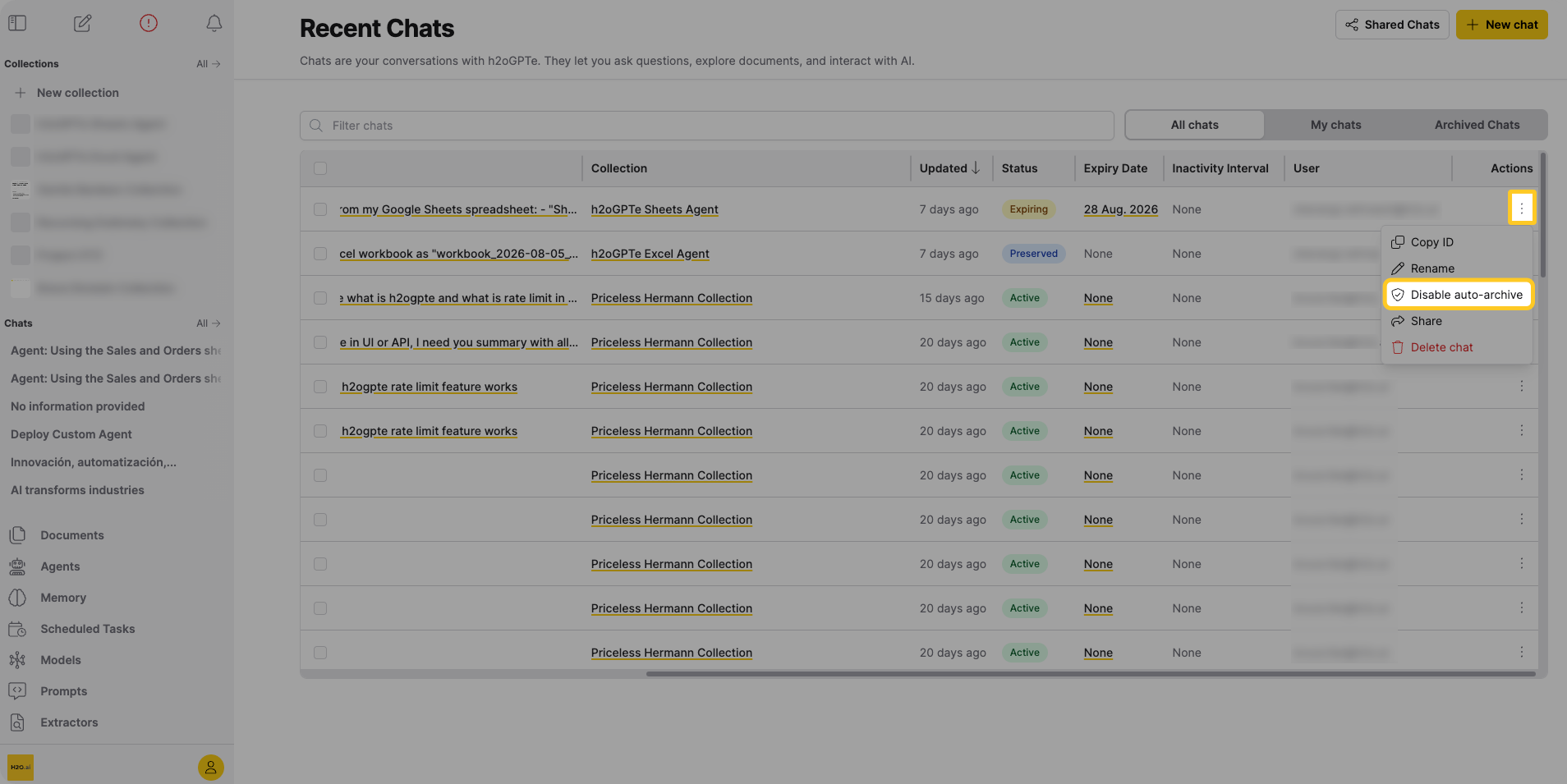
The Chats list carries the same controls and shows where each Chat stands.
- Open the full Chats list
In the Enterprise h2oGPTe navigation menu, click All next to Chats.
- Read the current state
These columns show where each Chat stands:
- Status: Active, Expiring, or Preserved.
- Expiry Date: The date you set, or None.
- Inactivity Interval: The days of inactivity that trigger archiving, or None.
- Change a Chat expiry date
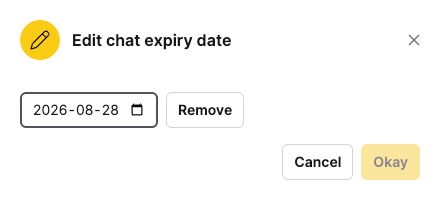
Click the value in the Expiry Date column and edit it in the Edit chat expiry date dialog. Preserved Chats have no editable value here. Chats in an exempt Collection keep an editable expiry date.
- Preserve a Chat or hand it back to the policy
Open the Actions menu for the Chat and click Disable auto-archive or Enable auto-archive.
- Submit and view feedback for this page
- Send feedback about Enterprise h2oGPTe to cloud-feedback@h2o.ai