Showcase
Overview
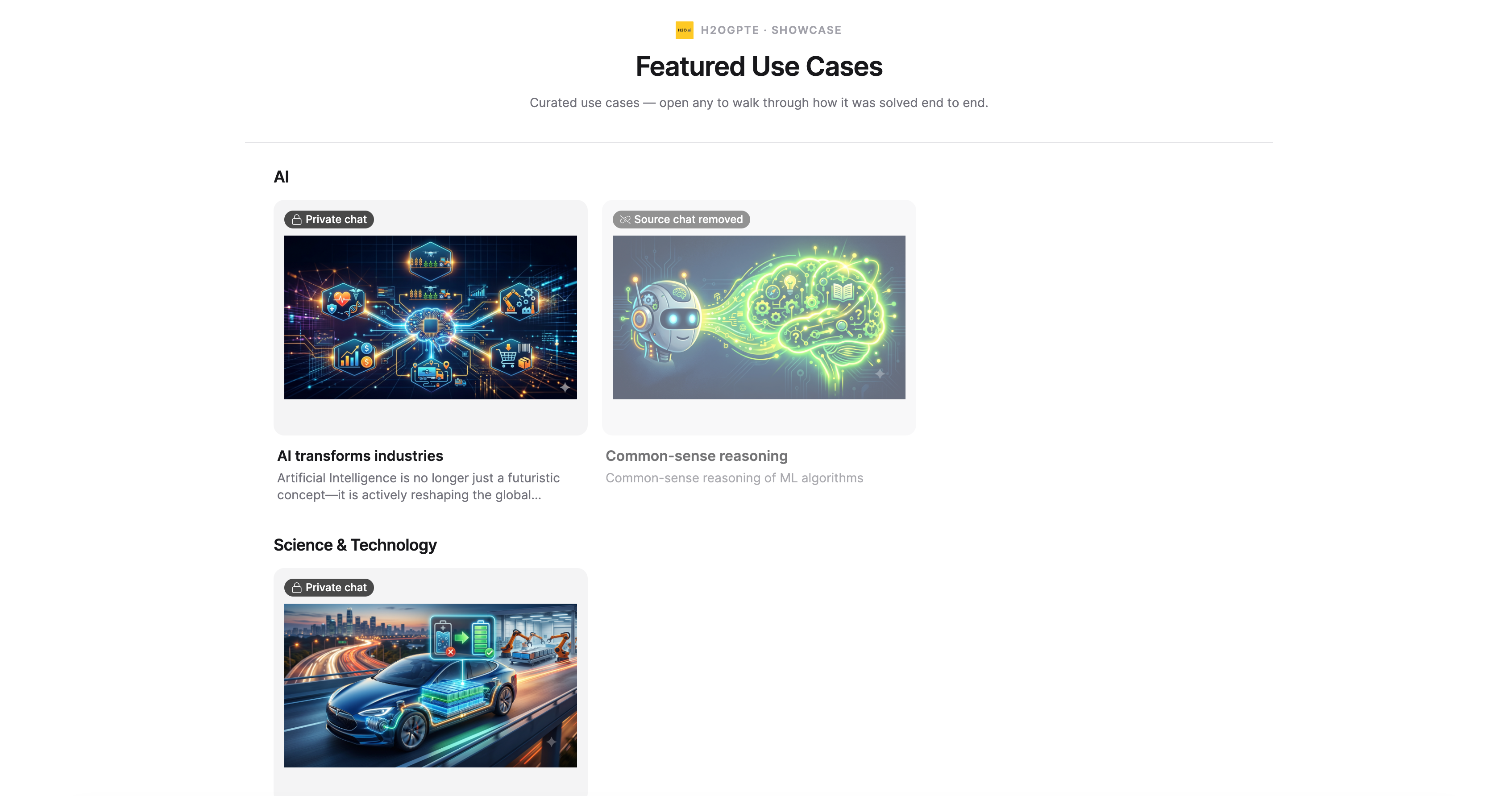
The Showcase page is a curated tile grid where managers feature selected shared chats as use-case examples for the rest of the organization. Each tile shows a title, description, and thumbnail; clicking a tile opens the shared chat's replay view in a new tab. The page title displayed to users is Featured Use Cases.
Managers are users with the h2ogpte/chat/manage_showcase permission. The Admin role has this permission by default. See Roles and Permissions for details on assigning permissions to custom roles.
The Showcase page is hidden from end users by default. An administrator must set showcase_page_mode to authenticated or public in System Settings before it becomes visible. See Page visibility modes.
Pin a shared chat to Showcase
Managers can pin any shared chat to Showcase, including private ones. To pin a shared chat:
-
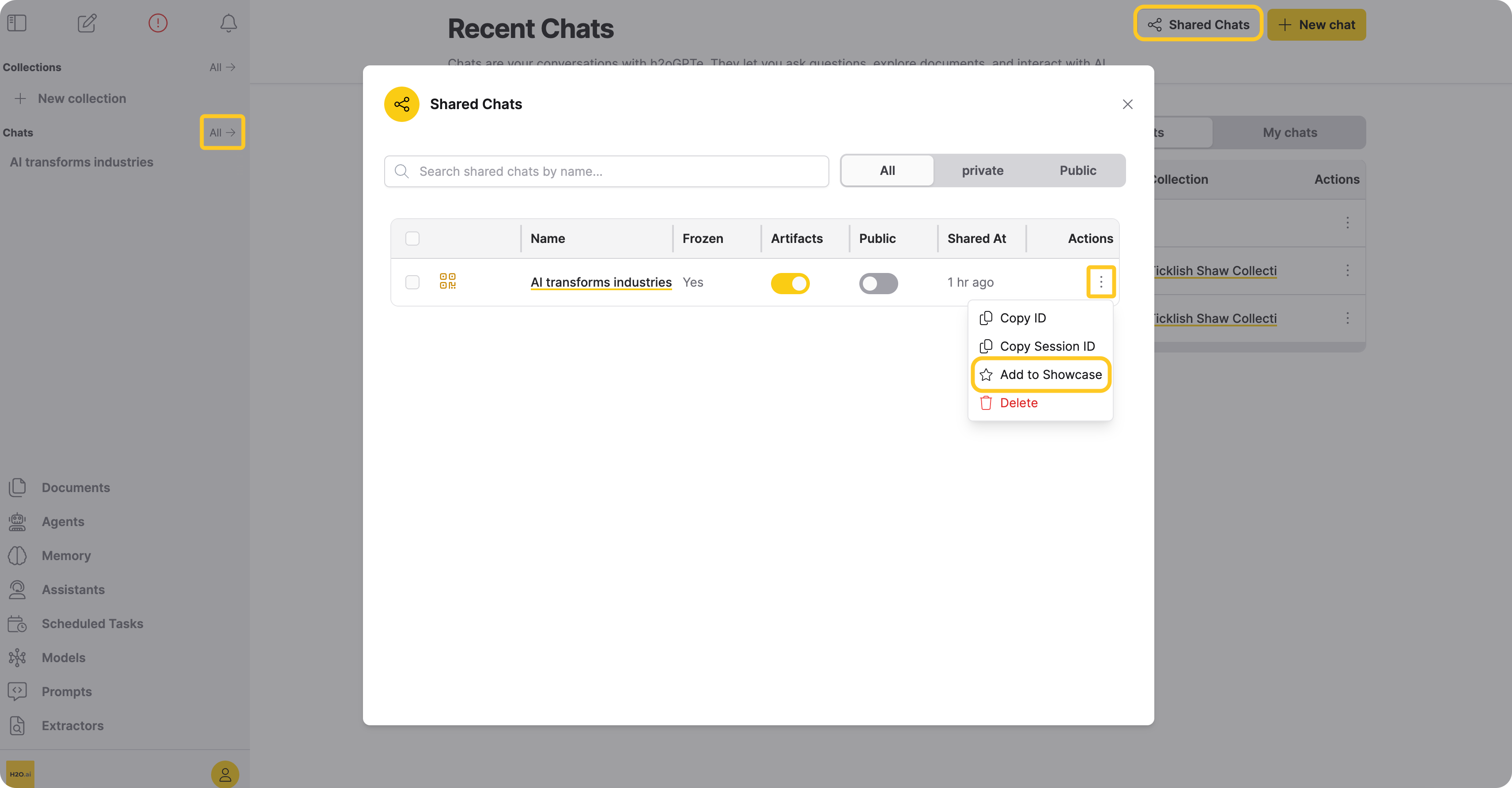
In the Enterprise h2oGPTe navigation menu, click All next to Chats.
-
Click Shared Chats to open the Shared Chats dialog.
-
Click the Actions menu () for the chat you want to feature.
-
Click Add to Showcase.
-
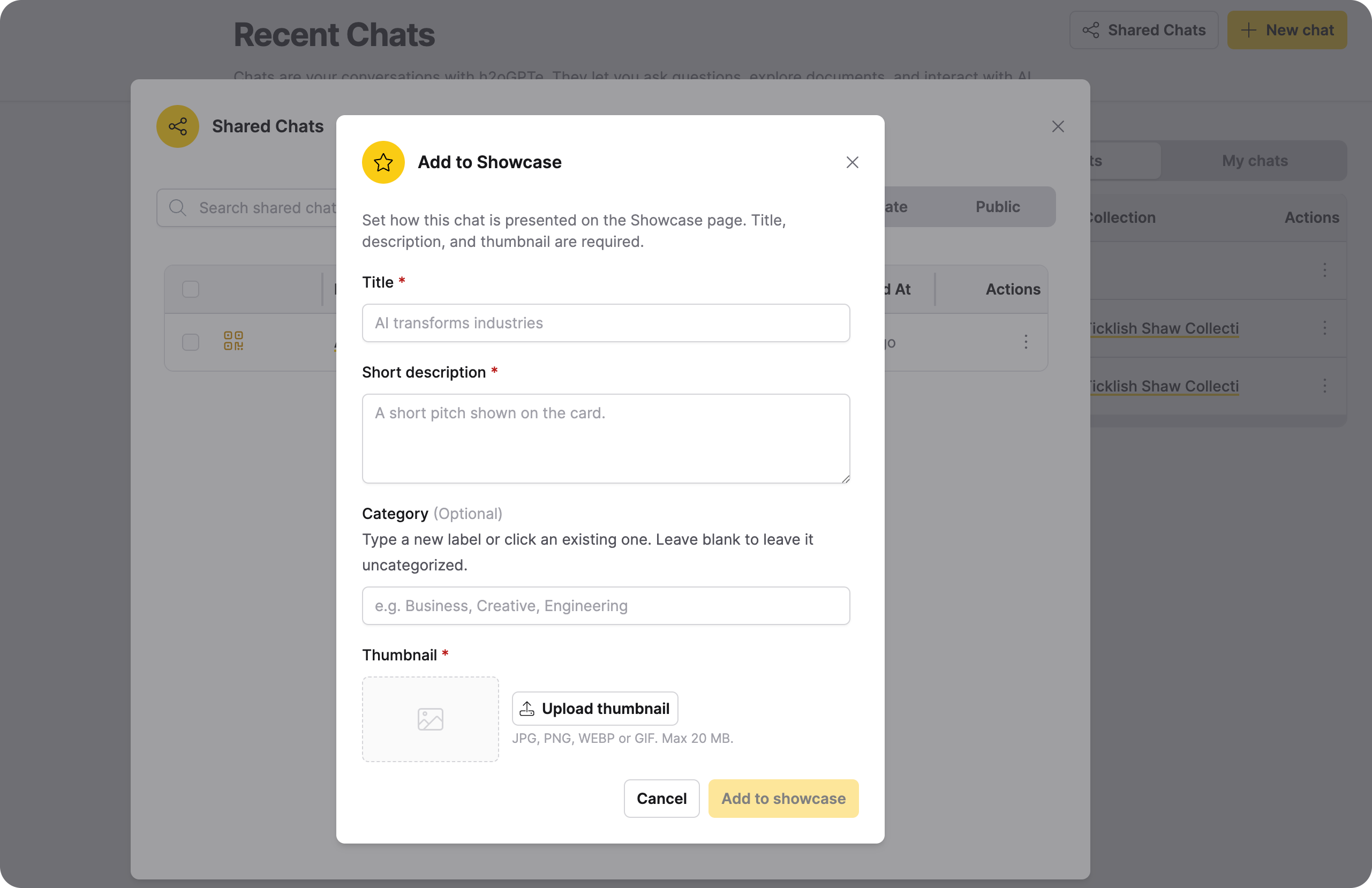
In the Add to Showcase dialog, fill in the following fields:
- Title (required) — The display name shown on the tile. The chat name is shown as placeholder text.
- Short description (required) — A brief summary shown on the tile.
- Category (optional) — A label used to group tiles under section headers on the page. Type a new label or choose an existing one from the autocomplete suggestions. Leave blank to leave the tile uncategorized; uncategorized tiles appear at the bottom of the page.
- Thumbnail (required) — An image displayed on the tile. Supported formats: JPG, PNG, WEBP, GIF. Maximum file size: 20 MB.
-
Click Add to showcase.
A confirmation toast appears once the chat is live on the Showcase page. In the Shared Chats dialog, the chat now shows a Featured in the Showcase badge.
The Showcase page
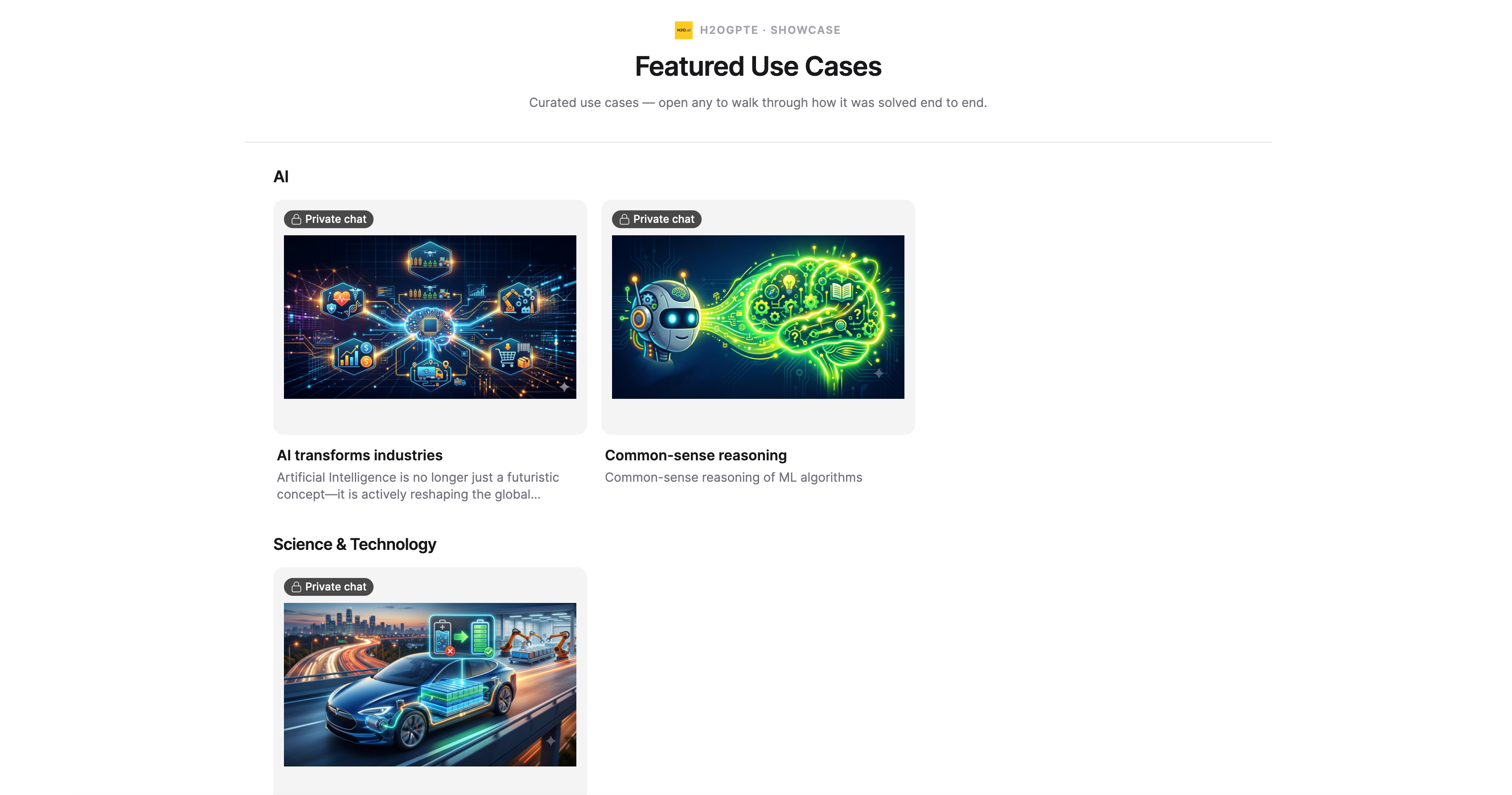
The Showcase page is a responsive tile grid. When at least one category is in use, tiles are grouped under alphabetical section headers; uncategorized tiles appear last. Within each group, tiles follow their manually set sort order.
Each tile shows:
- Thumbnail image
- Title
- Short description (truncated to two lines; hover to read in full)
- Private chat badge (lock icon) if the underlying shared chat is private
Clicking a tile opens the shared chat's replay view in a new tab.
Manager view
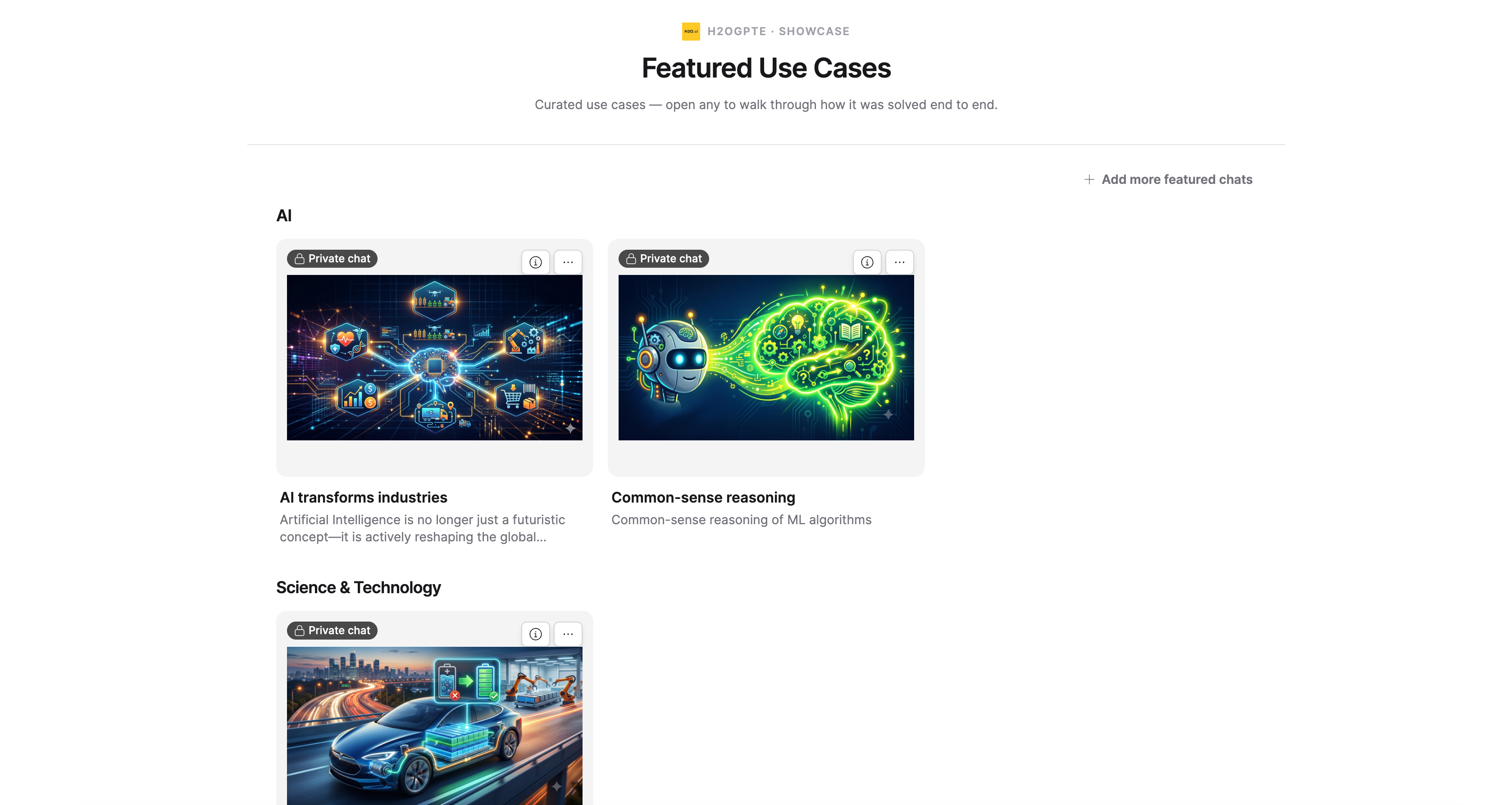
When a manager views the Showcase page it shows the same grid with additional controls overlaid on each tile:
- Actions menu () — Opens tile management options (Edit featured chat, Move up, Move down, Remove)
- Chat details button () — Shows a popover with tile metadata: who shared the chat, whether it is frozen, and whether it includes artifacts
An Add more featured chats button at the top right opens the Shared Chats dialog, where the manager can pin additional chats.
When showcase_page_mode is set to disabled, managers still see a full preview of the Showcase page with a warning banner: "Showcase page is currently disabled for end users. You are seeing the admin preview."
Edit a tile
To update a tile's title, description, category, or thumbnail:
- Navigate to the Showcase page.
- Click the Actions menu () on the tile.
- Click Edit featured chat.
- Update the fields as needed.
- To replace the thumbnail, click Replace thumbnail and upload a new image.
- To remove the current thumbnail without replacing it, click the remove icon next to the thumbnail preview.
- Click Save.
Reorder tiles
You can reorder tiles within their category using Move up and Move down:
- Click the Actions menu () on the tile.
- Click Move up or Move down.
Reordering moves a tile one position within its category. Tiles in different categories are not affected by each other's order. Move up is disabled for the first tile in a category; Move down is disabled for the last.
Remove a tile
Removing a tile unpins it from Showcase without deleting the underlying shared chat.
- Click the Actions menu () on the tile.
- Click Remove.
- Confirm the removal.

Orphaned tiles
If a shared chat is deleted after being pinned to Showcase, the tile remains on the page with a Source chat removed badge and a muted appearance. Orphaned tiles are no longer clickable. Only the Remove action is offered.
Managers should remove orphaned tiles to keep the page clean and to release any stored thumbnail data.
Page visibility modes
The showcase_page_mode global setting controls who can access the Showcase page. Administrators can change this under System Settings → Features. See System Settings for how to manage global settings.
| Mode | End-user behavior | Manager behavior |
|---|---|---|
disabled (default) | 404 — Showcase is hidden | Full admin preview with warning banner |
authenticated | Signed-in users see the grid; guests and anonymous visitors see a login prompt | Full access |
public | Anyone, including anonymous visitors, can see the grid | Full access |
Privacy and visibility reference
| Tile type | Authenticated users (authenticated or public mode) | Anonymous / guest users (public mode only) |
|---|---|---|
| Public shared chat tile | Visible | Visible |
| Private shared chat tile | Visible (with Private chat badge) | Hidden |
| Orphaned tile | Visible (with Source chat removed badge) | Hidden |
Python API
You can manage the Showcase programmatically using the h2oGPTe Python client. For full method signatures and parameters, see the Python Client Library guide. Relevant methods include:
list_showcase_chats(offset, limit)— List tiles on the Showcase pageadd_showcase_chat(shared_chat_id, title, description, category)— Pin a shared chat to Showcaseupdate_showcase_chat(showcase_id, title, description, category)— Update tile metadatalist_showcase_categories()— List all category labels currently in useremove_showcase_chat(showcase_id)— Remove a tile from Showcasereorder_showcase_chats(orders)— Atomically reorder tiles within a categoryupload_showcase_thumbnail(showcase_id, file_path)— Upload or replace a tile thumbnaildelete_showcase_thumbnail(showcase_id)— Remove a tile's thumbnail
Thumbnails are managed separately from tile metadata. After calling add_showcase_chat, call upload_showcase_thumbnail with the returned showcase_id to attach an image.
- Submit and view feedback for this page
- Send feedback about Enterprise h2oGPTe to cloud-feedback@h2o.ai