Use memory blocks in chat
Attach a memory block to a chat to give the LLM or agent persistent context across sessions. Depending on the access mode, the LLM or agent can also update the memory block during the conversation.
Attach a memory block to a chat
- Open the Customize chat panel.
- Select the Configuration tab.
- From the Memory Block dropdown, select a memory block.
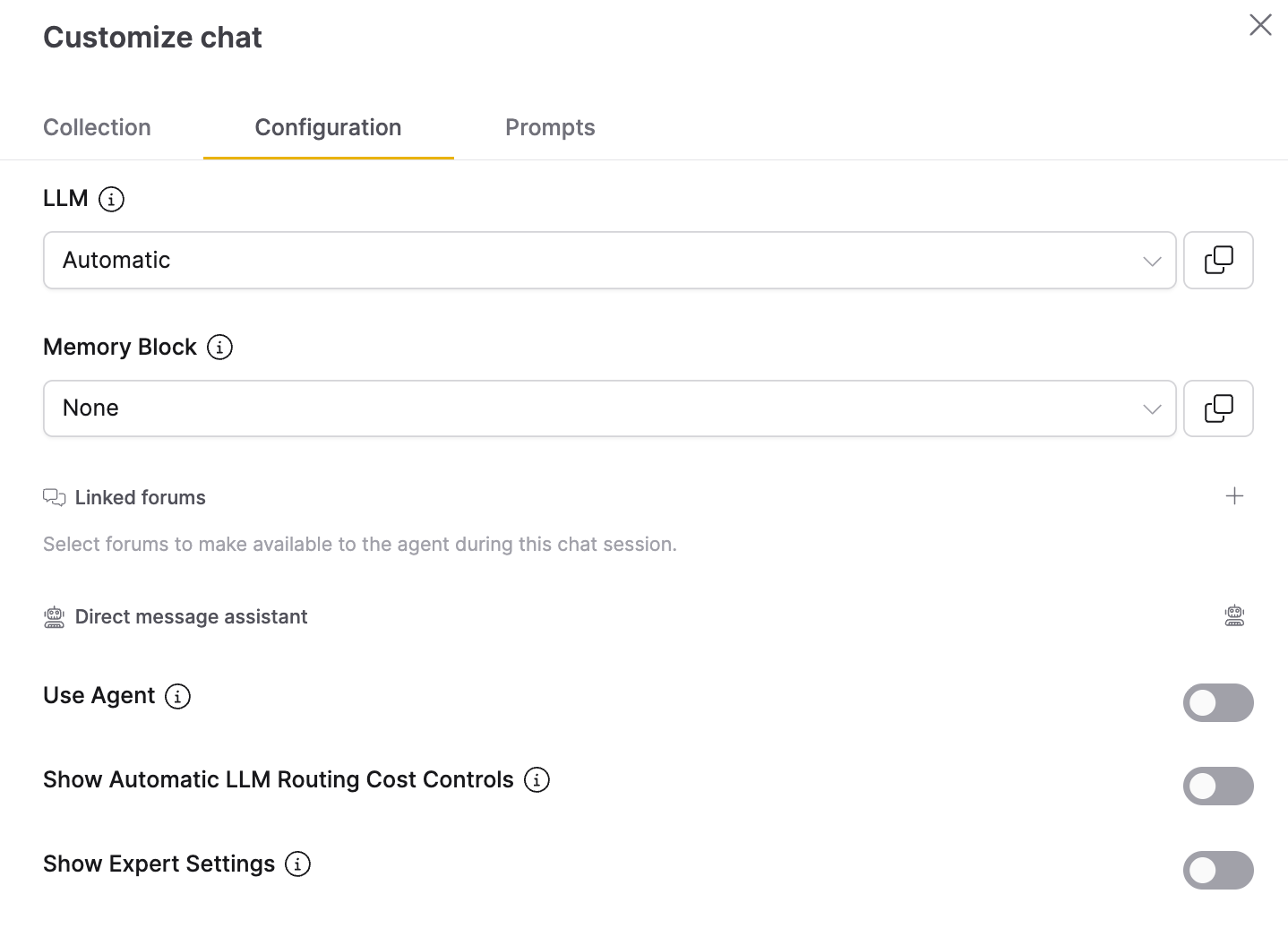
You can also attach a memory block through llm_args when sending a query. Reference the memory block by ID or name.
By ID:
with client.connect(chat_session_id) as session:
    reply = session.query(
        message="What is our project reference number?",
        llm_args={"memory_block_id": "your-memory-block-uuid"},
        timeout=120,
    )
By name:
with client.connect(chat_session_id) as session:
    reply = session.query(
        message="What is our project reference number?",
        llm_args={"memory_block_name": "Project Knowledge"},
        timeout=120,
    )
Name lookup matches only memory blocks owned by the current user with that exact name. To use a shared or public memory block, pass its memory_block_id instead.
Use a memory block with an agent
Include both the memory block reference and use_agent: True in llm_args:
with client.connect(chat_session_id) as session:
    reply = session.query(
        message="Analyze our Q1 sales data and save key findings.",
        llm_args={
            "memory_block_id": "your-memory-block-uuid",
            "use_agent": True,
            "max_time": 90,
        },
        timeout=180,
    )
Use a memory block with an AI Assistant
When creating an AI Assistant, select a memory block from the Memory Block dropdown. All chat sessions with that assistant use the selected memory block automatically without passing it in llm_args.
Injection modes
| Mode | Value | Behavior | Best for |
|---|---|---|---|
| System prompt | system_prompt (default) | Wraps content in <agent_memory name="..."> XML tags and appends it to the system prompt. | Persistent background context. |
| User instruction | user_instruction | Wraps content in <agent_memory name="..."> XML tags and prepends it to the user's message. | When memory should take precedence over system prompt instructions. |
| Agent file | agent_file | Writes content to an AGENTS.md file in the agent's working directory. The agent reads this projection; editing the file does not change stored memory. | Agent chats that read context from a file. |
| Agent tool | agent_tool | Adds no memory content to the prompt and creates no file. The assistant calls Read memory to fetch content and selected notes, and Update memory to save or remove keyed entries. | AI Assistants that should decide when to read and write memory, especially for large memory blocks you don't want injected into every prompt. |
Agent file and Agent tool describe mechanisms that exist only during an agent run. In a non-agent (LLM only) chat, there is no working directory and no memory tools, so Enterprise h2oGPTe falls back to the System prompt behavior: readable content and selected notes are added to the system prompt, and the LLM writes entries with <memory_update> tags. The access mode still applies, so a Write only block has no content or note values added to the prompt.
Agent tool mode only works with AI Assistants, not regular agent chats. A regular agent chat can't reach an agent_tool block — use Agent file or System prompt mode there instead.
Access modes
The access mode determines whether the LLM or agent can read the memory, write to it, or both.
| Mode | Value | LLM chats | Agent chats | Best for |
|---|---|---|---|---|
| Read & Write | read_write (default) | Reads content and selected notes; saves or removes keyed entries. | Reads through the configured injection mode; saves or removes keyed entries. | General-purpose memory. |
| Read only | read | Reads memory; cannot write entries. | Reads memory; cannot write entries. | Stable reference data. |
| Write only | write | Cannot read memory; can save keyed entries. | Cannot read memory; can save keyed entries. | Note-taking without influence from previous memory. |
These modes control model access. Owners and users with edit permission can still edit legacy content and delete entries, including on a block configured as read only for the model.
An AI Assistant with a connected memory block gets the Read memory and Update memory tools according to the block's access mode — see Tool visibility is controlled by access mode. This applies regardless of injection mode, but in Agent tool mode these tools are the assistant's only way to reach the memory.
How models update memory
A memory block has two regions: content, the user's editable prose, and entries, the model's saved facts. Existing content is retained. Model writes update entries without appending to or replacing content.
When enabled for a chat, the model is taught to emit operations with one key: value per line:
<memory_update>
project_deadline: March 15, 2027
preferred_language: German
</memory_update>
The model must put operation tags outside Markdown code fences in its actual response. Fenced examples remain part of the answer and are not executed. Writing the same normalized key replaces its value; an empty value (preferred_language:) removes that entry when the model has read and write access. Keys are normalized for case and whitespace. Distinct keys are not automatically merged by meaning.
Enterprise h2oGPTe checks memory writes with the configured output guardrails before saving and removes operation tags from the visible reply. The reply shows counts of saved, forgotten, and refused facts. A blocked memory write does not by itself stop the conversation; the answer text receives its own output check. A reply consisting only of memory operations shows a short outcome message.
Agent runs can emit operations during intermediate steps. Only operations from the current run are recovered into the final result, in order, with final-answer operations last. Historical tags are not replayed on later questions. AGENTS.md is a read-only projection of content and selected entries; file changes are never saved back to memory.
Assistant memory tools and existing scripts
The assistant's generated read_memory_block() tool returns content (legacy user prose), notes (a key/value map of entries selected by the current budget), and updated_at. Budget-excluded entries remain available in memory management but are not returned by this model-facing read tool.
The generated write tool uses keyed arguments:
update_memory_block(key="project_deadline", value="March 15, 2027")
update_memory_block(key="project_deadline", delete=True)
Existing custom assistant scripts or stored instructions that call the generated tool as update_memory_block(content=...) must be updated to the keyed signature. There is no automatic conversion of an old content string into entries. The user-facing management SDK method of the same name still supports editing legacy content; it is a different API from the assistant's generated tool. Direct user RPC upsert of entries is forbidden. Users manage entries by viewing and deleting them.
How agent tool mode works
With agent_tool injection mode, the memory block's content and notes are not pre-injected into the system prompt, the user message, or an AGENTS.md file. The assistant reads and updates memory by calling two tools:
| Tool palette label | Function called | What it does |
|---|---|---|
| Read memory | read_memory_block() | Fetches the content and budget-selected notes of the connected memory block. |
| Update memory | update_memory_block() | Saves or replaces one keyed fact, or removes it when the model has read and write access. |
The assistant must call Read memory before it can use existing memory content and notes.
Nothing is saved unless the assistant calls Update memory.
Tool visibility is controlled by access mode
Which of the two tools appear in the assistant's tool palette is determined by the connected memory block's access mode, not by the assistant's own tool settings:
| Access mode | Tools shown in the palette |
|---|---|
read | Only Read memory |
write | Only Update memory |
read_write | Both Read memory and Update memory |
| No memory block connected | Neither tool |
For a memory tool that the access mode allows, your Allow, Approve, or Deny setting on that tab still applies. For example, set Update memory to Approve to review each memory write before the assistant saves it.
In the assistant's Custom tool tab, tools the access mode doesn't allow show a lock icon with a tooltip and can't be changed (locked to Deny). Tools the access mode does allow appear as normal rows you can still edit. Edit the connected memory block's access mode to change which tools are available, instead of changing the tool permission directly.
Context budget and capacity
max_content_length supplies the entries context budget, with a default of 10,000 characters. The model receives the most recently updated entries that fit. Entries excluded by the budget remain stored and visible in management; lowering the budget does not delete them. An individual new note must fit the block's whole budget.
-1 disables the block's custom maximum; entries then use the 100,000-character fallback context budget. A block can store at most 500 entries. At capacity, new keys are refused while existing keys can still be updated or deleted. Deleting an entry frees capacity and can bring older entries back into the context budget.
Deleting an entry does not erase legacy content or prevent the model from learning the fact again in a future conversation. This release does not define a conflict priority between content and entries.
- Submit and view feedback for this page
- Send feedback about Enterprise h2oGPTe to cloud-feedback@h2o.ai