Auto-Sync Connector Jobs
Overview
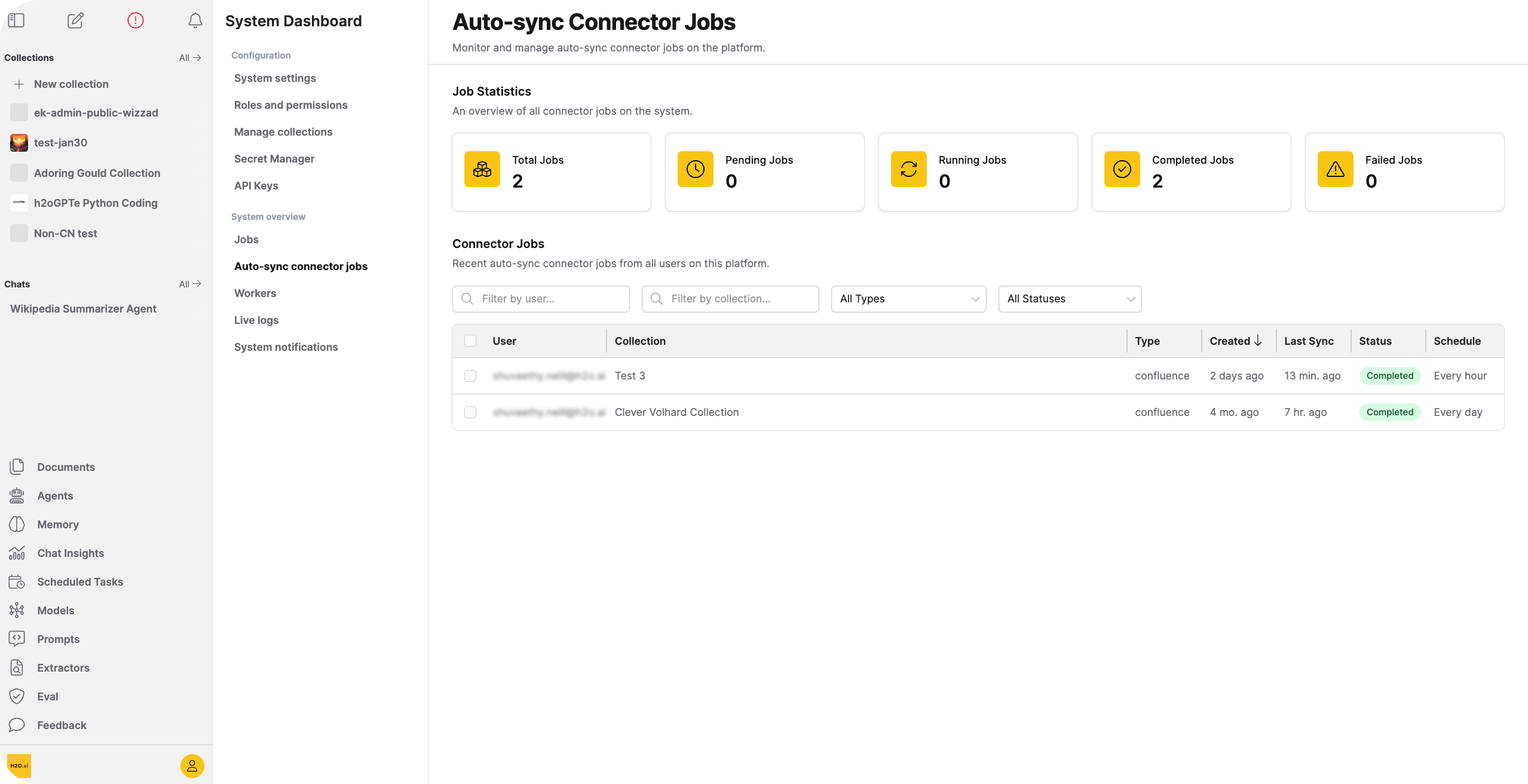
The Auto-Sync Connector Jobs section on the System Dashboard page provides administrators with a centralized view of all auto-sync connector jobs in the system. Use this page to monitor sync status, troubleshoot failed jobs, and manage connector jobs across the system.
This page is available to administrators by default. Individual users can manage their own connectors from within their collections. To learn more, see Auto-Sync Connectors.
Job statistics
At the top of the page, stat cards display an overview of job counts:
| Stat | Description |
|---|---|
| Total Jobs | Total number of auto-sync connector jobs |
| Pending Jobs | Jobs scheduled but not yet started |
| Running Jobs | Jobs currently in progress |
| Completed Jobs | Jobs that finished successfully |
| Failed Jobs | Jobs that encountered an error |
Jobs table
The jobs table displays all auto-sync connector jobs with the following columns:
| Column | Description |
|---|---|
| User | The user who created the job (admin view only) |
| Collection | The collection receiving synced documents |
| Type | The connector type (S3, Azure Blob Storage, etc.) |
| Created | When the connector was first configured |
| Last Sync | When the last sync occurred |
| Status | Current sync status (Pending, Running, Completed, Failed, Paused) |
| Schedule | Sync frequency (Every hour, Every day) |
Sorting
Click any column header to sort jobs by that column. Sortable columns include:
- User (admin view only)
- Collection
- Type
- Created
- Last Sync
Filtering
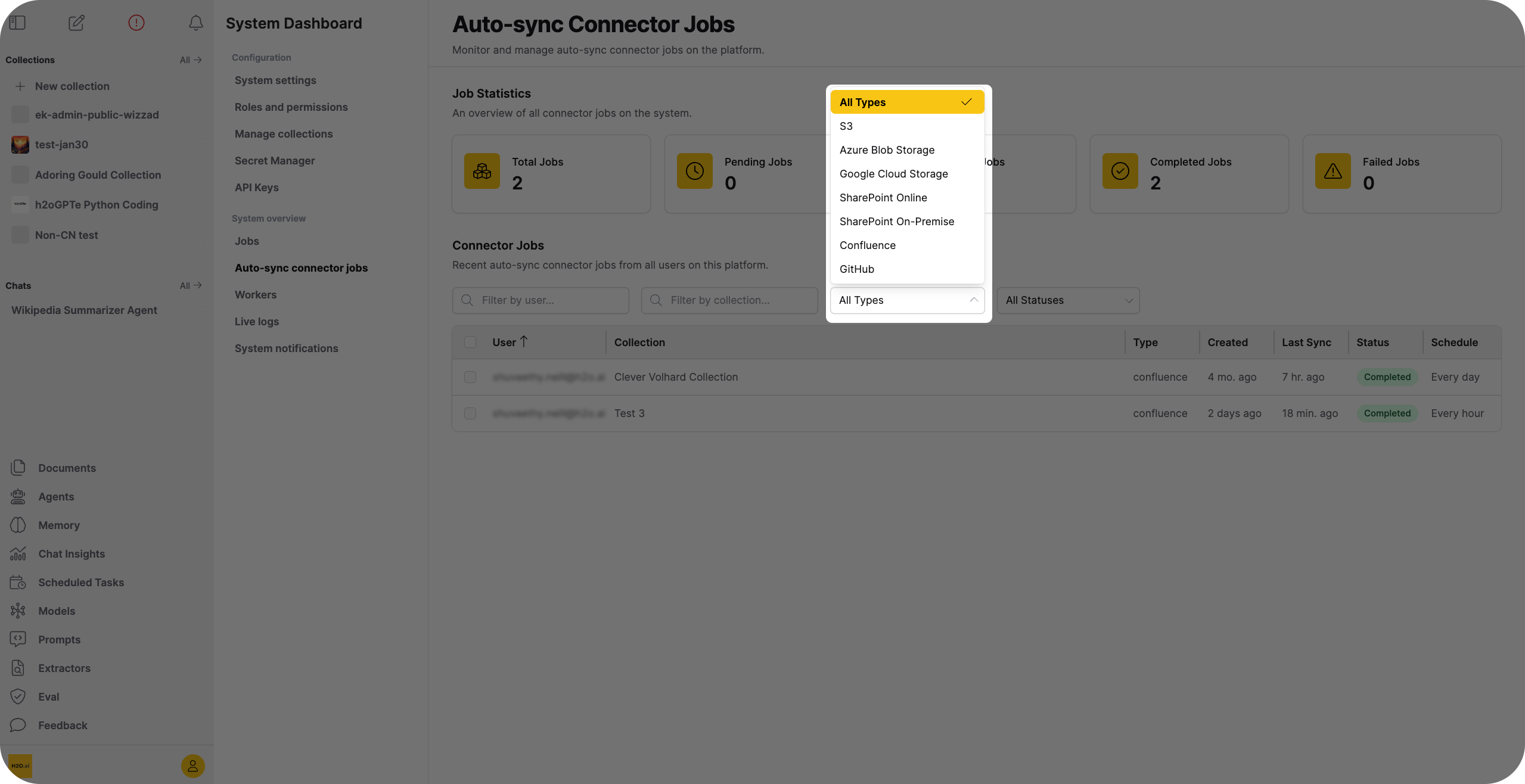
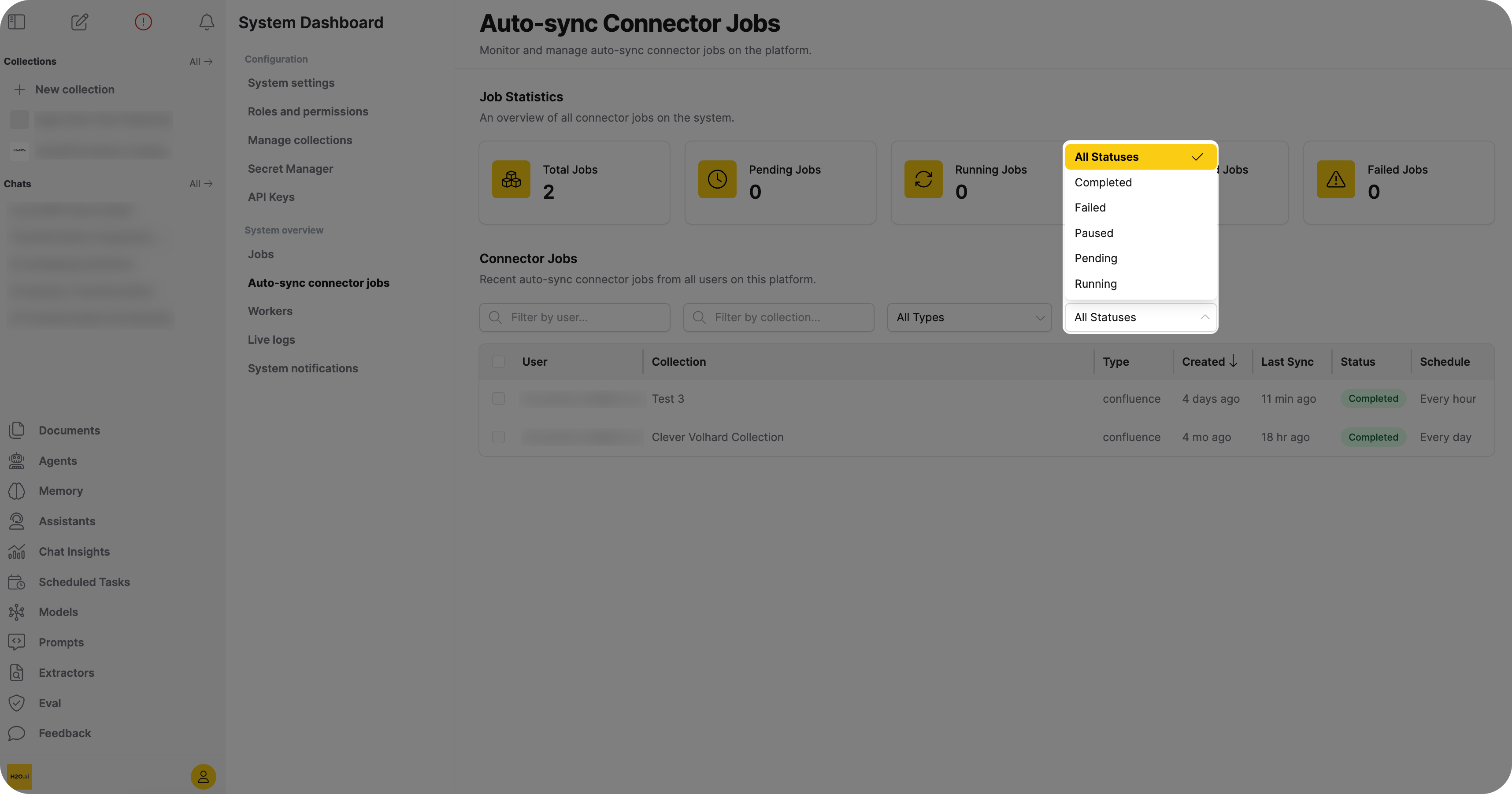
Use the filter controls at the top of the table to narrow down results:
| Filter | Description |
|---|---|
| User | Type to search by username (admin view only) |
| Collection | Type to search by collection name |
| Connector type | Select from dropdown: S3, Azure Blob Storage, Google Cloud Storage, SharePoint Online, SharePoint On-Premise, Confluence |
| Status | Select from dropdown: Pending, Running, Completed, Failed, Paused |
Results update automatically as you type or select filter options.
Tooltips
Hover over the following table elements to see more information:
- Collection names: Shows the collection ID
- Usernames: Shows user ID and email
- Dates: Shows the exact timestamp
- Failed or Paused status: Shows error details explaining why the sync failed or was paused
Infinite scrolling
The jobs table uses infinite scrolling to load data incrementally. As you scroll down, the table automatically loads additional jobs. You don't need to click pagination buttons or manually load more results.
Delete jobs
To delete auto-sync jobs:
- Select one or more jobs using the checkboxes.
- Click the Delete button.
- Confirm the deletion when prompted.
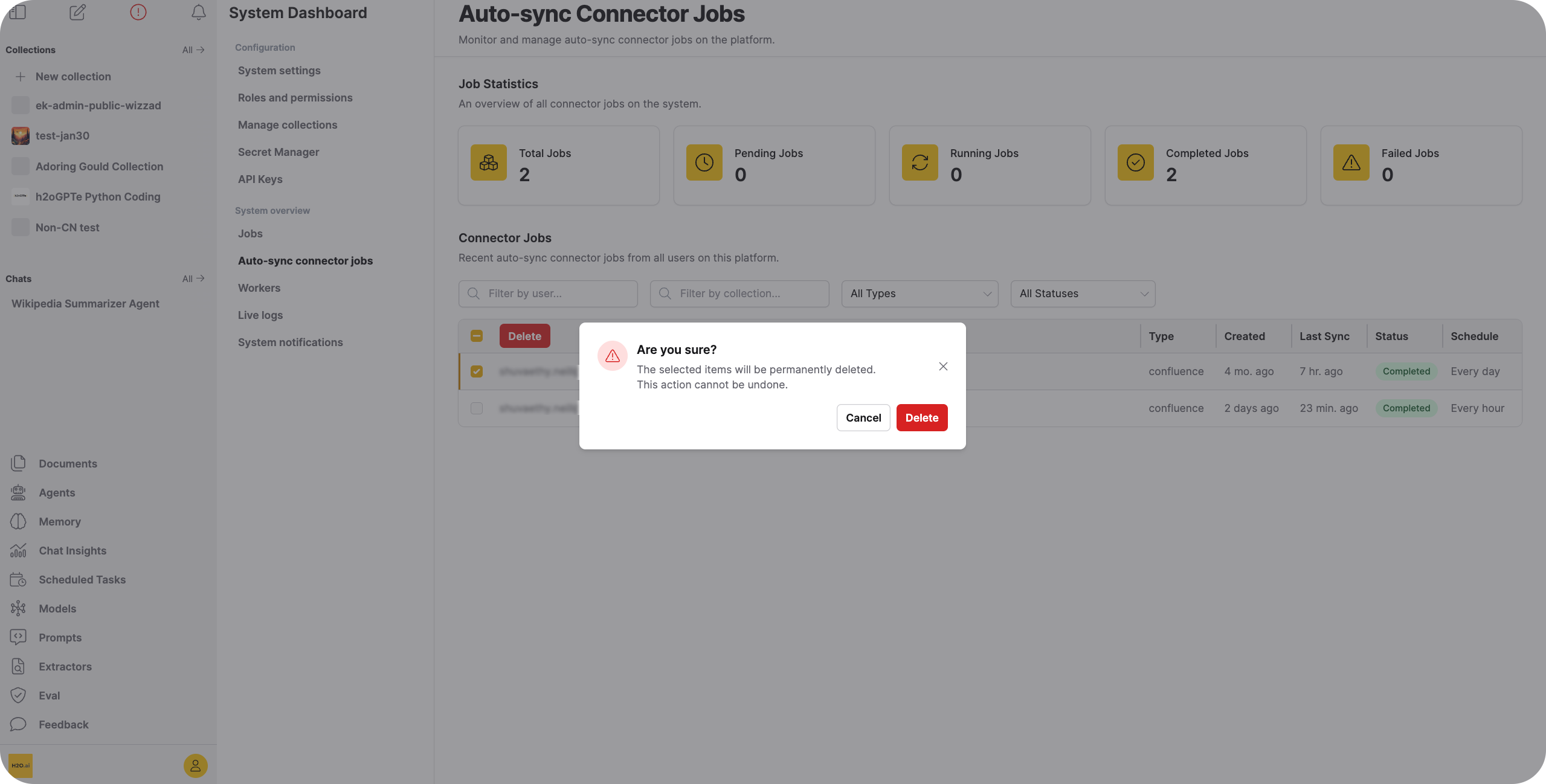
Deleting a connector job permanently stops future synchronization for that connector. Documents already imported remain in their collections.
- Submit and view feedback for this page
- Send feedback about Enterprise h2oGPTe to cloud-feedback@h2o.ai