SharePoint OAuth setup
Overview
SharePoint Online OAuth enables users to connect their Microsoft 365 accounts and import documents from SharePoint sites without sharing service account credentials.
This page covers the administrator setup. To learn how end users import documents from SharePoint, see Import from SharePoint Online. For the OAuth setting reference and configuration through the API or SDK, see Data connectors and OAuth.
Prerequisites
- A Microsoft Entra ID tenant (formerly Azure Active Directory).
- Global Administrator or Application Administrator role in Microsoft Entra ID.
- An Enterprise h2oGPTe deployment with a public HTTPS URL.
Step 1: Register a multi-tenant app in Microsoft Entra ID
- Sign in to the Azure Portal.
- Go to Microsoft Entra ID > App registrations.
- Select New registration.
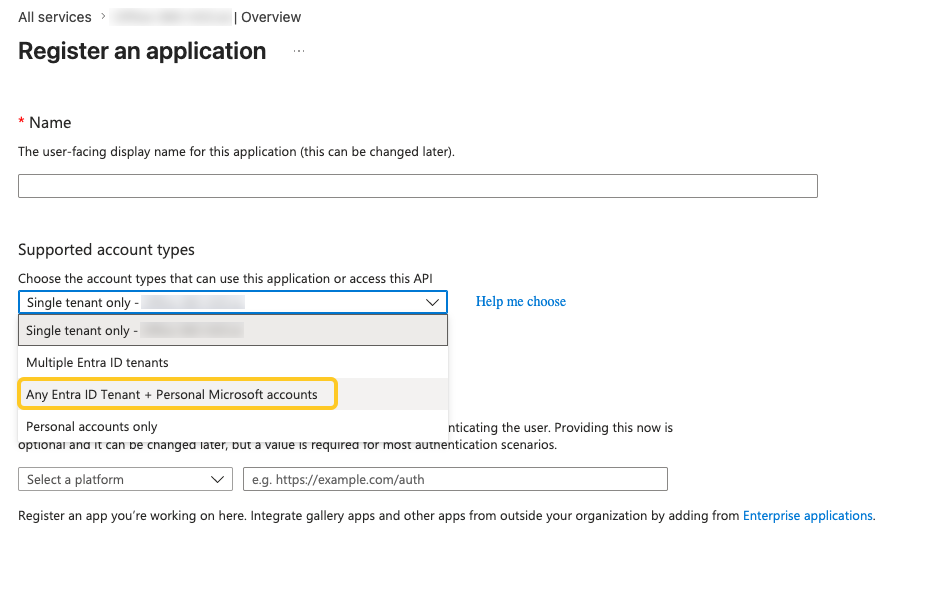
- Set the following fields:
-
Name: Enter a name (for example,
H2O GPTe SharePoint Connector). -
Supported account types: Select Any Entra ID Tenant + Personal Microsoft accounts.
noteThis option allows personal Microsoft accounts (such as Outlook.com and Xbox) to authenticate, in addition to organizational accounts. If your deployment should only allow organizational accounts, select Multiple Entra ID tenants instead.
-
Redirect URI: Select Web, then enter
https://<your-h2ogpte-domain>/api/v1/connectors/sharepoint/callback.
-
- Select Register.
Step 2: Copy the Application (client) ID
- On the app's Overview page, locate the Application (client) ID field.
- Select the copy icon and save the value. You enter it in the System Dashboard in Step 5.
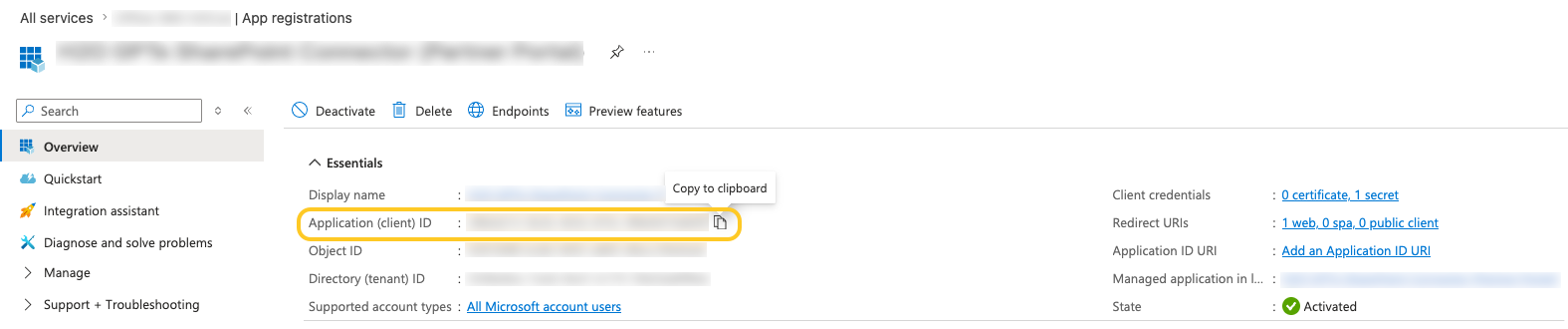
Copy the Application (client) ID from the Overview tab. A different Client ID field appears under Certificates & secrets. Don't use that one.
Step 3: Create a client secret
- In the app registration, go to Certificates & secrets.
- Select New client secret.
- Enter a description (for example,
Enterprise h2oGPTe production). - Select an expiry period. H2O recommends 24 months and a documented rotation policy.
- Select Add.
- Copy the secret Value and save it securely.
Microsoft Entra ID displays the secret value only once. Copy and store the value before leaving the page.
Step 4: Configure API permissions
-
In the app registration, go to API permissions.
-
Select Add a permission > Microsoft Graph > Delegated permissions.
-
Add the following permissions:
Permission Purpose Files.Read.AllRead files in all site collections the user has access to. Sites.Read.AllRead items in all site collections the user has access to. User.ReadSign in the user and read the user profile. offline_accessMaintain access through token refresh. -
Select Add permissions.
Don't grant admin consent at this stage. For a multi-tenant app, each customer organization grants consent separately. See Step 6.
Step 5: Configure SharePoint OAuth in Enterprise h2oGPTe
-
In Enterprise h2oGPTe, click Account Circle.
-
Select System Dashboard.
-
In the Configuration section, click System settings.
-
Scroll down to the OAUTH category.
-
Set the following values:
Setting Value to enter SharePoint OAuth Client ID The Application (client) ID from Step 2. SharePoint OAuth Client Secret The client secret value from Step 3. Stored encrypted. SharePoint OAuth Tenant ID commonfor multi-tenant access, or your specific Microsoft Entra ID tenant ID.SharePoint OAuth Redirect URL The redirect URI from Step 1. The value must match exactly. SharePoint OAuth Scopes The default value covers the required Microsoft Graph scopes.
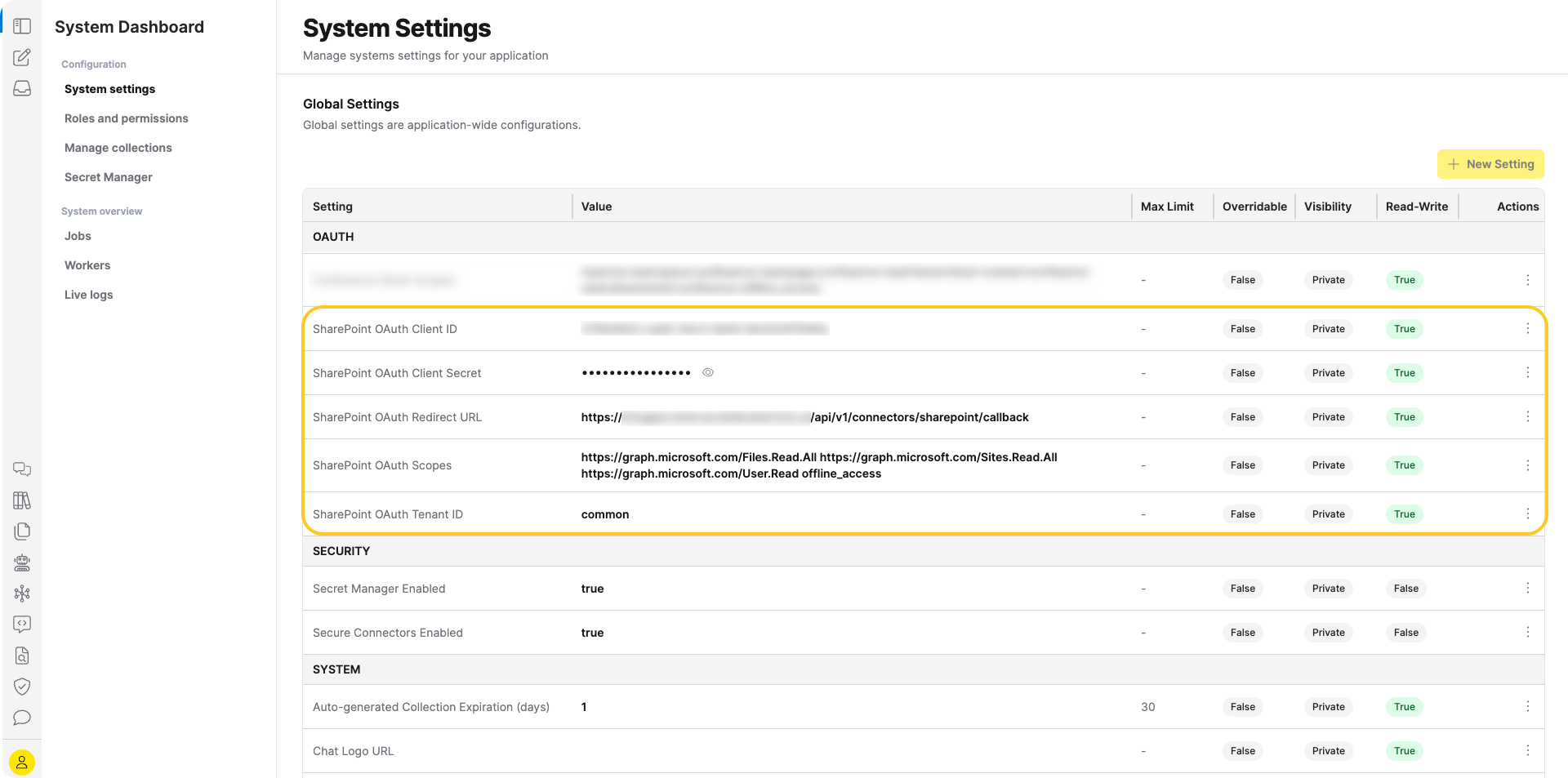
For per-setting details and configuration through the REST API or Python SDK, see Data connectors and OAuth.
Step 6: Grant admin consent (per customer organization)
Because the app is multi-tenant, each customer organization must grant admin consent before its users can authenticate. Send the customer administrator an admin consent URL in the following format:
https://login.microsoftonline.com/common/adminconsent?client_id=<your_client_id>&redirect_uri=https://<your-h2ogpte-domain>/api/v1/connectors/sharepoint/callback
The customer administrator opens the URL, signs in, reviews the requested permissions, and selects Accept. Once the administrator grants consent, all users in the organization can authenticate with SharePoint OAuth.
Some organizations enable user-level consent in their Microsoft Entra ID tenant, allowing users to grant consent at first login without administrator approval. Many organizations turn off user consent for security reasons.
Troubleshooting
Client ID not configured
Cause: The SharePoint OAuth Client ID isn't set in the System Dashboard.
Resolution: Set the SharePoint OAuth Client ID value in the OAUTH category of System settings, or set the matching environment variable on the deployment.
Admin consent required
The login flow returns the error AADSTS90094: The grant requires admin permission.
Cause: The customer organization hasn't granted admin consent.
Resolution: Send the admin consent URL (see Step 6) to the customer's Microsoft Entra ID administrator.
Invalid redirect URI
Cause: The redirect URI in Microsoft Entra ID doesn't match the value configured in Enterprise h2oGPTe.
Resolution: Verify that the SharePoint OAuth Redirect URL in the System Dashboard exactly matches the Redirect URI in the Microsoft Entra ID app registration. The protocol (https://), domain, and path (/api/v1/connectors/sharepoint/callback) must all match.
Token refresh fails
Cause: The offline_access scope is missing, the client secret has expired, or the secret value is incorrect.
Resolution:
- Confirm that
offline_accessappears in the API permissions for the app. - Check the secret expiry date in Certificates & secrets in the Azure Portal.
- Verify that the SharePoint OAuth Client Secret value matches the one in the Azure Portal.
Users cannot see SharePoint sites
Cause: Missing permissions, incomplete admin consent, or the user lacks access to SharePoint sites in their organization.
Resolution:
- Confirm that
Sites.Read.AllandFiles.Read.Allappear in the API permissions. - Confirm that the customer organization granted admin consent.
- Confirm that the user has access to SharePoint sites in their organization.
Best practices
- Rotate client secrets periodically: Schedule rotation before the expiry date to avoid service interruption.
- Store secrets securely: Use environment-specific credentials and don't commit secret values to version control.
- Use HTTPS for redirect URIs: Microsoft Entra ID requires HTTPS for non-localhost redirect URIs.
- Review granted permissions regularly: Audit the API permissions and admin consents in the Azure Portal.
Related topics
- Data connectors and OAuth - Per-setting reference for SharePoint, Confluence, and Snowflake OAuth configuration
- Import from SharePoint Online - End-user workflow for importing SharePoint documents into a collection
- Secret Manager - Manage app-based SharePoint credentials as an alternative to OAuth
- Connectors - Overview of all available data connectors
- Submit and view feedback for this page
- Send feedback about Enterprise h2oGPTe to cloud-feedback@h2o.ai