VEX Migration
The VEX Migration page gives administrators a live view of a backend-to-backend vector index migration. Use it to track progress, identify failed collections, and retry individual failures — all without restarting the deployment.
The page is only relevant while a migration is configured. If no migration is running, the page still opens but shows zero activity.
This page is intended for administrators who are running or have recently run a vector index migration. For configuration instructions and a full explanation of the blocking migration strategy, see Migrating between backends.
How to open it
- Sign in as a user with the admin role.
- In Enterprise h2oGPTe, click Account Circle.
- Select System Dashboard.
- Under System overview, click VEX Migration.
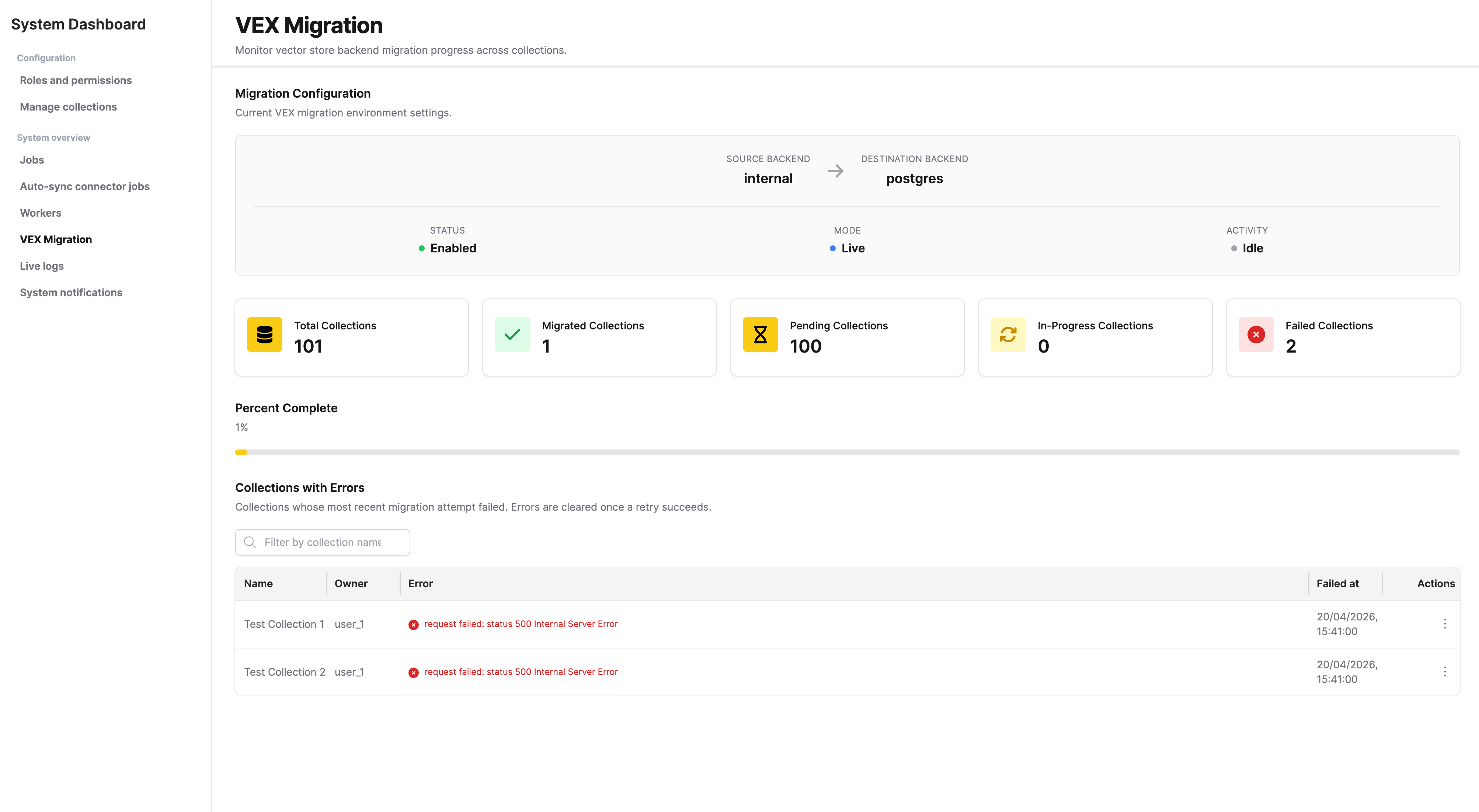
Migration Configuration
The top section shows the settings currently active on the running deployment.
| Field | What it shows |
|---|---|
| Source backend | The backend collections are being read from (for example, internal for embedded HNSW/SQLite). |
| Destination backend | The backend collections are being written to (for example, postgres). |
| Status | Enabled when a migration is configured; Disabled when mux.config.vexMigration.enabled is false. |
| Mode | Blocking — mux halts startup until the migration completes. Live — migration runs as a background loop while the deployment serves traffic normally. |
| Activity | Pulses while the background sweep is running or while any collection cluster-wide is actively copying. A steady (non-pulsing) indicator means the sweep is idle. |
Live mode configuration is not yet published in this release's docs — see Vector database for what's currently documented.
Summary stats
Five cards below the configuration panel count collections by their current migration state. When the migration is disabled, the Pending and In progress cards are hidden.
| Card | What it counts |
|---|---|
| Total | All collections in the deployment. |
| Migrated | Collections successfully moved to the destination backend. |
| Pending | Collections still on the source backend, waiting to be copied. |
| In progress | Collections actively being copied at this moment. |
| Failed | Collections whose most recent migration attempt ended in an error. These also appear in the failed-collections table below. |
A progress bar shows the percentage of collections that have been migrated (Migrated ÷ Total). It only appears when a migration is enabled and at least one collection exists.
Collections with errors
This table lists every collection whose most recent migration attempt failed. Use it to diagnose and retry failures.
Columns:
- Collection — name of the collection (or the collection ID if no name is set).
- Owner — username of the collection's owner.
- Error — the error message recorded when the migration attempt failed.
- Failed at — timestamp of the failure.
- Actions — a Retry button that queues the collection for an immediate re-migration attempt.
Filtering and pagination: Use the search box to filter by collection name or owner. Results are paginated.
Retrying a failed collection: Click Retry on a row to queue that collection for re-migration. The retry runs asynchronously — the row clears from the table once the retry succeeds. If the retry fails again, the row reappears with an updated error and timestamp.
A failed collection usually means the migration worker hit a timeout or encountered a transient error. Check the mux service logs for details before retrying, especially if many collections failed at the same time.
Auto-refresh
The page refreshes automatically every 30 seconds:
- Stats cards and progress bar refresh on every tick.
- Failed-collections table refreshes only when you are on page 1 with no active search filter, so an ongoing search is not interrupted by an automatic reload.
Related topics
- Migrating between backends — Helm configuration for blocking migration.
- Vector database — Supported backends and how to choose between them.
- Submit and view feedback for this page
- Send feedback about Enterprise h2oGPTe to cloud-feedback@h2o.ai