Workspace tracking
Overview
Enterprise h2oGPTe assigns each collection and chat session to exactly one workspace. It tags all telemetry events with the workspace identifier so that you can attribute usage to specific workspaces.
How workspace tracking works
When you sign in, Enterprise h2oGPTe:
- Retrieves the workspaces you have access to from H2O AI Cloud.
- Assigns your personal workspace as the default for new collections and chat sessions.
- Stores a workspace identifier with each collection and chat session.
- Tags all telemetry events — document processing, chat actions, and collection actions — with the workspace identifier.
Personal workspace
Your H2O AI Cloud account includes a personal workspace. Enterprise h2oGPTe uses your personal workspace as the default for new collections and chat sessions.
If you are not signed in, Enterprise h2oGPTe assigns you to a default guest workspace.
Instructions
Set the workspace for a new collection
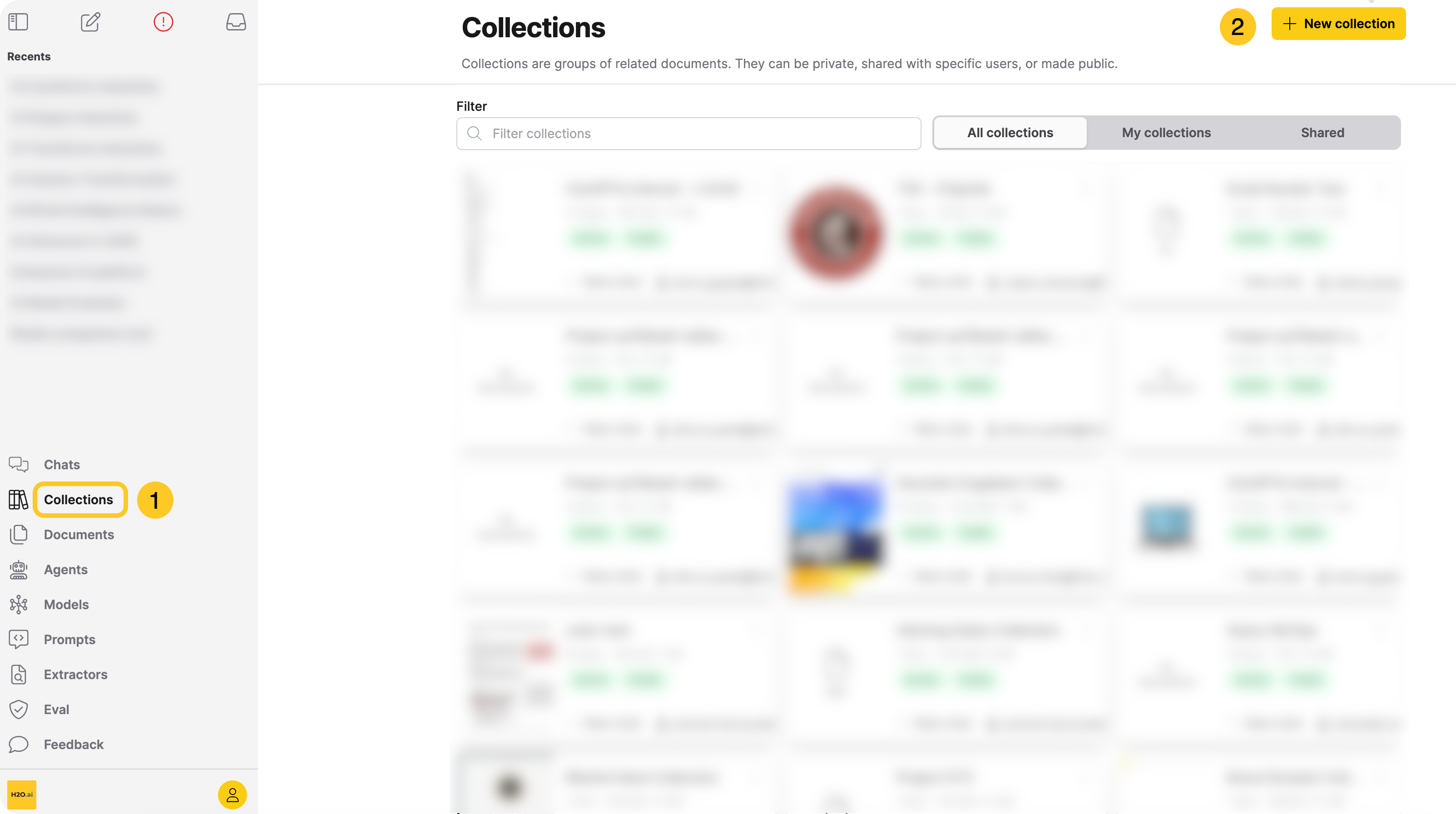
- In the Enterprise h2oGPTe navigation menu, click Collections.
- Click + New.
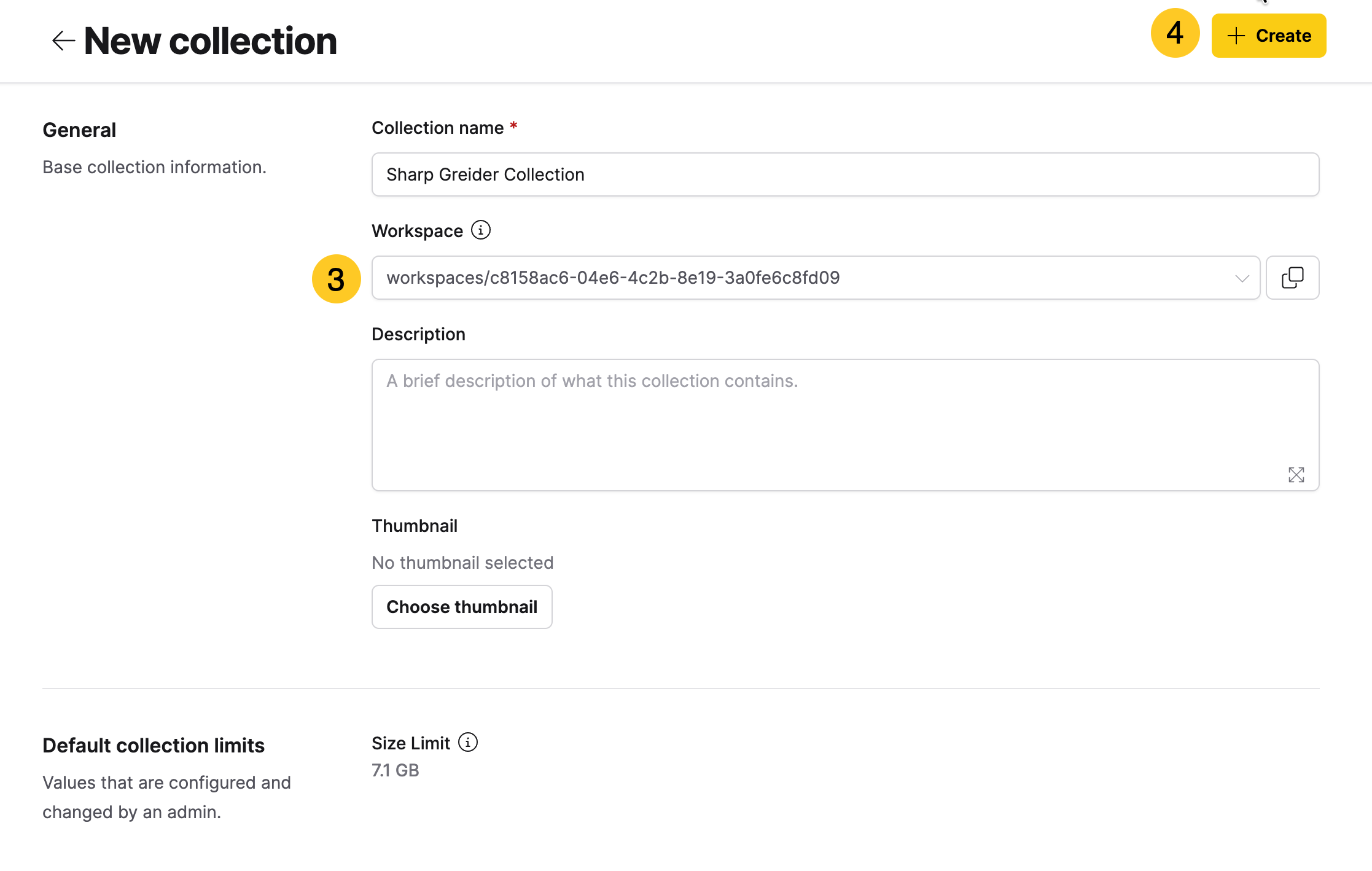
- From the Workspace dropdown, select a workspace.
- Complete the remaining collection settings and click + Create.
Change the workspace for an existing collection
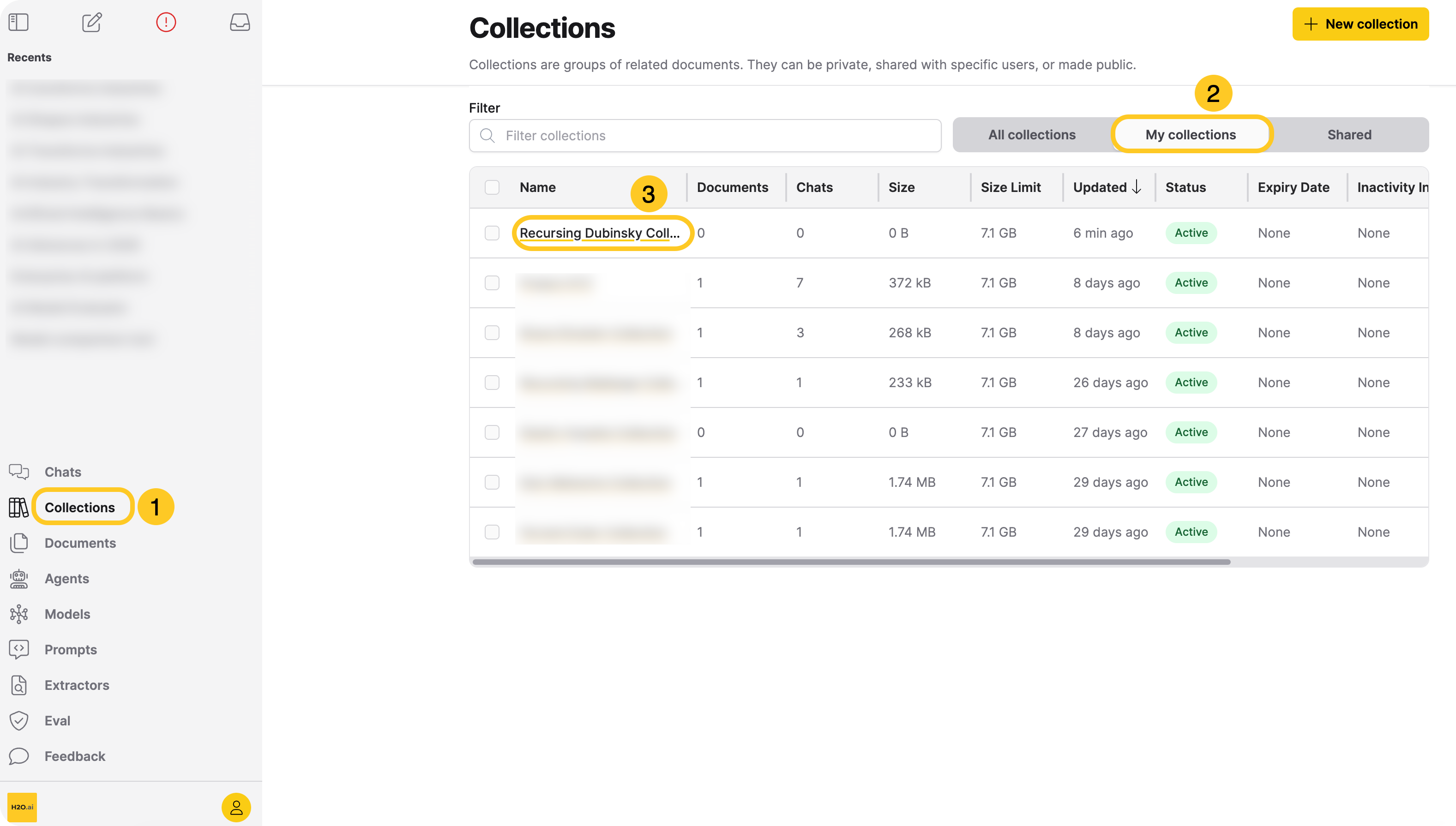
- In the Enterprise h2oGPTe navigation menu, click Collections.
- Click the My collections tab.
- Click the collection you want to update.
- Click Open settings.
- From the Workspace dropdown, select a new workspace.
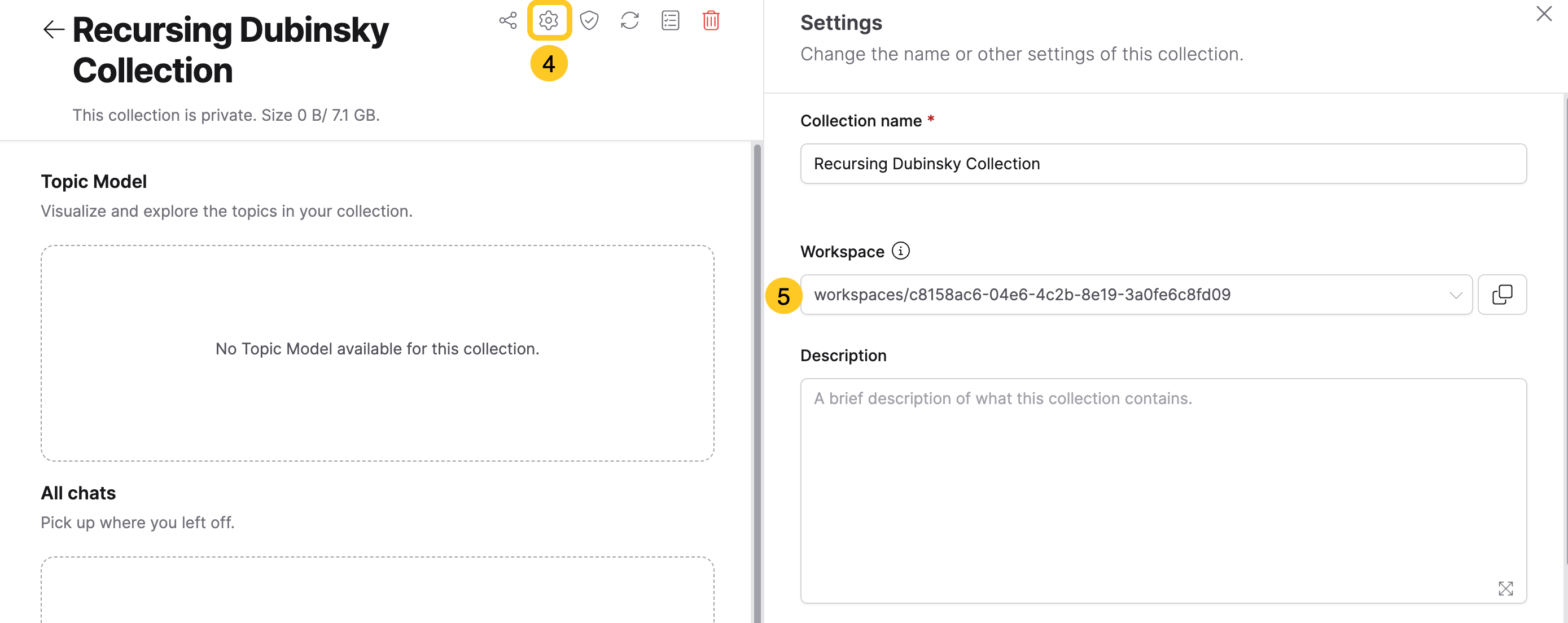
Enterprise h2oGPTe saves the workspace change automatically.
- To access the Open settings button, you need the Display developer settings permission.
- You can change the workspace only if you are the collection owner. If you are not the collection owner, the Workspace dropdown is disabled.
Change the workspace for a chat session
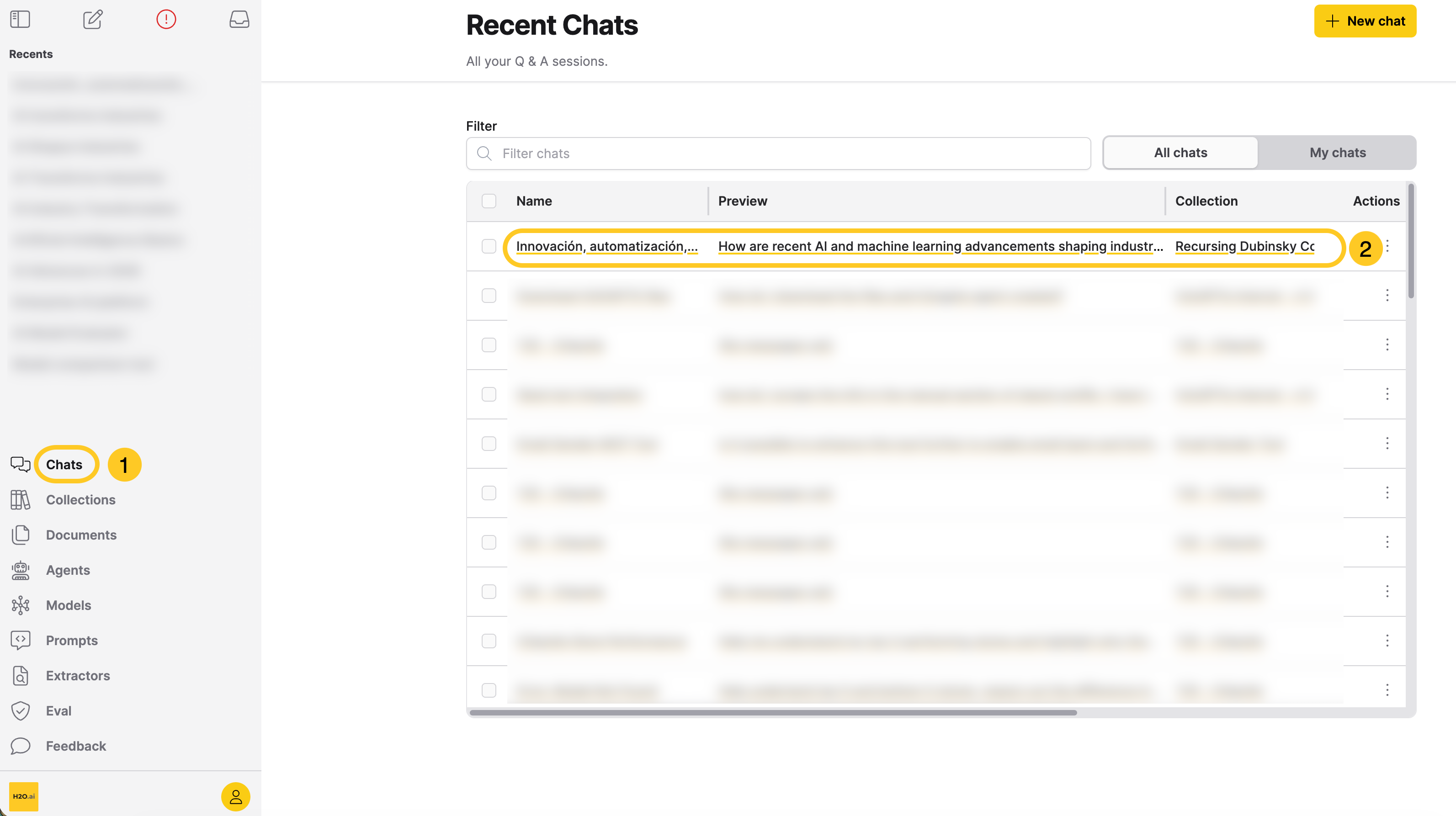
- In the Enterprise h2oGPTe navigation menu, click Chats.
- In the Recent Chats table, click the chat session you want to update.
- Click Customize.
- From the Workspace dropdown, select a new workspace.
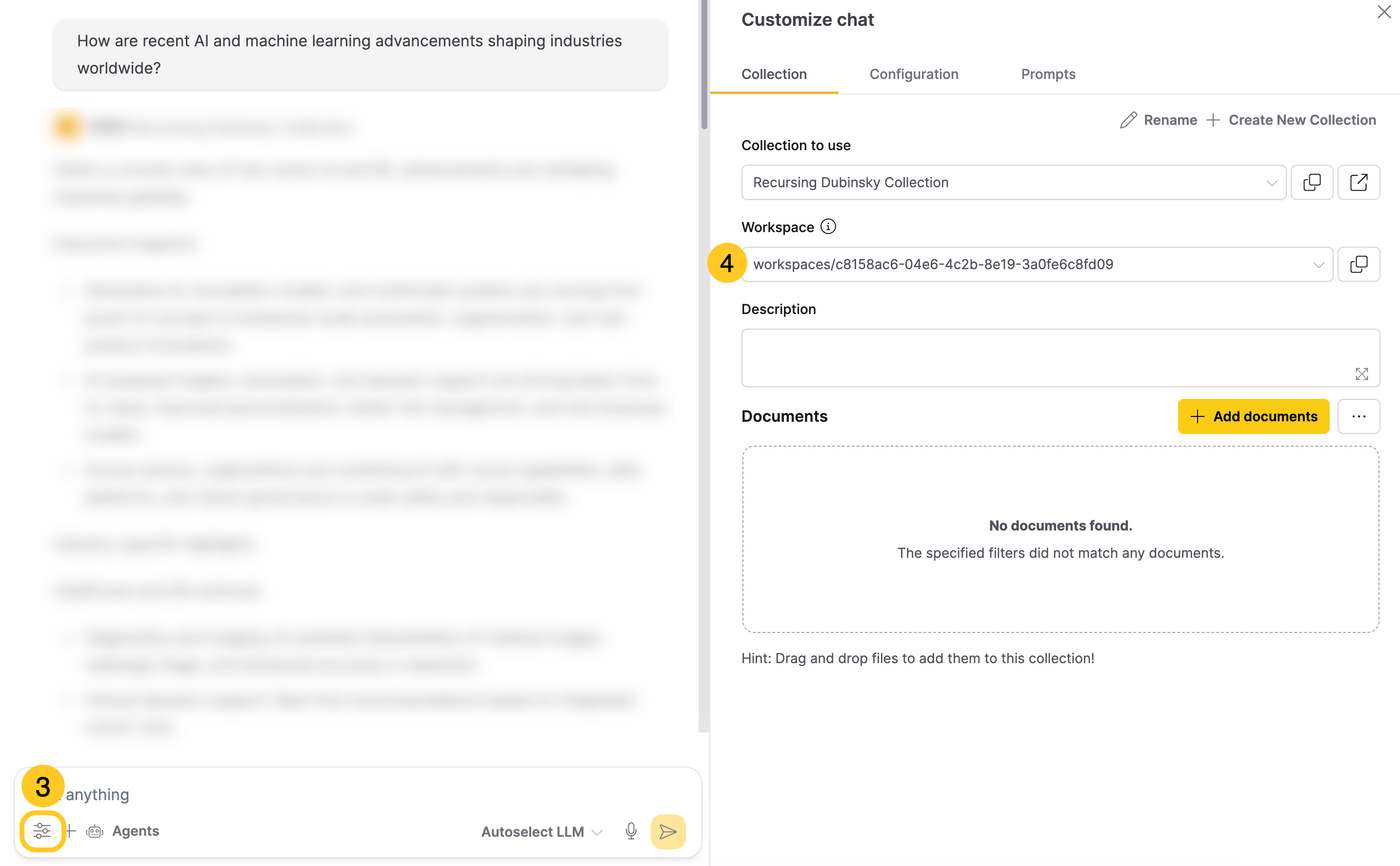
- To access the Customize button, you need the Display developer settings permission.
- For collection-linked chats, you can change the workspace only if you are the collection owner. If you are not the collection owner, the Workspace dropdown is disabled.
- For standalone chats, you can change the workspace only if you created the chat session.
For collection-linked chats, changing the workspace updates the collection's workspace and applies the change to all other chat sessions linked to that collection.
Limitations
Workspace tracking has the following limitations:
To analyze per-workspace costs and usage, query the telemetry events that include workspace identifiers. The UI and Python client do not include built-in per-workspace dashboards.
- Submit and view feedback for this page
- Send feedback about Enterprise h2oGPTe to cloud-feedback@h2o.ai