Share a Chat session
Overview
After engaging in a Chat with a Collection, you can share it as a read-only copy. When sharing, you choose how the chat is shared:
- Visibility: Control who can access the shared chat — anyone with the link (public) or only authenticated users (private).
- Content updates: Choose between a frozen snapshot of the current conversation or a live link that includes future messages as they are added.
- Artifacts: Optionally include files and artifacts generated or used by agents during the conversation.
You can share Chats even if the underlying Collection is set to private. Sharing a Chat does not share the Collection itself.
Share a Chat
To share a Chat session, follow these steps:
-
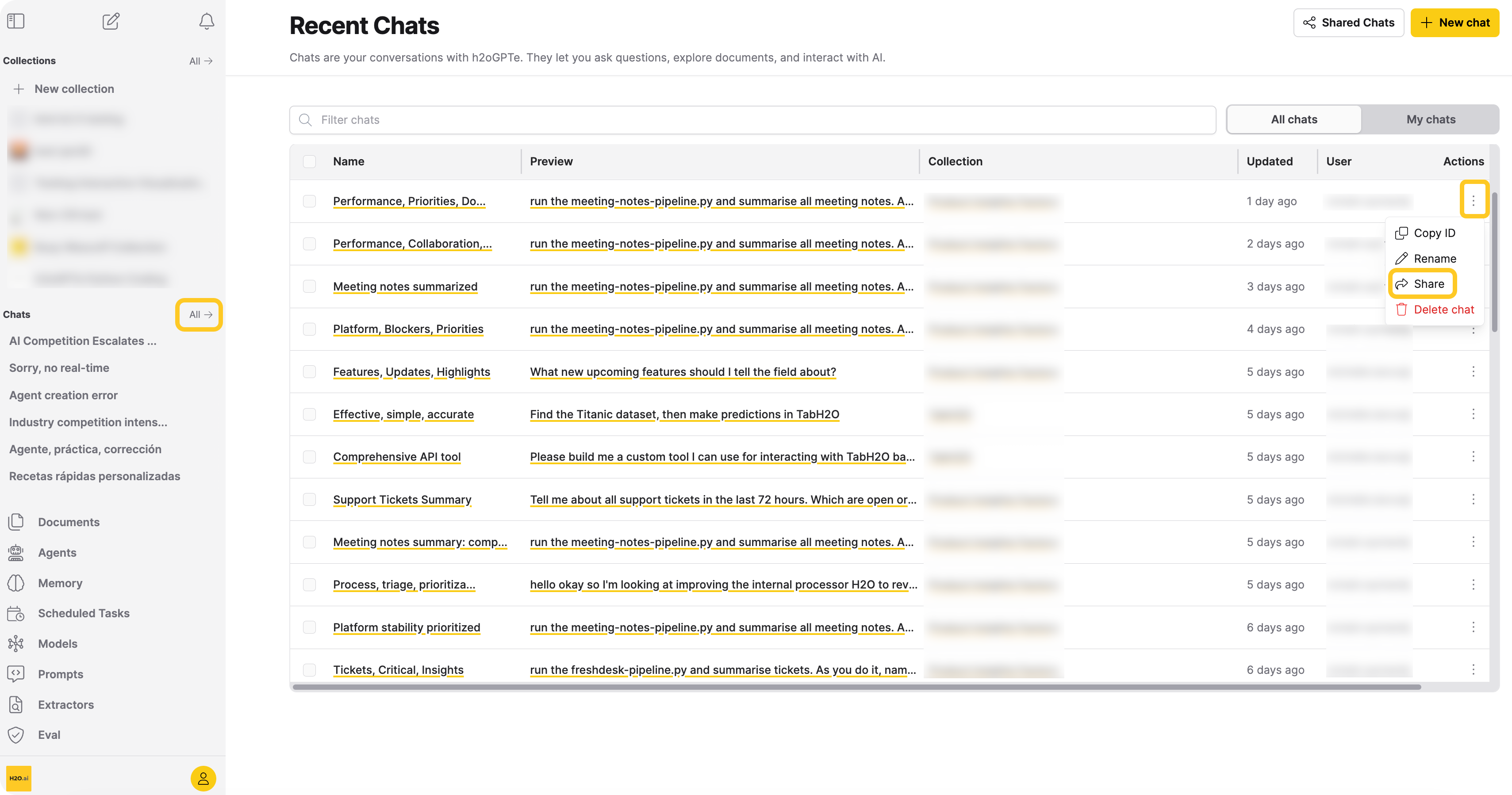
In the Enterprise h2oGPTe navigation menu, click All next to Chats.
-
In the Recent Chats table, click the Actions menu () for the Chat you want to share.
-
Click Share.
-
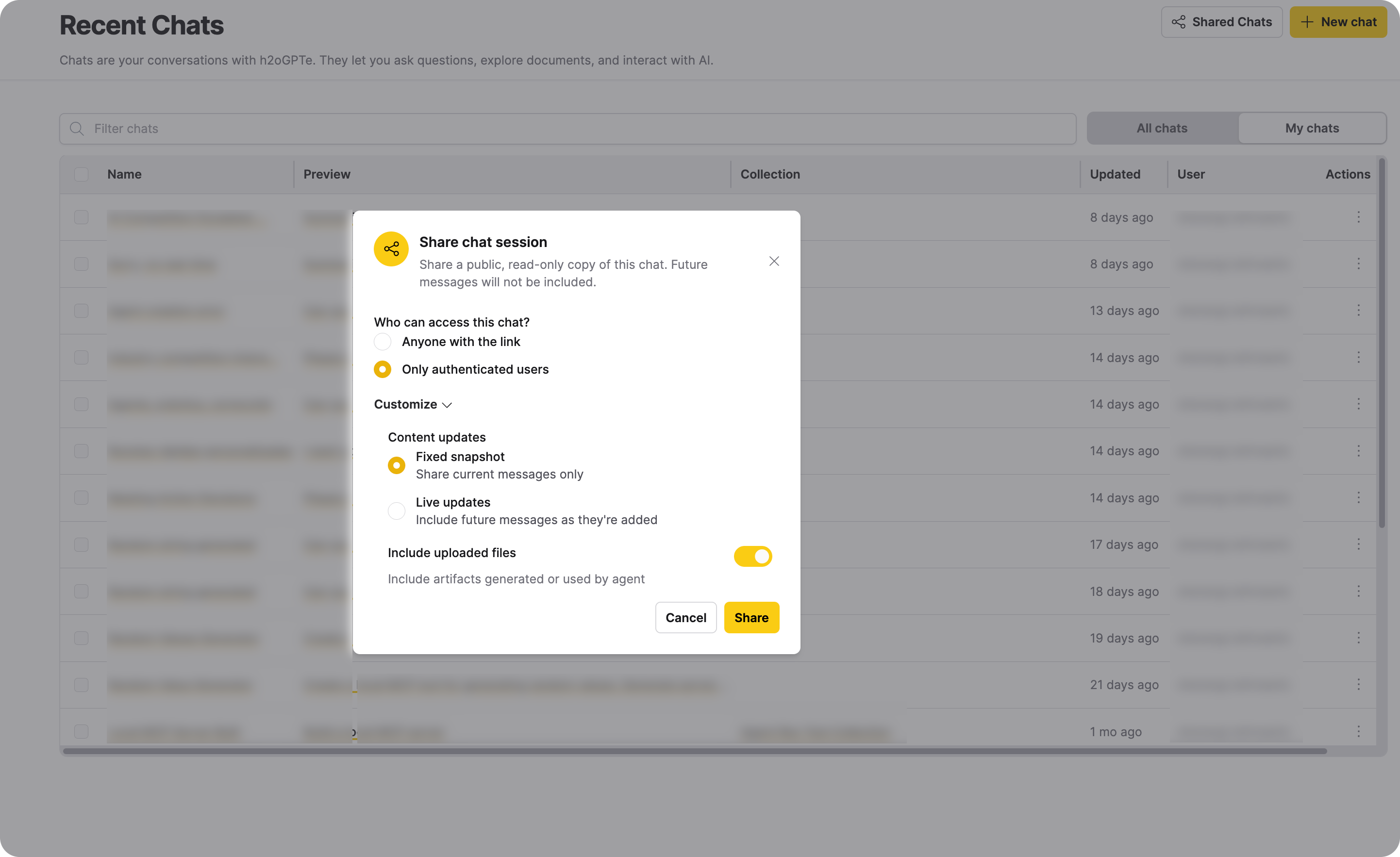
Under Who can access this chat?, select a visibility option:
- Anyone with the link: The shared chat is publicly accessible. No login is required.
- Only authenticated users: Only users who are logged in to Enterprise h2oGPTe can view the shared chat.
-
(Optional) Click Customize to configure additional options:
- Content updates:
- Fixed snapshot: Shares only the messages that exist at the time of sharing. Future messages are not included.
- Live updates: The shared chat stays in sync with the original conversation and includes new messages as they are added.
- Include uploaded files: When enabled, artifacts and files generated or used by agents are included in the shared chat.
- Content updates:
-
Click Share.
- A shareable link and QR code are generated. Copy the link or scan the QR code to share.
View a shared Chat
Recipients can view the shared chat by opening the link in a browser. The shared chat is displayed in a read-only view with the following information:
- Chat name: Displayed in the header.
- Visibility badge: A lock icon indicates whether the chat is private or public.
- Info tooltip: Hover over the info icon to see who shared the chat, when it was shared, the update mode (frozen or live), and whether artifacts are included.
If the shared chat is private and the recipient is not authenticated, they are prompted to log in before viewing the content.
If the shared chat has been deleted by its owner or the link is invalid, an error page is displayed.
Manage shared Chats
You can view and manage all of your shared chats from the Chats page.
- In the Enterprise h2oGPTe navigation menu, click All next to Chats.
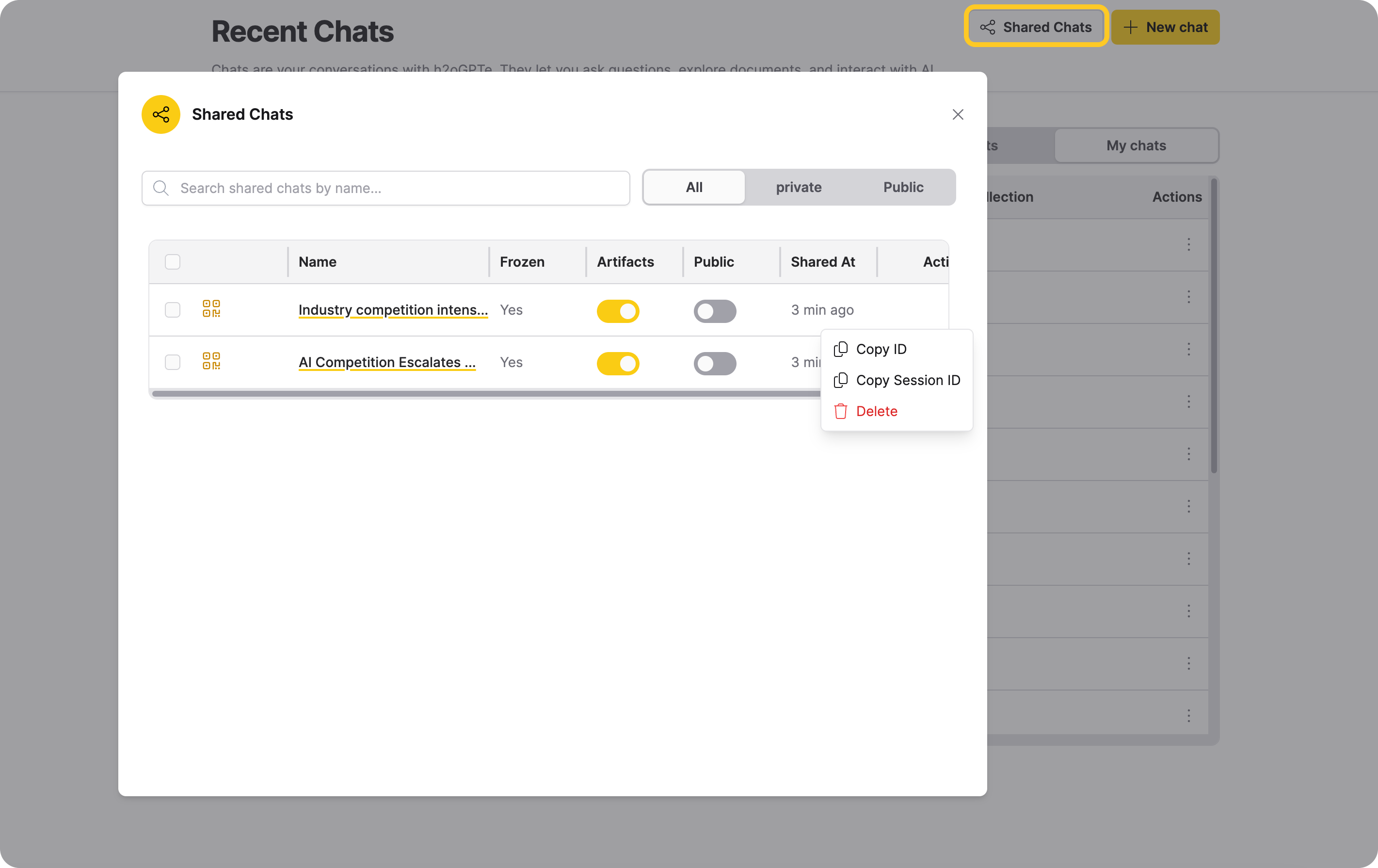
- Click Shared Chats to open the management dialog.
From this dialog, you can:
- Search and filter: Search shared chats by name and filter by visibility (All, Private, Public).
- View QR code: Click the QR code icon next to a shared chat to display a scannable QR code for the share link.
- Toggle artifacts: Enable or disable artifact inclusion for a shared chat using the Artifacts toggle. This setting can be changed after sharing.
- Toggle public access: Switch a shared chat between public and private using the Public toggle. This setting can be changed after sharing.
- Copy IDs: Use the actions menu () to copy the shared chat ID or the source chat session ID.
- Delete: Remove a shared chat link. Recipients will no longer be able to access the chat through that link.
Legacy shared chat links created in the old UI remain accessible until they expire. These legacy links do not appear in the Shared Chats list, and revoke/edit controls in this dialog do not apply to them.
Deleting a Chat also deletes all shared links for that Chat. Recipients will no longer be able to access them.
Python API
You can share and manage shared Chats programmatically using the h2oGPTe Python client. For method signatures and parameters, see the Python Client guide — relevant methods include share_chat_session, list_shared_chats, update_shared_chat, get_shared_chat, and delete_shared_chats.
- Submit and view feedback for this page
- Send feedback about Enterprise h2oGPTe to cloud-feedback@h2o.ai