Create a Topic Model for a Collection
Overview
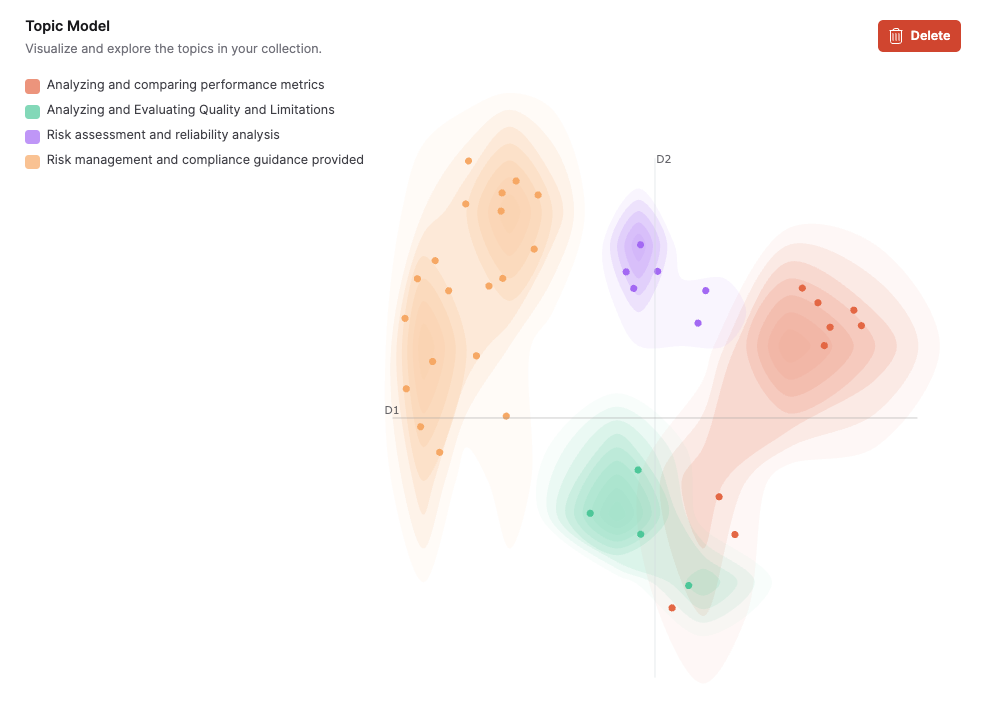
Create a topic model to visualize and analyze abstract topics within a Collection. A topic model clusters similar words from all documents in the Collection and represents these clusters as topics on a 2D graph.
Prerequisites
Before creating a topic model, verify the following:
- Eval Studio is enabled: An administrator must enable Eval Studio for your deployment. If the Topic Model section does not appear on the Collection page, contact your administrator to enable it.
- Indexed documents: The Collection must contain at least one indexed document.
- Display permissions: Creating and deleting topic models requires the Show LLM and Agentic settings permission under the Display category. An administrator can grant this on the Roles and Permissions page in the System Dashboard. Users without this permission can still view existing topic model visualizations.
Create a topic model
To create a topic model for a Collection:
- In the Enterprise h2oGPTe navigation menu, click Collections.
- From one of the following tabs, select the Collection you want to generate a topic model for:
- All collections
- My collections
- Shared
- In the Topic Model section, click Create a Topic Model.
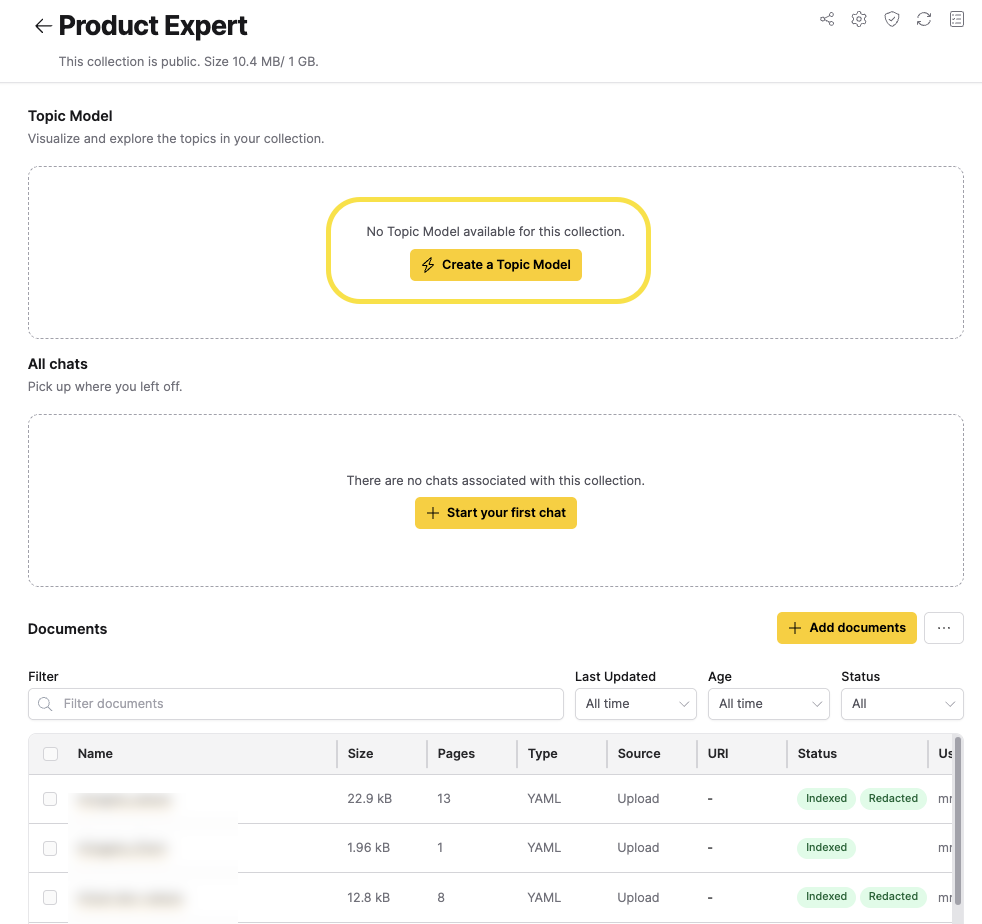
A progress bar displays the current status. When the process completes, the scatter plot renders with color-coded topic clusters and a legend describing each identified topic.
Topic model creation runs in the background. You can navigate away from the page and return later to view results.
Outdated topic models
When you add or remove documents from a Collection that has an existing topic model, the system marks the topic model as Outdated. The section heading changes to Topic Model (Outdated).
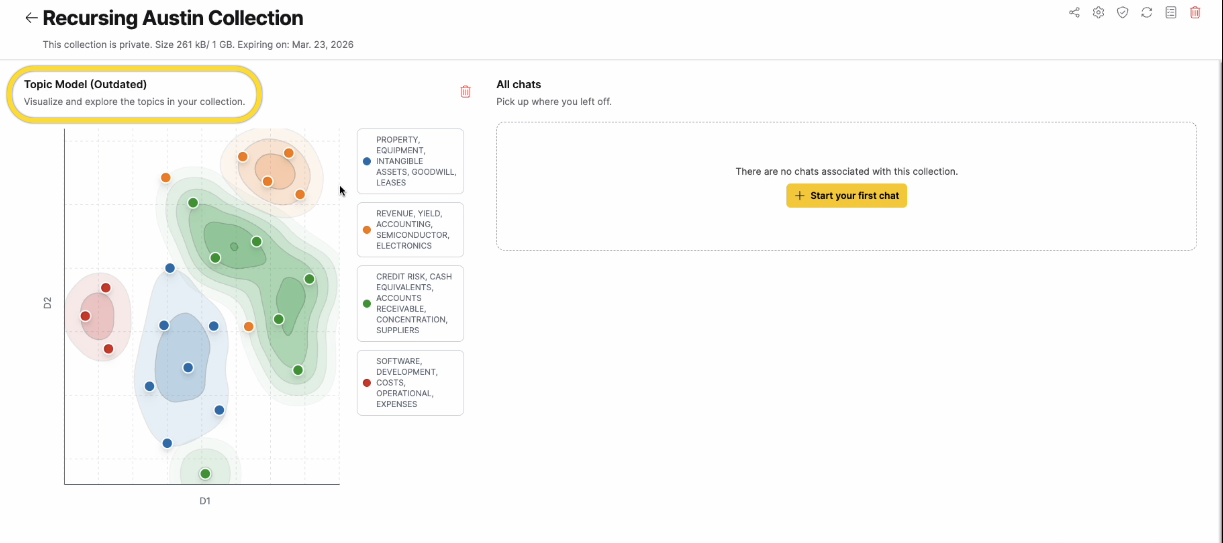
To refresh an outdated topic model, delete the existing one and create a new topic model. The new model incorporates all current documents in the Collection.
Delete a topic model
To delete a topic model:
- In the Enterprise h2oGPTe navigation menu, click Collections.
- From one of the following tabs, select the Collection that contains the topic model you want to delete:
- All collections
- My collections
- Shared
- In the Topic Model section, click the Delete button.
- In the confirmation dialog, click Delete.
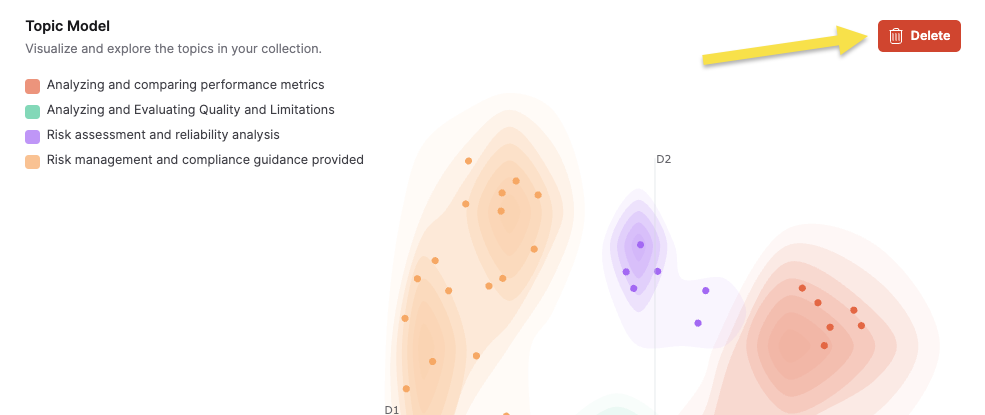
Deleting a topic model removes it permanently. This action cannot be undone.
Migrate from legacy topic models
If your Collection has topic models created with an older version, the system displays the following message: "Seems like your collection has topic models created with an older version. Please create a new topic model."
To migrate, click Create a Topic Model to generate a new model.
- Submit and view feedback for this page
- Send feedback about Enterprise h2oGPTe to cloud-feedback@h2o.ai