Pin a Collection
Overview
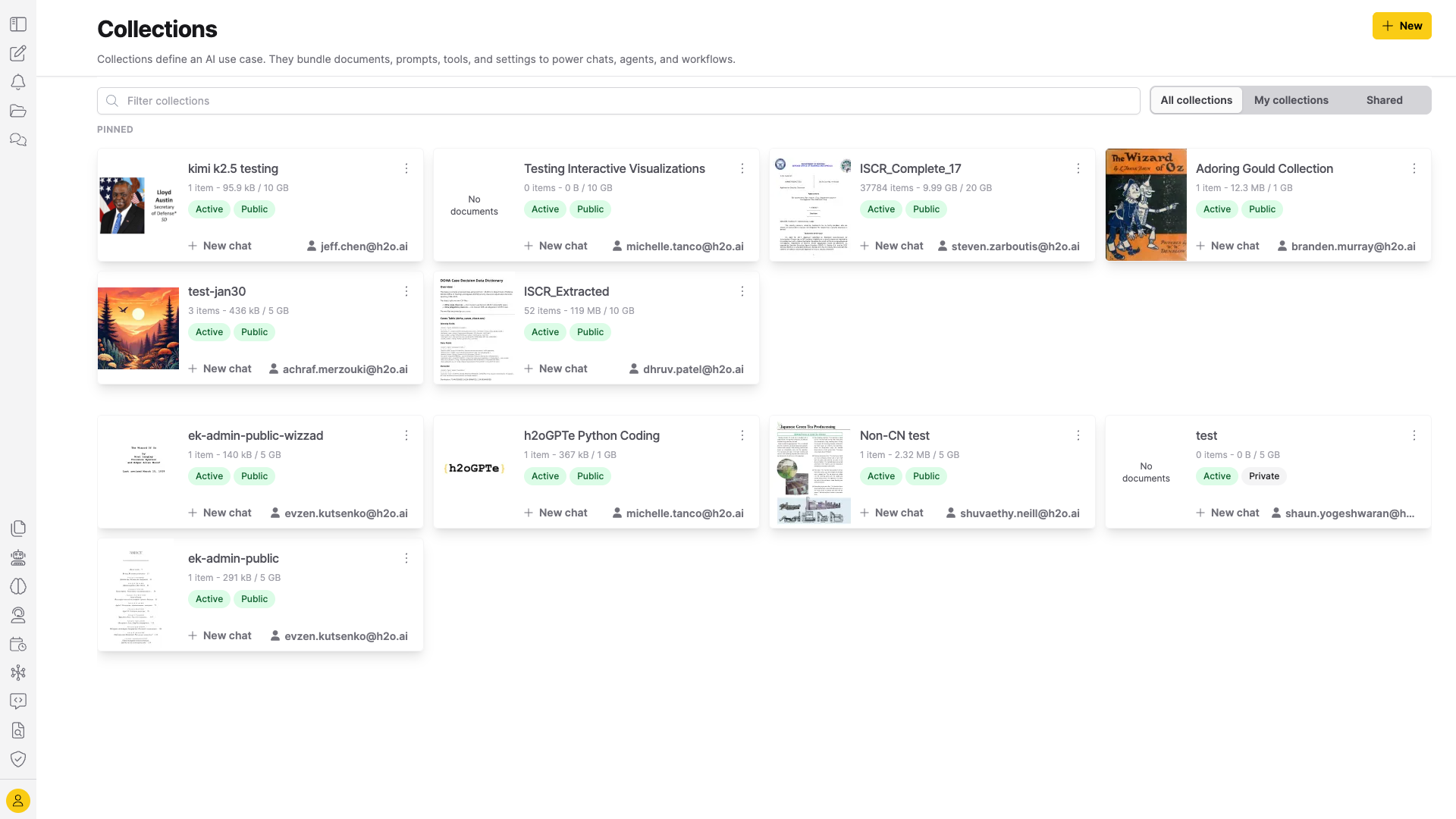
You can pin up to 10 collections to the top of the collections list for quick access. Your pins are private. Pinning a collection doesn't affect other users. Pinned collections appear in a dedicated Pinned section at the top of the collections list.
Pinning is available on the All collections and Shared tabs. Pinning is not available on My collections because that tab only shows collections you own — pinning is designed for quick access to shared or public collections from other users. Filtering collections hides the Pinned section.
Pin a collection
To pin a collection:
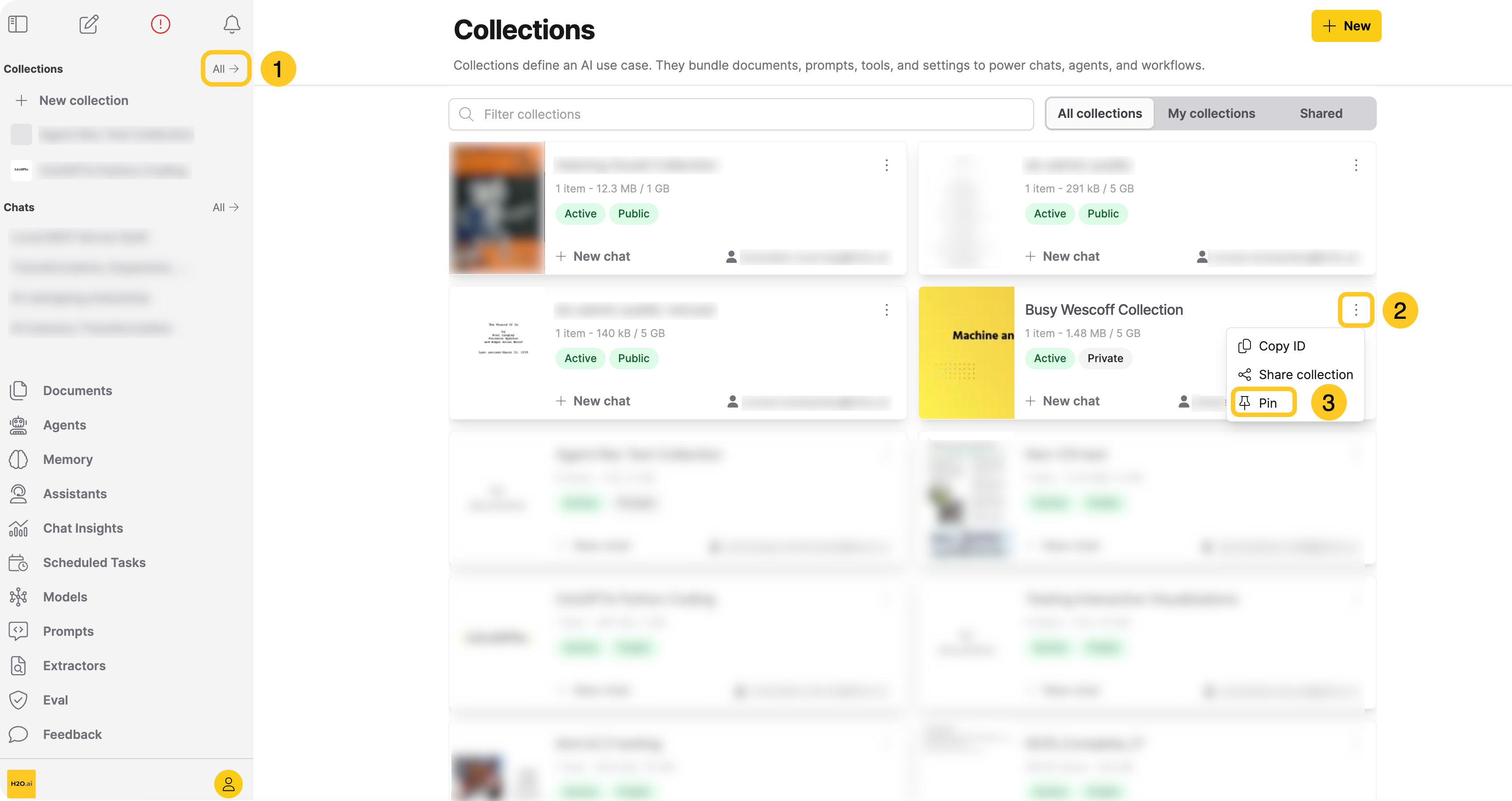
- In the Enterprise h2oGPTe navigation menu, click Collections.
- Click the All collections tab.
- Locate the collection you want to pin.
- Click the Actions menu (three dots).
- Click Pin.
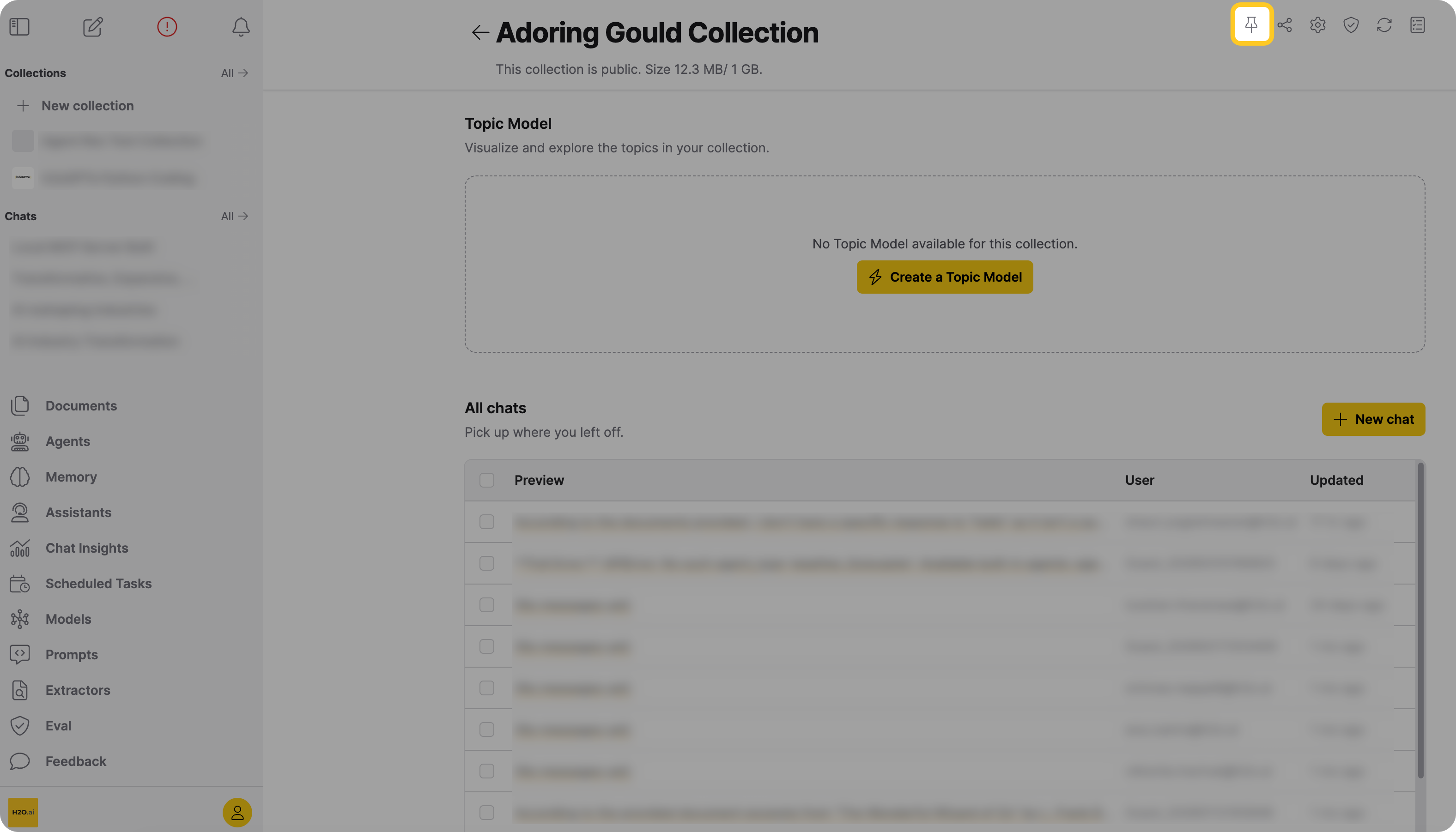
You can also open the collection and click the Pin icon (thumbtack) from the collection view.
Pinning a collection that is already pinned has no effect.
Unpin a collection
Unpinning a collection removes it from the Pinned section.
To unpin a collection:
- In the Enterprise h2oGPTe navigation menu, click Collections.
- On the All collections or Shared tab, locate the pinned collection.
- Click the Actions menu (three dots).
- Click Unpin.
You can also open the collection and click the Unpin icon (thumbtack) from the collection view.
Pin limit
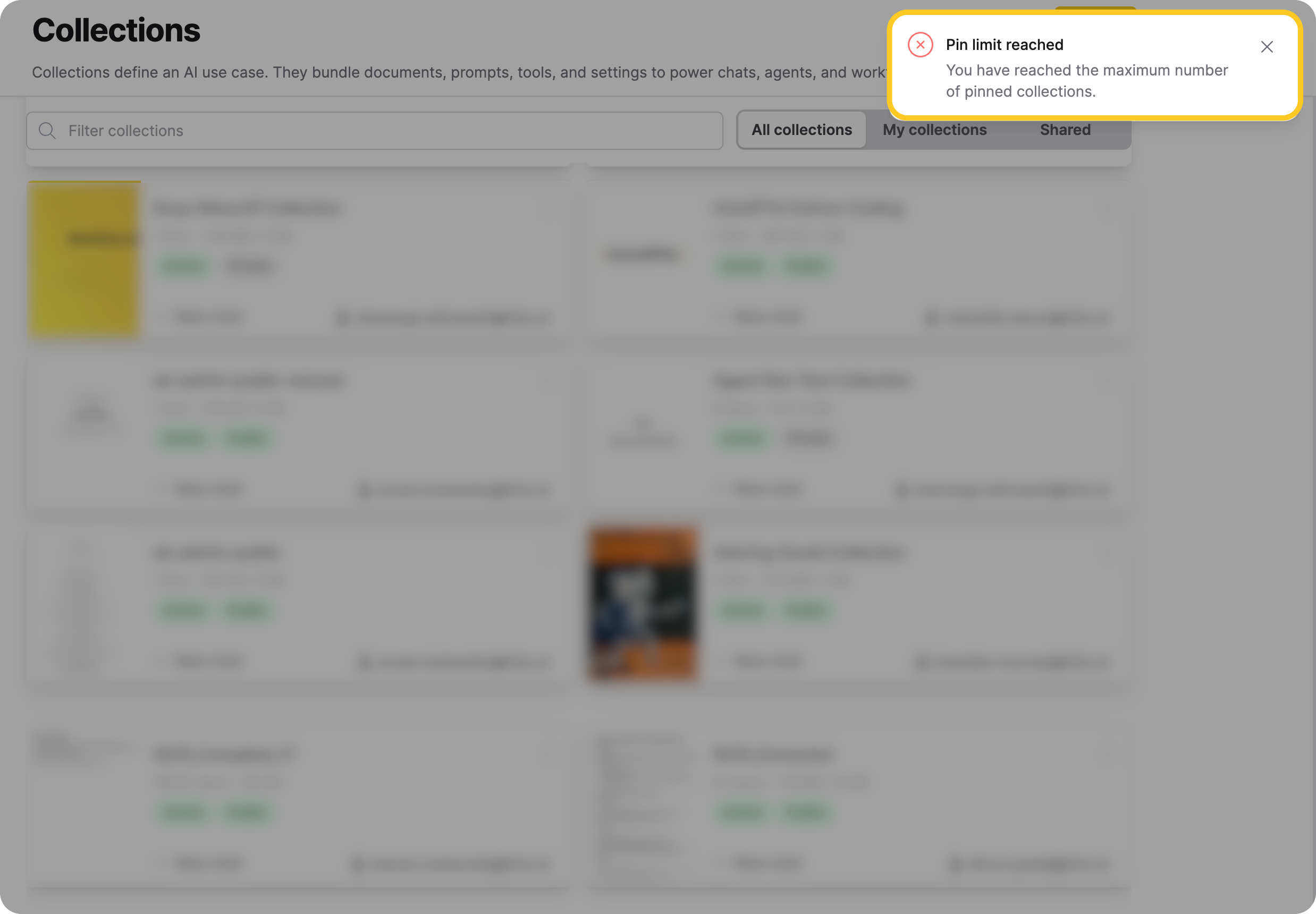
You can pin up to 10 collections. Enterprise h2oGPTe displays an error notification if you try to pin more than 10 collections.
- Submit and view feedback for this page
- Send feedback about Enterprise h2oGPTe to cloud-feedback@h2o.ai