Extractor settings
When you create or edit an extractor, you can configure settings that control vision capabilities, prompt customization, chunk limits, and guardrails. To access these settings, open the extractor creation or edit form. For details, see Create an extractor.
Vision
Vision settings appear only when your deployment includes vision-capable models.
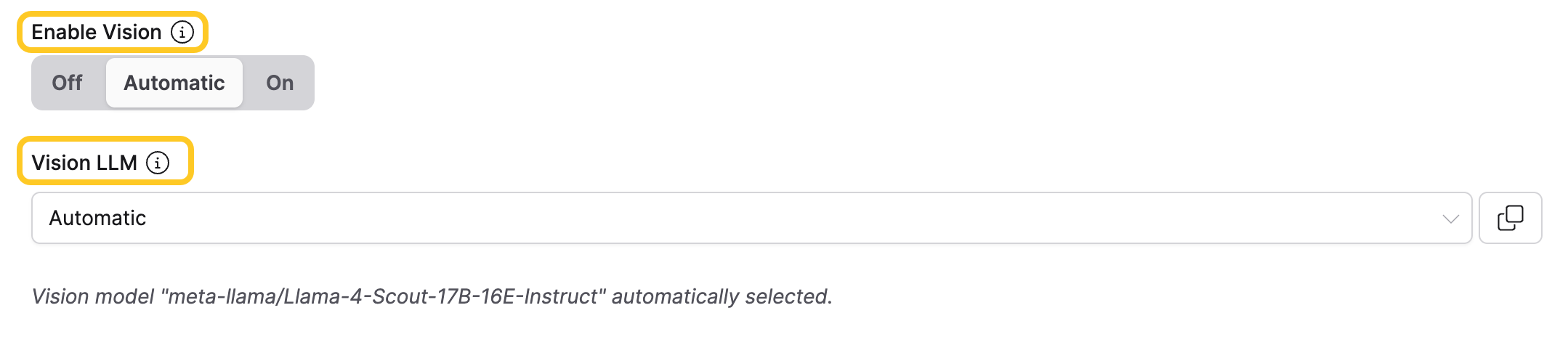
Enable vision
Pass document context as images to a vision-capable LLM, in addition to text.
Select one of the following:
- Off: Sends document context as text only.
- Automatic (default): Automatically determines whether to use vision based on the document content and selected LLM.
- On: Always passes document context as images to the vision LLM.
Requires vision-capable models in your deployment. Enabling vision mode can increase latency and cost. For details, see Enable vision.
Vision LLM
Select a specific LLM for vision and image processing tasks. When set to Automatic, the auto-selected model name appears below the dropdown. If no vision model is available for the selected LLM, a warning appears instead.
Chunks
Max number of chunks
The Max Number of Chunks slider sets the maximum number of document chunks the extractor processes. The range is 10 to 1,000, with a default of 100. More chunks increase coverage of large documents but require more processing time and LLM calls.

Prompts
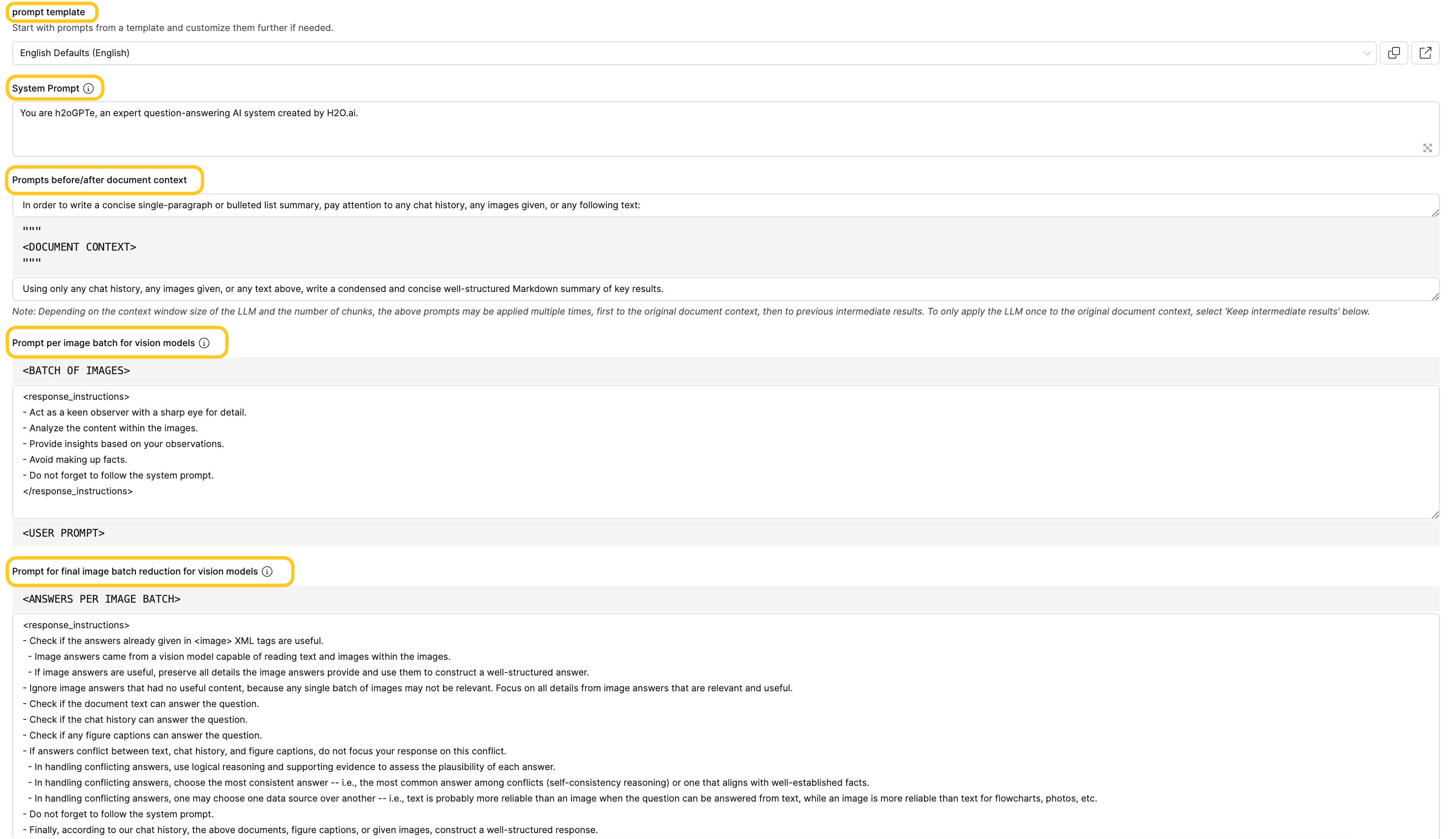
Prompt template
Populates the System prompt, Pre-prompt, Prompt, and image batch prompt fields with values from an existing template. For details, see Prompts.
System prompt
Set instructions to send to the LLM before any document context or user prompts. Use this to define the LLM's behavior and role for the extraction task.
Prompts before/after document context
Add custom text before and after the document context. This setting has three fields:
- Pre-prompt (top field): Text that appears before the document context.
- Document context (middle, read-only): The document chunks being processed.
- Prompt (bottom field): Text that appears after the document context.
When you define a JSON schema, the output is always a JSON object. The prompt can customize extraction behavior but cannot override the JSON output format.
When a JSON schema is defined, the Pre-prompt field is ignored. Only the Prompt (after document context) is applied.
If the document exceeds the LLM's context window, the system applies these prompts multiple times — first to the original document chunks, then to intermediate results. To apply the LLM only once to the original chunks, enable Keep Intermediate Results.
Prompt per image batch for vision models
Set the prompt that processes each batch of images when vision mode is enabled. This prompt appears after the batch of images and before the user prompt.
Prompt for final image batch reduction for vision models
Set how the system combines per-batch answers into a final answer when vision mode is enabled. This prompt appears after the collected per-batch answers and before the user prompt.
These image batch prompt fields are always visible in the form, but only take effect at runtime when Enable Vision is set to Automatic or On.
Schema
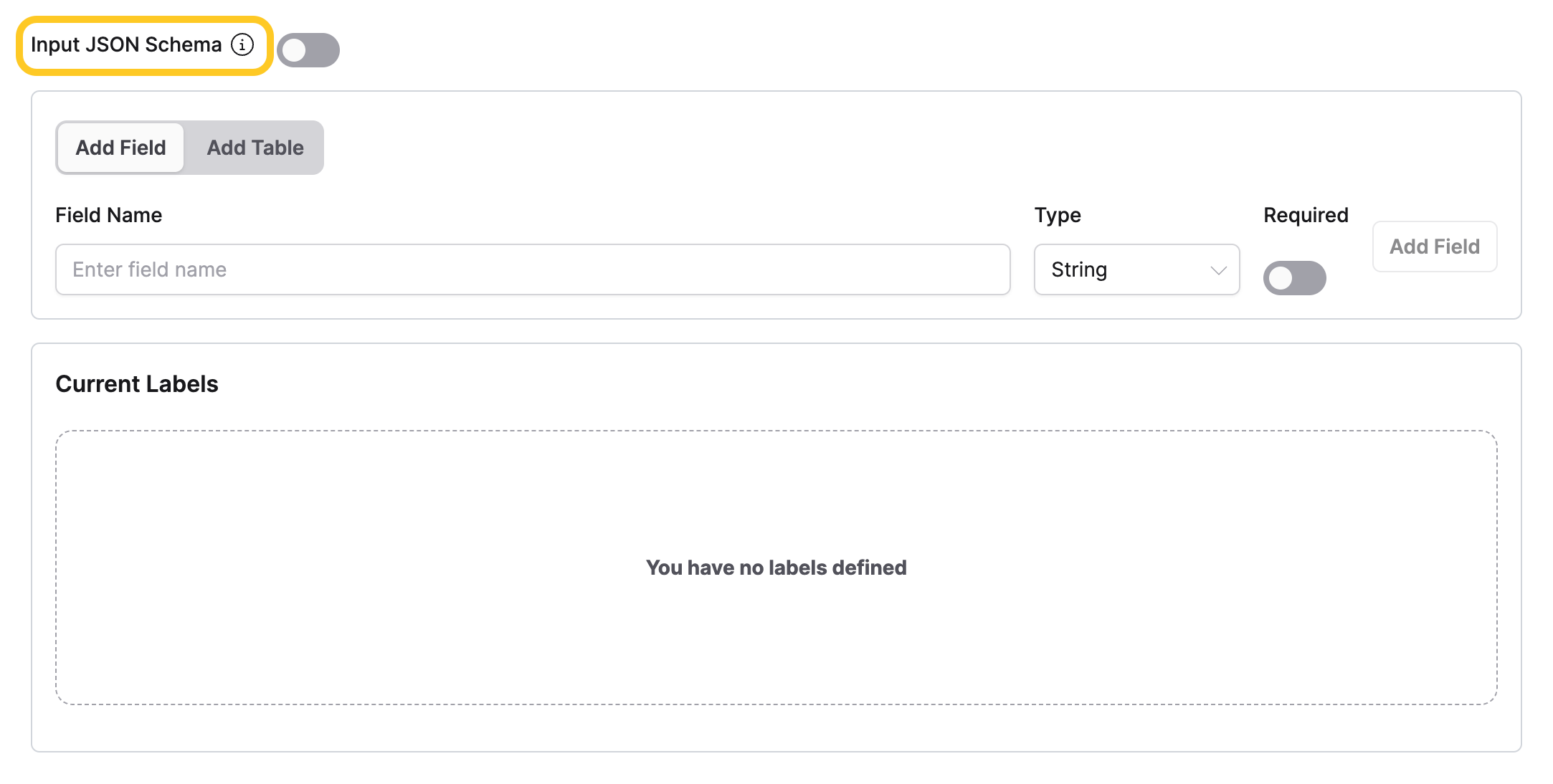
Input JSON schema
Switch between two modes for defining the extractor's output schema:
- Off (builder mode): Use the visual JSON schema builder to add fields and tables interactively.
- On (code mode): Enter a valid JSON schema directly in a text editor.
For details, see Create an extractor.
Guardrails and PII
The extractor form includes Enable guardrails and Enable PII controls toggles. When enabled, these expose the same sub-settings available when creating a collection. For details, see Guardrails and PII Detection.
The Parse Action setting (available in Create a Collection) is not available in extractors, as extractors process documents that are already ingested.
Advanced
Keep intermediate results
The Keep Intermediate Results toggle stores intermediate processing results during extraction.
- Enabled: The final result is a list of each chunk's individual extraction output. Useful for debugging or when documents exceed the LLM's context window.
- Disabled (default): Intermediate results are combined through recursive summarization into a single final output.

Related topics
- Submit and view feedback for this page
- Send feedback about Enterprise h2oGPTe to cloud-feedback@h2o.ai