Usage & Feedback
The Usage & Feedback page lets you track chat sessions, token costs, usage trends, and user feedback across all collections.
To open the page, click the profile icon at the bottom of the sidebar, then click Usage and Quota.
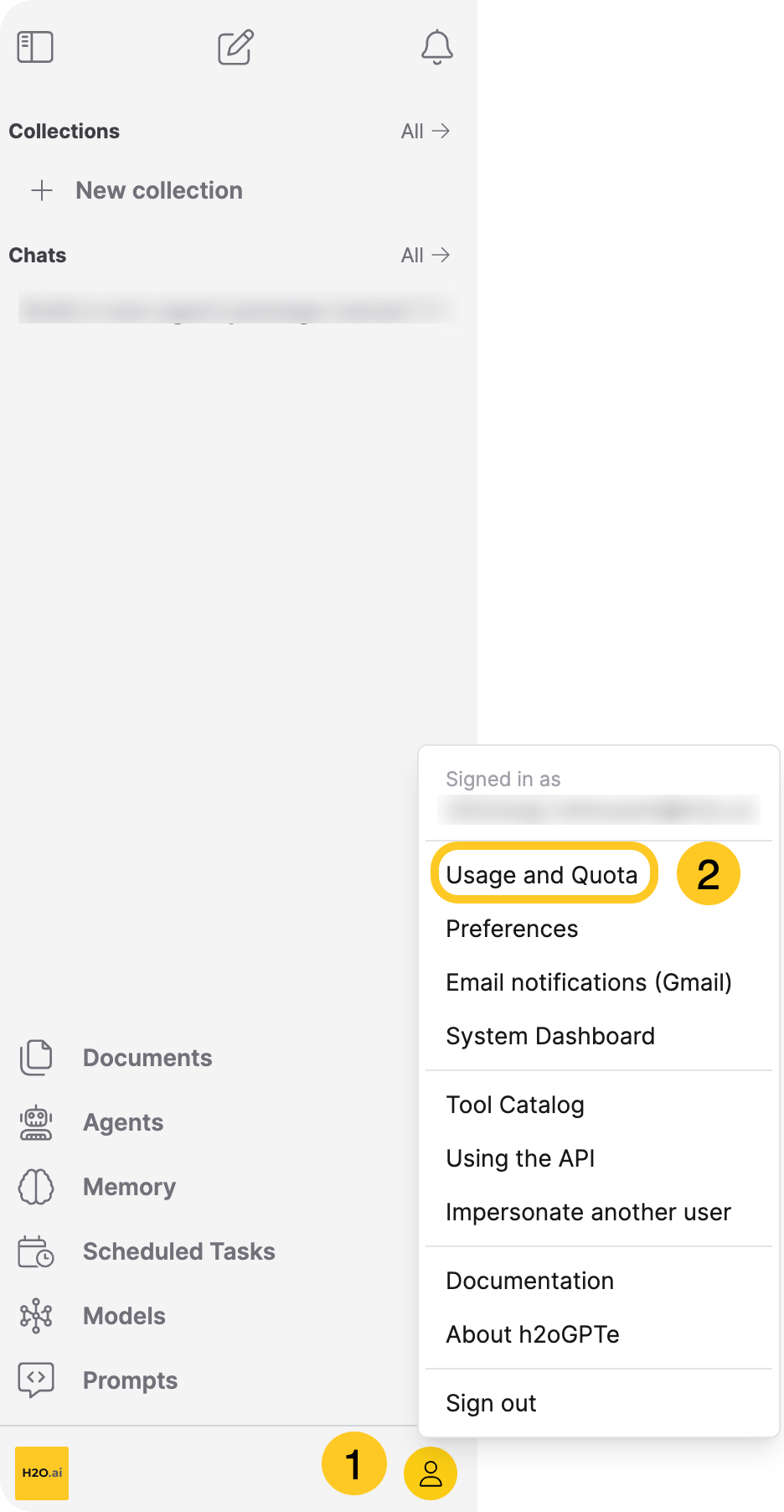
Usage & Feedback requires the Display chat insights page permission. The Default and User roles have this permission by default. The Guest role doesn't. To configure role permissions, see Roles and permissions.
The page has four tabs:
- Observability (default)
- Dashboard
- Token Usage
- Feedback
An Auto-refresh toggle in the top-right corner updates data every 10 seconds when enabled. Click the refresh icon next to it to reload manually.
Observability
The Observability tab shows live session status, errors, and message counts. This tab opens by default.
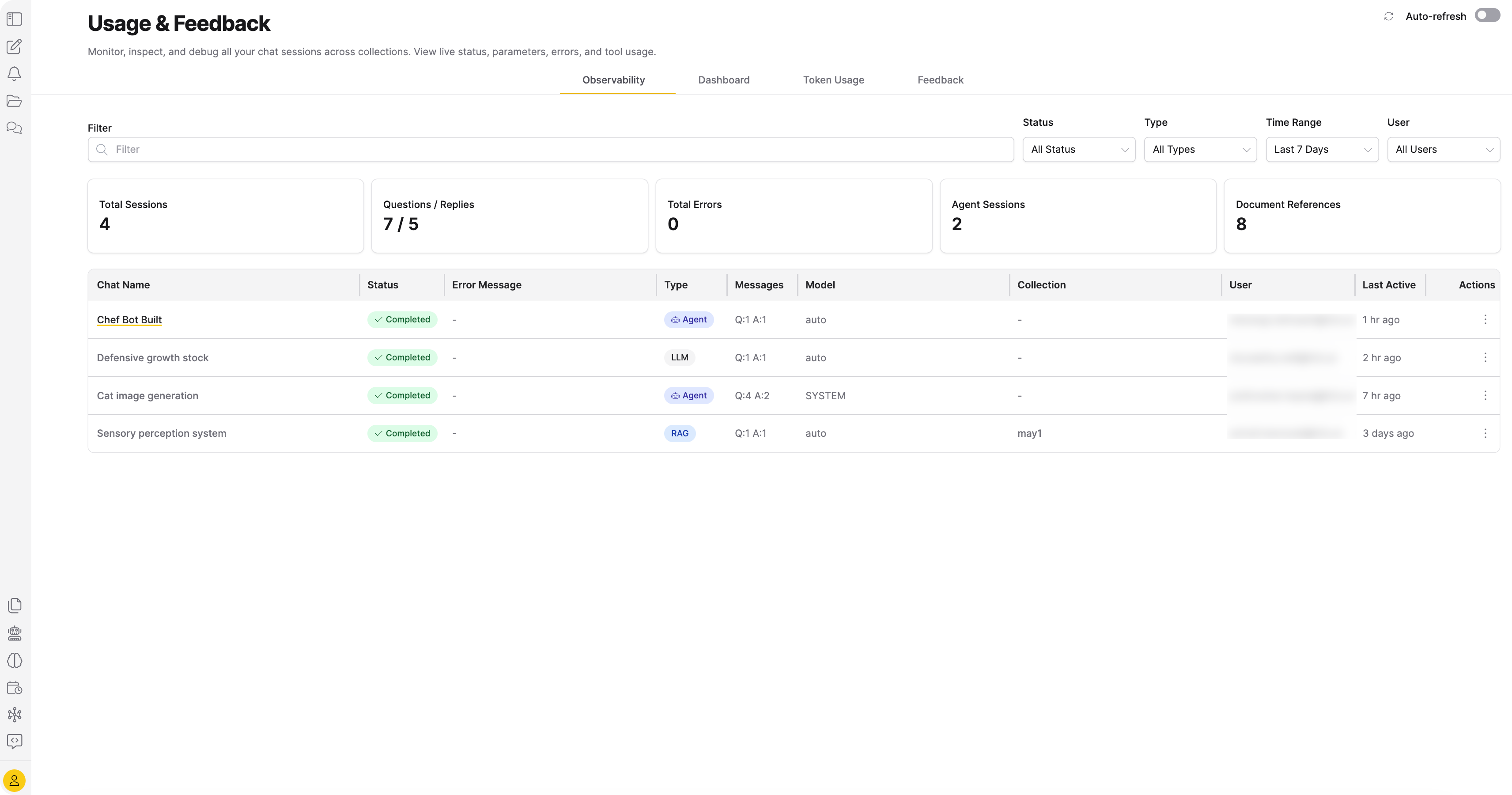
Filters
- Filter: Text search across sessions.
- Status: All Status (default), Error, In Progress, Completed.
- Type: All Types (default), Agent, LLM.
- Time Range: Last 24 Hours, Last 7 Days (default), Last 30 Days, Last 90 Days.
- User (administrator only): Dropdown to filter by a specific user.
Summary cards
Five cards appear before the session table:
| Card | Description |
|---|---|
| Total Sessions | Number of sessions in the selected time range. |
| Questions / Replies | Count of questions asked and replies received. |
| Total Errors | Number of sessions that ended with an error. |
| Agent Sessions | Number of sessions that used an agent. |
| Document References | Total document references across all sessions. |
Session table
The table lists each session with the following columns:
- Chat Name: Clickable link that opens the chat session.
- Status: Badge showing Completed (green), In Progress (amber), or Error (red).
- Error Message: Truncated error text. Click to open a dialog with the full message.
- Type: Badge showing AI Assistant (purple), Agent (indigo), RAG (blue), or LLM (gray).
- Messages: Format "Q:1 A:1."
- Model: The LLM used for the session.
- Collection: Clickable link to the collection page.
- User (administrator only): The user who created the session.
- Last Active: Relative time. Hover for the absolute timestamp.
Each row has an Actions menu with the following options:
- Open Chat: Opens the chat session.
- View Details: Opens the session detail view.
- Copy ID: Copies the session ID to the clipboard.
- Open Collection: Opens the linked collection. Appears only when the session has a linked collection.
When no sessions match the current filters, the table displays "No chat sessions found," with the hint "Start chatting to see insights here."
Session detail view
Click View Details on any session to open the detail view. The header shows the session name, a Back to list button, and an Open Chat link.
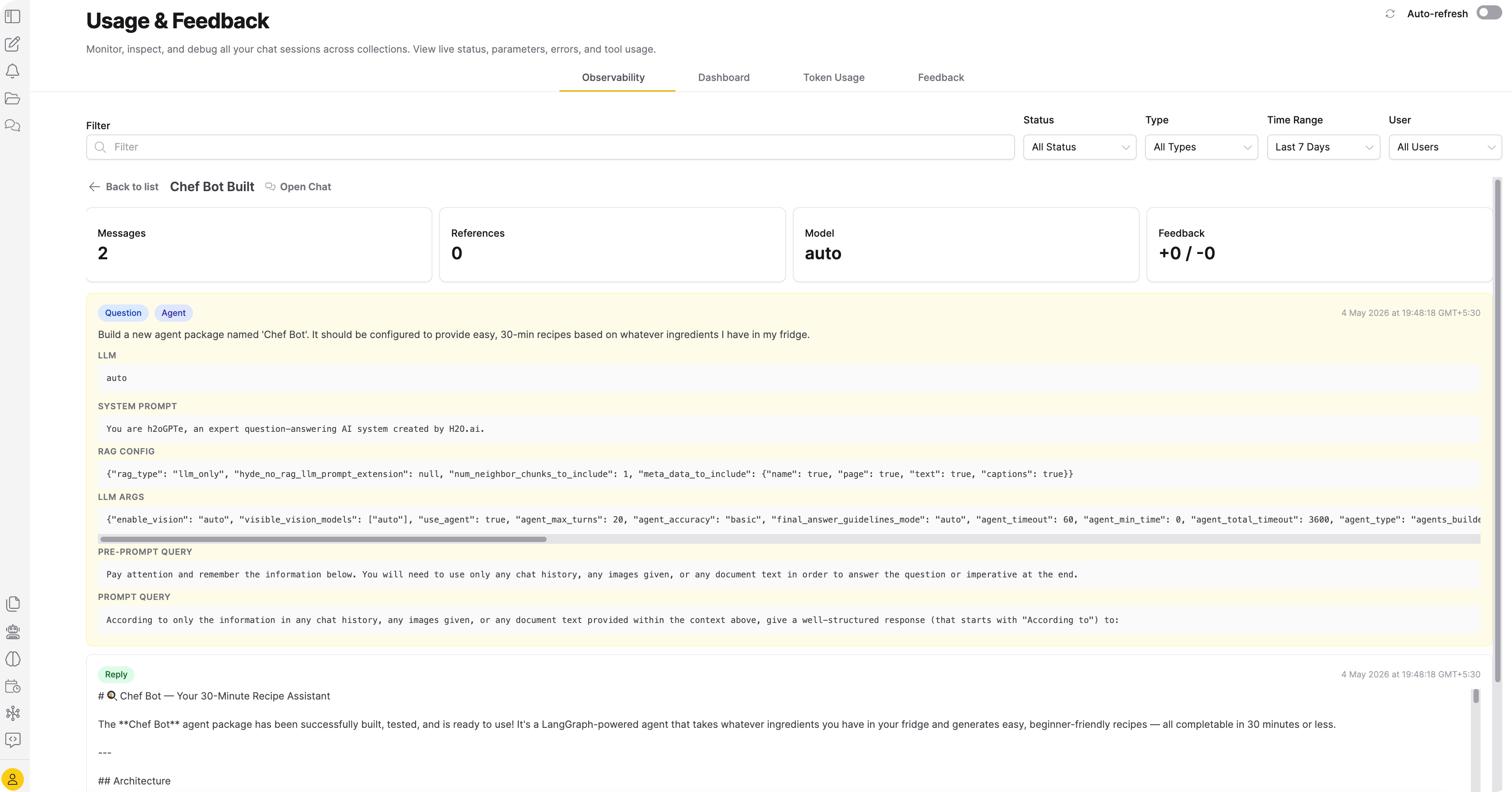
Four summary cards appear at the top:
| Card | Description |
|---|---|
| Messages | Total number of messages in the session. |
| References | Number of document references cited. |
| Model | The LLM used for the session. |
| Feedback | Count of thumbs-up and thumbs-down votes. |
Each message in the session appears as a card with:
- Badges: Question (blue) or Reply (green), plus Agent (indigo), Error (red), and Votes when applicable.
- Content: The message text. Errors appear in a separate section below.
- Config sections (question messages only): Collapsible sections for LLM, System Prompt, RAG Config, LLM Args, Self Reflection, Pre-prompt Query, and Prompt Query. Each section appears only when data exists.
- Metadata: Message type badges and reference count.
Dashboard
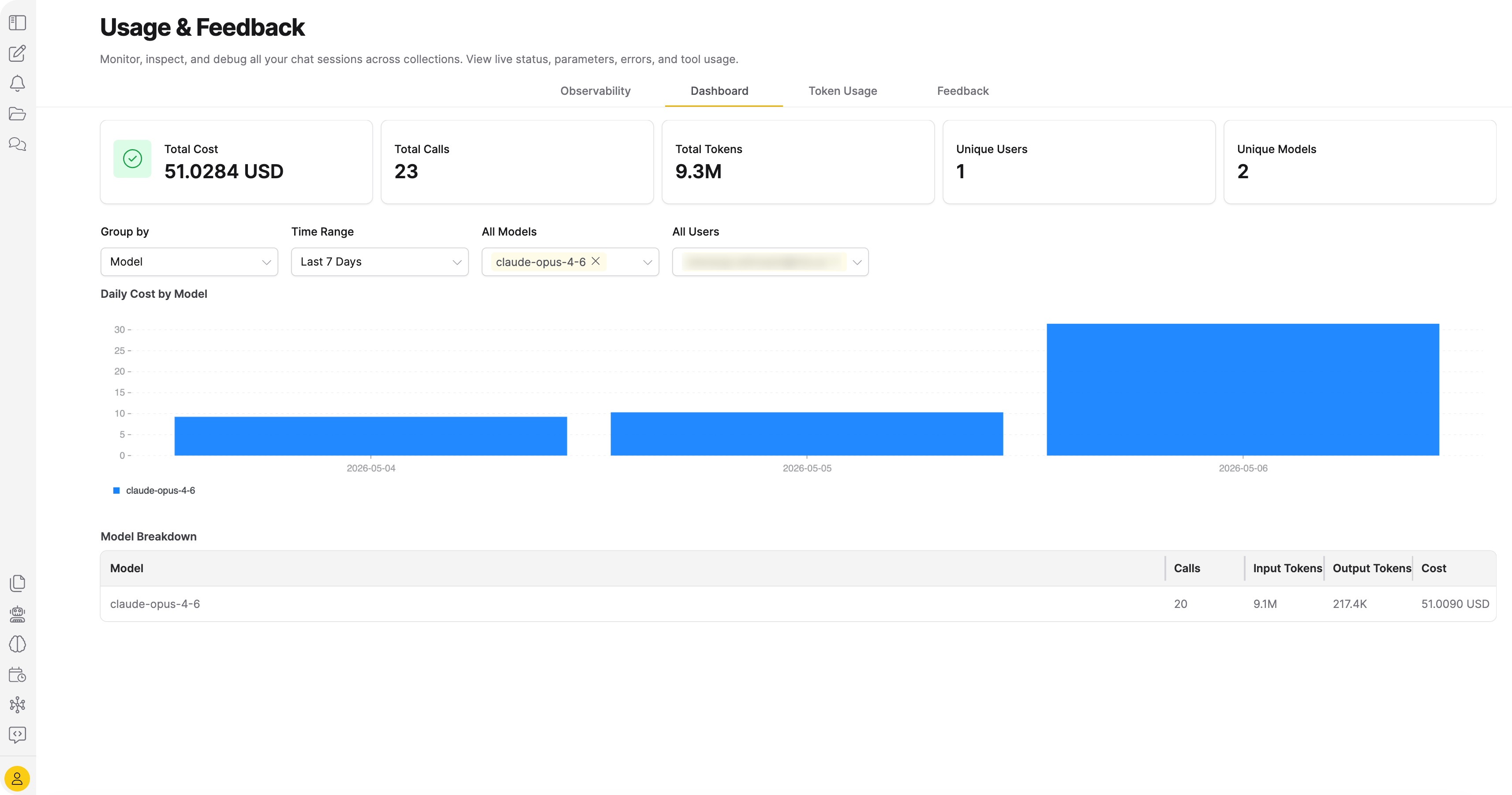
The Dashboard tab shows combined cost and usage analytics. Administrators see extra filter controls and the Unique Users card.
Summary cards
Five cards appear at the top:
| Card | Description | Visibility |
|---|---|---|
| Total Cost | Combined LLM cost for the selected period. | All users |
| Total Calls | Number of LLM API calls made. | All users |
| Total Tokens | Sum of input and output tokens consumed. | All users |
| Unique Users | Number of distinct users with activity. | Administrator only |
| Unique Models | Number of distinct models used. | All users |
Filter bar
- Group by (administrator only): Model (default), User, or Group. The Group option appears only when user groups exist.
- Time Range: Last 24 Hours, Last 7 Days (default), Last 30 Days, Last 90 Days.
- All Models (administrator only): Multi-select dropdown to filter by specific models.
- All Users (administrator only): Multi-select dropdown to filter by specific users.
Daily cost chart
A stacked bar chart displays daily costs. The chart title changes based on the Group by selection:
- Daily Cost by Model
- Daily Cost by User
- Daily Cost by Group
Model breakdown table
A table below the chart breaks down per-model usage with the following columns: Model, Calls, Input Tokens, Output Tokens, Cost.
When no data exists for the selected time range, the chart area displays "No cost data available."
Token Usage
The Token Usage tab tracks token consumption and cost per session.
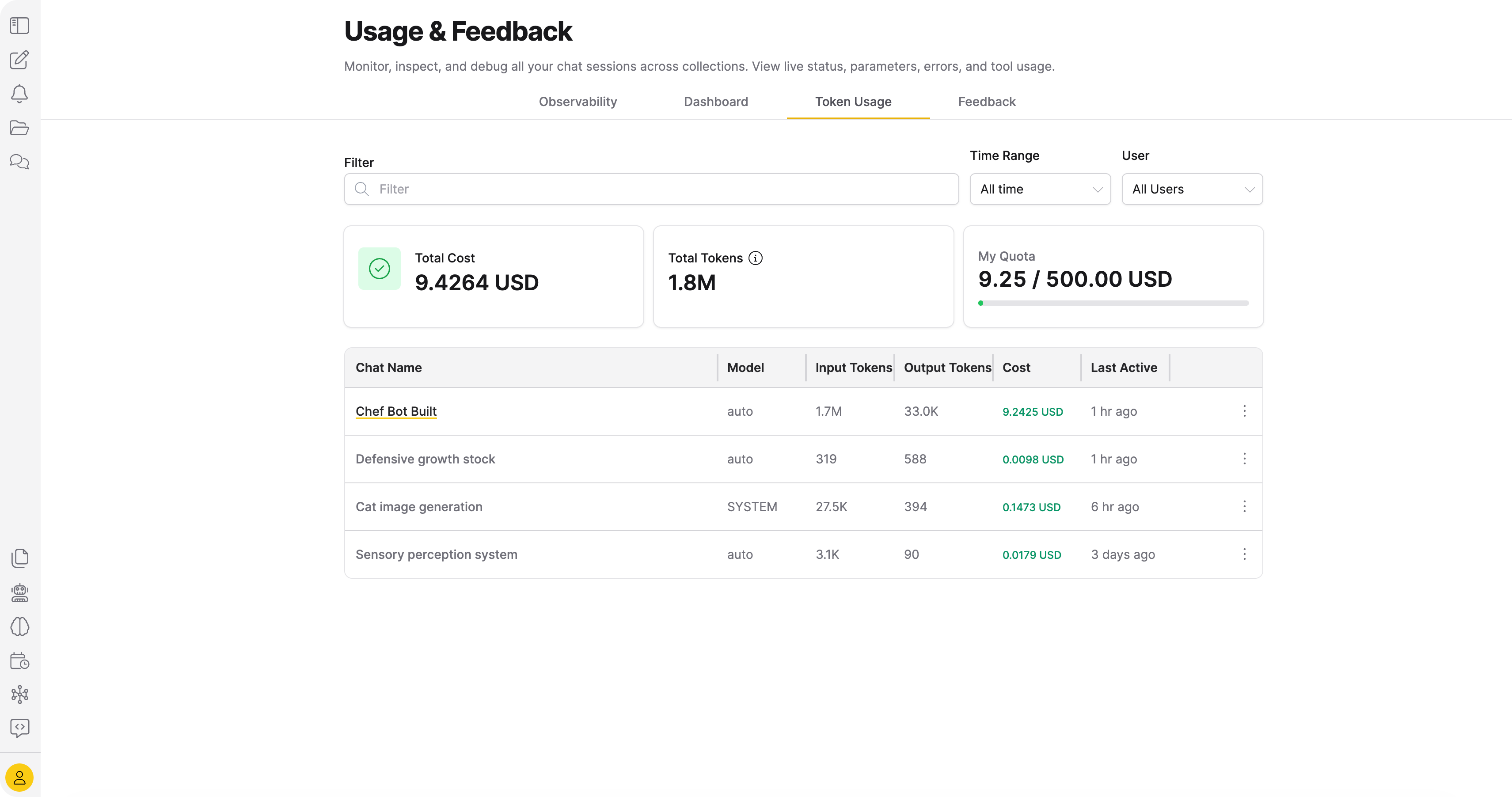
Filters
- Filter: Text search across sessions.
- Time Range: Last 24 Hours, Last 7 Days, Last 30 Days, Last 90 Days, All time (default).
- User (administrator only): Dropdown to filter by a specific user.
Summary cards
Three cards appear before the table:
| Card | Description |
|---|---|
| Total Cost | Combined LLM cost across all sessions (for example, "$5.0325"). |
| Total Tokens | Sum of input and output tokens consumed (for example, "1.3M"). |
| My Quota | Cost used against your spending limit, shown with a progress bar. |
Usage table
The table lists each session with the following columns:
- Chat Name: Clickable link that opens the chat session.
- Model
- Input Tokens
- Output Tokens
- Cost
- Last Active
Each row has an Actions menu with these options: View Details, Open Chat, Copy ID.
When no usage data exists, the table displays "No usage data found," with the hint "Cost and token usage appear here as sessions run."
Session detail view
Click View Details on any session to open a cost-focused detail view. The header shows the session name and a Back to list button.
The detail view shows four summary cards: Model, Total Cost, Input Tokens, Output Tokens.
Session cost breakdown
This section shows a per-model table with the following columns: Model, Input Tokens, Output Tokens, Cost, Time Taken, Tokens/sec.
Agent cost breakdown
For agent sessions, a separate section shows agent-specific cost data:
- Agent Turns: Total number of turns the agent executed.
- Agent Query Analysis: The agent's interpretation of the query.
- A per-turn table with the following columns: Turn #, Turn Title, Model, Input Tokens, Output Tokens, Time Taken.
Feedback
The Feedback tab displays thumbs-up and thumbs-down votes that users have left on chat responses.
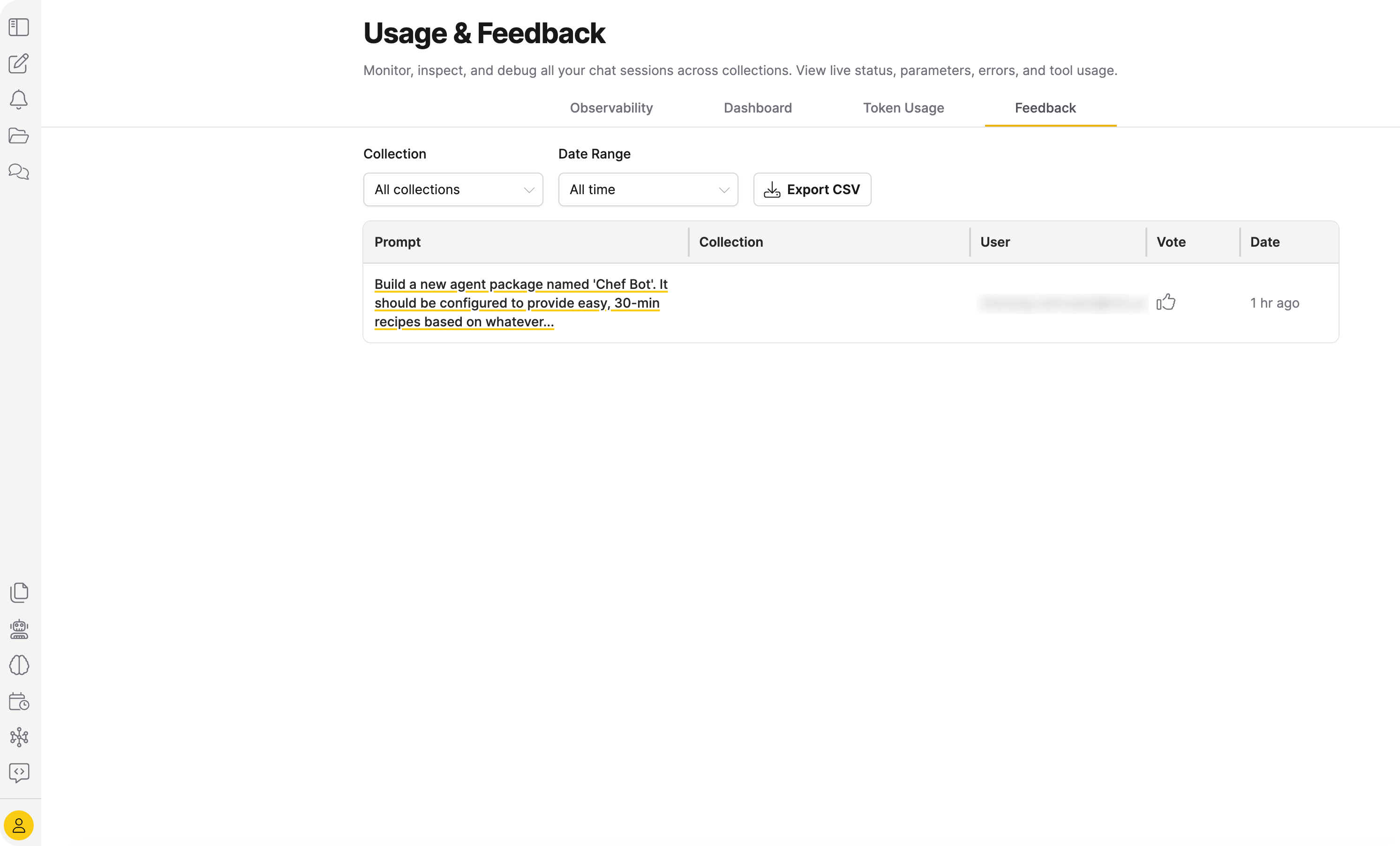
This tab shows feedback across all collections on the platform. For feedback scoped to a single collection, see Feedback.
Filters
- Collection: Searchable dropdown. Options include All collections (default), No collection, and all available collections.
- Date Range: Dropdown to filter by time range. Default: All time.
- Export CSV: Downloads all matching feedback as a CSV file.
Feedback table
The table lists each feedback entry with the following columns:
- Prompt: Clickable. Opens the feedback detail pane.
- Collection: Clickable link to the collection page.
- User: The user who left the feedback.
- Vote: Thumbs up or thumbs down icon.
- Date: Relative time.
When no feedback exists, the table displays "You have no messages with feedback," with the hint "Chat messages with thumbs up or thumbs down feedback appear here."
Feedback detail pane
Click any row in the Prompt column to open a detail pane on the right side of the page. The pane header reads "Chat message" with a timestamp ("Response received [date]").
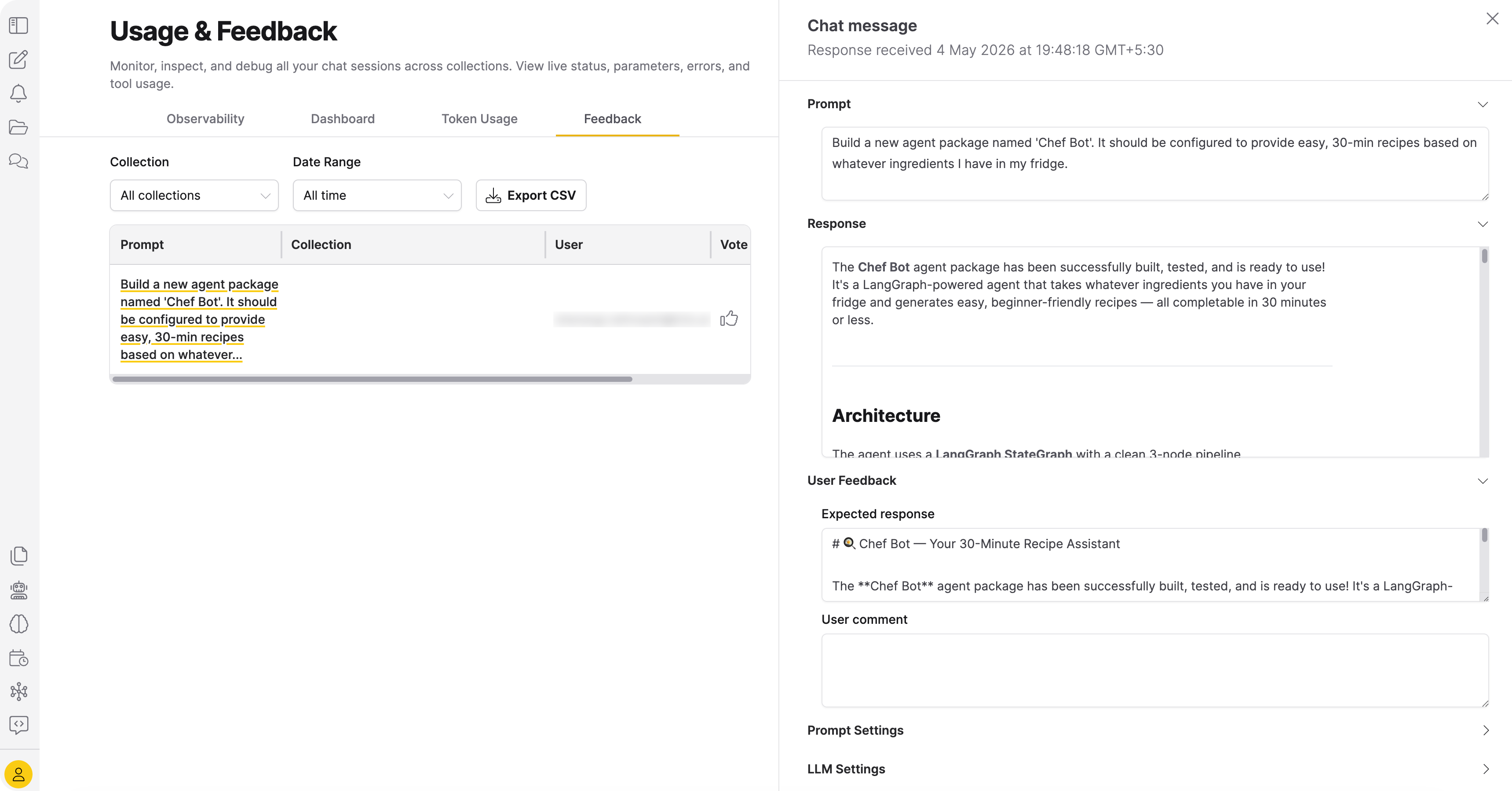
The pane contains the following collapsible sections:
- Prompt: The full question text.
- Response: The model's reply rendered as text.
- User Feedback: Contains Expected response and User comment text areas.
- Prompt Settings (collapsed by default): Contains Personality (System Prompt), RAG prompt before context, and RAG prompt after context.
- LLM Settings (collapsed by default): Contains the LLM model name and RAG Config (JSON).
Related topics
- Chats: Start and manage chat sessions.
- Agents: Build and run AI agents.
- Feedback: View feedback for a single collection.
- Roles and permissions: Configure access to Usage & Feedback.
- Submit and view feedback for this page
- Send feedback about Enterprise h2oGPTe to cloud-feedback@h2o.ai