Agent tool configuration
This page provides integration details, configuration parameters, and requirements for all built-in agent tools available in Enterprise h2oGPTe. It is intended for administrators (DevOps, IT, MLOps, or platform engineers) who deploy, manage, or secure Enterprise h2oGPTe in production or enterprise environments.
Here you'll find:
- Tool-by-tool configuration variables and deployment requirements
- Default and optional settings, including cloud services and external API keys
- Hardware and dependency notes (e.g., GPU requirements, tokens/credentials needed)
- Best practices for enabling or restricting tools based on your organization's compliance, security, or data-access policies
Before onboarding end users or exposing agent capabilities, review this guide to ensure your environment is correctly configured and all necessary prerequisites—such as external integrations, cloud credentials, or on-prem services—are in place.
Shared Agent Model Configuration: Administrators can configure a shared default language model for all agents in Enterprise h2oGPTe, setting a consistent default model across agent interactions. Users may still override this selection for individual conversations if needed.
Tool configuration requirements
Enterprise h2oGPTe includes multiple built-in agent tools, each with specific requirements. Basic agent functionality is enabled by default, but many tools require additional configuration. Additionally, administrators can deploy custom tools to extend agent capabilities with organization-specific functionality.
- Check the requirements for each tool you intend to use
- Configure the necessary environment variables in your Helm deployment
- Ensure any required external services or credentials are set up properly
- Verify that hardware requirements (such as GPU for image generation) are met
- Replace all
<your-*-key>placeholders with actual keys/tokens
All configuration examples below are Helm chart configurations for administrators. Users will select and use tools through the h2oGPTe interface after administrators have properly configured them.
This basic agent configuration in your Helm chart enables several tools by default:
h2ogpt:
  config:
    externalLLM:
      secret:
        # Path to store OpenAI API logs
        H2OGPT_OPENAI_LOG_PATH: "/workspace/save/h2ogpt_openai/"

        # Path to cache Hugging Face transformer models
        TRANSFORMERS_CACHE: "/workspace/.cache"
Managing tools in the UI
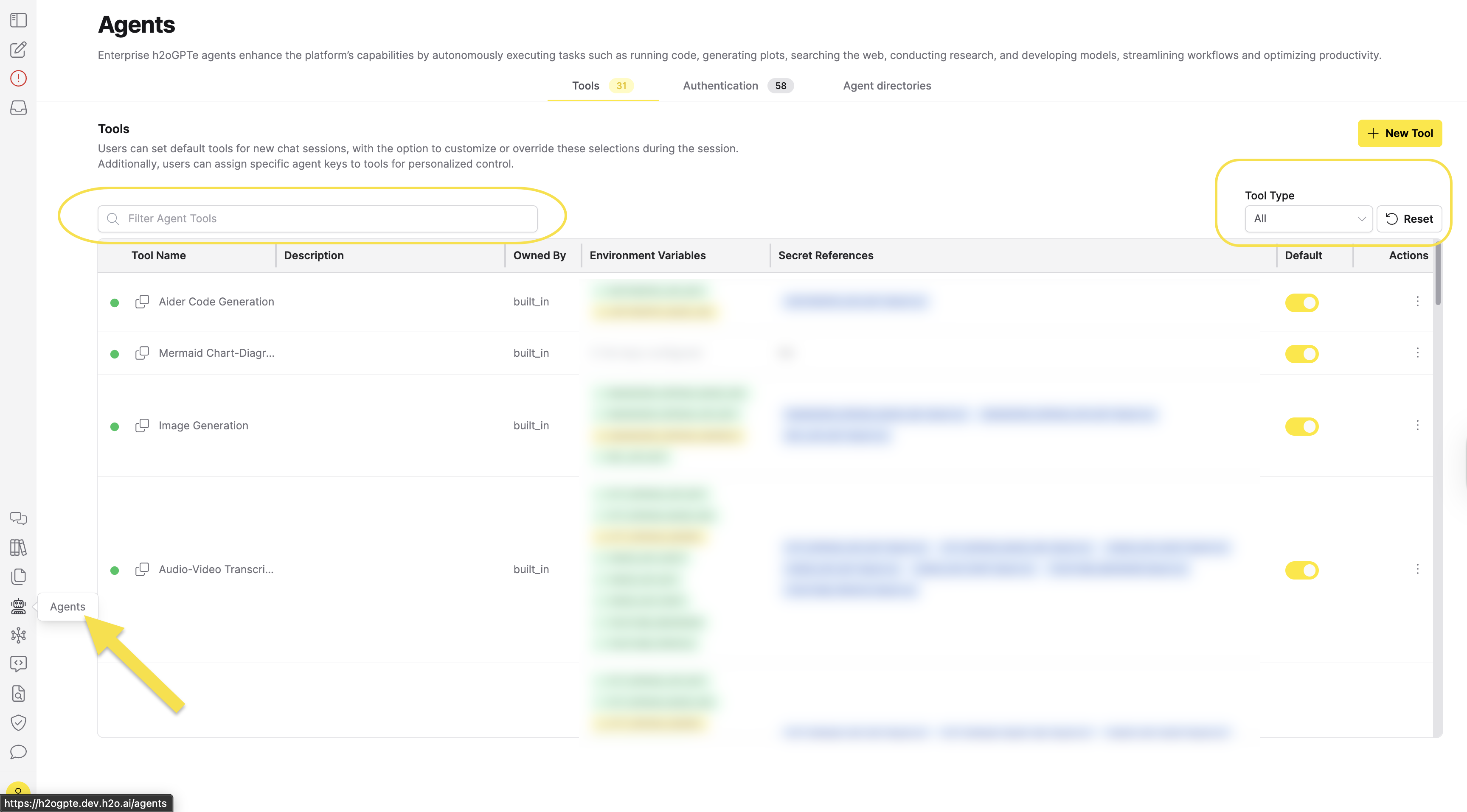
To view and manage agent tools in the Enterprise h2oGPTe interface:
- Click Agents in the main menu.
- Click the Tools tab to view the agent tools table.
- Use the Filter Agent Tools search box to search for tools by name.
- Use the Owner dropdown next to the search box to filter tools by owner. The options are All, Built-in, and Custom.
- Click the Reset button to reset key associations to admin-defined defaults or reset to system default settings.
When creating custom tools, users can choose to enable the Enable by default option or toggle it from the Default column in the table. Tools enabled by default are automatically available to users when new agent chat sessions are created, ensuring faster setup and consistent tool availability across your organization.
The tools table displays all available tools with their configuration status, environment variables, and secret references.
Tool actions
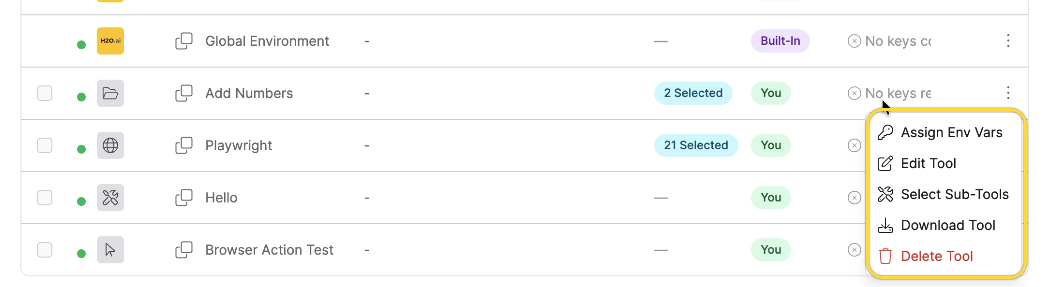
Each tool row in the table has an actions menu (three dots) that provides the following options:
- Assign Env Vars — Assign authentication keys to the tool's environment variables (see Assigning keys to tools).
- Edit Tool — Edit the tool's name, description, system prompt, or code (custom tools only). For tools with an uploaded file (Local MCP, Remote MCP, Browser Action, and General Code), the dialog shows the current filename and lets you upload a new file to replace it. The replacement must match the tool type:
.zipfor Local MCP,.pyor.zipfor Browser Action and General Code, and any file type for Remote MCP. Uploading a replacement permanently deletes the previous file. Leave the field blank to keep the existing file. - Select Sub-Tools — Select which sub-tools to expose for remote or local MCP tools. Not available for predefined API app or OAuth app tools.
- Download Tool — Download the tool's source file. Available for Local MCP, Browser Action, and General Code tool types; you can't download Remote MCP tool files. You can download only tools that you own.
- Delete Tool — Remove the tool from the system (custom tools only).
Predefined MCP tools
Predefined MCP tools are curated, one-click connectors for popular external services. Examples include Slack, Snowflake, Teradata, PowerPoint, Hugging Face, N8N Workflow Builder, Playwright, and the h2oGPTe MCP Server — see the MCP server directory for detailed per-tool configuration. Unlike custom MCP tools, which require entering server details manually, predefined tools ship with their connection details, required/optional API keys, and available sub-tools already curated, so you can add them without writing any JSON configuration.
Predefined tools that use OAuth-based authentication instead of API keys appear under a separate OAuth Apps tab, alongside the default Tools tab shown below, and are managed through Connectors. The OAuth Apps tab only appears when your deployment has connectors enabled and at least one OAuth-based tool is available.
Browsing and adding predefined tools
Predefined tools live on the Library page. Adding one needs the List, add, and remove builtin MCPs permission (h2ogpte/agent/use_builtin_mcps), which the admin, default, and user roles hold by default. The viewer and guest roles do not.
-
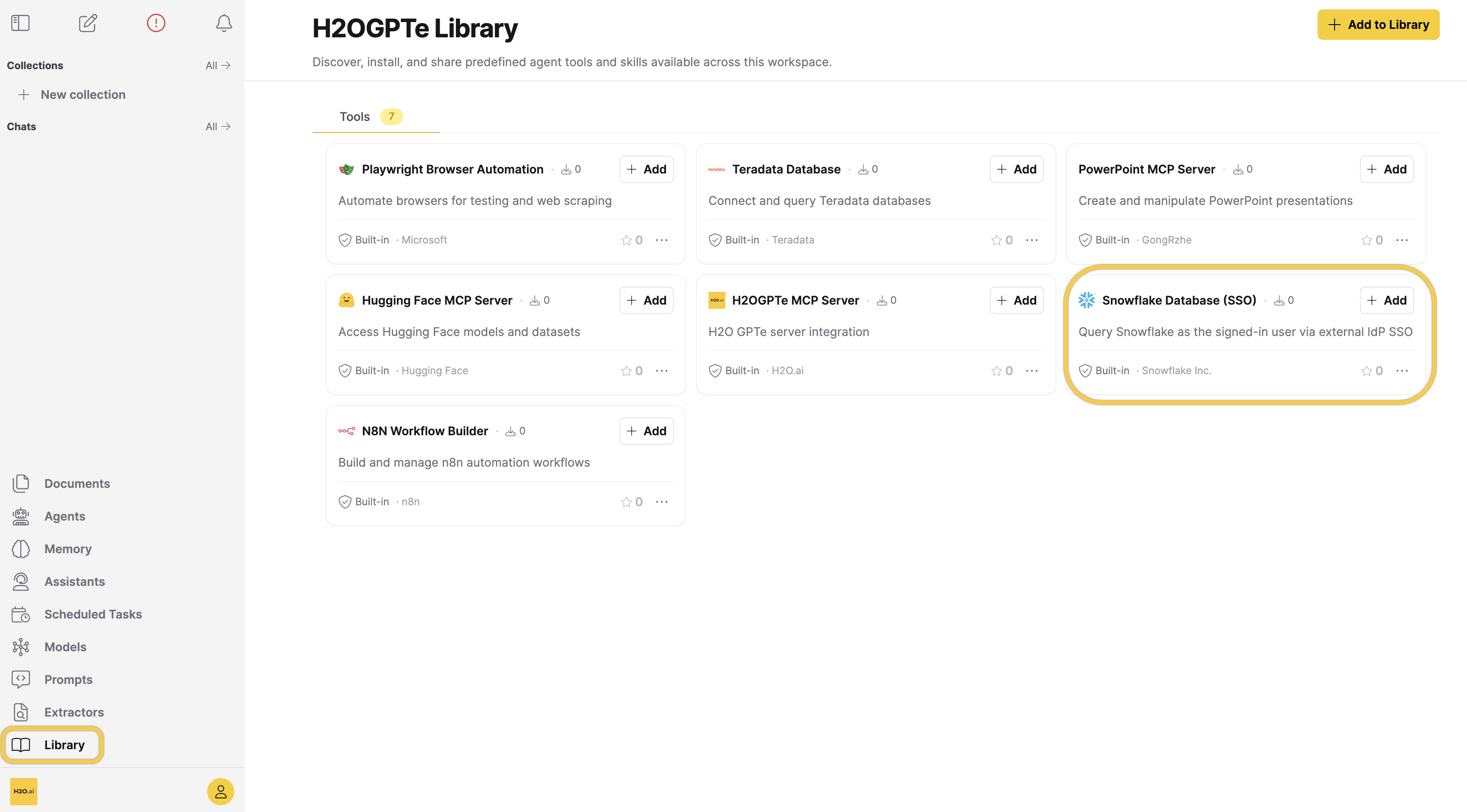
In the main navigation, click Library. Clicking Browse Tools in Agents > Tools opens the same page.
-
On the Tools tab, select a tool card.
-
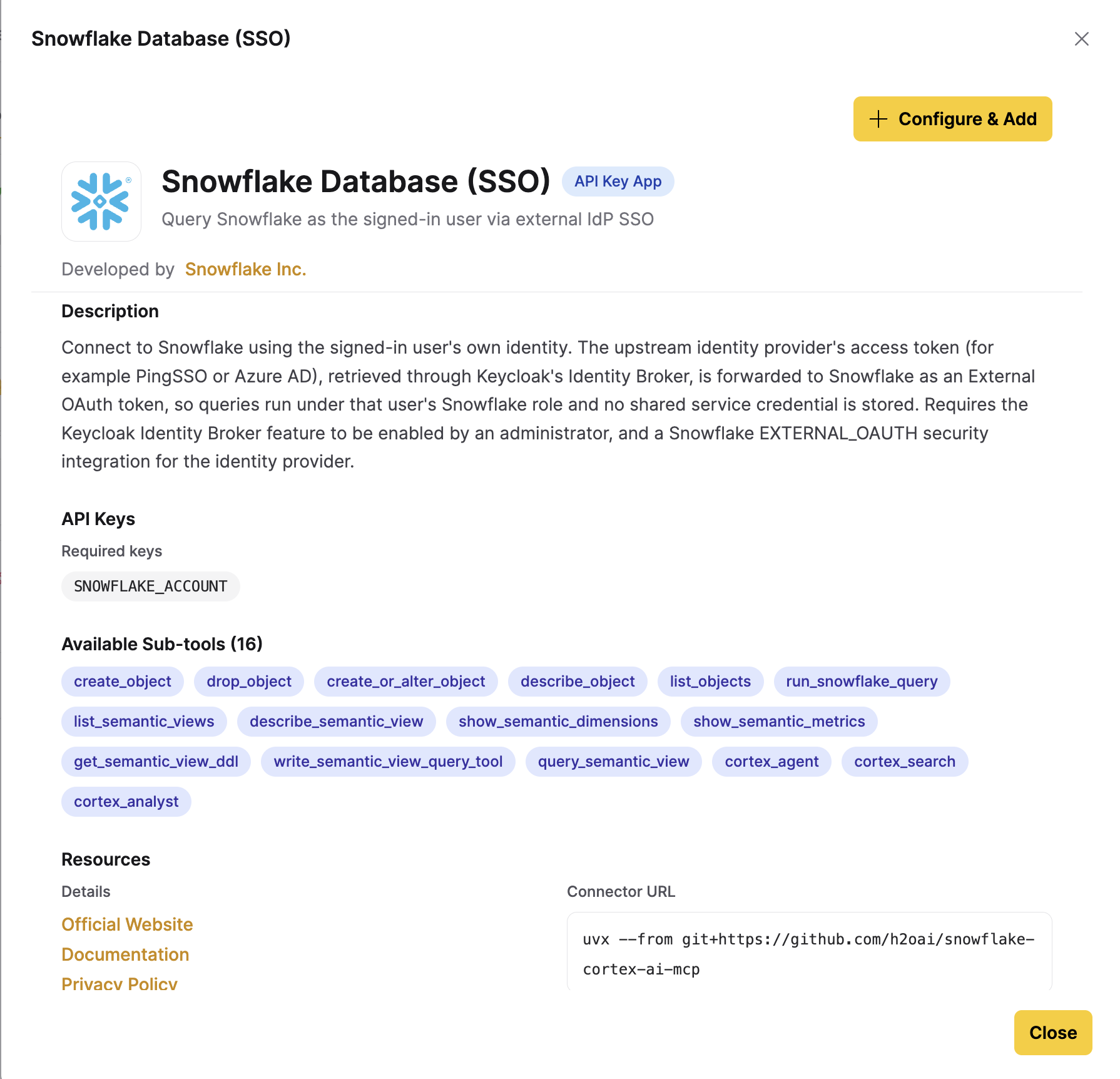
Review the tool details, then click Configure & Add. The details name the developer, the required and optional API keys, and the connector command, and link to the provider's website, documentation, and privacy policy. Available Sub-tools lists the functions the underlying MCP server exposes.
-
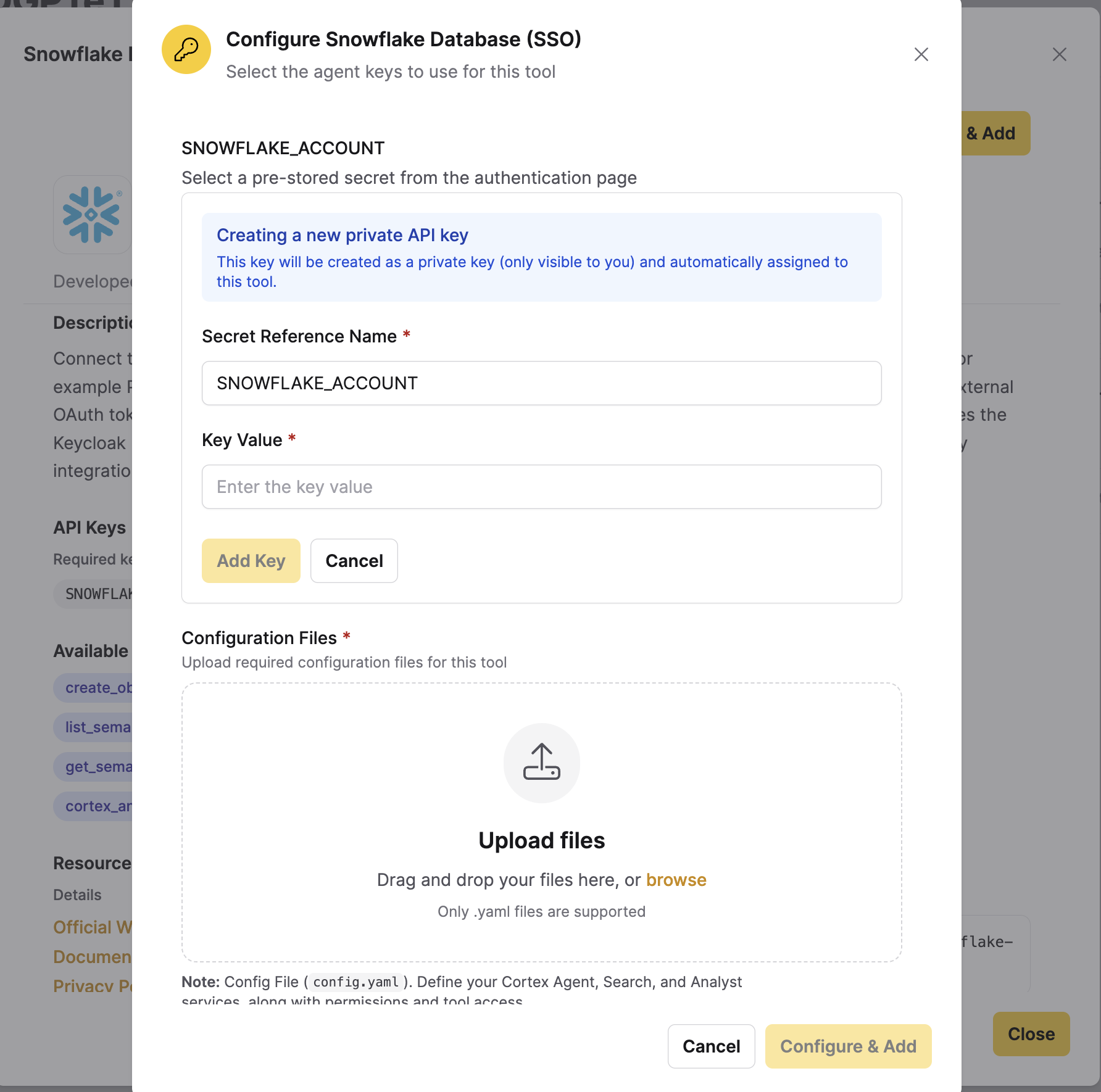
In the Configure dialog, select a stored authentication key for each required and optional variable, and upload any configuration files the tool requires. The dialog opens only for a tool that needs keys or files. A tool that needs neither is added as soon as you click Configure & Add.
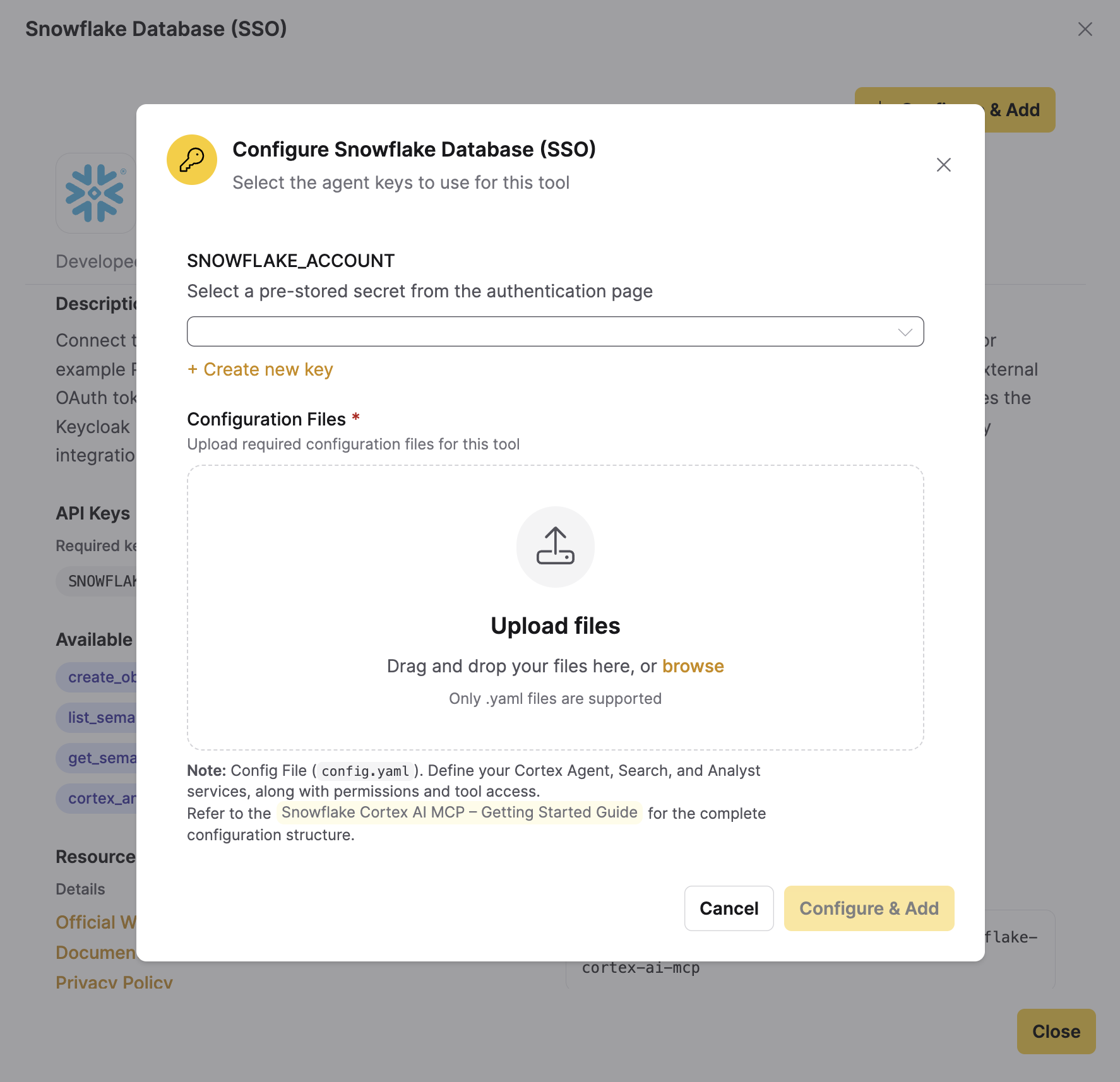
To supply a key you have not stored yet, click + Create new key, fill in Secret Reference Name and Key Value, then click Add Key. Enterprise h2oGPTe stores it as a private key that only you can see and assigns it to this tool.
-
Click Configure & Add in the dialog. On the tool card, the Add control then changes to Added and is disabled.
The tool then appears in the Agents > Tools table, owned by the account that added it, with a green status icon and its sub-tools turned on. A predefined tool also joins your default tool set for every new chat, with no opt-out during setup. To change that, turn off the tool's Default toggle.
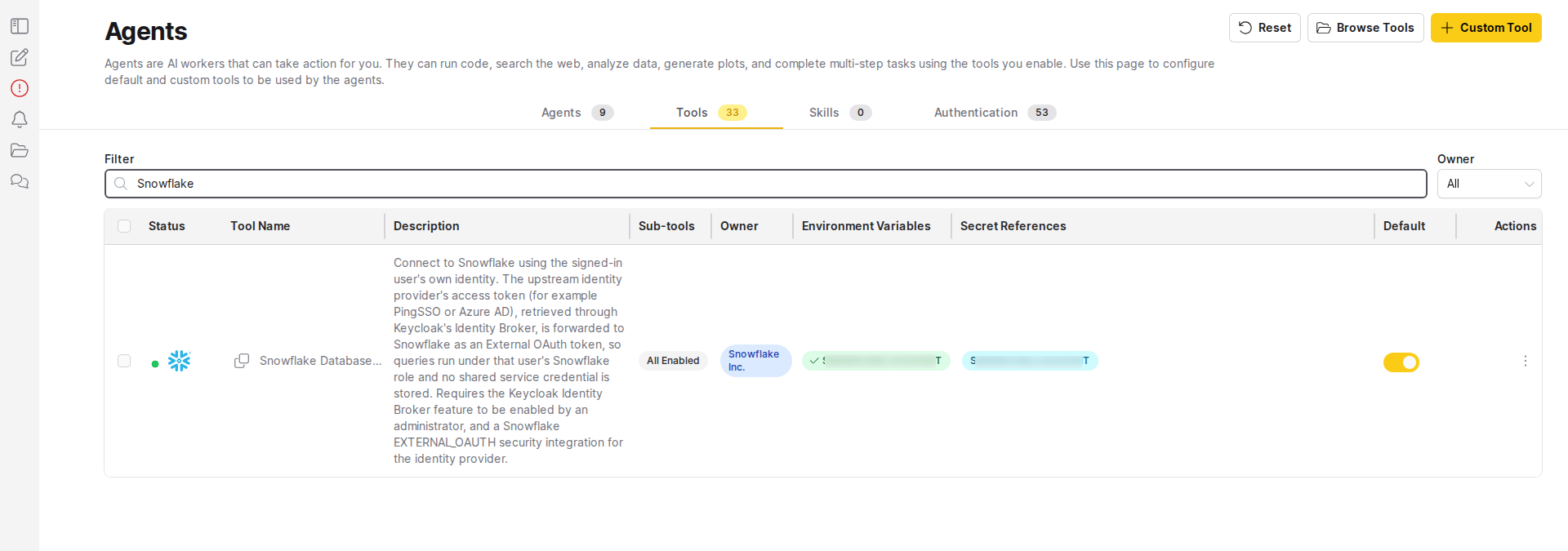
Sub-tool selection through Select Sub-Tools (see Tool actions) is not supported for predefined tools. All sub-tools stay turned on. To give an agent a subset of an MCP server's sub-tools, add the same server as a custom remote MCP tool instead.
These screenshots show Snowflake Database (SSO), which queries Snowflake as the signed-in user by forwarding the access token from an external identity provider. It needs SNOWFLAKE_ACCOUNT as its only key and a config.yaml naming the Snowflake Cortex AI services to expose, and it depends on the Keycloak Identity Broker and a Snowflake External OAuth security integration. For those prerequisites and the alternatives to it, see Query Snowflake with an external IdP token.
Managing predefined tools (administrators)
Administrators can publish predefined tools to the library, edit them, and manage each tool's logo. Publishing needs both the Publish to the library and edit or delete any library item permission (h2ogpte/agent/manage_library) and the List, add, and remove builtin MCPs permission (h2ogpte/agent/use_builtin_mcps). Only the admin role holds both by default, so Add to Library is hidden for everyone else.
-
Open the Library page as described above and select the Tools tab.
-
Click Add to Library, then Add Predefined Tool. Optional: upload a logo in PNG, JPG, SVG, or WebP format, up to 10 MB. Only the
api_apptool type is supported.Required fields:
{"name": "Custom Tool Name","subtitle": "Tool subtitle","type": "api_app","developed_by": "Developer Name","provider_url": "https://provider.com","description": "Tool description","subtools": ["subtool1", "subtool2"],"links": {"website": "https://website.com","documentation": "https://docs.com","privacy": "https://privacy.com"},"mcp_config_json": {"command": "npx","args": ["-y", "custom-tool"],"env": {"API_KEY": "os.environ/API_KEY"},"tool_usage_mode": ["runner"]}}subtoolslists the sub-tool (function) names the underlying MCP server exposes — these are the same names shown in the Available Sub-tools section of the tool detail view and used to populate Select Sub-Tools.noteThis JSON schema is closed: only the fields listed here are accepted. Any other top-level field, or any unrecognized sub-key inside
links,api_keys, or an entry offiles, is rejected with an "Unknown fields not allowed" error.tool_usage_modeis optional and defaults to["runner", "creator"]if omitted. For eachenventry,"os.environ/<NAME>"tells h2oGPTe to inject the named environment variable at runtime — replace<NAME>with the same variable name you list underapi_keys.Optional fields (add any of these alongside the required fields above):
Field Type Description api_keys{ required: string[], optional: string[] }API key variable names for the tool is_files_neededboolean Whether the tool requires config files filesarray of { file_hint, format }Config file definitions. Only validated when is_files_neededistrueand the array is non-empty.promptsarray Prompt templates resourcesarray Resource definitions optionsarray Additional tool options noteThe tool's internal ID is derived from
name(lowercased, with spaces replaced by underscores). Reusing an existing tool's exact name updates that tool instead of creating a new one. If a different administrator's tool name normalizes to the same ID, adding or editing yours fails with an error. -
Enter the configuration in Tool Configuration (JSON), then click Add Tool. Refresh the page to see the new tool on the Tools tab.
-
To edit a published tool, open Tool actions on its card, click Edit, then click Update Tool. Editing replaces the tool's entire configuration, so include every field, not only the ones you are changing. To manage its icon, use Upload Logo or Remove Logo in the same menu.
-
To take a tool out of the library, open Tool actions on its card and click Delete tool from library.
Edit, Delete tool from library, Upload Logo, and Remove Logo are available to any role that holds manage_library, not only to the administrator who published the tool. They do not appear on the tools that ship with Enterprise h2oGPTe, which no administrator can edit or remove.
Managing authentication keys in the UI
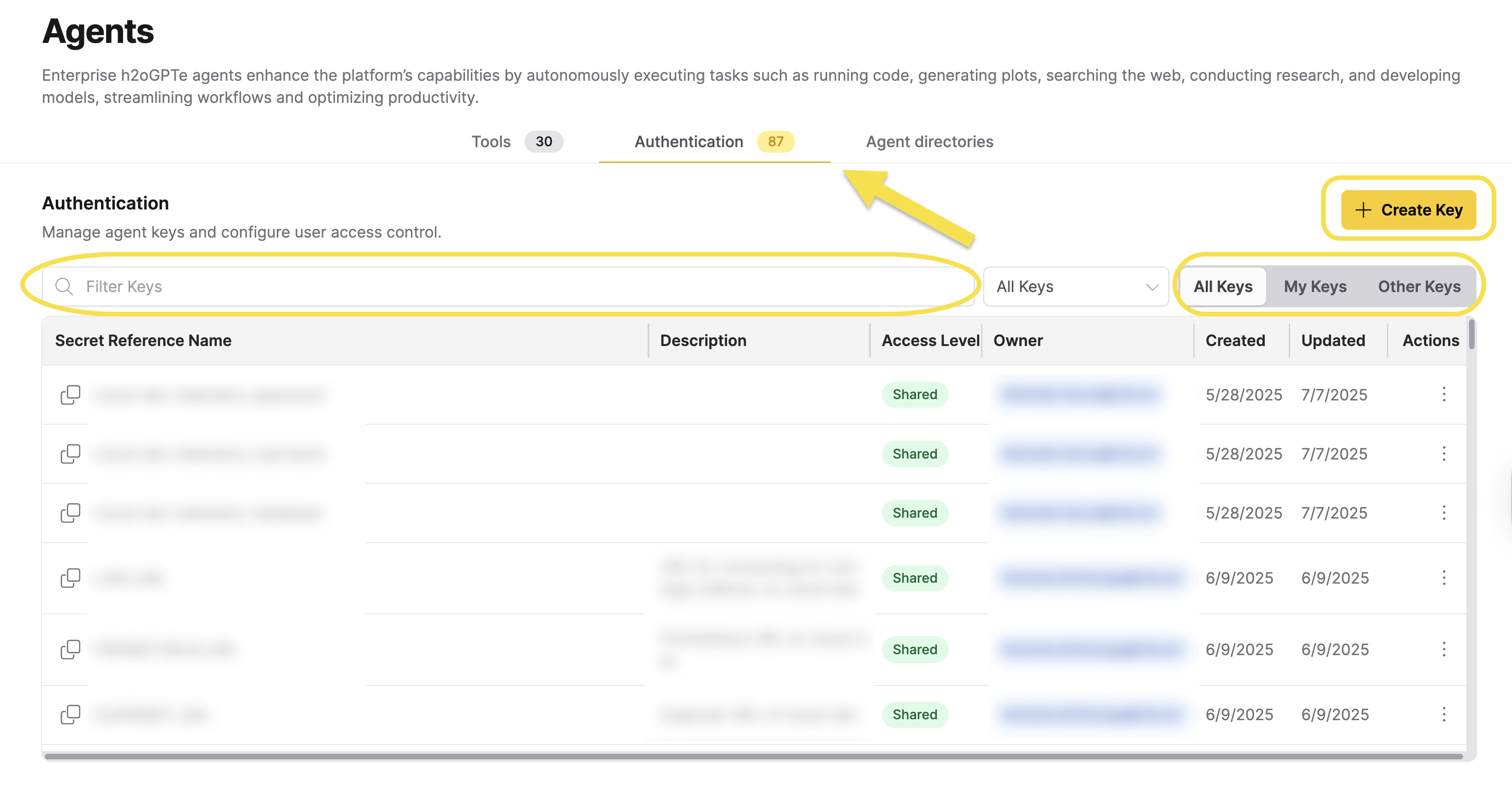
The Authentication table displays all available keys with their secret reference names, descriptions, access levels, owners, creation dates, and update dates.
To view and manage authentication keys in the Enterprise h2oGPTe interface:
- Navigate to Agents in the main menu.
- Click the Authentication tab to view the authentication keys table.
- Use the search box to filter keys by secret reference name.
- Use the filter buttons to filter keys by ownership:
- All Keys: Display all available keys
- My Keys: Display only keys that you own
- Other Keys: Display keys owned by other users in that workspace
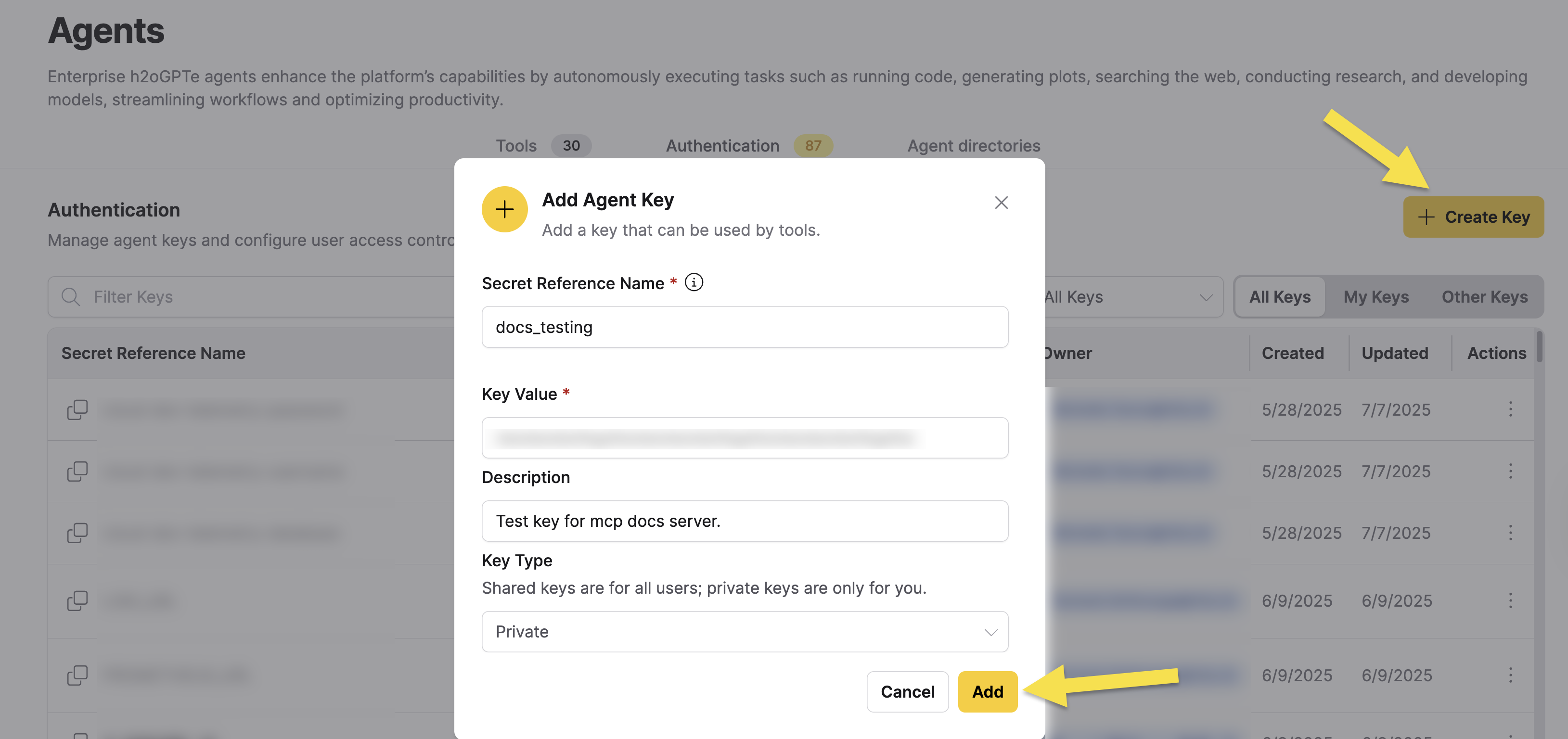
Creating authentication keys
To create a new authentication key:
- Click + Create Key on the Authentication page.
- In the Add Agent Key dialog, enter the required information:
- Secret Reference Name: The name identifier for the key (required). This should match the environment variable name used in tool configurations.
- Key Value: The actual API key, token, or credential value (required).
- Description: An optional description of the key's purpose.
- Select the Key Type:
- Private: The key is only available to you
- Shared: The key is available to all users
- Click Add to create the key.
Assigning keys to tools
After creating authentication keys, you must assign them to the tools that need them. To assign keys to tools:
- Navigate to Agents in the main menu.
- Click the Tools tab to view the agent tools table.
- Locate the tool you want to configure and click the actions menu (three dots) for that tool.
- Select Assign Environment Variable to open the Assign Environment Variable dialog.
- In the Assign Environment Variable dialog:
- For tools with predefined environment variables, select a key from the dropdown for each required or optional environment variable.
- For Python Coding and Shell Scripting tools, click + Add Environment Variable, enter the environment variable name, and select a key to add custom environment variables.
- Click Assign to save your key assignments.
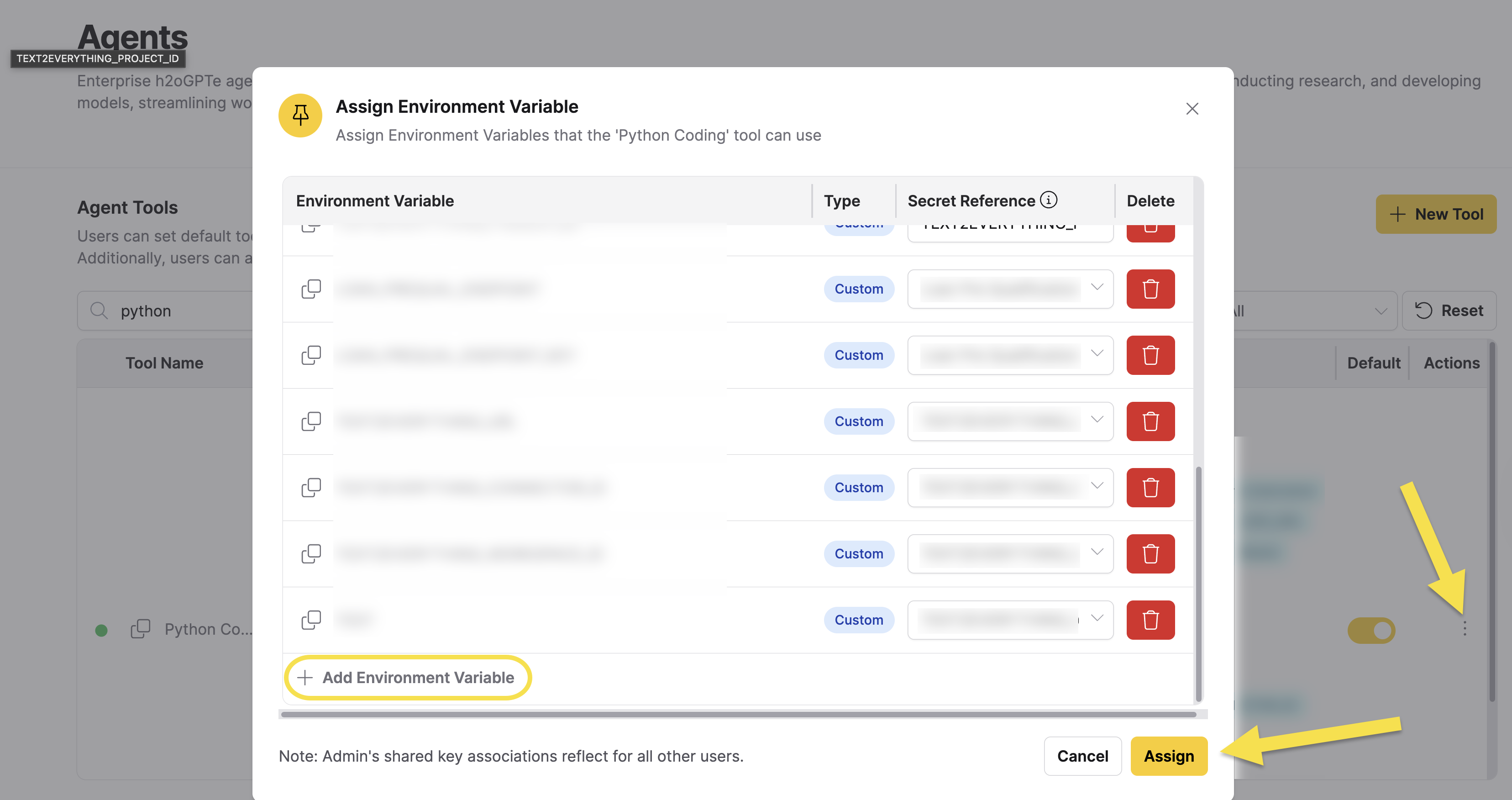
Built-in keys are system-provided keys that are available by default and cannot be modified or deleted. Built-in keys can only be used with built-in tools, except for Python Coding and Shell Scripting tools, which only accept custom keys that you create.
Store sensitive credentials securely and ensure proper access controls are in place. Private keys are only accessible to the key owner, while shared keys are accessible to all users in the organization. When administrators assign shared keys to tools, those key associations apply to all users in the workspace.
Session token forwarding
Enterprise h2oGPTe automatically makes the authenticated user's session tokens available to agent tools as environment variables. Tools opt in by declaring the variable names; variables that are not declared are never added to the tool's environment, and any value already assigned by an operator is preserved.
Available session variables
| Variable | What it carries | When to use |
|---|---|---|
H2OGPT_SESSION_ACCESS_TOKEN | Keycloak access token | Calls to h2oGPTe's own APIs |
H2OGPT_SESSION_REFRESH_TOKEN | Keycloak refresh token | Autonomous Keycloak token refresh |
H2OGPT_SESSION_EXTERNAL_IDP_TOKEN | Upstream IdP access token (e.g. PingSSO, Azure AD) | Calls to external services that reject Keycloak tokens |
H2OGPT_SESSION_EXTERNAL_IDP_REFRESH_TOKEN | Upstream IdP refresh token | Autonomous external IdP token refresh |
The external IdP refresh token has wider scope and a longer lifetime than the Keycloak token. Declare it only when the tool needs to refresh its own token during a single execution. For single-call tools, prefer H2OGPT_SESSION_EXTERNAL_IDP_TOKEN (access-only) and allow the agent to retry the tool on authentication failure.
External IdP token via Keycloak Identity Broker
By default, only the Keycloak access and refresh tokens are available. In federated deployments, where users sign in via an upstream provider such as PingSSO or Azure AD, external services like Snowflake expect the upstream IdP's token, not the Keycloak token. To address this, Enterprise h2oGPTe can fetch the user's upstream IdP token from Keycloak's Identity Broker endpoint and forward it to tools that opt in by declaring H2OGPT_SESSION_EXTERNAL_IDP_TOKEN.
The feature activates only for federated users: those whose JSON Web Token (JWT) carries the identity_provider claim matching the configured alias. Users who authenticate directly through Keycloak (without federation) are unaffected. The feature is off by default.
Keycloak prerequisites
Before enabling this feature, confirm the following in the Keycloak admin console:
- Store Tokens must be enabled on the Identity Provider configuration (Identity Providers > your provider, then turn on Store Tokens and Stored Tokens Readable).
- The signed-in user must hold the
read-tokenclient role of the built-inbrokerclient, and the h2oGPTe client must have that role in its scope. Turning on Stored Tokens Readable assigns the role only to users who link the identity provider for the first time after the change. Assign it to users who had already signed in through it separately, for example by adding it to the realm default role (Realm roles >default-roles-<realm>> Assign role, then filter by clients and selectbroker read-token).
Helm configuration
global:
  oidc:
    externalIdpBroker:
      enabled: true
      providerAlias: "<alias>"   # Keycloak IdP alias — e.g. pingsso, azure-ad, okta-corp

mux:
  config:
    sessionCacheKey: "<32+ char hex>"   # Shared across all mux replicas; also used by the Azure AD session cache
providerAlias is the alias assigned when creating the Identity Provider entry in the Keycloak admin console. The mechanism is provider-agnostic — PingSSO, Azure AD, Okta, and any other OIDC/OAuth2/SAML provider that Keycloak can broker work the same way.
For tool authors who want to receive these tokens, see Receiving session tokens in custom MCP tools. For a walkthrough that uses the external IdP token against a real service, see Query Snowflake with an external IdP token.
Tools
Data analysis capabilities
-
H2O Driverless AI Data Science: Build automated machine learning models and analyze data to generate actionable insights. This tool connects to H2O Driverless AI to run experiments, create predictions, and perform data analysis.
Configure the tool:
- For DAI Cloud:
- For DAI on-premises:
h2ogpt:config:externalLLM:secret:ENABLE_DAI: "1"DAI_INSTANCE_TYPE: cloudDAI_CLIENT_ID: hac-platform-publicDAI_ENGINE: <your-dai-engine>DAI_ENVIRONMENT: <your-dai-environment-url>DAI_TOKEN: <your-dai-token>DAI_TOKEN_ENDPOINT_URL: <your-token-endpoint-url>DAI_MAX_RUNTIME_MINUTES: "60"h2ogpt:config:externalLLM:secret:ENABLE_DAI: "1"DAI_INSTANCE_TYPE: onpremDAI_ADDRESS: <your-dai-address>DAI_USERNAME: <your-username>DAI_PASSWORD: <your-password>DAI_MAX_RUNTIME_MINUTES: "60"Configuration reference
Parameter Type Deployment Type (Cloud/MC and On-Premises) Description ENABLE_DAIString Both Set to "1"to enable Driverless AI integrationDAI_INSTANCE_TYPEString Both Specify "cloud"or"onprem"DAI_CLIENT_IDString Cloud/MC Client ID for cloud instances. Default: hac-platform-publicDAI_ENGINEString Cloud/MC Engine identifier for cloud deployments DAI_ENVIRONMENTString Cloud/MC Cloud environment URL DAI_TOKENString Cloud/MC Authentication token for cloud access DAI_TOKEN_ENDPOINT_URLString Cloud/MC Token endpoint URL for cloud authentication DAI_ADDRESSString On-Premises Server address for on-premises installations DAI_USERNAMEString On-Premises Username for on-premises authentication DAI_PASSWORDString On-Premises Password for on-premises authentication DAI_MAX_RUNTIME_MINUTESInteger Both Required: Maximum runtime limit for experiments in minutes. Must be set to a positive integer value to prevent errors. How end users interact with the tool
Once configured, end users can interact with the H2O Driverless AI Data Science tool through natural language prompts. They don't need to write code directly. For example:
- "
Use Driverless AI to create a classification experiment with the Titanic dataset, targeting the 'Survived' column with accuracy setting 2" - "
Run a regression experiment on my sales data with high interpretability" - "
Create a DAI experiment with time setting 3 and accuracy setting 5"
The agent automatically invokes the underlying tool function:
# This code is executed automatically by the agent - not by end usersfrom api_server.agent_tools.driverless_ai_data_science import driverless_ai_data_sciencedriverless_ai_data_science(data="titanic.csv",dataset_name="titanic_test",target_column="Survived",task="classification",experiment_name="titanic_test_experiment",accuracy=2,time=2,interpretability=7)Secure your credentials
To securely access Driverless AI credentials:
- Navigate to Agents > Authentication in the Enterprise h2oGPTe UI.
- Create secure keys for DAI access.
- Assign the keys to the H2O Driverless AI Data Science tool.
Access the credentials in your code:
# Access credentials securely via environment variablesenable_dai = os.getenv("ENABLE_DAI")dai_max_runtime = os.getenv("DAI_MAX_RUNTIME_MINUTES")Before you begin- Ensure your system has sufficient computational resources for experiments
- For cloud instances: Verify authentication tokens and network connectivity
- For on-premises: Confirm the Driverless AI (DAI) server is accessible from h2oGPTe
- Set
DAI_MAX_RUNTIME_MINUTESto a positive integer value (for example, 60) to preventValueErrorruntime errors. This parameter is required and cannot be empty.
-
Python Coding: Execute Python code snippets for custom data computations, machine learning tasks, or to automate data preprocessing.
Requirements:
- Enabled by default. No additional configuration required.
-
Advanced Reasoning: Perform context-aware reasoning to enhance decision-making processes.
Requirements:
-
Requires models that support reasoning capabilities.
-
Configure in Helm chart:
agent:enabled: trueoverrideConfig:visible_reasoning_models:- meta-llama/Llama-3.1-8B-Instruct
tipTo enhance reasoning depth and accuracy, you can set the
AGENT_ACCURACYparameter toMaxin your agent configuration. This setting may increase resource usage but improves the quality of context-aware reasoning. -
Information retrieval and research
-
Scholar Papers Search: Locate scholarly papers, research articles, and academic content.
Requirements:
- Requires the Internet Access tool to be enabled.
-
Google search: Access Google's search capabilities to gather timely and accurate information.
Requirements:
- Requires the Internet Access tool to be enabled.
- Optional:
-
Configure the Google API key in Helm chart:
h2ogpt:config:externalLLM:secret:GOOGLE_API_KEY: <your-google-api-key> -
Configure a different search provider for the Google search tool by setting
WEB_SEARCH_PROVIDER.The following table lists the supported
WEB_SEARCH_PROVIDERvalues and the environment variables each provider requires:Value Provider Environment variables autoDefault. Tries SerpAPI first, then the next provider whose credentials are present Depends on the resolved provider serpapiSerpAPI SERPAPI_API_KEYbraveBrave Search BRAVE_API_KEYgoogle_cseGoogle Programmable Search Engine GOOGLE_CSE_API_KEYandGOOGLE_CSE_CXserperSerper SERPER_API_KEYtavilyTavily TAVILY_API_KEYazure_groundingAzure Grounding with Bing Search AZURE_AI_PROJECT_ENDPOINT,BING_CONNECTION_ID,MODEL_DEPLOYMENT_NAME, and service principal credentials (see below) if the deployment has no managed identityCreate a key for each variable and assign it to the Google Search tool.
SERPAPI_API_KEYis also available as a built-in key. See Managing authentication keys in the UI. -
To use
azure_grounding, create an Azure AI Foundry project with a Bing grounding connection and a model deployment. See Grounding with Bing Search for the Azure-side setup steps.Set
BING_CONNECTION_IDto the full Azure resource ID of the connection. If you set the short connection name instead, the search fails with aconnection not founderror. If your deployment has no managed identity, also set the service principal variablesAZURE_TENANT_ID,AZURE_CLIENT_ID, andAZURE_CLIENT_SECRET. -
Set
H2OGPT_WEBSEARCH_TIMEOUTto the timeout in seconds. The default is25.
-
noteThe Google search tool keeps the Google Search label whichever provider you configure.
-
Bing search: Access Bing's search capabilities to gather timely and accurate information.
Requirements:
- Requires the Internet Access tool to be enabled.
- Optional:
- Configure the Bing API key in Helm chart:
h2ogpt:config:externalLLM:secret:BING_API_KEY: <your-bing-api-key>
- Configure the Bing API key in Helm chart:
-
Internet Access: Utilize general internet access for a wide range of tasks, from data retrieval to live updates.
Requirements:
- Enabled by default. No additional configuration required.
-
Wolfram|Alpha Math Science Search: Solve scientific and mathematical problems using the computational knowledge engine for complex computations.
Requirements:
- Requires the Internet Access tool to be enabled.
- Optional:
- Configure the Wolfram|Alpha API key in Helm chart:
h2ogpt:config:externalLLM:secret:WOLFRAM_ALPHA_APPID: <your-wolfram-alpha-appid>
- Configure the Wolfram|Alpha API key in Helm chart:
-
Wikipedia Articles Search: Retrieve information from Wikipedia for learning or to support data analysis and research.
Requirements:
- Requires the Internet Access tool to be enabled.
-
Wayback Machine Search: Access archived versions of websites for research, historical context, or to reference past web content.
Requirements:
- Requires the Internet Access tool to be enabled.
-
Web Image Search: Find relevant images from the web to support visual analysis, presentations, or content creation.
Requirements:
- Requires the Internet Access tool to be enabled.
-
Browser Navigation: Automate web browsing tasks, including form filling, authentication, and complex web interactions across multiple platforms and services.
Requirements:
- Requires the Internet Access tool to be enabled.
- Enabled by default. No additional configuration required.
- Optional API keys and credentials to configure in Helm chart for enhanced functionality:
h2ogpt:config:externalLLM:secret:# Search Engine APIsBING_API_KEY: <your-bing-api-key>SERPAPI_API_KEY: <your-serpapi-key>GOOGLE_API_KEY: <your-google-api-key># AI Service APIsSTT_OPENAI_API_KEY: <your-openai-stt-key>STT_OPENAI_BASE_URL: <your-openai-stt-base-url>STT_OPENAI_MODEL: <your-stt-model>ANTHROPIC_API_KEY: <your-anthropic-key>ANTHROPIC_BASE_URL: <your-anthropic-base-url># Platform CredentialsGOOGLE_USERNAME: <your-google-username>GOOGLE_PASSWORD: <your-google-password>GOOGLE_BIRTHDAY: <your-google-birthday>GOOGLE_HOME_ADDRESS: <your-google-home-address>GOOGLE_PHONE_NUMBER: <your-google-phone-number># Data Platform APIsHUGGING_FACE_HUB_TOKEN: <your-huggingface-token>KAGGLE_API_KEY: <your-kaggle-api-key>KAGGLE_USERNAME: <your-kaggle-username># RapidAPI CredentialsRAPIDAPI_EMAIL: <your-rapidapi-email>RAPIDAPI_PASSWORD: <your-rapidapi-password>
noteStore sensitive credentials securely and ensure proper access controls are in place. Consider using environment-specific configurations for different deployment environments.
-
Ask Question About Documents: Extract or query information from uploaded documents for detailed insights.
Requirements:
- Enabled by default. No additional configuration required.
Content generation and transformation
-
Image Generation: Create custom images based on textual descriptions. Integrate image generation capabilities from different providers, including local models, OpenAI, Azure OpenAI, and Black Forest Labs.
Requirements:
- Requires GPU in agent pod.
- Shell Scripting tool must be enabled as a prerequisite.
- Configuration in Helm chart:
h2ogpt:config:externalLLM:enabled: truesecret:# Black Forest Labs ConfigurationBFL_API_KEY: <your-black-forest-labs-api-key># OpenAI ConfigurationIMAGEGEN_OPENAI_BASE_URL: https://api.openai.com/v1IMAGEGEN_OPENAI_API_KEY: <your-openai-api-key># Azure OpenAI ConfigurationAZURE_OPENAI_BASE_URL: openai.azure.comAZURE_OPENAI_API_KEY: <your-azure-openai-api-key>agent:enabled: trueadditionalConfig:function_api_key: <your-function-api-key>enforce_h2ogpt_api_key: falseenforce_h2ogpt_ui_key: falseenable_image: truevisible_image_models:- "flux.1-schnell" # Local model for image generation# Optional: Additional image generation models# Uncomment and replace with actual model names when using external providers# - "openai-model" # OpenAI model# - "azure-model" # Azure model
-
Audio-Video Transcription: Convert spoken content from audio or video files into text.
Requirements:
- Enabled by default. No additional configuration required.
- Optional:
- Configure the OpenAI base URL and API key for STT in Helm chart:
h2ogpt:config:externalLLM:secret:STT_OPENAI_BASE_URL: <your-stt-openai-base-url>STT_OPENAI_API_KEY: <your-stt-openai-api-key>additionalConfig:asr_model: "distil-whisper/distil-large-v3" # Model for converting audio/video transcriptionenable_stt: true # Enable speech-to-text for audio/video transcriptionnote
Ensure you have selected Agent Only as the Ingest Mode when uploading. See Ingestion modes.
- Configure the OpenAI base URL and API key for STT in Helm chart:
-
Convert Document to Text: Transform scanned or digital documents into editable text formats.
Requirements:
- Enabled by default. No additional configuration required.
-
Screenshot Webpage: Capture screenshots of webpages.
Requirements:
- Requires the Internet Access tool to be enabled.
-
Mermaid Chart-Diagram Renderer: Generate flowcharts and diagrams.
Requirements:
- Enabled with the default configuration.
Automation and scripting
-
Shell Scripting: Automate system-level tasks to streamline operations.
Requirements:
- Enabled by default. No additional configuration required.
Specialized AI features
-
RAG Text: Enhance text-based tasks with retrieval-augmented generation.
Requirements:
- Uses default models in ModelLock.
- Enabled by default. No additional configuration required.
-
RAG Vision: Apply retrieval-augmented generation for vision-based tasks.
Requirements:
- Uses default vision models in ModelLock.
Multimedia processing
-
Download Web Video: Download web videos.
Requirements:
- Requires the Internet Access tool to be enabled.
- Shell Scripting tool must be enabled as a prerequisite.
-
Ask Question About Image: Query and analyze visual data.
Requirements:
- Requires a vision model configured in ModelLock.
Software Development Tools
-
Aider Code Generation: Automatically generate code snippets to accelerate development tasks, particularly for data science and machine learning models.
Requirements:
- Models are fetched from ModelLock.
- No additional configuration required.
-
GitHub: Integrates with the GitHub platform for version control, code repository browsing, and collaboration.
Requirements:
- Requires configuring
GITHUB_TOKENas a secret in Helm chart:h2ogpt:config:externalLLM:secret:GITHUB_TOKEN: <your-github-token>
- Requires configuring
-
Evaluate Answer: Provides automated evaluation of responses generated by agents.
Requirements:
- Enabled by default. No additional configuration required.
-
SWEBench Evaluate Patch: Evaluates software patches by running automated tests, quality checks, and performance benchmarks.
Requirements:
- Enabled by default. No additional configuration required.
To enable tools that require internet access, such as GitHub, Wikipedia Articles Search, Web Image Search, etc., administrators must ensure that the Internet Access tool is properly configured in their Helm deployment. Once configured by administrators, users can then select and use these tools through the Enterprise h2oGPTe interface.
- Submit and view feedback for this page
- Send feedback about Enterprise h2oGPTe to cloud-feedback@h2o.ai