Update a Collection's settings
Overview
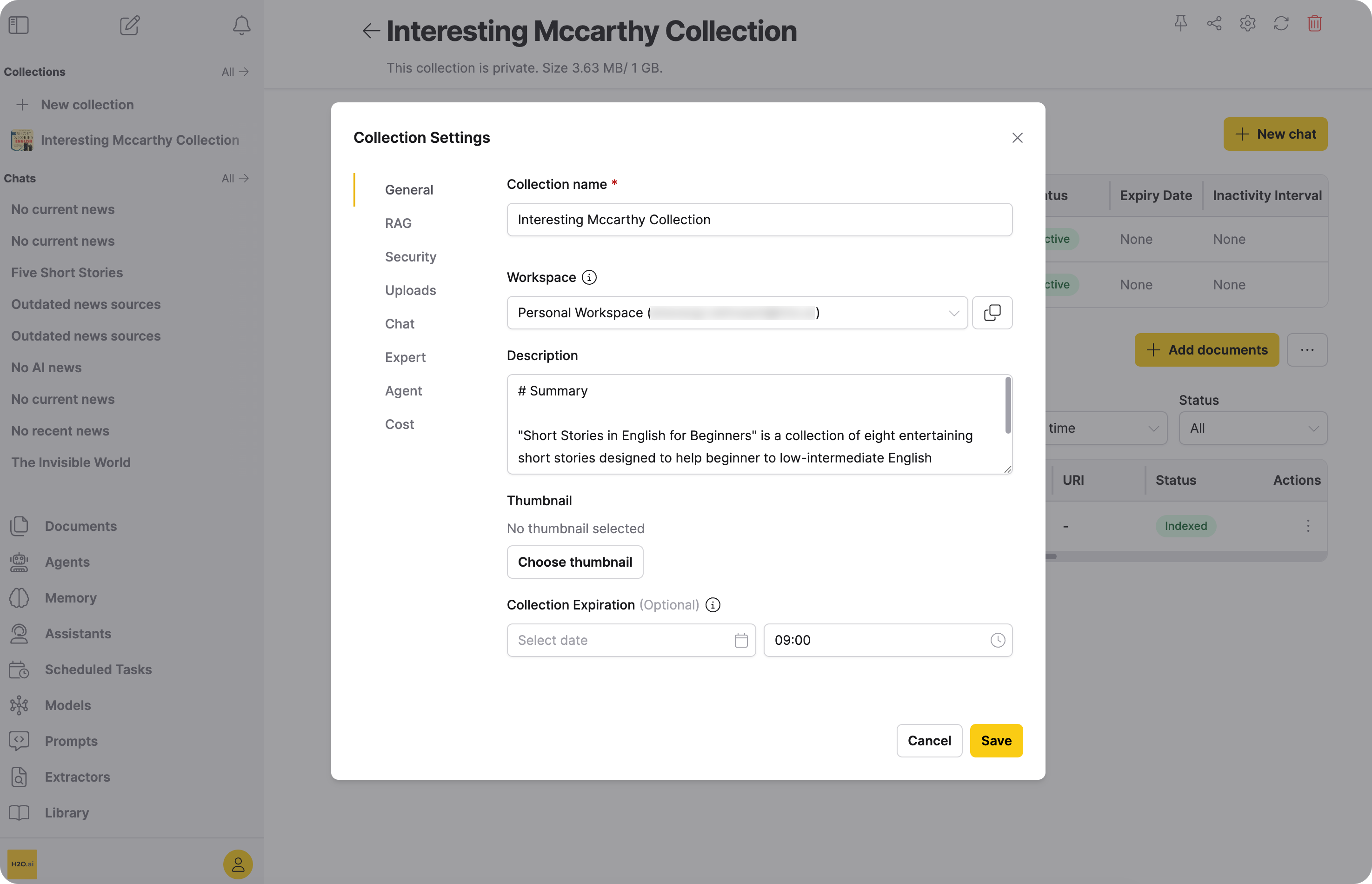
The Collection settings enable users to customize key aspects of the Collection, including its name, description, and configuration settings, such as prompt templates, generation approach, chunk settings, and guardrails.
Instructions
To update a Collection's settings, follow these steps:
You can only update the settings of your Collections.
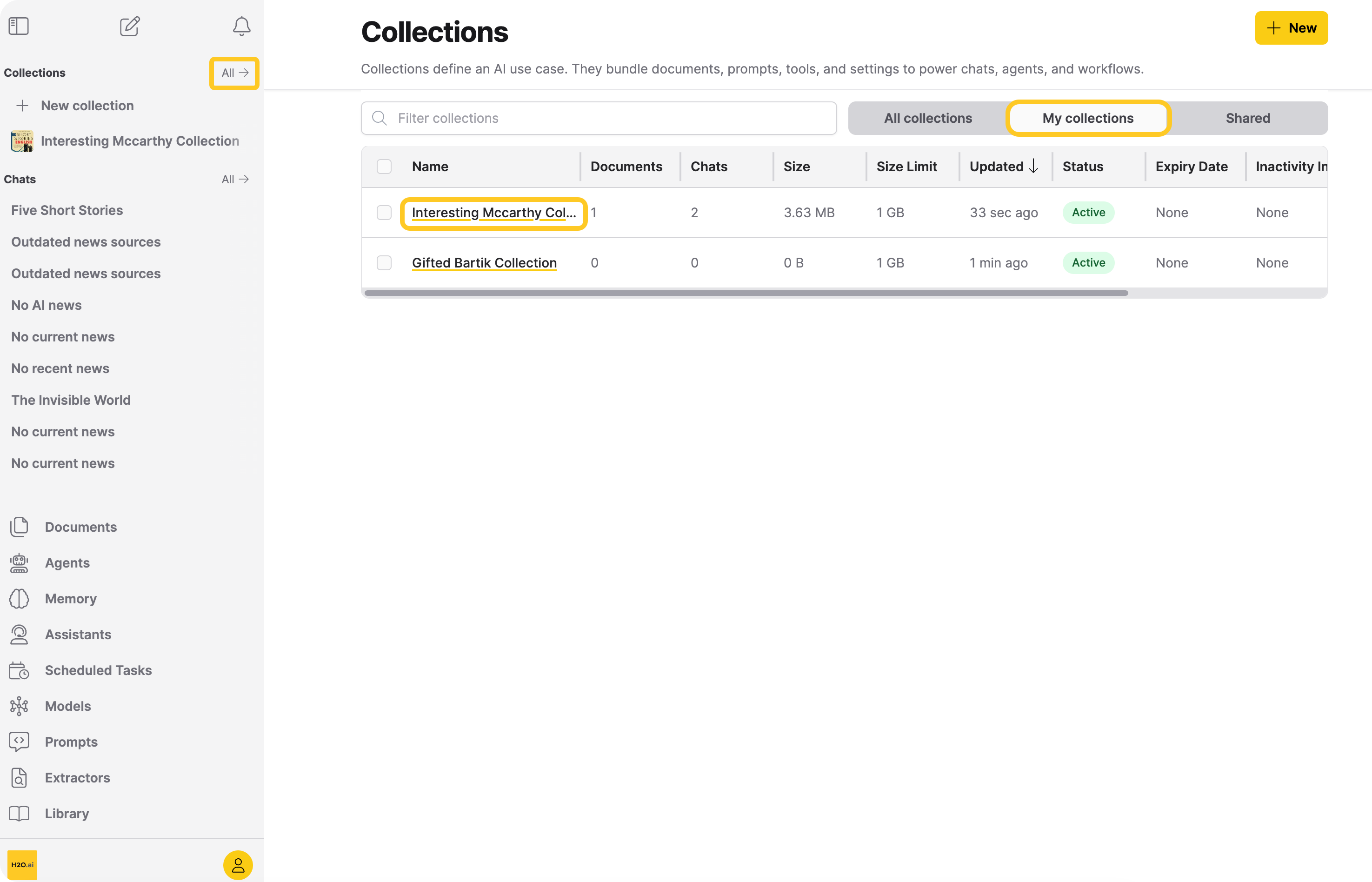
- In the Enterprise h2oGPTe navigation menu, next to Collections, click All.
- Click the My Collections tab.
- Select the relevant Collection to open its detail page.
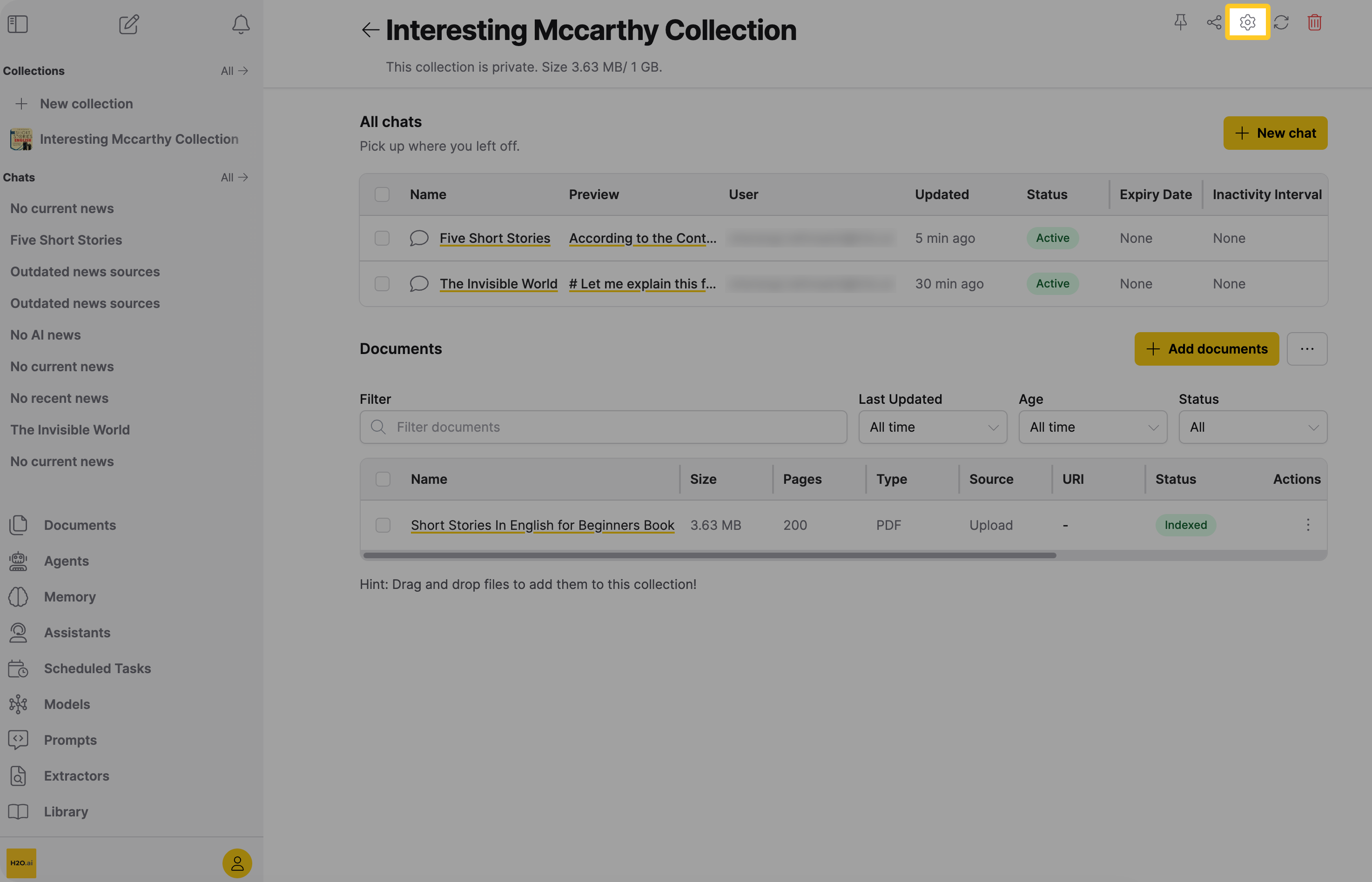
- In the action row at the top right of the page, click (tooltip: Open settings).
- In the Collection Settings window, make any changes you want.
 note
noteFor detailed information about each setting, see Collection settings.
importantChanging the Description field makes it yours and stops Enterprise h2oGPTe from tracking it. See Description ownership.
- Click Save.
Description ownership
Enterprise h2oGPTe tracks a description it generated until you edit it, and tracks when that description goes out of date so you can regenerate it. See Regenerating a description.
Editing the Description field, whether it's auto-generated or already your own, makes it yours. Enterprise h2oGPTe stops tracking it and doesn't regenerate it on its own.
To hand a description back to Enterprise h2oGPTe, clear the Description field and save. The next time you add a document or re-ingest one into the Collection, Enterprise h2oGPTe generates a new description and resumes tracking it.
Opening this form and clicking Save without changing the Description text doesn't count as an edit, and neither does renaming the Collection. Passing back the current, unchanged value from a script is also safe. Passing a different description, including from a script, makes it yours, the same as editing it here. See the Python Client Library for the update_collection method signature.
Regenerating a description
The control only appears while the description is out of date. You can't refresh a description that's already current. When that happens, a red sparkles icon appears in the action row of the Collection detail page header, next to the pin button. Hover over it to see the tooltip Description out of date. Regenerate description.
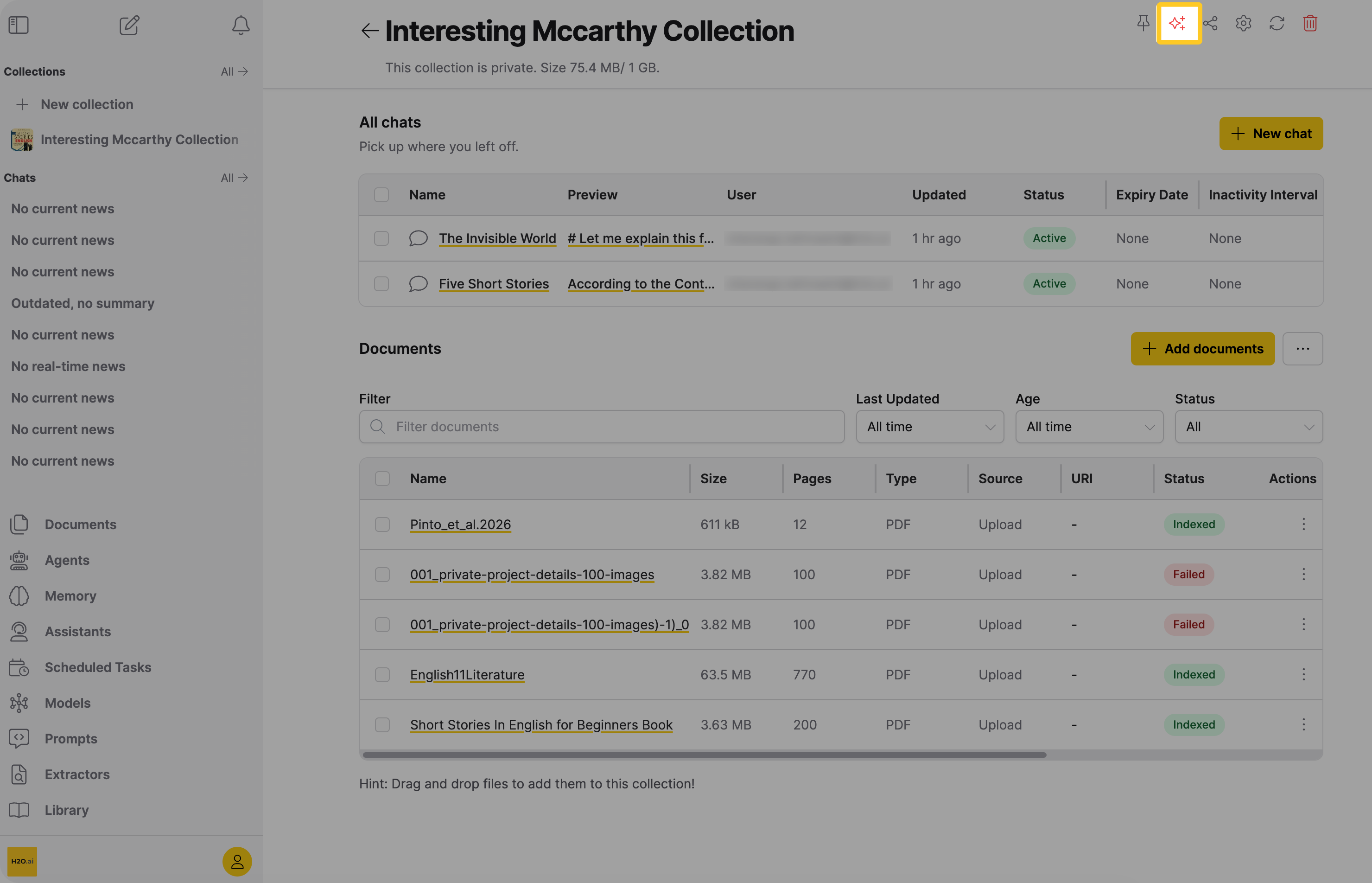
The Collection detail page header doesn't display the description text itself. To read the current description, check the Collection's card on the Collections page, or follow the Instructions to open the Description field in the settings form.
Click the icon to regenerate the description. Regeneration replaces the current text entirely.
The jobs tray opens automatically and shows an entry named Regenerating collection description. To stop the job, click the X button on the entry, then click Terminate. See Terminate a Job. While the job runs, the tooltip reads Regenerating description..., and the icon turns into a spinner you can't click.
A regeneration can run for up to 30 minutes. If it doesn't finish in that time, the icon becomes available again so you can retry.
If regeneration fails, the job reports:
Failed to regenerate description. Check that description auto-generation is enabled and that the LLM is reachable.
If the job can't start at all, a toast displays Failed to regenerate description. with the subtitle Please try again later.
If the Collection has no documents, Enterprise h2oGPTe clears the out-of-date indicator without an error. If the Collection has documents but none of them have usable content yet (for example, they're still ingesting, archived, or have no readable text), the job ends without changing the description. The out-of-date indicator stays. Try again once at least one document finishes ingesting with readable content.
Only the Collection owner, users with the h2ogpte/collection/edit permission, and administrators can see the out-of-date indicator and regenerate a description. Other users, for example someone who only has view access to the Collection, see no indicator, no icon, and no error message. The freshness fields themselves stay readable to anyone with access to the Collection through the REST API and the Python client. See Get a single collection.
Enterprise h2oGPTe started tracking description staleness in version 1.7.5. Collections that already existed at that upgrade don't show the out-of-date indicator. Clearing such a Collection's description and re-ingesting a document brings it into tracking.
There's no REST endpoint or Python client method to trigger a regeneration. Request it from the Collection detail page instead.
- Submit and view feedback for this page
- Send feedback about Enterprise h2oGPTe to cloud-feedback@h2o.ai