Create a Collection
Overview
To create a Collection, you only need to specify the following required setting: Collection name.
- There are many strategies for importing and creating Collections so that you get the best responses for your use case. For guidance on how to use Collections, see Collections usage overview.
- Watch Creating and Managing Collections in h2oGPTe to learn how to create a collection, upload documents, and explore the initial indexing process in the UI.
Instructions
The following steps describe how to create a Collection.
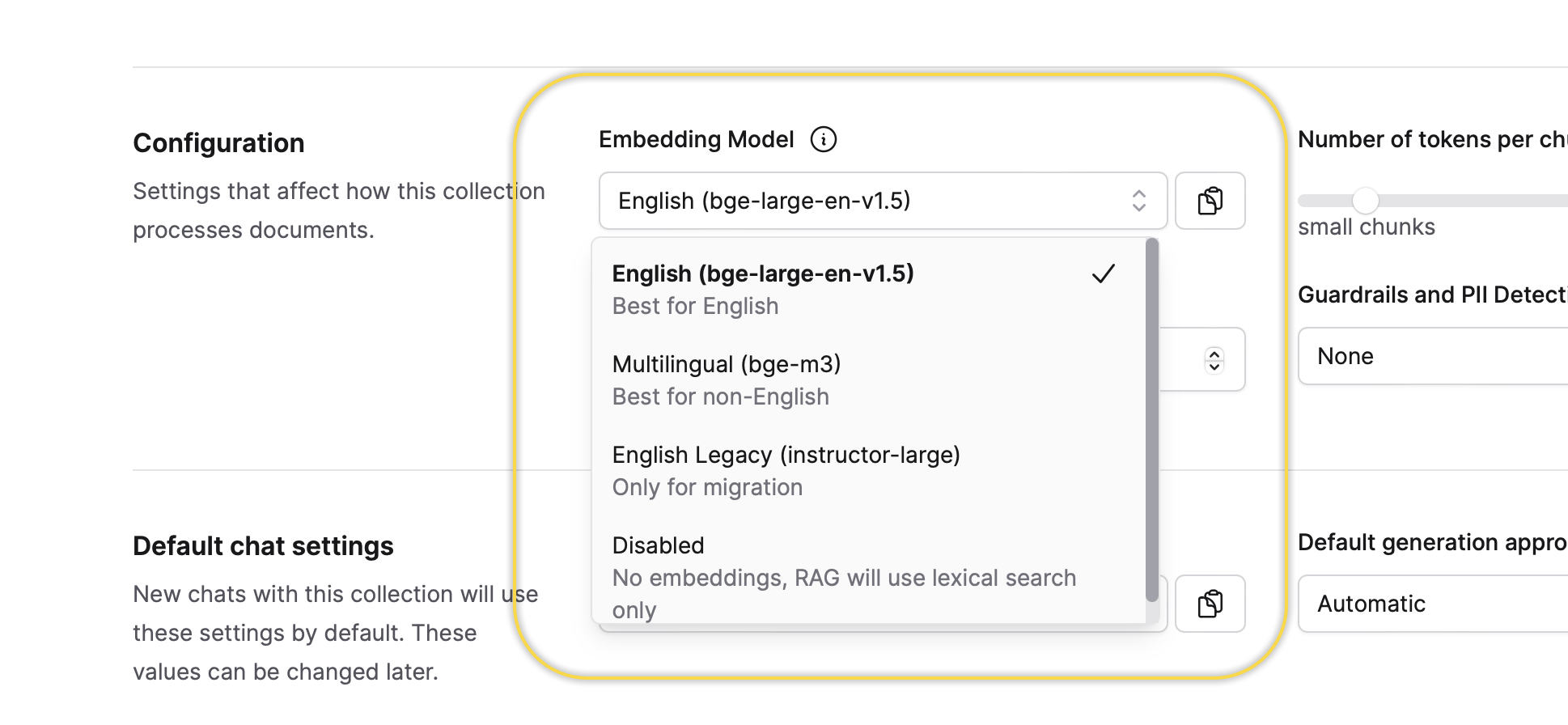
You can select an embedding model for the Collection only once and that is during the process of creating a new Collection. In other words, you can utilize the default selected embedding model or change it to one of the available options. You can not change this setting after it is defined during the creation process of the Collection.
- On the Enterprise h2oGPTe navigation menu, click Collections.
- Click + New collection.
- In the Collection name box, enter a name for the Collection.
- Click + Create.
- You can modify/define the other Collection settings when creating the Collection or after its creation. For example, you can add documents to the Collection during or after its creation.
- To learn about each of the Collection settings, see Collection settings.
You can pin a collection to keep it at the top of your collections list. See Pin a collection.
Collection settings
The Collection settings section includes the following settings:
General
Collection name
This setting defines the name of the Collection.
Description
This setting defines the description of the Collection.
If the Description box is left empty, the system will auto-generate a description based on the uploaded documents, configurable prompts, and the number of chunks of the Collection.
An auto-generated description can go out of date. Enterprise h2oGPTe marks it stale when:
- You add a document to the Collection.
- You delete documents from the Collection.
- You re-ingest documents into a Collection that already has a description.
Editing a description, whether auto-generated or your own, makes it yours and stops Enterprise h2oGPTe from tracking it—see Description ownership. To learn how to regenerate a stale description, see Regenerating a description.
Configuration
Embedding model
This setting defines the embedding model for the Collection. You can select an embedding model only once when creating a new Collection. In other words, you can utilize the default selected embedding model or change it to one of the available options.
You can not change this setting after it is defined during the creation process of the Collection.
Number of tokens per chunk
This setting defines the desired target size of document context chunks in a number of tokens. Larger values improve the retrieval of large, contiguous pieces of information, while smaller values improve the retrieval of fine-grained details. Text extracted from large images will generally stay together in one chunk, no matter the value of this setting.
Chunk overlap tokens
This setting defines (or controls) the number of overlapping tokens between consecutive document context chunks. Increasing this value results in greater overlap, providing more context for challenging questions and leading to more duplicated data. The default (and recommended) value of 0 ensures that chunks have no overlapping tokens.
Encrypt vectors at rest
This toggle controls whether the collection's document embeddings are stored encrypted on disk.
- Enabled — embeddings are encrypted using the server's configured encryption provider before being written to the vector store.
- Disabled — embeddings are stored in original form, even if the server has encryption enabled by default.
The toggle defaults to Disabled. Encryption is opt-in: new collections store embeddings in the original form unless you explicitly enable this toggle at creation time.
This setting can only be configured at collection creation time. It cannot be changed after the collection has been created. To change the encryption setting for an existing collection, you must delete it and re-ingest its documents.
When encryption is enabled, a lock icon appears next to the collection name on the collection card, indicating that the collection's embeddings are encrypted at rest.
This setting is only visible when an administrator has configured an encryption provider for the vector store. If the toggle does not appear, encryption is not available in your deployment. For API and SDK usage, pass vex_encryption: "enabled", "disabled", or null (server default) in the create_collection call.
Safety
The Safety section has two main toggles that work independently. Enable guardrails checks prompts and responses for harmful content. Enable PII controls detects and redacts personally identifiable information (PII). Each toggle reveals its own settings. On an existing collection, these settings appear on the Security tab of the Collection Settings window. See Collection settings.
Enable guardrails
When you turn this on, Enterprise h2oGPTe checks every user prompt and every generated response against a set of guardrail categories. When a prompt or response matches a category, Enterprise h2oGPTe blocks the message and shows the exception message instead of an answer. Guardrails also scan files that agents create before delivery. See Guardrails and streaming.
If your administrator locks the default categories, they're read-only and Enterprise h2oGPTe locks the Enable guardrails toggle too. See Allow users to remove default guardrails.
Guardrails
Each guardrail category appears as its own editable definition. The definition is the instruction the guardrails LLM follows when it decides whether a message belongs to that category.
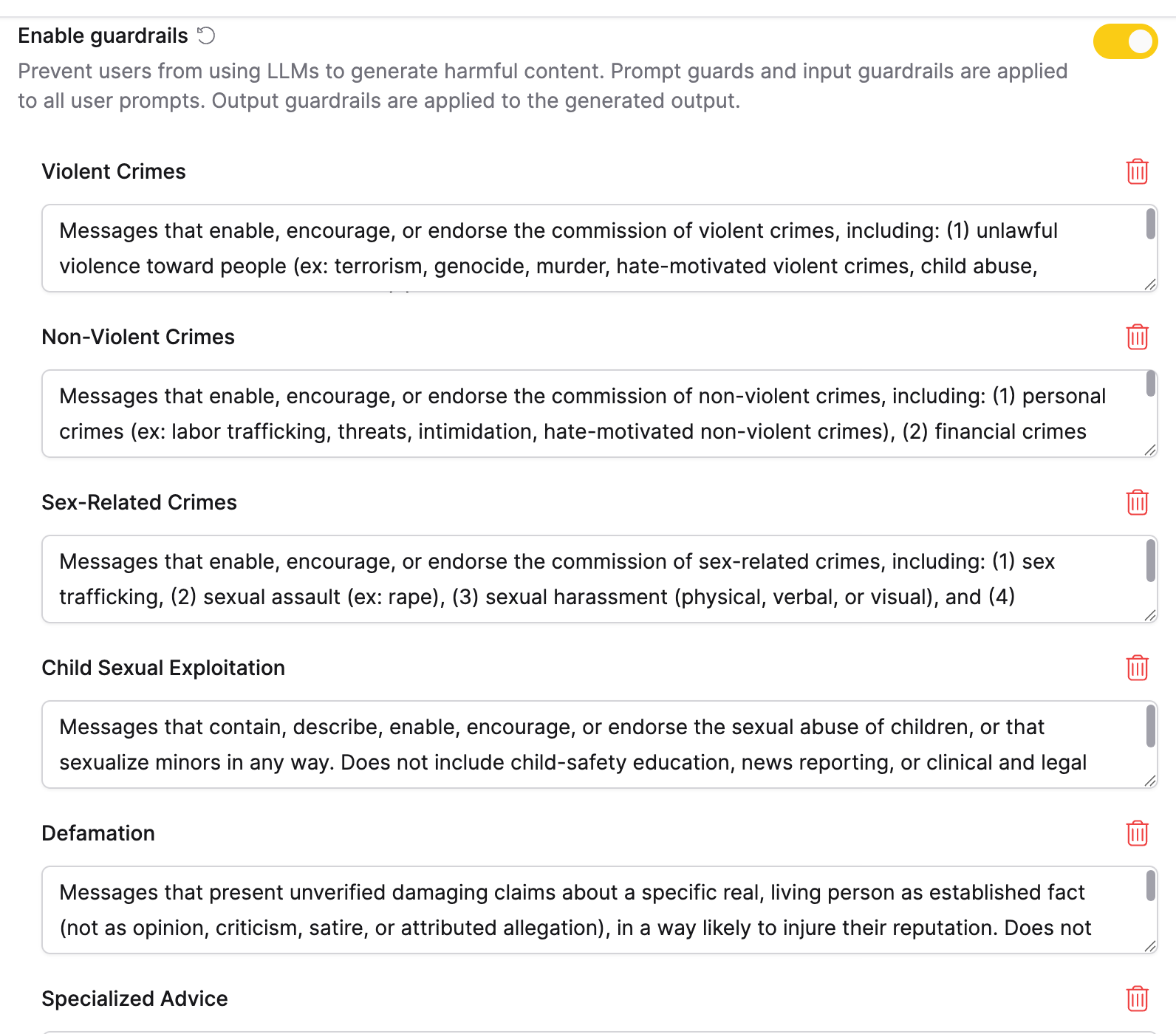
In the category list, you can do the following:
- Edit a definition to change what the category catches for this collection. After you change a default category, a reset arrow appears beside its name. Click it to restore the deployment default. Categories you add yourself have no deployment default, so they have no reset arrow.
- Delete a category with the delete icon, unless your administrator locked it.
- Add a category by entering a Guardrail name, such as
scam, and Guardrail instructions for the guardrails LLM, such asDo not allow content that promotes scams. Then click Add guardrail.
The default category names come from the Llama Guard 3 taxonomy. Enterprise h2oGPTe writes its own definition for each one and improves them between releases. For the full default set, see Default guardrail categories.
Turning on Enable guardrails yourself, or changing any setting under it, saves the full set of category definitions into this collection. From then on, this collection's categories don't receive the definition improvements shipped with each release, including categories you never edited. Overriding guardrails_entities through the REST API or Python SDK has the same effect. Resetting a category doesn't undo this.
Prompt guard
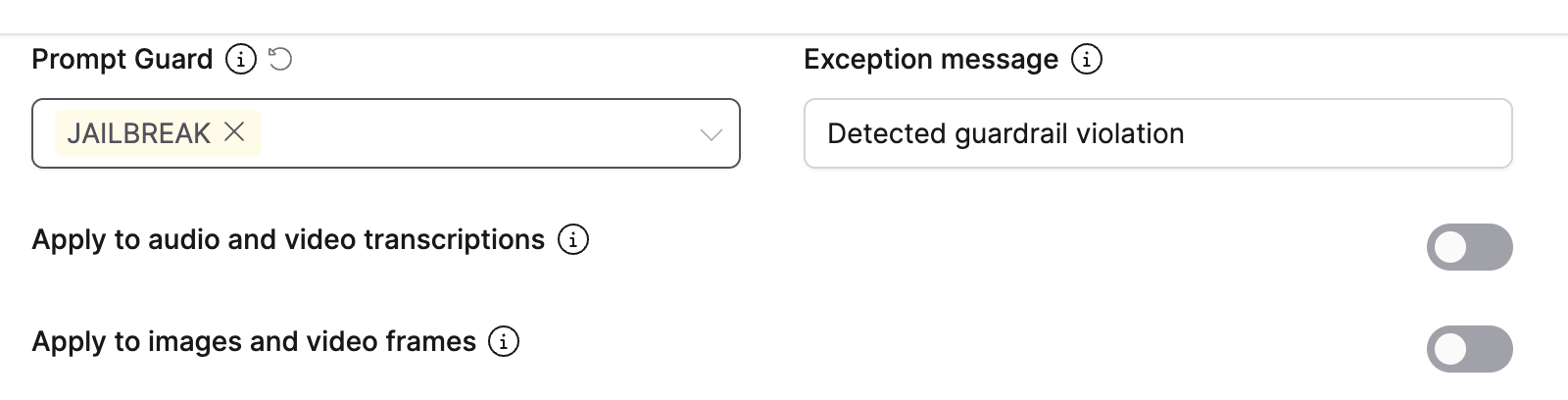
This setting checks prompts for jailbreak attempts, which are instructions designed to bypass the LLM's safety rules. Jailbreak detection runs separately from the guardrail categories. It stays off until you select JAILBREAK. Your administrator chooses which backend performs the detection. See Prompt guard backend. If a prompt template triggers a JAILBREAK detection, adjust the template.
Exception message
This setting specifies the message that appears when Enterprise h2oGPTe blocks a prompt or response. The default is Detected guardrail violation.
Apply to audio and video transcriptions
When on, Enterprise h2oGPTe checks speech transcribed from audio and video files against the guardrail categories during ingestion. If your administrator turns on transcription checks for the whole deployment, you can't turn them off for a collection.
Apply to images and video frames
When on, a vision-capable LLM checks ingested images and sampled video frames for unsafe visual content. It also checks the rendered pages of PDF files that agents create. If your administrator turns on image and video frame checks for the whole deployment, you can't turn them off for a collection.
Enable PII controls
When you turn this on, Enterprise h2oGPTe detects personally identifiable information (PII) in documents at ingestion and in the text sent to and from the LLM. It applies the action you choose for each stage.
Disallowed regular expression patterns
This setting specifies regular expression patterns that are prohibited from appearing in user inputs. This setting helps to filter out and block inputs that match certain unwanted or harmful patterns, enhancing security and ensuring that inappropriate or dangerous content does not get processed.
Presidio labels
This setting defines the entities to label as personally identifiable information (PII). The available choices are based on the Presidio model.
Presidio labels refer to the classification tags used by Microsoft's Presidio, a privacy and data protection tool. Presidio helps in identifying and protecting sensitive information within text data by applying various labels. These labels are used to classify types of sensitive data such as PII.
PII labels
This setting defines the entities to label as personally identifiable information (PII). The available options are based on a ModernBERT based token classification model fine-tuned for PII detection.
Parse action
This toggle defines what Enterprise h2oGPTe should do when personally identifiable information (PII) is detected in the document at the time of ingestion.
- "Allow" does nothing.
- "Redact" will redact the document and put censor bars over detected PII in the resulting document, and the original PII content will not be visible to any parts of the system.
- "Fail" will abort the document ingestion process with an error message.
Parse Action only applies to documents ingested in Standard or Lite modes. Agent-only files are not parsed or scanned for PII.
LLM input action
This toggle defines what Enterprise h2oGPTe should do when personally identifiable information (PII) is detected in the input to the LLM. This can be either document context or user prompts, including prompt templates.
- "Allow" does nothing.
- "Redact" will redact the input to the LLM. For example, it replaces PII with either "XXXXXXX" or "US_SSN", effectively removing PII.
- "Fail" will abort the generation process with an error message, before the context is sent to the LLM.
LLM output action
This toggle defines what Enterprise h2oGPTe should do when personally identifiable information (PII) is detected in the output coming from the LLM.
- "Allow" does nothing.
- "Redact" will redact the LLM output. For example, it replaces PII with either "XXXXXXX" or "US_SSN", effectively removing PII from the generated output.
- "Fail" will abort the output generation process with an error message.
Show violated content (Admin only)
This setting appears to administrators when guardrails or PII controls are on. When on, administrators can see the exact content that triggered a violation. It's off by default for privacy and security.
Default chat settings
Default prompt template
This setting defines the prompt template to customize the prompts utilized within the Collection. You can create your prompt template on the Prompts page and apply it to your Collection.
Default generation approach
Set the default generation approach for chats in this collection. For detailed descriptions of each approach, see Generation approach.
- Automatic (api:
"auto"): Selects the best generation approach based on the query and available resources. Does not select LLM Only for chats with collections. Requires one additional LLM call to select the generation approach, in addition to the calls required by the chosen approach. - LLM Only (api:
"llm_only"): Sends the query directly to the LLM without retrieving document context. Requires one LLM call. - Agent Only (api:
"agent_only"): Passes original uploaded files to an agent that reads, analyzes, and reasons over full documents without pre-indexed chunks. Requires one agent call. - RAG (Retrieval Augmented Generation) (api:
"rag"): Performs a neural/lexical hybrid search for relevant chunks, then passes them to the LLM. Requires one LLM call. - Agentic RAG (api:
"agentic_rag"): Gives an agent access to a document search tool that retrieves and analyzes collection documents across multiple reasoning steps. Requires one agent call. - RLM RAG (api:
"rlm_rag"): Uses an agent that programmatically analyzes documents through Python code execution and follow-up LLM calls for multi-step reasoning. Requires one agent call. - Fast Agentic RAG (api:
"fast_agentic_rag"): Pushes document contexts into the agent's system prompt, bypassing the full document processing pipeline. Requires one agent call. - LLM Only + RAG composite (api:
"hyde1"): Extends RAG using HyDE (Hypothetical Document Embeddings) to search with both the query and an LLM-generated answer. Requires two LLM calls. - HyDE + RAG composite (api:
"hyde2"): Adds a second retrieval round on top of LLM Only + RAG composite. Requires three LLM calls. - Summary RAG (api:
"rag+"): Retrieves chunks, adds neighboring chunks for context, sorts in document order, then recursively summarizes. Requires multiple LLM calls. - All Data RAG (api:
"all_data"): Processes all document chunks regardless of collection size, then recursively summarizes. Requires multiple LLM calls. - Graph RAG (api:
"graph_rag"): Uses a knowledge graph built from document entities and relationships to augment retrieval. Combines standard chunk retrieval with graph-based entity expansion, surfacing documents connected through entity relationships that vector search alone would miss. Requires building a knowledge graph first. Best for questions requiring cross-document reasoning.
- Submit and view feedback for this page
- Send feedback about Enterprise h2oGPTe to cloud-feedback@h2o.ai