Delete a Collection
Overview
Once a Collection(s) is no longer in use, you can use one of the following two methods to delete a Collection and remove it from the Collections list/grid:
caution
- A deleted Collection is no longer accessible by other users.
- Deleting a Collection removes the Collection from our servers permanently. Once a Collection is deleted, there is no way to undo the action or recover the deleted Collection or its Document(s).
- Deleting a Collection yourself also deletes every chat session in it, including the chats marked as preserved. Only the automatic cleanup of an archived Collection keeps preserved chats, by detaching them from the Collection so that they survive on their own. For more information, see Chat lifecycle.
Delete a specific Collection
To delete a specific Collection, consider the following instructions:
note
You can only delete your Collections.
- In the Enterprise h2oGPTe navigation menu, click Collections.
- In the following tab, click the Collection you want to delete: My collections.
- Click Edit collection.
- Select Delete collection.

- In the Are you sure? card, click Delete to confirm.
Delete multiple Collections
To delete multiple Collections at once, consider the following instructions:
note
You can only delete your Collections.
- In the Enterprise h2oGPTe navigation menu, click Collections.
- In the following tab, click the checkbox of the Collections you want to delete: My Collections.
- Click Delete.
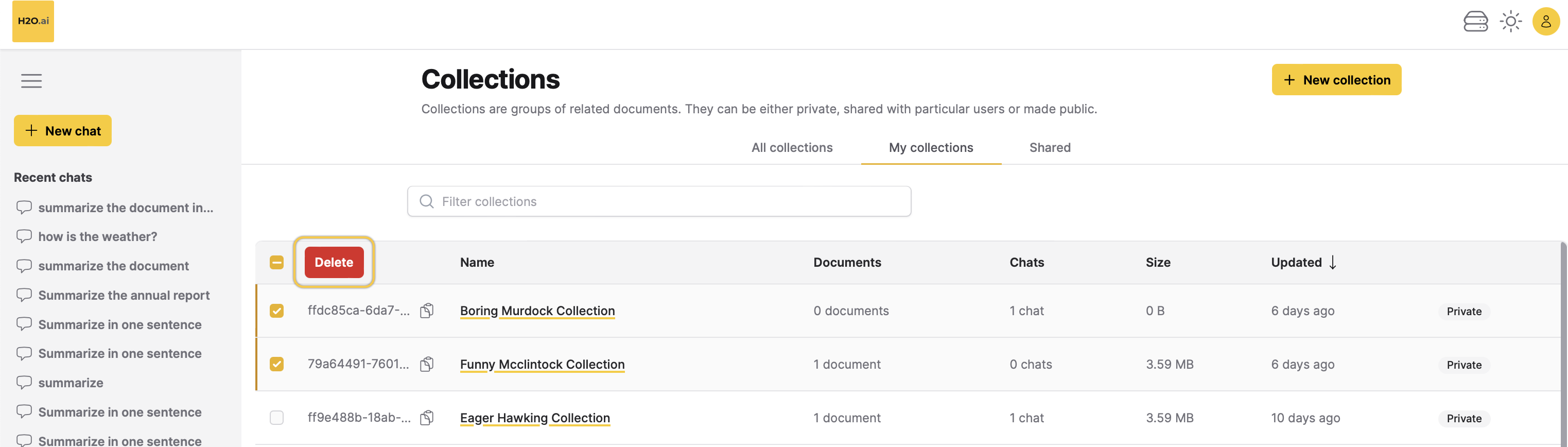
- In the Are you sure? card, click Delete to confirm.
Feedback
- Submit and view feedback for this page
- Send feedback about Enterprise h2oGPTe to cloud-feedback@h2o.ai