Import from SharePoint Online
Overview
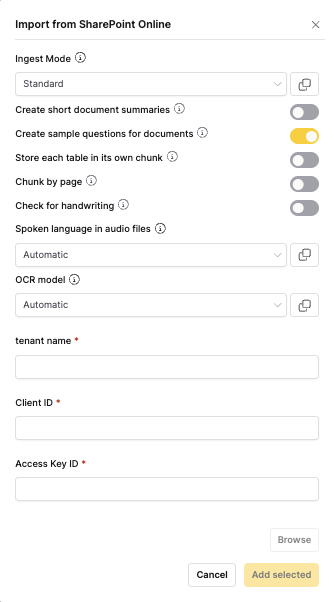
The Import from SharePoint Online ingestion method allows you to import documents directly from SharePoint Online sites and document libraries. This method integrates with Microsoft Graph API and supports modern authentication methods.
When to use
- SharePoint online: When your documents are stored in SharePoint Online
- Microsoft 365: For organizations using Microsoft 365 services
- Team collaboration: When working with team document libraries
- Enterprise content: For importing enterprise document management systems
- Modern authentication: When using Microsoft Graph API and modern auth
For document processing options, see the Shared Document Processing Options section in the main documentation.
Authentication
Microsoft Graph API
- OAuth 2.0: Uses Microsoft identity platform
- OAuth2 user authentication: Enhanced security with user-based OAuth2 authentication for improved access control
- Application permissions: Requires SharePoint permissions
- Delegated permissions: User-based access to SharePoint sites
- Token management: Automatic token refresh and renewal
Required permissions
- Sites.Read.All: Read access to SharePoint sites
- Files.Read.All: Read access to files and folders
- User.Read: Basic user profile information
Drive discovery
When you browse the SharePoint Online connector, it lists the sites and drives your credentials can reach. What appears depends on your authentication method.
| Authentication method | What the connector lists |
|---|---|
| Delegated (OAuth 2.0) | Document libraries and subsites of your root site, your OneDrive and your other drives, Microsoft 365 group drives, and the sites you follow |
| Application | SharePoint sites in the tenant. Open a site to reach its document libraries. |
In the top-level list, the connector lists sites first and drives second, each in alphabetical order.
Some entries carry a scope label in parentheses after the name, such as Marketing (Group: Marketing), OneDrive (OneDrive — Personal), Documents (Library — Documents), or Team Site (Followed Site). The label records where the connector found the entry, so a label sometimes repeats the entry name. Entries listed from your root site carry no label, and neither do the tenant sites listed under application authentication.
To list every drive in the tenant instead of only sites, select Admin: enumerate all tenant drives in the connector credentials form. The option applies to application authentication only, is off by default, and needs Files.Read.All and Sites.Read.All on the app registration. Drives found this way carry the scope label Tenant Drive — <name>.
Missing drives
Under delegated authentication, the connector queries each Microsoft Graph endpoint it needs and returns the results it can retrieve rather than failing when one endpoint denies access. A short list can mean your credentials lack permission for one of those endpoints, though a throttled or transient Microsoft Graph error has the same effect. Discovery also checks at most 200 of your Microsoft 365 groups, so a group drive beyond that limit doesn't appear. Under application authentication, a denied request fails the listing instead of shortening it.
If a drive is still missing, add it by its ID.
Add a drive by ID
Add a drive by ID when a drive you can access doesn't appear in the list. A drive is missing when the connector doesn't list the site that contains it, or when another user shared it directly with you.
The Add by Drive ID field appears before the entry list whenever the list has no Back row. If you don't see the field, click Back until you reach the top of the list.
To find a drive ID, open Microsoft Graph Explorer and run one of these queries:
- Delegated authentication:
/me/driveslists your own drives. - Application authentication:
/sites/{site-id}/driveslists a site's document libraries, and/groups/{group-id}/drivereturns a Microsoft 365 group drive. Run/sites?search=<site name>first to find the site ID.
Copy the id value of the drive you want. SharePoint drive IDs are opaque strings, and most start with b!. For the fields each query returns, see the drive resource type.
To add the drive, follow these steps:
- Paste the drive ID into Add by Drive ID.
- Click Open drive.
The drive opens for browsing, and you select folders and files as you would for any other drive. The connector ingests a drive added by ID the same way it ingests a browsed drive, including on scheduled syncs.
If the drive isn't reachable, the connector reports that the drive isn't accessible with the current credentials and keeps the ID in the field so you can correct it. Confirm the drive ID is correct and that your credentials have access to the drive. If both are correct, try again, because a throttled or transient Microsoft Graph error produces the same message.
Auto-sync
This connector supports automatic scheduled synchronization. When enabled, h2oGPTe periodically checks for new or modified files and automatically imports them to your collection.
To learn more about setting up scheduled syncing, see Auto-Sync Connectors.
Code examples
Ingest a drive by its ID
Use entry_type="drive_by_id" for a drive that discovery doesn't return. The site, drive, directory, and file entry types cover the entries the connector lists, and you can mix all five in one call.
from h2ogpte import H2OGPTE
from h2ogpte.connectors import (
    SharepointOnlineAppCredentials,
    SharepointOnlineEntry,
)

client = H2OGPTE(address="http://localhost:8888", api_key="your_api_key")

collection_id = client.create_collection(
    name="My SharePoint Content",
    description="Imported from SharePoint Online",
)

credentials = SharepointOnlineAppCredentials(
    tenant_name="your-tenant",
    client_id="your-client-id",
    client_secret="your-client-secret",
)

job = client.ingest_from_sharepoint_online(
    collection_id=collection_id,
    entries=[
        SharepointOnlineEntry(entry_type="drive_by_id", drive_id="b!your-drive-id"),
    ],
    credentials=credentials,
)
To list every drive in the tenant, set admin_enumerate_drives=True on SharepointOnlineAppCredentials. For delegated authentication, pass SharepointOnlineUserCredentials(user_id="...") instead, where user_id identifies the user who linked the SharePoint connector. Add connector_id when that user has more than one linked SharePoint connector.
The same ingestion is available over HTTP at POST /ingest/sharepoint_online, and POST /ingest/sharepoint_online/job returns a job you can poll.
- Submit and view feedback for this page
- Send feedback about Enterprise h2oGPTe to cloud-feedback@h2o.ai