Find the source chat of a Document
Overview
Agents often write files with generic names, such as code_block_0.py or data.csv, so a few agent runs can fill the Documents section with rows that look identical. Every agent-generated Document records the chat session that produced it. Use that link to tell files apart, open the originating chat, or narrow the list to one session's output.
Where the source chat appears
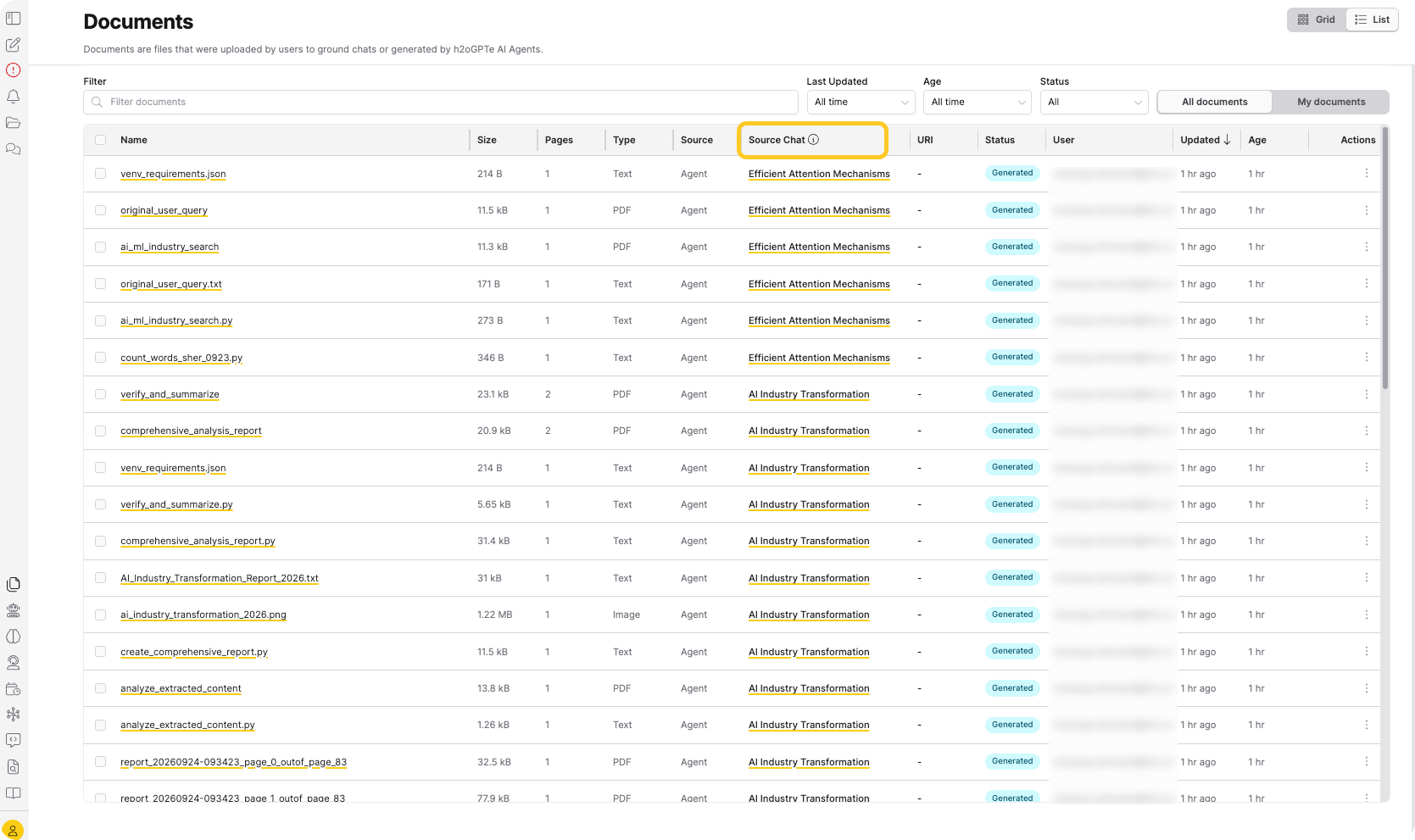
In List view, the Source Chat column shows the chat session name, or the first 8 characters of its ID if the session has no name yet. Uploaded Documents show a dash, since only agent-generated files record a source chat.
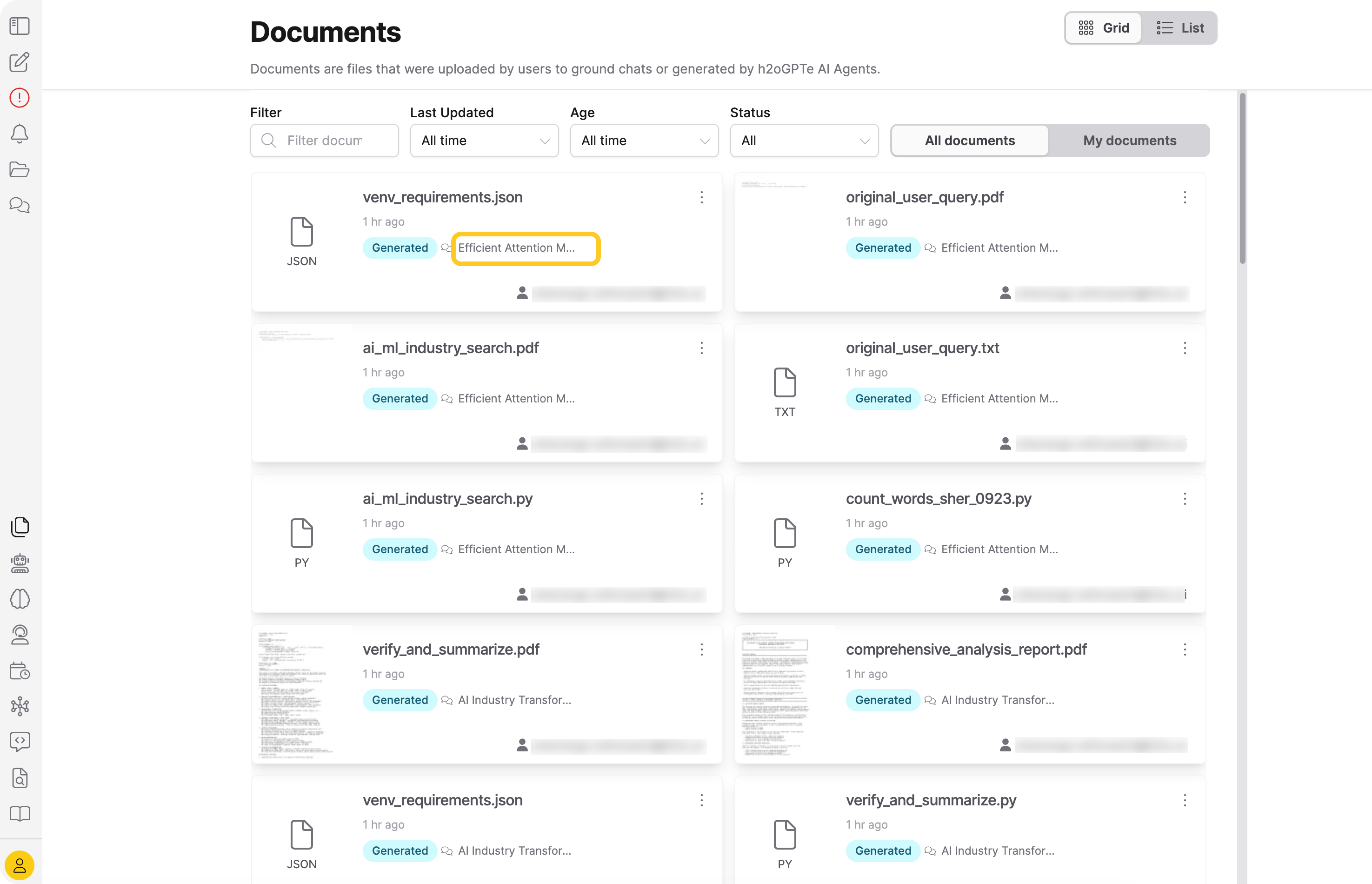
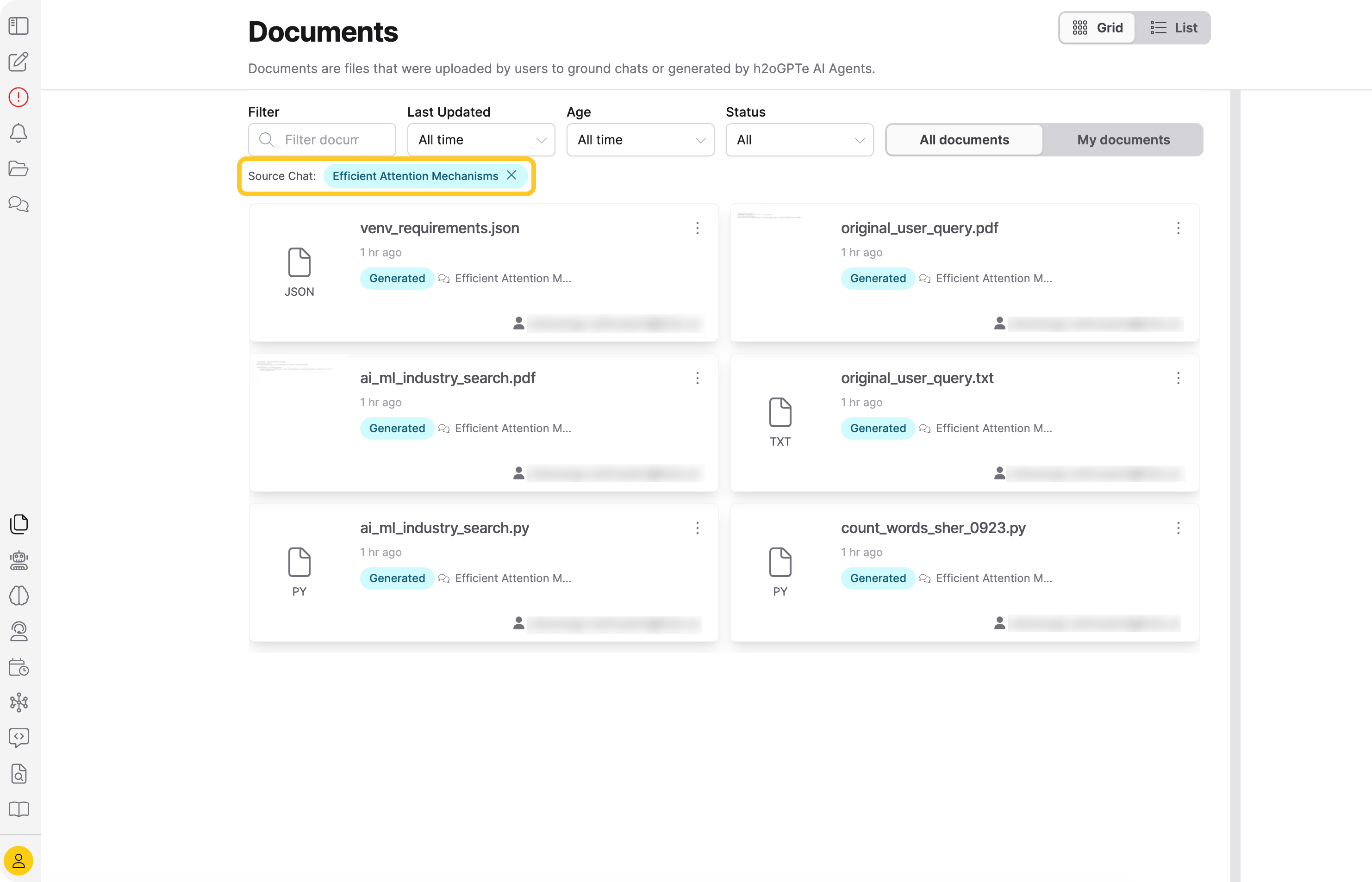
In Grid view, the source chat appears as a chat icon and label next to the Document's status badge.
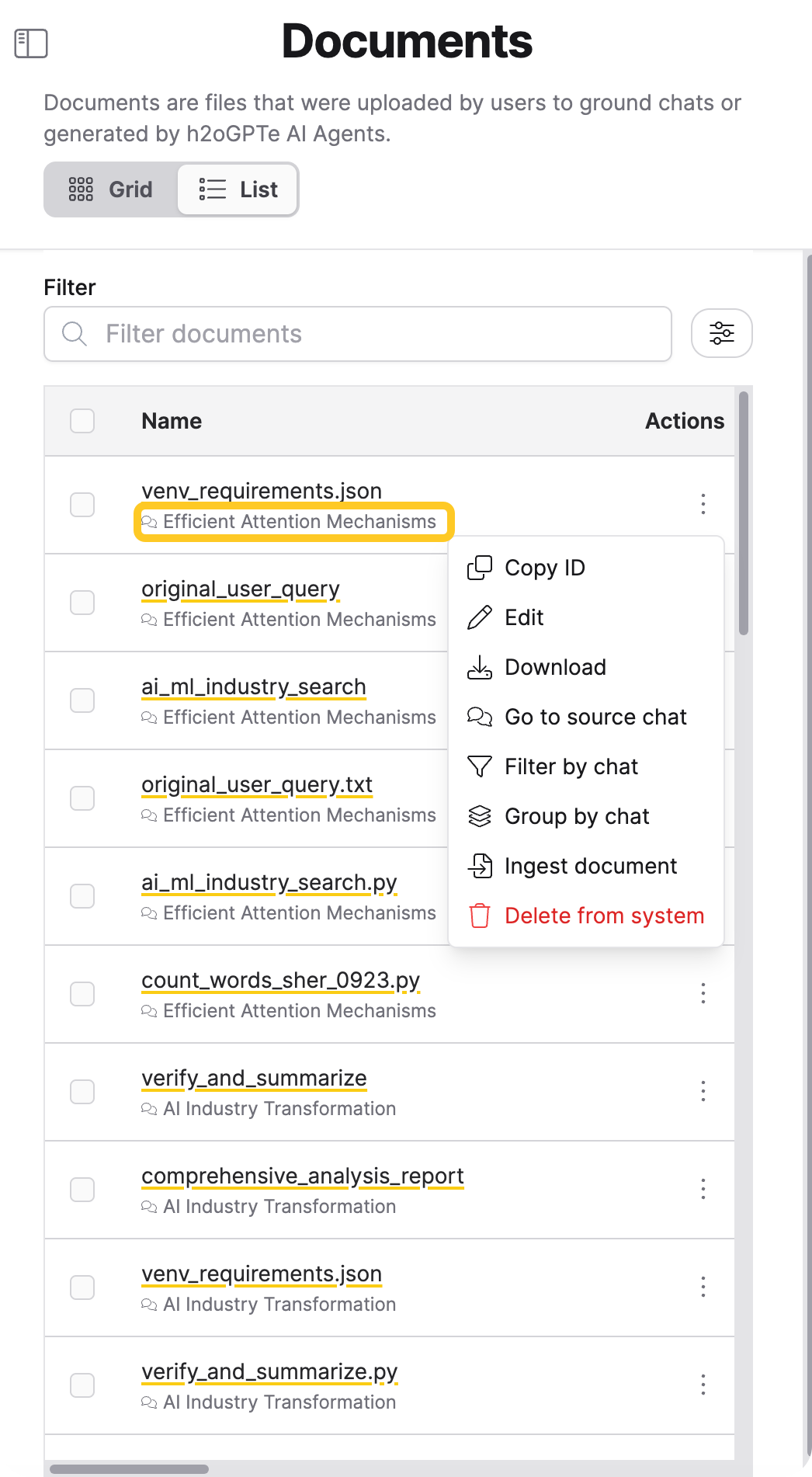
On a narrow screen, the Source Chat column doesn't fit, so the source chat appears under the Document name instead. Open the actions menu (three dots) on the row to reach Go to source chat from there.
You can't sort the Source Chat column. To bring one session's files together, group Documents by their source chat instead.
Open the chat that produced a Document
To open the chat session that generated a Document:
- In the Enterprise h2oGPTe navigation menu, click Documents.
- Do one of the following:
- In List view, click the chat name in the Source Chat column.
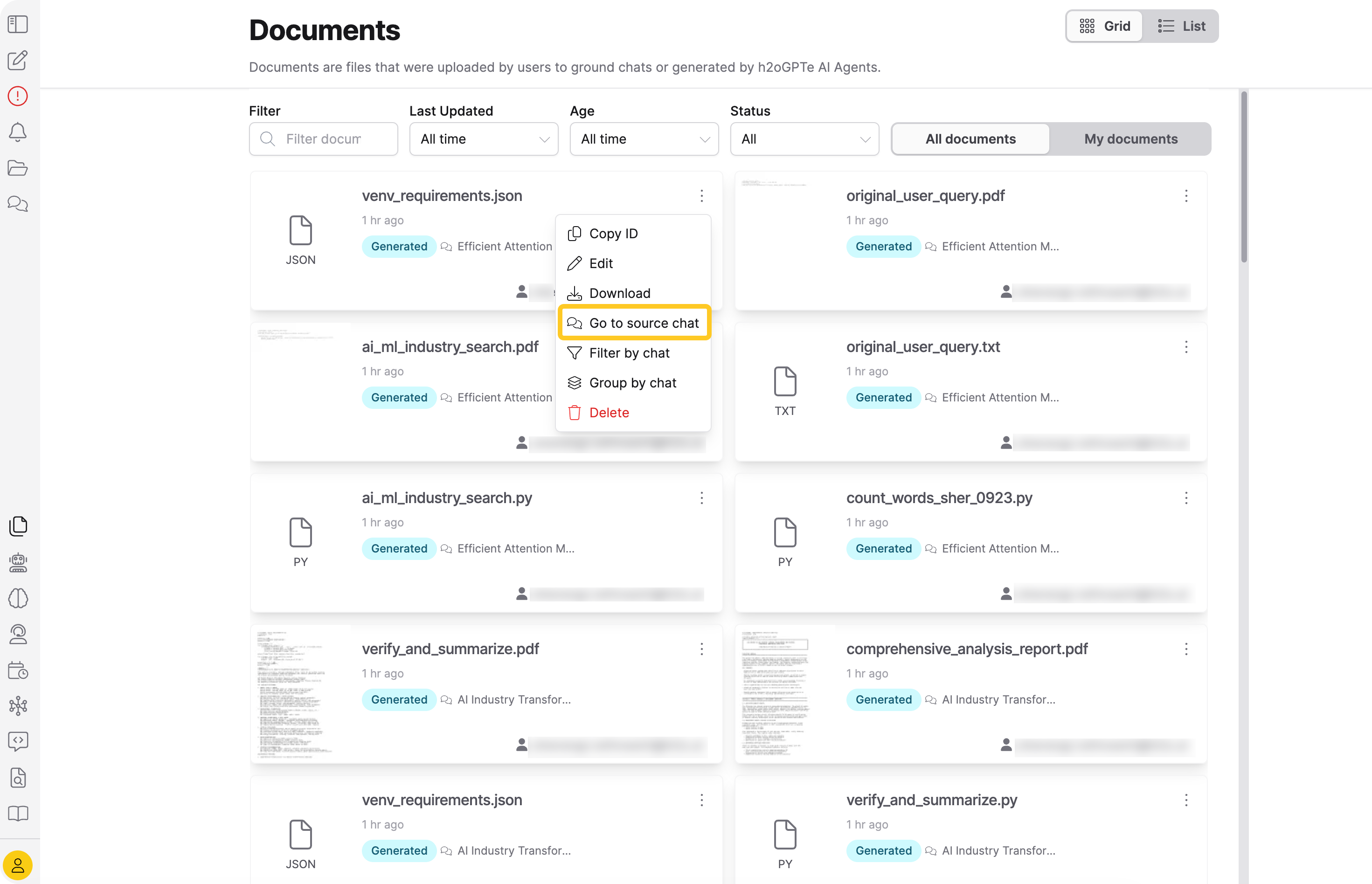
- In either view, open the actions menu (three dots) on the Document's row or card, then click Go to source chat.
If you can't open the chat session, the Source Chat column shows its short ID as plain text instead of a link, and Go to source chat isn't offered.
Filter Documents by their source chat
To show only the Documents that one chat session produced:
- In the Enterprise h2oGPTe navigation menu, click Documents.
- Open the actions menu (three dots) on a Document that the chat session produced, then click Filter by chat.
The list reloads to that session's files, and a dismissible Source Chat chip appears at the top of the list. Because only agent-generated files record a source chat, the filter always excludes uploaded Documents. Click the chip's X to clear it.
Group Documents by their source chat
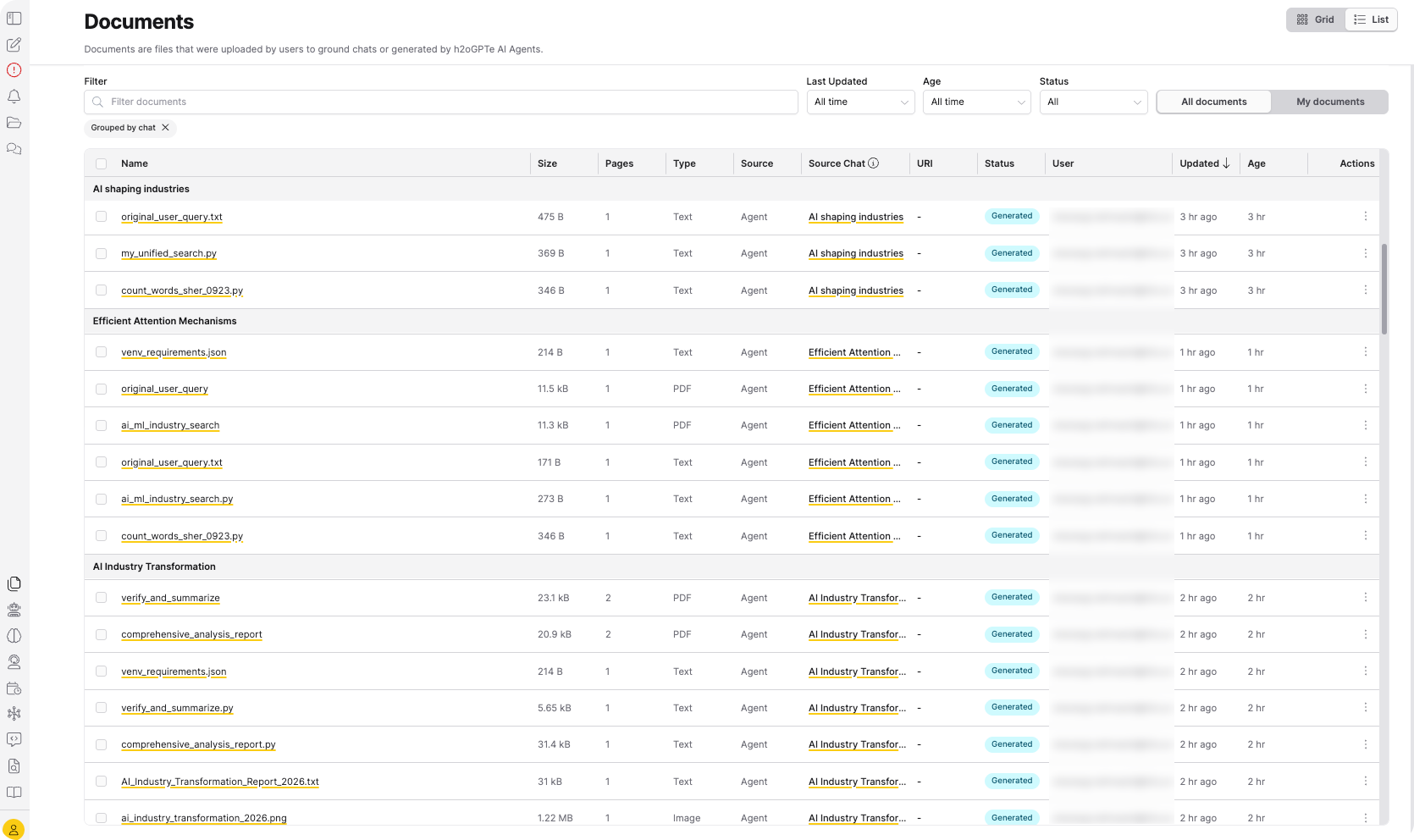
Grouping keeps each chat session's files together instead of sorting them by date.
- In the Enterprise h2oGPTe navigation menu, click Documents.
- Open the actions menu (three dots) on any Document, then click Group by chat.
A Grouped by chat chip appears at the top of the list. In List view, each group carries the chat session name as a heading. Documents with no source chat collect in a No source chat group at the end. The sort order you picked still applies within each group, and grouping applies to both List and Grid views.
Click the chip's X, or Ungroup from the actions menu, to turn grouping off.
Access programmatically
GET /documents returns chat_session_id, chat_session_name, and chat_session_visible for each Document (chat_session_id and chat_session_name are absent for uploaded Documents), and accepts the same chat_session_id and group_by_source_chat parameters as the UI. See List Documents by source chat.
Related topics
- Agent files - View, download, and import the files an agent generates during a chat session
- Delete a Document - Remove a Document from a Collection and the platform
- h2oGPTe REST API: Guide - Full REST API reference
- Submit and view feedback for this page
- Send feedback about Enterprise h2oGPTe to cloud-feedback@h2o.ai