Jobs
This page covers what counts as a Job and how to view your own jobs. For the platform-wide job history and monitoring page, see Jobs in the System Dashboard (administrators only).
View a Job
Overview
A Job in Enterprise h2oGPTe signifies a single/batch of crawling, indexing or document processing tasks. In particular, the following tasks are referred to as a Job:
- Ingest plain text
- Ingest a document from the file system
- Ingest from cloud storage
- Upload Files
- Ingest website or files from URL
- Convert files to PDF
- Index Documents
- Update Collection statistics
- Delete Documents
- Delete Documents from a Collection
- Delete Collections
- Import an existing Document to a Collection
- Import all Documents from a Collection to another Collection
- Process a Document (Summarize/Extract/Process)
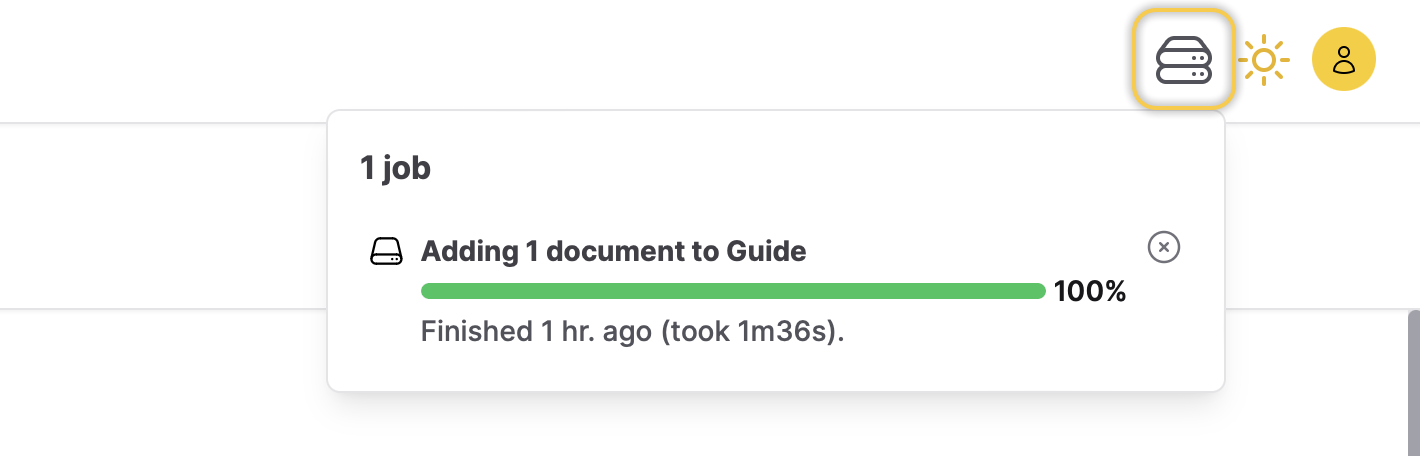
After starting a Job in Enterprise h2oGPTe, you can access its status, including the percentage of completion.
In some cases, you may see a job status message indicating that a job has been "marked as stale." This is an automatic system status that occurs if the worker processing the job is no longer registered or active. This mechanism ensures the system remains stable by identifying jobs that are no longer making progress.
Instructions
To view a Job, consider the following step:
- In Enterprise h2oGPTe, click Jobs.
Terminate a Job
Overview
Right after starting a Job in Enterprise h2oGPTe, you can terminate it.
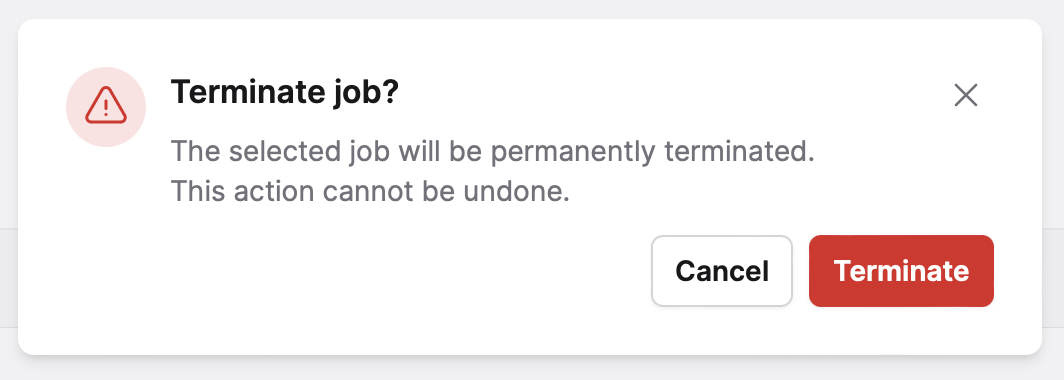
Terminating a job cannot be undone. The job stops and its status changes to Canceled; the job stays in the job history.
Instructions
To terminate a Job right after starting the Job, consider the following steps:
- In Enterprise h2oGPTe, click Jobs.
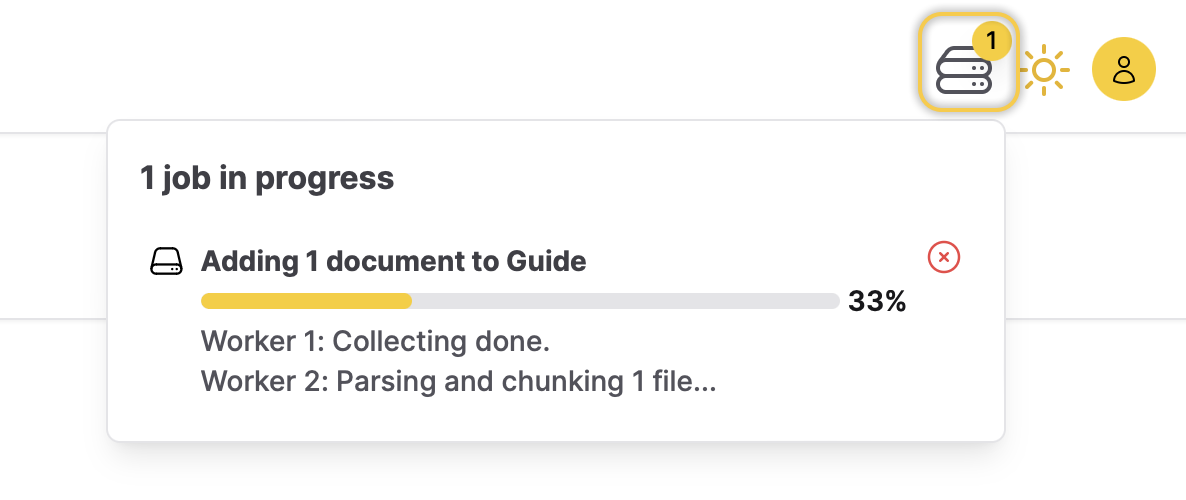
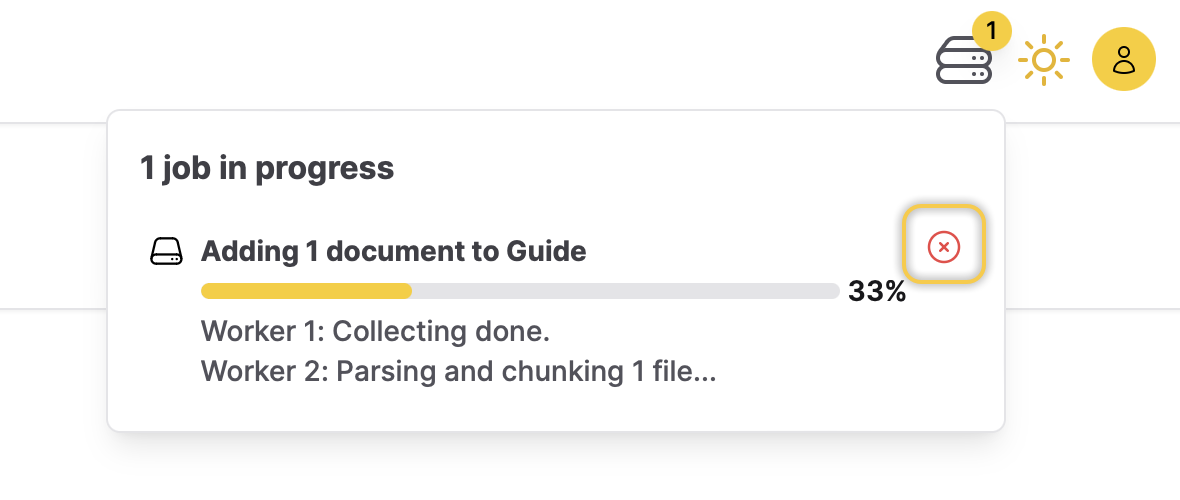
- In the [N] job in progess card, click the X button for the Job you want to terminate.
- In the Terminate job? card, click Terminate.
- Submit and view feedback for this page
- Send feedback about Enterprise h2oGPTe to cloud-feedback@h2o.ai