Configure custom models
Overview
Administrators add custom large language models (LLMs) directly from the Models page. After a model connects successfully, it becomes available for use across Enterprise h2oGPTe, including in chat sessions, document processing, and agent workflows, subject to each role's LLM grants.
This feature is available to administrators only.
Enterprise h2oGPTe combines LLMs from up to four sources into a single list. When more than one source defines a model with the same name, the highest-priority source that's serving the model wins and the others show as Shadowed:
| Source | Badge | Priority | Add or delete from the Models page |
|---|---|---|---|
| Built-in models shipped with the release | Static | Lowest | No |
| Models set through environment variables at deployment | Env Default | Low | No |
| Models added through the Models page or the REST API | Runtime | High | Yes |
| Models set through environment variables to force an override | Env Override | Highest | No |
Static models ship with the release, and you set the two environment variable sources at deployment time.
The Models page shows two columns for administrators:
| Column | Values | Description |
|---|---|---|
| LLM Source | Static, Env Default, Runtime, Env Override | Which of the four sources currently defines this model. |
| Effective status | Effective, Shadowed, Probe Failed, Not Tested | Whether this is the version of the model actually served (Effective), overridden by a higher-priority source (Shadowed), failed its last connection test (Probe Failed), or not tested yet (Not Tested). While a connection test runs, the column shows Testing Connection…. |
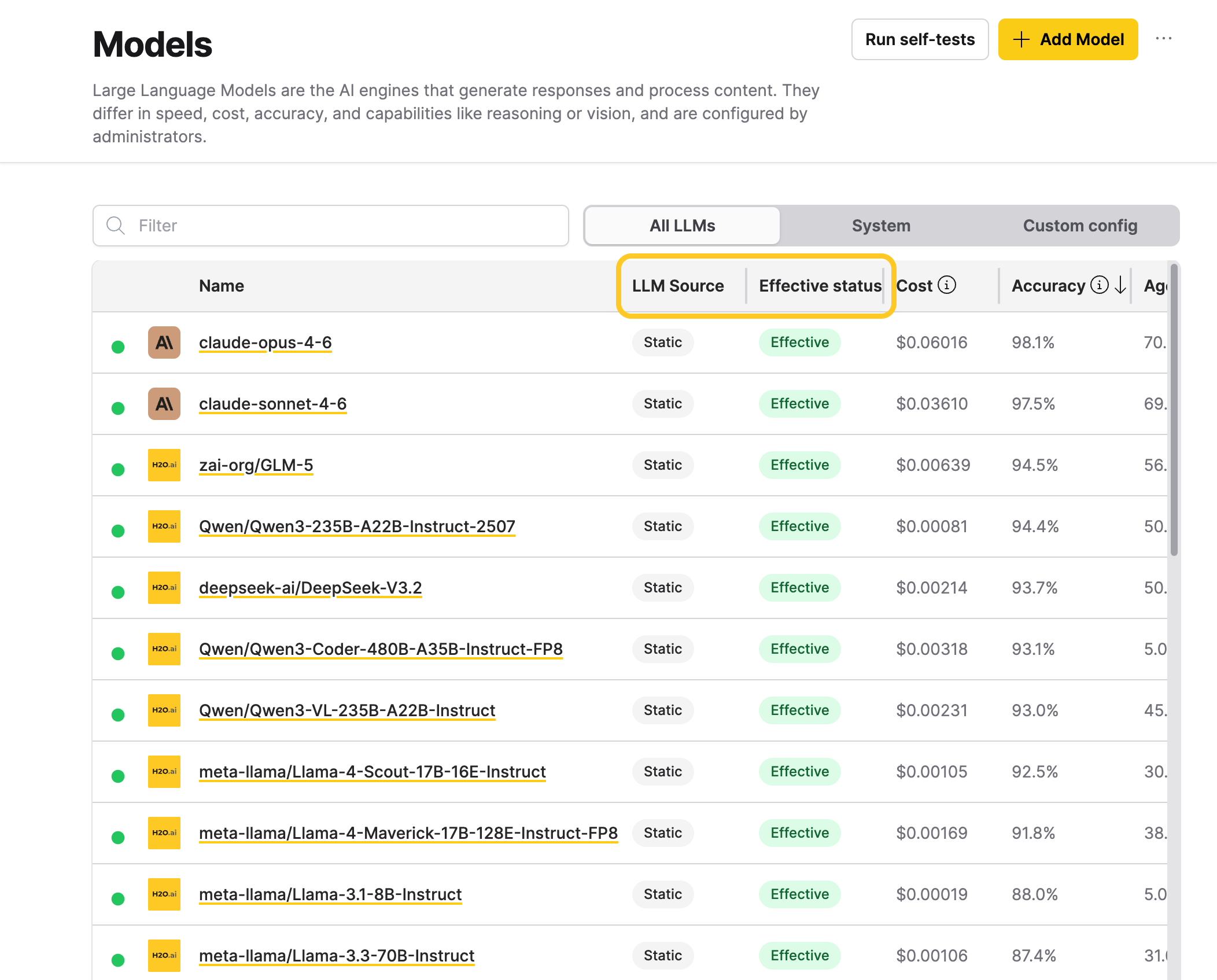
Use the source filter preceding the table to narrow the list to All LLMs, System (the Static source only), or Custom config (Env Default, Env Override, and Runtime models).
Add a custom model
Before you start, have the model's endpoint details and any API key the provider needs. Enterprise h2oGPTe tests the connection when you save, so the credentials must work.
To add a custom model, follow these steps:
-
In the Enterprise h2oGPTe navigation menu, click Models.
-
Click + Add Model.
-
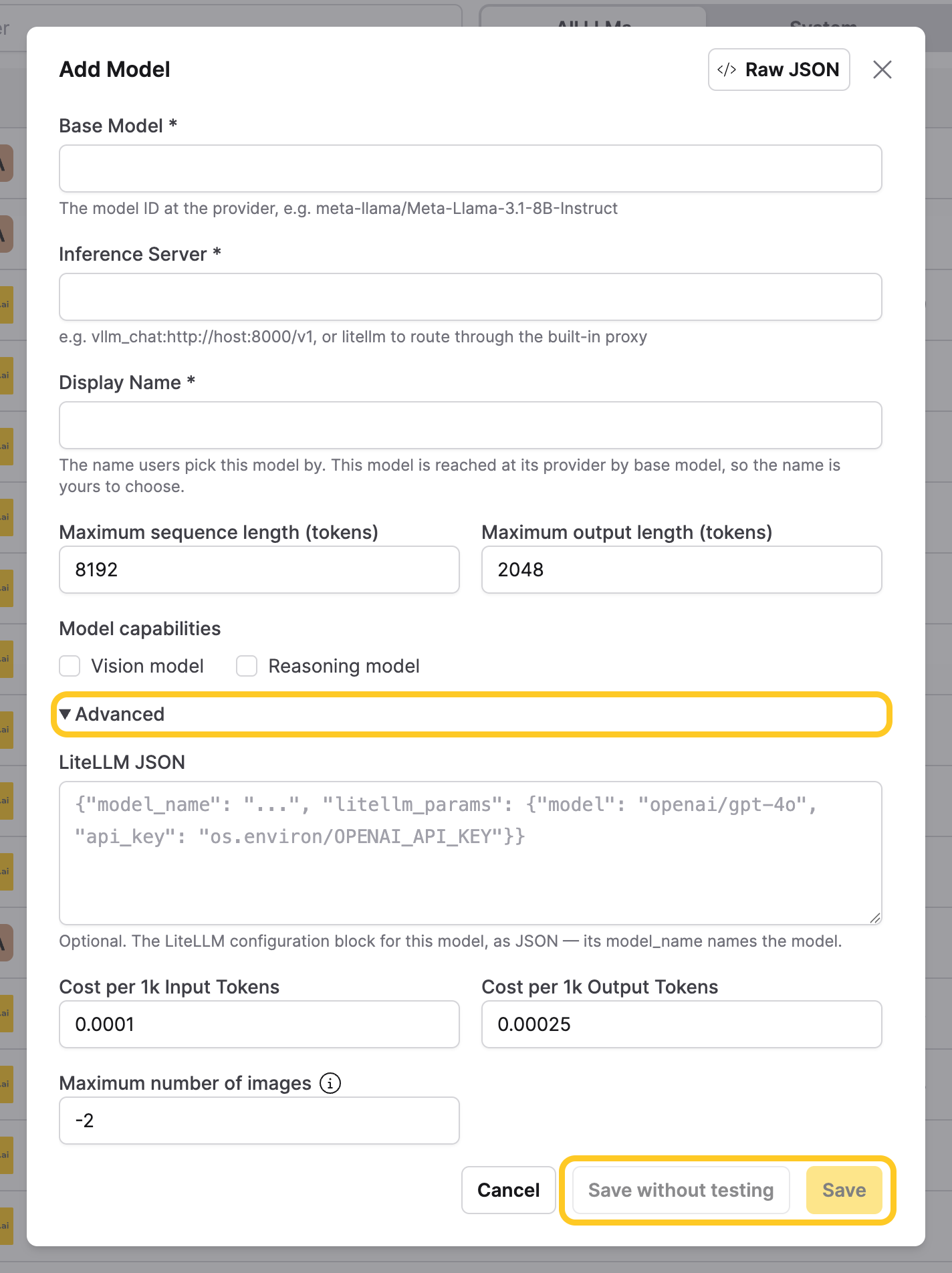
Fill in the fields described in Model fields. To edit the whole configuration as a single JSON object instead, click Raw JSON. Click Form to return to the fields.
-
Click Save. Enterprise h2oGPTe tests the connection as part of saving and only saves the model if the test passes.
- A failed test shows the reason returned by the model provider, for example an authentication error or an unreachable endpoint. The dialog stays open with your entered values so you can correct the configuration and try again.
- A successful save closes the dialog, and the model appears in the table with an
Effectivestatus. If anEnv Overridemodel with the same name exists, a message says the new model isn't effective until you remove the override.
To save without testing the connection, click Save without testing instead. The model saves immediately with a
Not Testedstatus and isn't served until a connection test on it succeeds. See View or delete a runtime model.
A model that duplicates the name of an existing Static, Env Default, or Env Override model still saves. Save asks you to confirm first, and Save without testing skips that prompt. Enterprise h2oGPTe rejects a name that duplicates another Runtime model. Once the new runtime model is serving, it takes over from a Static or Env Default model with the same name. An Env Override model that's serving keeps priority, so the runtime model stays Shadowed until the override stops serving or you remove it.
Model fields
The top of the Add Model dialog holds the model's identity and token limits:
| Field | Description |
|---|---|
| Base Model | The model ID at the provider (for example, meta-llama/Meta-Llama-3.1-8B-Instruct). When using litellm, use a LiteLLM model identifier (for example, openai/gpt-4o, databricks/llama-3-70b-instruct). Required field. |
| Inference Server | The server that hosts the model. Use litellm to route through the built-in LiteLLM proxy, a provider name such as anthropic or google, or an endpoint such as vllm_chat:http://host:8000/v1. Required field. |
| Display Name | The name users pick this model by. For a model reached directly at its provider (anthropic, google, a vLLM endpoint), you choose the name. For a model served through the LiteLLM proxy, the name is also the proxy's routing key: when the LiteLLM JSON block declares a top-level model_name, or Inference Server is litellm and Base Model has a value, the form derives this field and locks it. Enterprise h2oGPTe rejects a name the proxy doesn't answer to, because a request under that name fails every chat turn with Invalid model name. Required field. |
| Maximum sequence length (tokens) | Maximum number of input tokens the model can process (default: 8192). |
| Maximum output length (tokens) | Maximum number of output tokens the model can generate (default: 2048). |
Vision model and Reasoning model sit under their own Model capabilities heading:
| Field | Description |
|---|---|
| Vision model | Select this checkbox if the model supports vision or image inputs. |
| Reasoning model | Select this checkbox if the model is a reasoning model. |
LiteLLM JSON, the cost fields, and the image limit sit under a collapsible Advanced section. Click Advanced to expand it. When you view a saved model's details, these fields appear directly in the dialog with no Advanced section:
| Field | Description |
|---|---|
| LiteLLM JSON | Optional. The LiteLLM configuration block for this model, as JSON. Its model_name names the model. Use the single-model form: one top-level model_name plus its litellm_params. Enterprise h2oGPTe rejects a model_list block, a block written as YAML, and any value that isn't a JSON object. See the LiteLLM documentation for available options. |
| Cost per 1k Input Tokens | Cost per 1,000 input tokens, used to bill usage against the cost limits (default: 0.0001). If Enterprise h2oGPTe already publishes a price for this exact model name, that price applies instead of this value. Required: the form pre-fills a default, and the API rejects a create that omits it. |
| Cost per 1k Output Tokens | Cost per 1,000 output tokens, used to bill usage against the cost limits (default: 0.00025). If Enterprise h2oGPTe already publishes a price for this exact model name, that price applies instead of this value. Required: the form pre-fills a default, and the API rejects a create that omits it. |
| Maximum number of images | Images sent per vision call. Leave empty to use the model's built-in default, or set to 0 to ignore images entirely. Negative values batch images: -1 sizes each batch automatically, and -2, -3, -4 send 1, 2, or 3 images per call (default: -2). Applies to chat and agent requests only. The OpenAI-compatible /v1/chat/completions endpoint doesn't apply these limits. |
Default grants for a new model
Enterprise h2oGPTe grants a new model to every role except admin as soon as the model starts serving. A model you saved with Save without testing gets no grants until its connection test passes. To restrict a role, see LLM grants.
View or delete a runtime model
Every model has a Manage actions menu (). The entries you can use depend on the model's source:
- View details opens the model's stored configuration in read-only mode, including a Raw JSON view of every saved field. It's available for every model, and it's the only way to read the configuration of a
Static,Env Default, orEnv Overridemodel. The Raw JSON view includes any API key stored in the configuration. - Test connection runs a connection test on the stored configuration. It shows only for a model added through the Models page or the API that isn't serving yet: one showing
Not TestedorProbe Failed. A successful test starts serving the model. A failed test moves it toProbe Failed. - Delete permanently removes the model. It's enabled only for a model added through the Models page or the API.
Deleting a runtime model is permanent. If another active source still defines a model with the same name, that source's version takes over immediately. Otherwise, adding a model with the same name later creates a new entry with default grants. LLM grant changes you made for the deleted model don't carry over.
Change a runtime model's configuration
Delete the model and add it again with the corrected configuration. In this release you can't edit a runtime model in place. Enterprise h2oGPTe rejects the request from the UI, the REST API, and the Python SDK method update_runtime_llm.
When you recreate a model, the name it's served under must match the name it's registered under. With a LiteLLM JSON block, display_name must equal the block's top-level model_name, or that name in lowercase. Without a block and with litellm as the inference server, base_model must equal display_name, or display_name in lowercase. The same rule applies when you add a model for the first time.
A future release restores in-place editing.
Model status
Most Effective status changes happen at restart or after a connection test.
Once a model reaches Effective, it keeps that status across restarts, even if its endpoint later stops responding. To check a serving model's health, run a self-test from the Models page.
A model showing Probe Failed is re-checked at every restart. Hover over the badge to see the provider's error. When the endpoint recovers, the model starts serving again with no action from you. A model that starts serving for the first time this way receives the default grants at that point.
A model showing Not Tested after Save without testing is never re-checked at restart. It waits for Test connection on its row.
A model set through environment variables shows Not Tested after startup until Enterprise h2oGPTe finishes checking it.
A row can show more than one badge. For example, a row can show both Shadowed and Probe Failed, or both Shadowed and Not Tested.
The dot preceding each model name shows the result of that model's last self-test. It's independent of the Effective status column.
Use case example: Configure Databricks models
This example adds a Databricks-hosted model through the LiteLLM proxy.
Prerequisites
Before configuring a Databricks model, ensure you have:
- A Databricks workspace with a serving endpoint already deployed, along with the workspace URL and serving endpoint name
- A Databricks API token
- Administrator privileges for the Enterprise h2oGPTe environment
Configuration steps
-
On the Models page, click + Add Model.
-
Configure the required fields:
- Base Model:
<your-model-identifier>(for example,databricks/llama-3-70b-instruct) - Inference Server:
litellm
- Base Model:
-
Configure the optional top-level fields as needed:
- Maximum sequence length (tokens):
<max-input-tokens>(for example,8192) - Maximum output length (tokens):
<max-output-tokens>(for example,4096) - Vision model: Leave unchecked (or select if your model supports vision)
- Reasoning model: Leave unchecked (or select if your model is a reasoning model)
- Maximum sequence length (tokens):
-
Expand Advanced, and enter the JSON configuration in the LiteLLM JSON field. Its top-level
model_nameis the name the model registers under at the serving proxy, so it's also the model's Display Name. The form fills that field for you and locks it:{"model_name": "<your-model-name>","litellm_params": {"model": "openai/chat","api_base": "https://<workspace-url>/serving-endpoints/<endpoint-name>/invocations","api_key": "os.environ/DATABRICKS_API_TOKEN","max_tokens": 4096}}Replace the following placeholders:
model_name: A unique identifier for your model configuration (for example,databricks-llama-3-70b)api_base: Your Databricks serving endpoint URL in the formathttps://<workspace-url>/serving-endpoints/<endpoint-name>/invocations- Replace
<workspace-url>with your Databricks workspace URL (include the protocol, for examplehttps://; the workspace URL is typically provided without protocol, so addhttps://if needed) - Replace
<endpoint-name>with your serving endpoint name
- Replace
api_key: Use"os.environ/DATABRICKS_API_TOKEN"to reference an environment variable (recommended), or replace with"<your-api-token>"(not recommended for production)max_tokens: Maximum tokens for the model response
-
Still under Advanced, set the cost fields to match your model's pricing:
- Cost per 1k Input Tokens:
<your-input-cost>(for example,0.0001) - Cost per 1k Output Tokens:
<your-output-cost>(for example,0.00025) - Maximum number of images:
<images-limit>(for example,0to ignore images)
- Cost per 1k Input Tokens:
-
Set up the API token (if using
"os.environ/DATABRICKS_API_TOKEN"):For Helm deployments, add the token to your Helm values file:
h2ogpte:config:agentSecrets:DATABRICKS_API_TOKEN: "your key" -
Click Save. Enterprise h2oGPTe tests the connection as part of saving. If your serving endpoint isn't reachable yet, click Save without testing instead and test the connection later from the model's row.
Testing your configuration
After saving your configuration:
- On the Models page, verify your model appears in the list with an
Effectivestatus. - Run a self-test:
- Go to Models → Run self-tests
- Select your custom model
- Choose a test type (Quick test, RAG test, etc.)
- Test in a chat session:
- Create a new chat session
- Open chat settings
- Select your custom model from the LLM dropdown
- Send a test message
Python client examples
When inference_server is litellm and you supply no LiteLLM JSON block, base_model must equal display_name, or display_name in lowercase. The serving proxy answers only to those two names.
create_runtime_llm requires cost_per_1k_input_tokens and cost_per_1k_output_tokens, and it always tests the connection before saving. To save without testing, send the create request to the REST API with the skip_test=true query parameter: POST /api/v1/llm-registry/admin/runtime-models?skip_test=true.
To test a model you already saved, send POST /api/v1/llm-registry/admin/runtime-models/{id}/test. The Python client has no method for this. test_runtime_llm tests a configuration you haven't saved.
list_llm_registry_admin_models returns each model's full stored configuration, which can include API keys. Don't print or log the result.
from h2ogpte import H2OGPTE

admin = H2OGPTE(address="https://<YOUR_DOMAIN>", api_key="<API_KEY>")

# List the effective registry, including shadowed candidates
models = admin.list_llm_registry_admin_models()

# Add a runtime model
model = admin.create_runtime_llm({
    "display_name": "anthropic/claude-sonnet-4-5",
    "base_model": "anthropic/claude-sonnet-4-5",
    "inference_server": "litellm",
    "max_seq_len": 200000,
    "max_output_seq_len": 8192,
    "cost_per_1k_input_tokens": 0.003,
    "cost_per_1k_output_tokens": 0.015,
})

# Probe a configuration without saving it
result = admin.test_runtime_llm({
    "display_name": "anthropic/claude-sonnet-4-5",
    "base_model": "anthropic/claude-sonnet-4-5",
    "inference_server": "litellm",
})

# Remove a runtime model by its registry ID
admin.delete_runtime_llm(model["id"])
Related topics
- LiteLLM Documentation - Detailed LiteLLM configuration options
- Databricks Serving Endpoints - Information about Databricks model serving
- Models page - View and test configured models
- LLM grants - Control which roles can use a model
- Submit and view feedback for this page
- Send feedback about Enterprise h2oGPTe to cloud-feedback@h2o.ai