Scheduled Tasks
Use scheduled tasks to automate chat completions and agent workflows. You can schedule prompts to run once at a specific time, on a fixed interval, or on a daily, weekly, or monthly recurring schedule.
In the Enterprise h2oGPTe navigation menu, click Scheduled Tasks.
Viewing scheduled tasks requires the h2ogpte/display/scheduled_tasks permission. Creating, editing, and deleting tasks require the h2ogpte/scheduled_task/create, h2ogpte/scheduled_task/edit, and h2ogpte/scheduled_task/delete permissions respectively. Administrators with the h2ogpte/scheduled_task/manage permission can manage all users' tasks. To configure role permissions, see Roles and Permissions.
Tasks tab
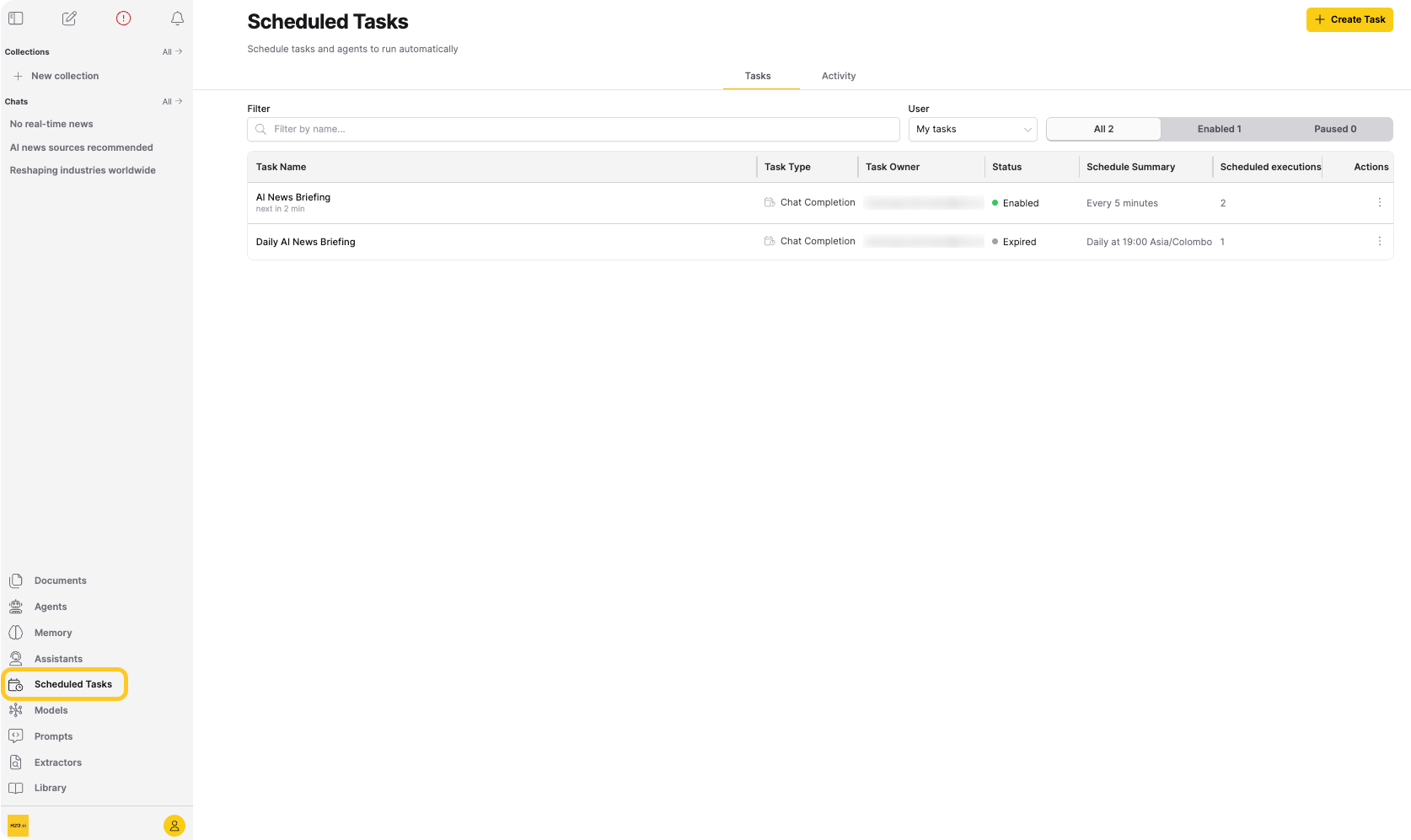
The Tasks tab shows a searchable task table. Data refreshes automatically in the background while the page is open. If you have no scheduled tasks yet, the tab shows a placeholder with a prompt to create one instead of the table.
The toolbar includes:
- A Filter field (placeholder
Filter by name...) that matches on task name. - A User dropdown, visible only with the admin role. See Admin scope.
- A status toggle showing All, Enabled, and Paused, each with a live count. The toggle defaults to All. Counts appear only when you set the User dropdown to My tasks or All users. Tasks with Completed or Expired status aren't separately filterable; they only appear under All.
Each row includes the following columns:
| Column | Description |
|---|---|
| Task Name | Name of the scheduled task. A muted line below the name shows the next run time as next <when>. |
| Task Type | Chat Completion or Agent Task, with an icon. |
| Task Owner | The user who owns the task. Visible only to admins. |
| Status | A colored dot plus a status word. See Task status. |
| Schedule Summary | Plain-language summary of the schedule. |
| Scheduled executions | Number of scheduled runs that started executing, including runs that failed during execution. Runs that failed to dispatch or were recovered as stale aren't counted, and neither are manual Run Now runs. |
An actions menu appears at the end of each row.
Task status
A task always shows one of the following statuses:
| Status | Color | Meaning |
|---|---|---|
| Enabled | Green | The task runs on its schedule. |
| Paused | Amber | The task skips its schedule until you resume it. Enterprise h2oGPTe also pauses a task after five consecutive failed scheduled runs. A successful run resets the count. |
| Completed | Blue | A one-time task finished its run, or a repeating task reached its Max scheduled executions limit. |
| Expired | Gray | The task's Expires At date passed, or its next run would fall at or after that date. |
A task that's currently executing also shows Running Now as a sub-signal under its Status cell.
Admin scope
Two elements on the Tasks tab are visible only to users with the admin role:
- The User dropdown in the toolbar, with My tasks (the default), All users, and an entry for each user.
- The Task Owner column, listing who created each task.
Choosing anything other than My tasks in the User dropdown reduces row actions to Pause / Resume and Delete. Users with the admin role can't trigger or edit another user's task settings.
Actions menu
The actions available in each task row's menu depend on the task status.
For enabled and paused tasks:
- Run Now: Triggers the task immediately. The task remains paused after a manual run and continues to skip its automatic schedule until you resume it. Disabled while the task is currently running.
- Edit Task Settings: Opens the Edit Scheduled Task dialog with pre-filled values.
- Pause / Resume: Temporarily stops or resumes scheduling of the task.
- Delete: Permanently deletes the task and all its execution history.
For completed and expired tasks:
- View task details: Opens the task detail panel.
- Delete: Permanently deletes the task and all its execution history.
Task details
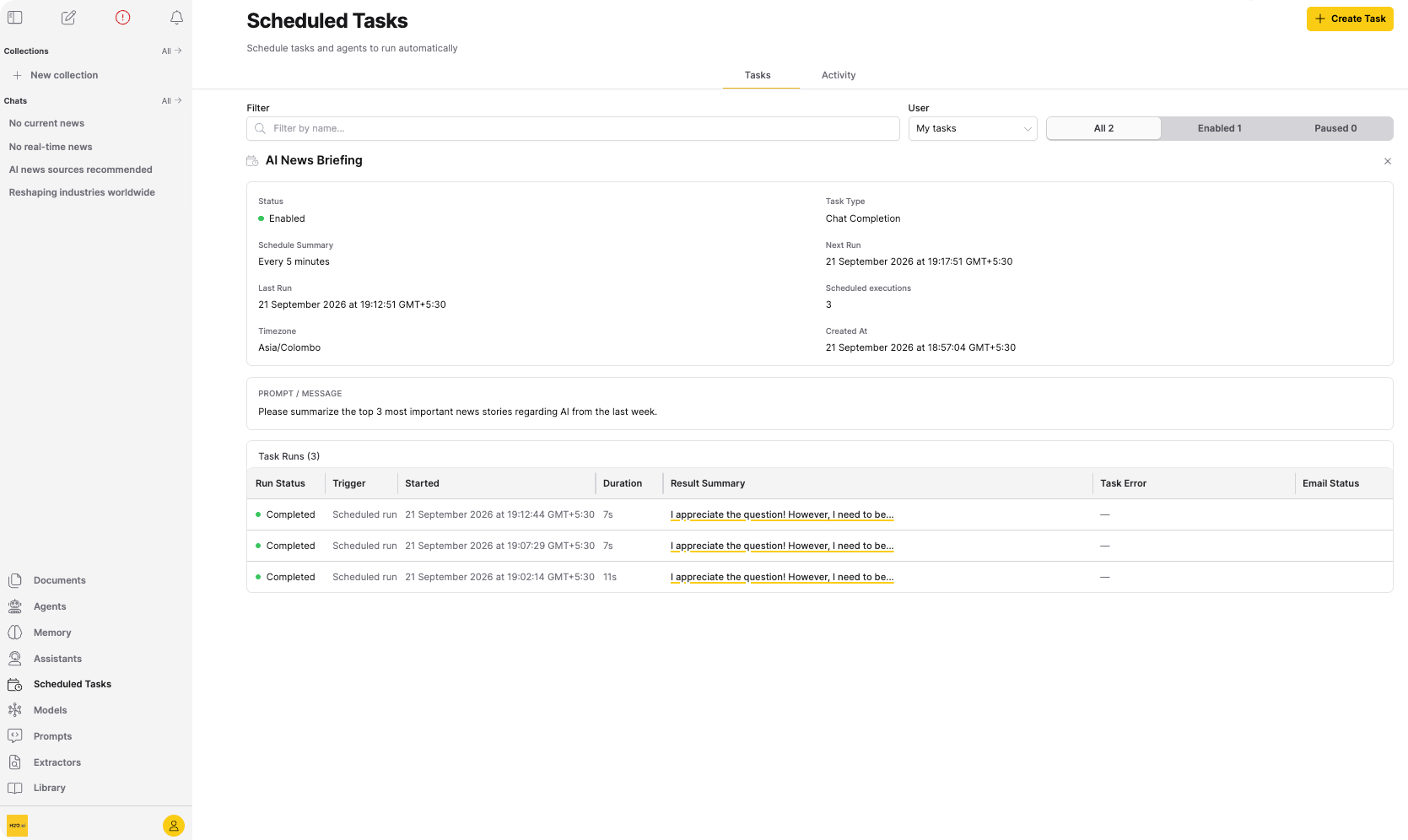
In My tasks scope, click a task name to open its detail panel. If the task has a description, it appears at the top.
The detail panel lists the following fields, followed by a Prompt / Message block:
| Field | Description |
|---|---|
| Status | A colored dot plus a status word. See Task status. |
| Task Type | Chat Completion or Agent Task. |
| Schedule Summary | Plain-language summary of the schedule. |
| Next Run | Next scheduled run time. Shows a dash for paused, completed, and expired tasks. |
| Last Run | Time of the most recent run. |
| Scheduled executions | Number of scheduled runs that started executing, shown as count / max once you set a maximum. See the Tasks table above for which runs count. |
| Timezone | Timezone for the schedule. Shown only when the task has one. |
| Created At | Date and time you created the task. |
| Email Notification | Notification address. Shown only when configured. |
Below the task details, a Task Runs table lists each run for that task with the following columns: Run Status, Trigger, Started, Duration, Result Summary, Task Error, and Email Status. Click a Task Error value to view full error details. For what the Email Status values mean, see Email delivery status.
Create a scheduled task
To create a scheduled task:
-
On the Scheduled Tasks page, click Create Task.
-
On the Task Details tab, configure the following fields:
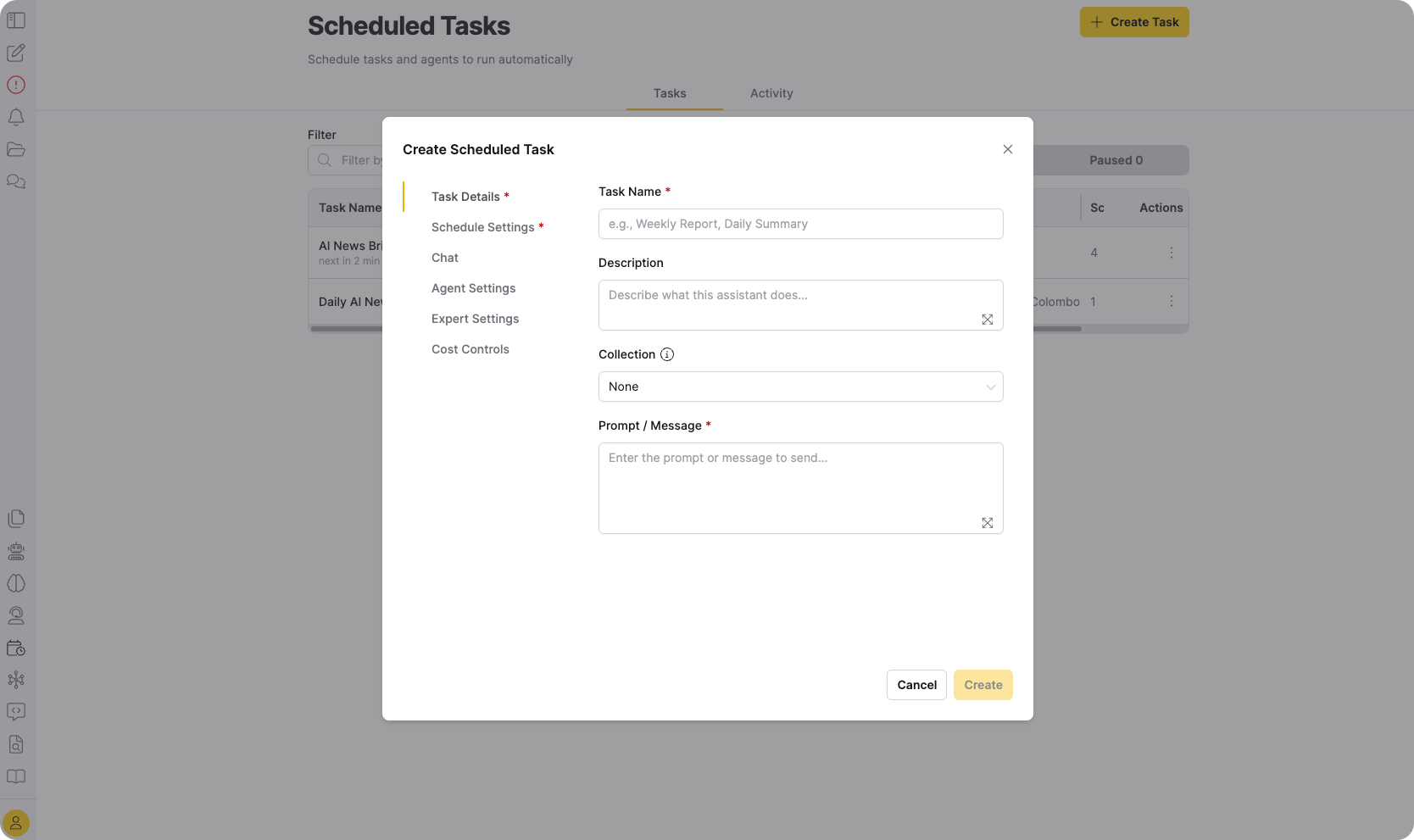
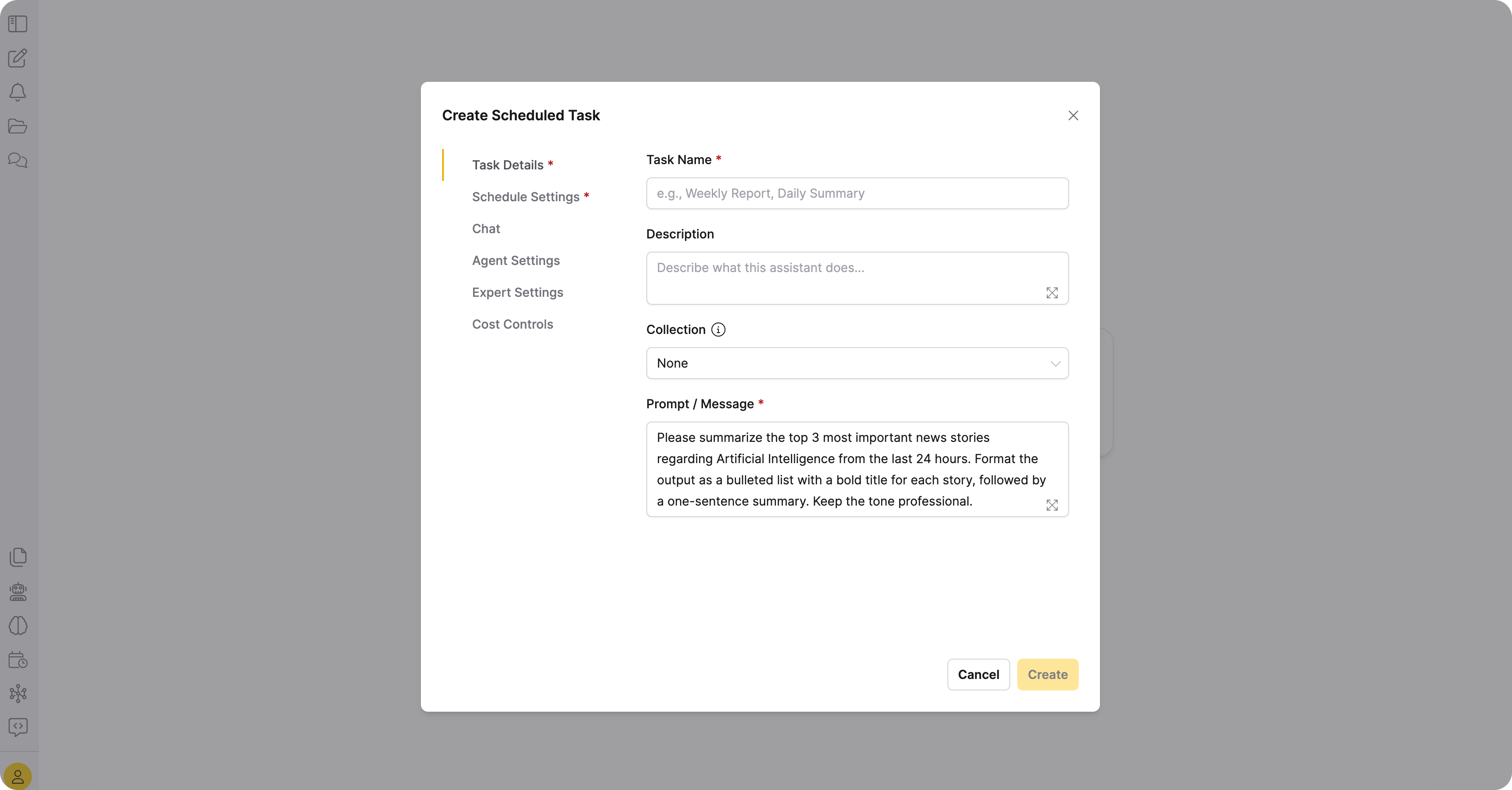
Field Required Description Task Name Yes Name for the scheduled task. Description No Description of the task. Collection No Collection whose settings apply to the task. When selected, the Chat, Agent Settings, Expert Settings, and Cost Controls tabs are hidden and settings come from the collection. Prompt / Message Yes Prompt or message to send on each execution. -
On the Schedule Settings tab, configure the schedule:
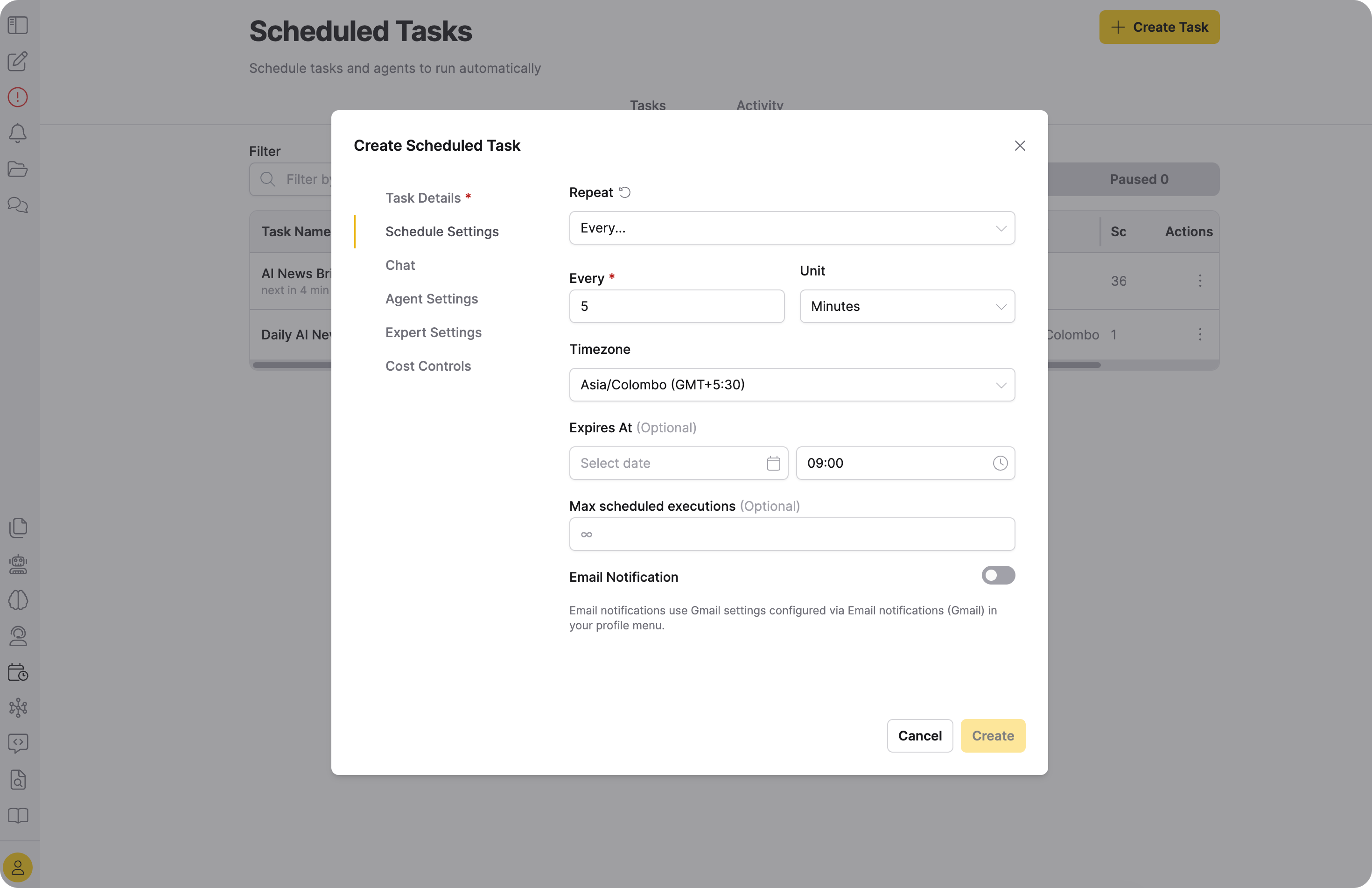
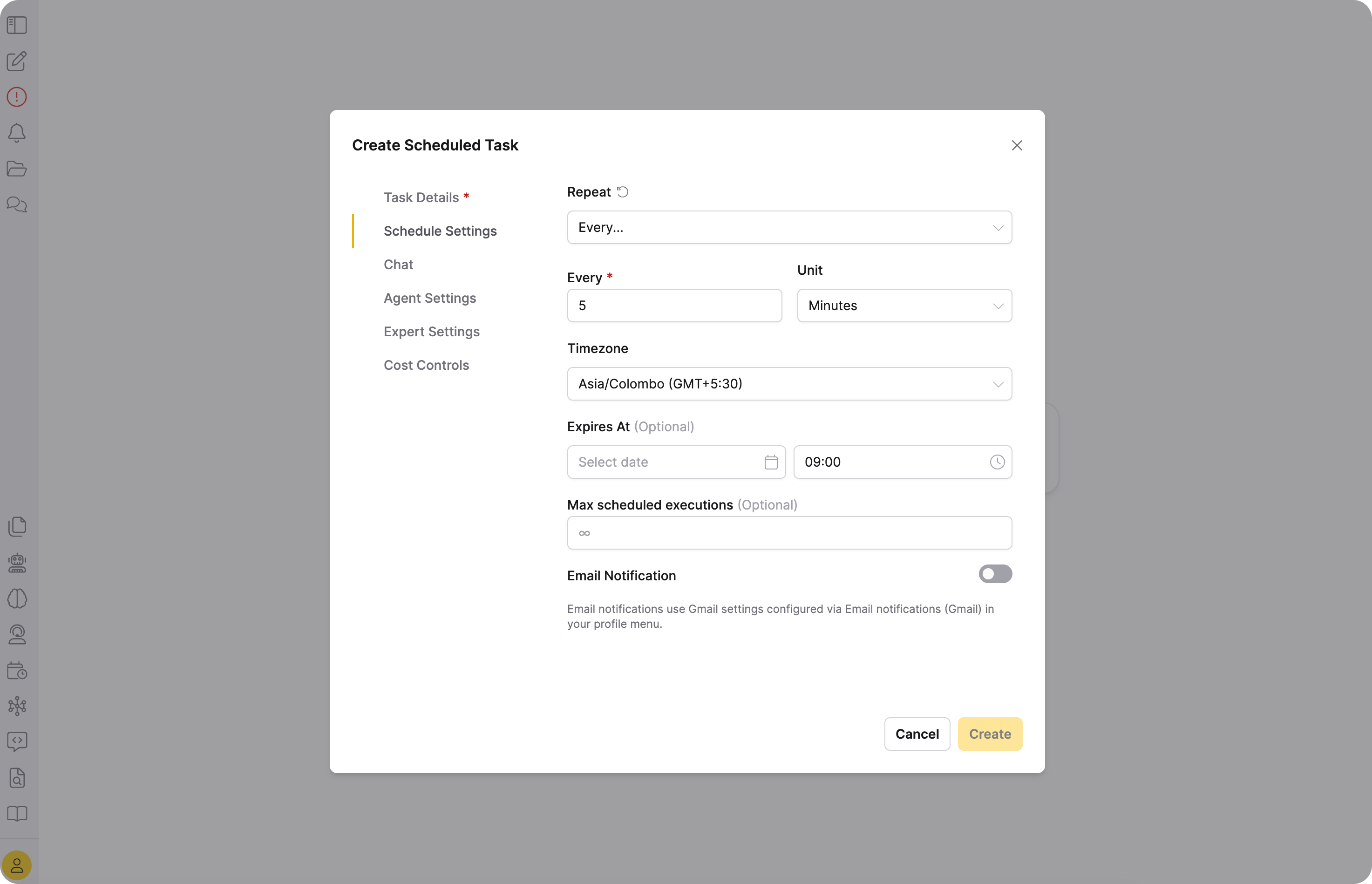
Field Required Description Repeat Yes No repeat (one-time), Every... (interval), Daily, Weekly, or Monthly. Run At Yes (one-time) Date and time to run the task. Every / Unit Yes (interval) Interval value and unit (Minutes or Hours). Day of Week Yes (weekly) Monday through Sunday. Day of Month Yes (monthly) 1 through 31. Time Yes (recurring) Local time of day to run. Timezone Yes (recurring) Timezone for the scheduled time. Expires At No Date after which the task stops running. Max scheduled executions No Max number of runs. Leave empty for unlimited. Hidden when you set Repeat to No repeat, since a one-time task already runs exactly once. noteA one-time task created in an earlier release might still carry a stored limit of one run. It still runs exactly once. The limit clears the first time you switch the task to a repeating schedule, so set a new limit then if you want one.
noteEmail notifications use Gmail settings configured via Email notifications (Gmail) in your profile menu. To enable notifications, toggle Email Notification on in the Schedule Settings tab. For setup details, see Email notifications (Gmail).
-
(Optional) Configure the remaining tabs:
Tab Description Chat Configures LLM parameters and includes a collection selector. Agent Settings Configures agent behavior. Expert Settings Provides advanced model options. Cost Controls Sets cost limits. For details, see Customize a Chat session.
-
Click Create.
"Every N hours" (interval) schedules can drift slightly later each cycle, because the schedule measures the next run from when the previous run finished, not from its scheduled time. Recurring and cron-based schedules (Daily, Weekly, Monthly) aren't affected.
Schedule a prompt from chat
To schedule a prompt from a chat session:
-
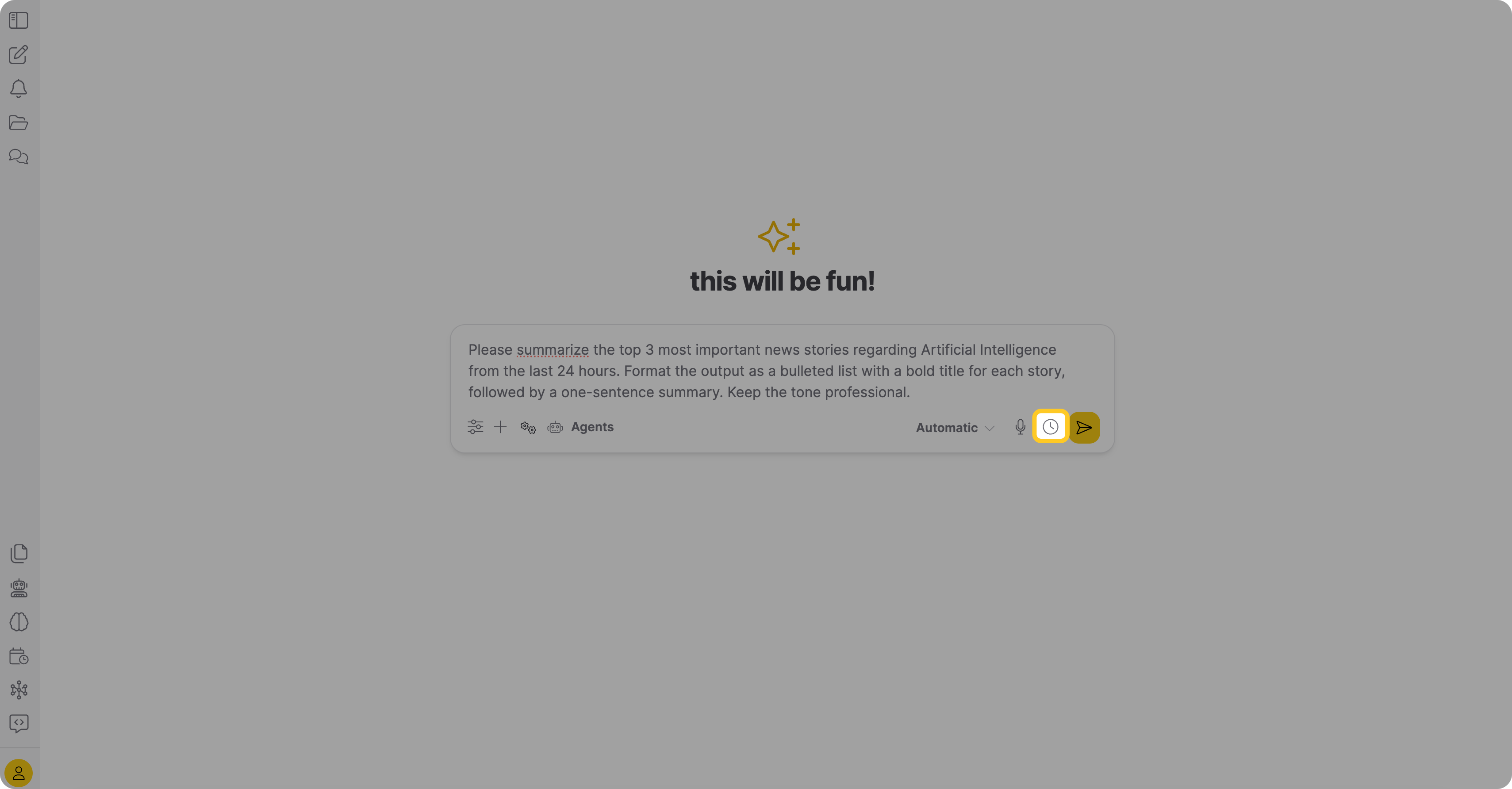
In the chat input area, click the Schedule this prompt (clock) icon.
-
The Create Scheduled Task dialog opens with the Prompt / Message field pre-filled from the chat input. Enter a Task Name.
-
On the Schedule Settings tab, configure the schedule. From the Repeat dropdown, select how often the task should run. You can select from No repeat (one-time), Every... (interval), Daily, Weekly, or Monthly. If you choose the Every... option, use the newly revealed Every and Unit fields to set a custom interval (for example, every 5 minutes).
-
For No repeat, enter the date and time in Run At. Optionally, set an Expires At date. For repeating schedules, you can also set a Max scheduled executions limit.
-
(Optional) To receive email notifications when the task completes, enable the Email Notification toggle.
noteEmail notifications use Gmail settings configured via Email notifications (Gmail) in your profile menu. Configure your Gmail address and app password there before enabling this option.
-
Click Create.
The task appears on the Scheduled Tasks page with the prompt and chat settings from your current session.
Schedule a task with a slash command
Instead of the Schedule this prompt icon, you can type a slash command in the chat input:
| Command | Behavior |
|---|---|
/schedule | Model-driven. Interprets your request and takes one of three paths below. |
/schedule-ui | Always opens the Create Scheduled Task dialog, with no model interpretation. Use this when you want to fill in every field yourself. |
For /schedule, the model takes one of the following paths depending on how specific your request is:
| Outcome | What you see |
|---|---|
| Created immediately | Your request was specific enough to act on. A confirmation appears in chat with a link to the new task. |
| Asked to confirm | The model states its assumptions and asks you to confirm before creating anything. A banner reading Awaiting reply: appears over the chat input. Click its X to cancel, the same as replying no. |
| Pre-filled dialog | The Create Scheduled Task dialog opens with every field already filled in for you to review and submit. |
If your request is too vague to act on, the model asks a clarifying question instead. Nothing gets created, and your next message answers that question rather than starting a new request.
Confirming or canceling
When the model asks you to confirm (the second path), it states its assumptions in its own words and ends with a fixed line: Reply yes to proceed or no to cancel.
- Accepted confirmations:
yes,yeah,yep,yup,sure,ok,okay,confirm, optionally followed by a short trailing phrase:please,thanks,thank you,go ahead,do it,sounds good,correct, orthat's right. - Accepted cancellations:
no,nope,cancel,abort. - Bare
yandnaren't accepted, so a stray keystroke can't create a task. - A reply that changes the request instead of confirming it, such as "yes but change the time to 6 PM," doesn't match either list. The pending confirmation cancels, and your reply becomes a normal chat message.
- Sending any other message, or typing a new slash command, also cancels the pending confirmation.
- Yes/no matching works in English only.
The pending confirmation exists only in memory for your current session. If you reload the page while a confirmation is awaiting your reply, it's silently abandoned, and typing "yes" afterward does nothing. Send the slash command again.
Activity tab
The Activity tab shows execution history across your scheduled tasks.
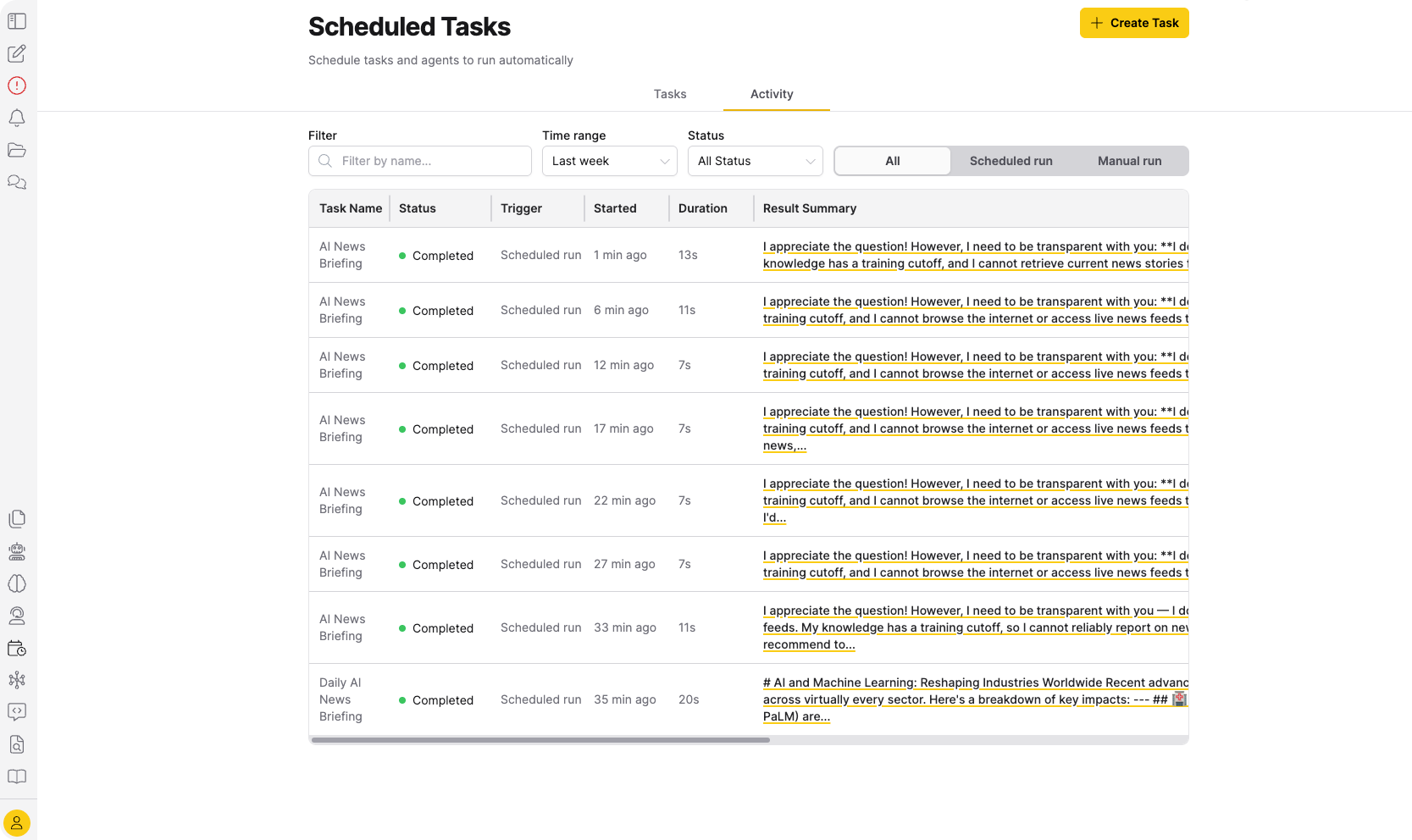
The toolbar includes the following controls:
| Control | Description |
|---|---|
| Filter | Partial, case-insensitive match on task name. Placeholder Filter by name..., empty by default. |
| Time range | Last hour, Last 24 hours, Last week (the default), Last month, or All time. |
| Status | All Status (the default), Completed, Failed, Running, Pending, or Cancelled. |
| Trigger | All (the default), Scheduled run, or Manual run. |
Each filter applies to your full run history, not only the rows already loaded.
Each row includes the following columns:
| Column | Description |
|---|---|
| Task Name | Name of the scheduled task. |
| Status | Current execution status. Possible values: Completed, Failed, Running, Pending, or Cancelled. |
| Trigger | How the run was initiated: Scheduled run or Manual run. |
| Started | Date and time when the execution started. |
| Duration | How long the execution took to complete. |
| Result Summary | Brief summary of the execution result. |
| Task Error | Error message if the execution failed. Click to view full details. |
| Email Status | Delivery status of the run's email notification, if one applies. See Email delivery status. |
Email delivery status
When a scheduled task has an email notification configured, its runs show an Email Status in the Activity tab and in the task detail panel's Task Runs table.
| Status | Color | Meaning |
|---|---|---|
| Email Sent | Green | Delivery succeeded. |
| Email Failed | Red | Delivery gave up. Hover over the cell to see the failure reason. A wrong app password typically surfaces here after about two minutes. |
| Email Pending | Blue | Queued or retrying delivery. |
| (blank) | N/A | No email applies: no notification configured, a canceled run, or an invalid address. |
Related topics
- Customize a Chat session - Configure LLM parameters, agent behavior, and cost controls for a scheduled task
- Agents - Learn about agent tasks and agent behavior
- Roles and Permissions - Configure scheduled task permissions
- Account menu - Configure Gmail settings for email notifications
- Submit and view feedback for this page
- Send feedback about Enterprise h2oGPTe to cloud-feedback@h2o.ai