Jobs
This page is for administrators monitoring background jobs across the whole platform. To learn what counts as a Job and how to view your own jobs, see Jobs.
Overview
The Jobs section on the System Dashboard page shows every job that has run on the platform — live progress for active jobs, and a full, filterable history for everything else. Jobs include tasks such as document ingestion, collection deletion, and other background operations.
Completed, failed, and canceled jobs stay in the list long after they run. By default, the page shows jobs from the last 24 hours; use the time range filter to look further back. Jobs stay in the history for the number of days set by Telemetry Retention Period (days) (telemetry_retention_days), which is 30 days by default and 365 days at most. To learn more, see System settings reference.
The Jobs page requires the Show admin center (h2ogpte/display/admin_center) permission. To learn more, see Roles and permissions.
How to open it
- Sign in as a user with the Show admin center permission.
- In Enterprise h2oGPTe, click the Account Circle icon.
- Select System Dashboard.
- Under System overview, click Jobs.
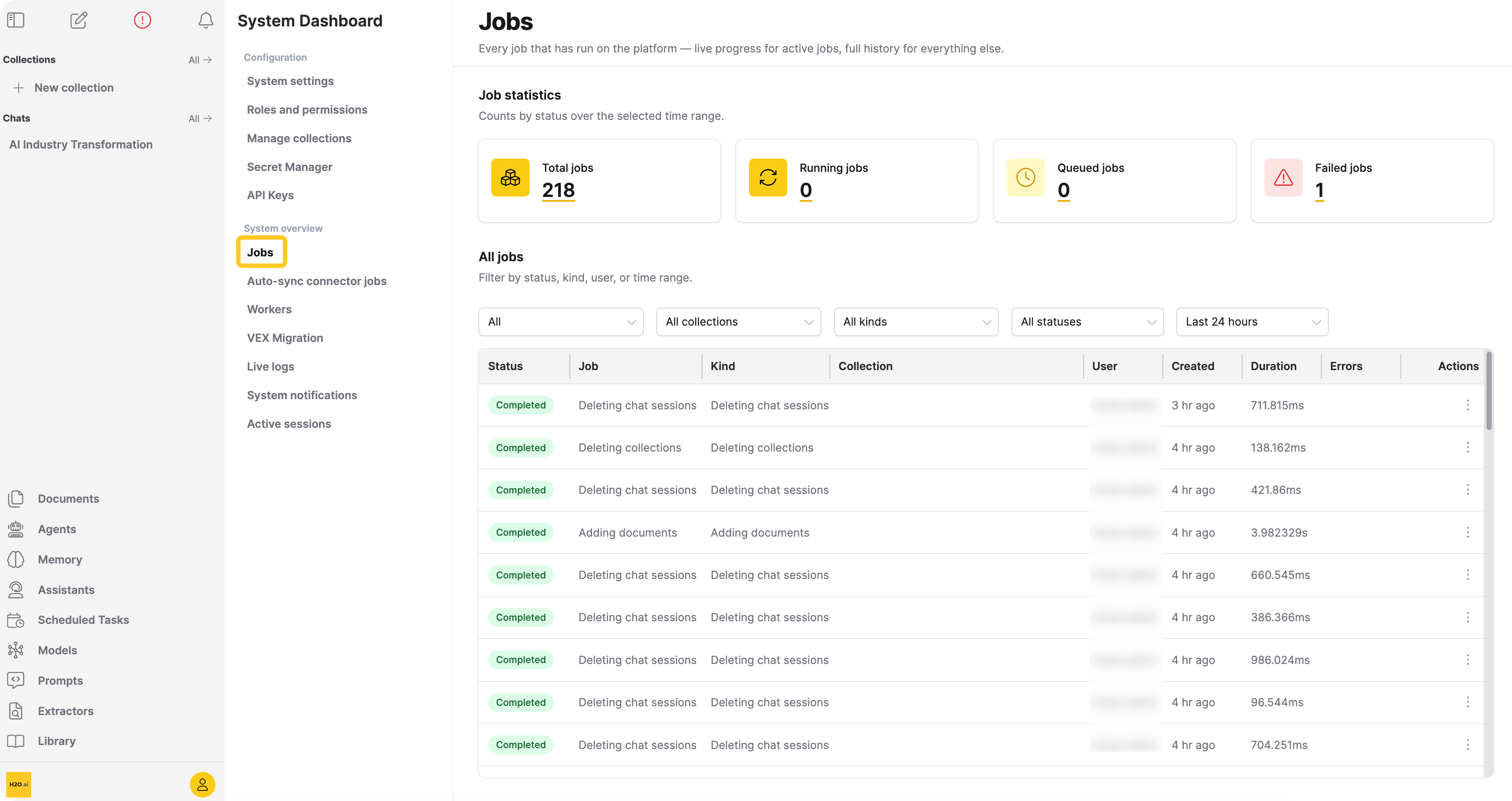
Job statistics
At the top of the page, four stat cards summarize job counts over the currently selected time range:
| Stat | Description |
|---|---|
| Total jobs | All jobs in the selected time range. |
| Running jobs | Jobs currently in progress. |
| Queued jobs | Jobs waiting to start. |
| Failed jobs | Jobs in which no task succeeded. Jobs where only some tasks failed count as completed. |
Click a stat card's count to filter the jobs table to that status (clicking Total jobs clears the status filter). Stat counts reflect the selected time range only — they aren't affected by the user, collection, kind, or status filters. See Live updates for how often they refresh.

Filtering
Five dropdowns precede the table. From left to right, they filter by:
| Filter | Description |
|---|---|
| User | Shows jobs owned by one user. Defaults to All. |
| Collection | Shows jobs that operated on one collection. Defaults to All collections. |
| Kind | Shows jobs of one type (for example, Indexing, Deleting documents, Importing stored documents to a collection). Defaults to All kinds. |
| Status | Shows jobs with one status: Queued, Running, Completed, Failed, Canceled, Timed out, Stale, Unknown. Defaults to All statuses. |
| Time range | Shows jobs created within a window: Last 24 hours, Last 7 days, Last 30 days, or All time. Defaults to Last 24 hours. |
Filters combine — for example, selecting a user and a status shows only that user's jobs with that status. A time range always applies, so an empty result means no jobs matched the current filters, not that no jobs have run.

All jobs
The table always lists jobs newest first, and loads more rows as you scroll. Column sorting isn't available. It lists matching jobs with the following columns:
| Column | Description |
|---|---|
| Status | Color-coded status badge (see Job statuses below). |
| Job | The job's name. |
| Kind | The job type. |
| Collection | The collection the job operated on, if any. Links to the collection. |
| User | The job's owning user. Reads SYSTEM for jobs the platform started itself, not a user. |
| Created | When the job was created (relative time; hover for the exact timestamp). |
| Duration | Cleared for jobs removed from the notification tray, checked first so a cleared job still reads Cleared even if it's still running; otherwise a live progress bar and percentage for running jobs, the elapsed duration for finished jobs, or a dash for queued jobs. |
| Errors | A summary of any failures. Select a value in the Errors column to open Error details, which lists each error in full. Select Copy All to copy the whole log, including the job ID and kind, to your clipboard, or Download .txt to save it as a text file. |
| Actions | Copy ID, view logs, and terminate (see below). |
The Errors column reports the share of failed tasks (for example, "20% of tasks failed"), while the notification tray reports failed files (for example, "2 of 5 files failed (40%)"). The two percentages can differ for the same job because job history doesn't retain per-file counts.
Job statuses
| Status | Badge color | Meaning |
|---|---|---|
| Queued | Amber | Waiting to start. |
| Running | Blue | Currently in progress. |
| Completed | Green | Finished with at least one task succeeding. Any failed tasks appear in the Errors column. |
| Failed | Red | Finished with no task succeeding. |
| Timed out | Red | Did not finish within the allowed time. |
| Canceled | Gray | Terminated before completion (see tooltip for who canceled it and why). |
| Stale | Gray | The worker processing the job is no longer active. |
| Unknown | Gray | Status could not be determined. |
Hovering over a Canceled badge shows whether the job was terminated by an administrator or by the job's own user, along with the termination reason if one was provided. Hovering over the badge for a job that was cleared from the notification tray shows that it's kept here for audit purposes, unless the job was also canceled, in which case the cancellation details show instead.
View job logs
For running and queued jobs, and for up to 48 hours after a job finishes, open the row's actions menu and select View logs to open the job's live logs. After 48 hours the entry reads Live logs expired; select it to open the job's error details instead. The entry appears only if your role has the Live logs (h2ogpte/admin_center/live_logs) permission.
Terminate a job
To terminate a queued or running job:
- Click the actions menu for the job and select Terminate job.
- Optionally enter a reason for the termination.
- Click Terminate.
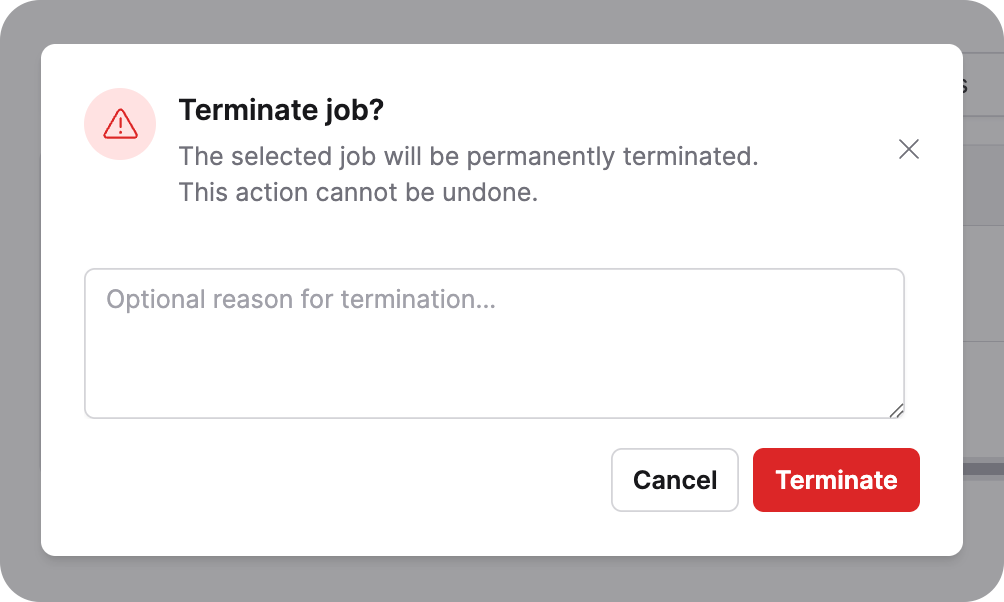
Terminating a job cannot be undone. The job's status changes to Canceled; it remains in the job history for audit purposes.
Live updates
While the Jobs page is open, progress for running jobs updates live. In addition, the page polls every 30 seconds to refresh the stat cards and to pick up newly created or recently changed jobs that match the current filters.
Related topics
- Jobs — What counts as a job, and how to view your own jobs.
- Roles and permissions — Permissions that control access to this page.
- Job History API — Read job history programmatically.
- Submit and view feedback for this page
- Send feedback about Enterprise h2oGPTe to cloud-feedback@h2o.ai