System Settings
Overview
The System Settings page provides a centralized location for managing configuration parameters across Enterprise h2oGPTe. Use this page to:
- Control global settings: Manage application-wide configuration parameters
- Map custom config values to users: Override global settings for specific users
- Map custom config values to roles: Override global settings for specific roles
Global settings are configured during Helm deployment and enforce maximum value limits. Many global settings can be overridden at the user or role level. Some settings are read-only and cannot be modified.
All actions on the System Settings page require administrator privileges.
Access the System Settings page
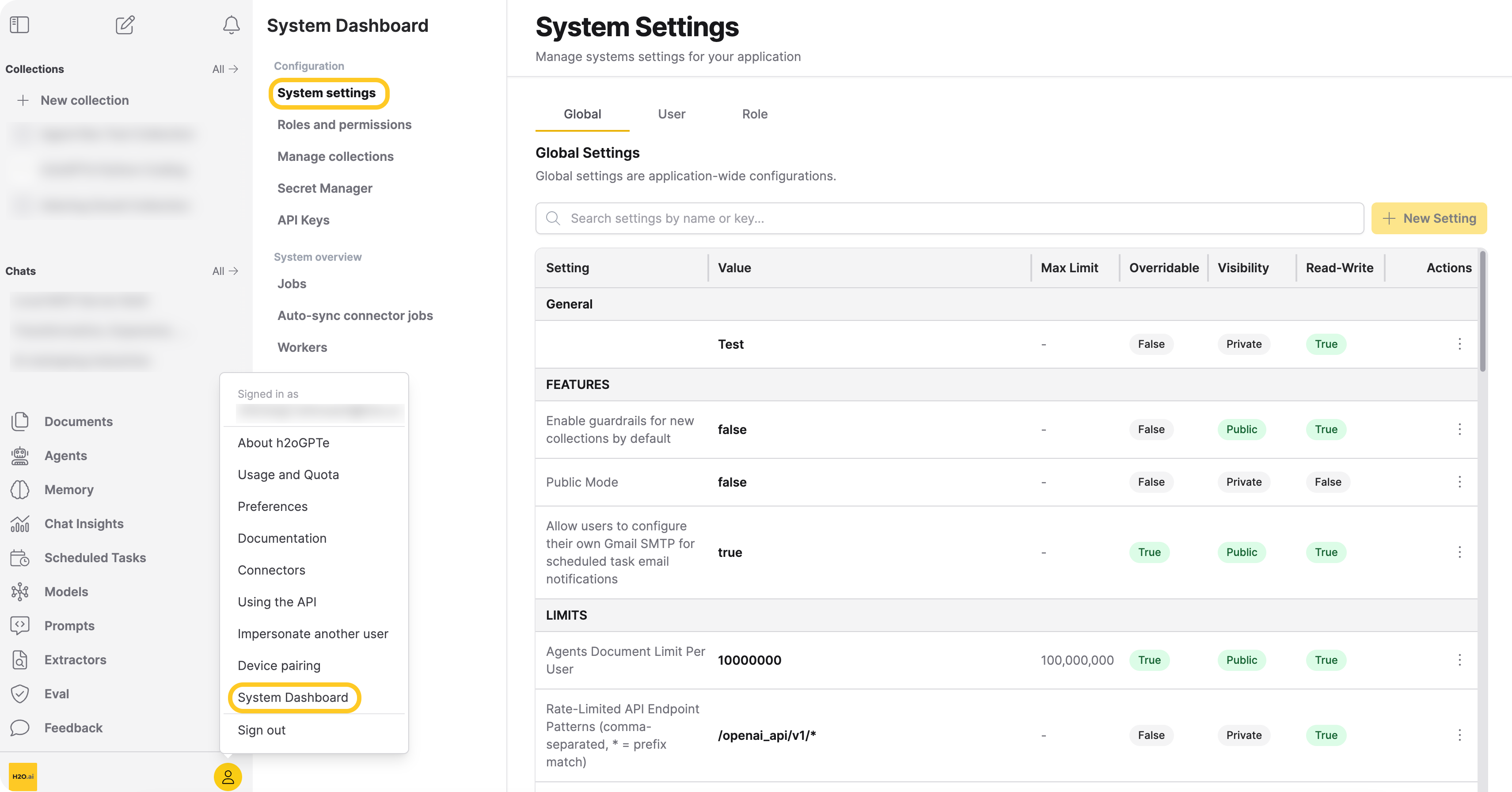
- In Enterprise h2oGPTe, click Account Circle.
- Select System Dashboard.
- In the Configuration section, click System settings.
You can manage your settings across the Global, User, and Role tabs.
Global Settings
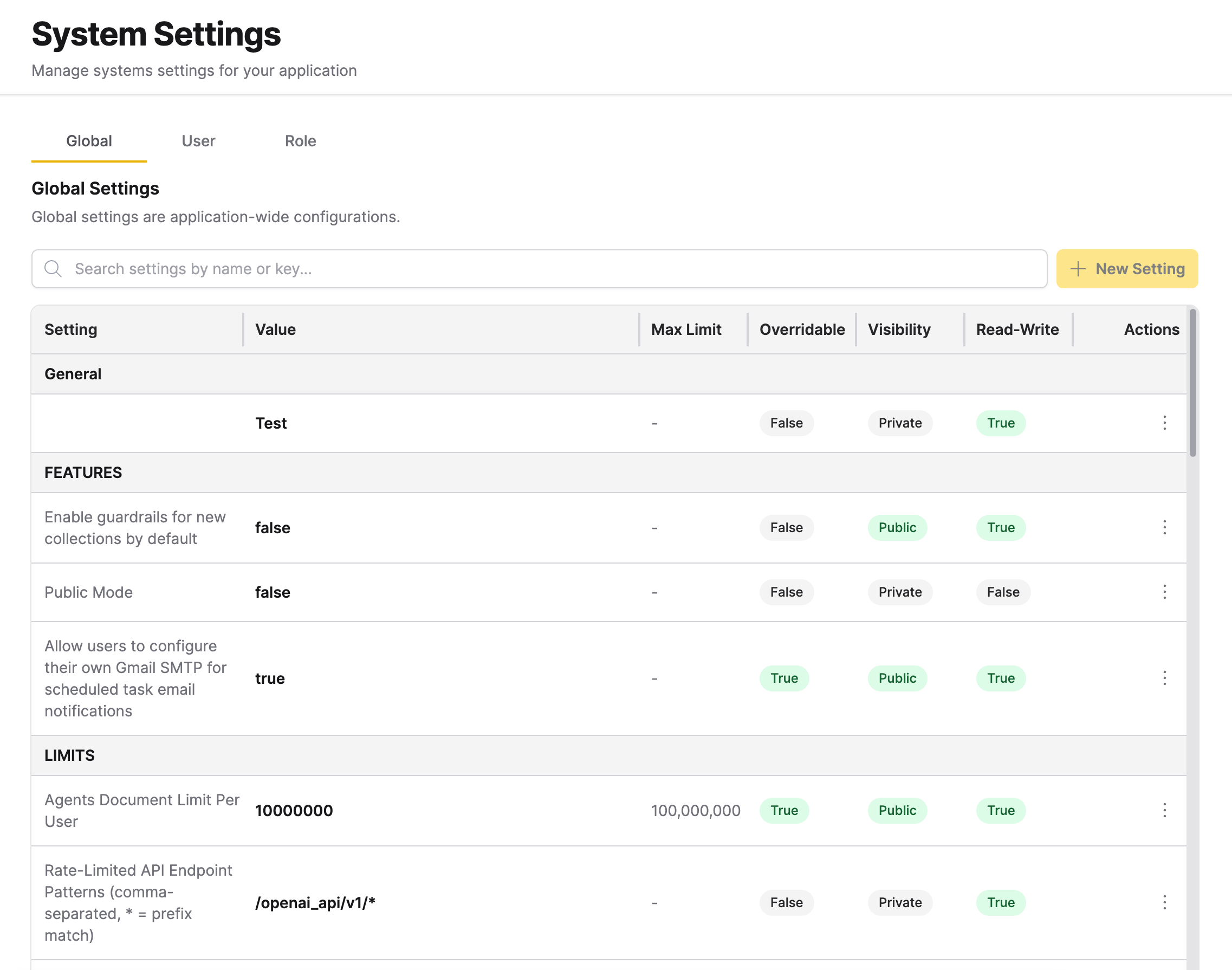
Global settings are application-wide configuration parameters organized by category: FEATURES, LIMITS, OAUTH, SECURITY, and SYSTEM. The search bar lets you filter global settings by name or key. These settings are shown in a table format, organized by the following columns:
- Setting: The configuration name
- Value: The current setting value
- Max Limit: The maximum allowed value (if applicable)
- Overridable: Whether the setting can be overridden by users or roles (overridable means the setting can be customized at the user or role level)
- Visibility: Whether the setting is Public or Private
- Read-Write: Whether the setting can be modified
A few settings (for example, chat_max_concurrent_per_user and crawl_max_concurrent_per_user) are resolved per user and cached across mux replicas rather than read fresh on every request. These settings show an info icon next to their name — hover over it to see the current propagation window. See Setting propagation and caching for details.
Runtime settings
Many Global Settings take effect at runtime. When you save a change, running services pick it up within a few seconds, with no restart or redeploy required. This lets you adjust chat defaults, feature toggles, PII and compliance actions, and agent tuning without interrupting the deployment.
Settings configured only as environment variables at deployment time are not part of the runtime registry and require a redeploy to take effect.
For a complete list of settings and their categories, see All settings and configurations.
Add a global setting
Only administrators can add global settings. Only settings that are overridable and not read-only can be added as new global settings.
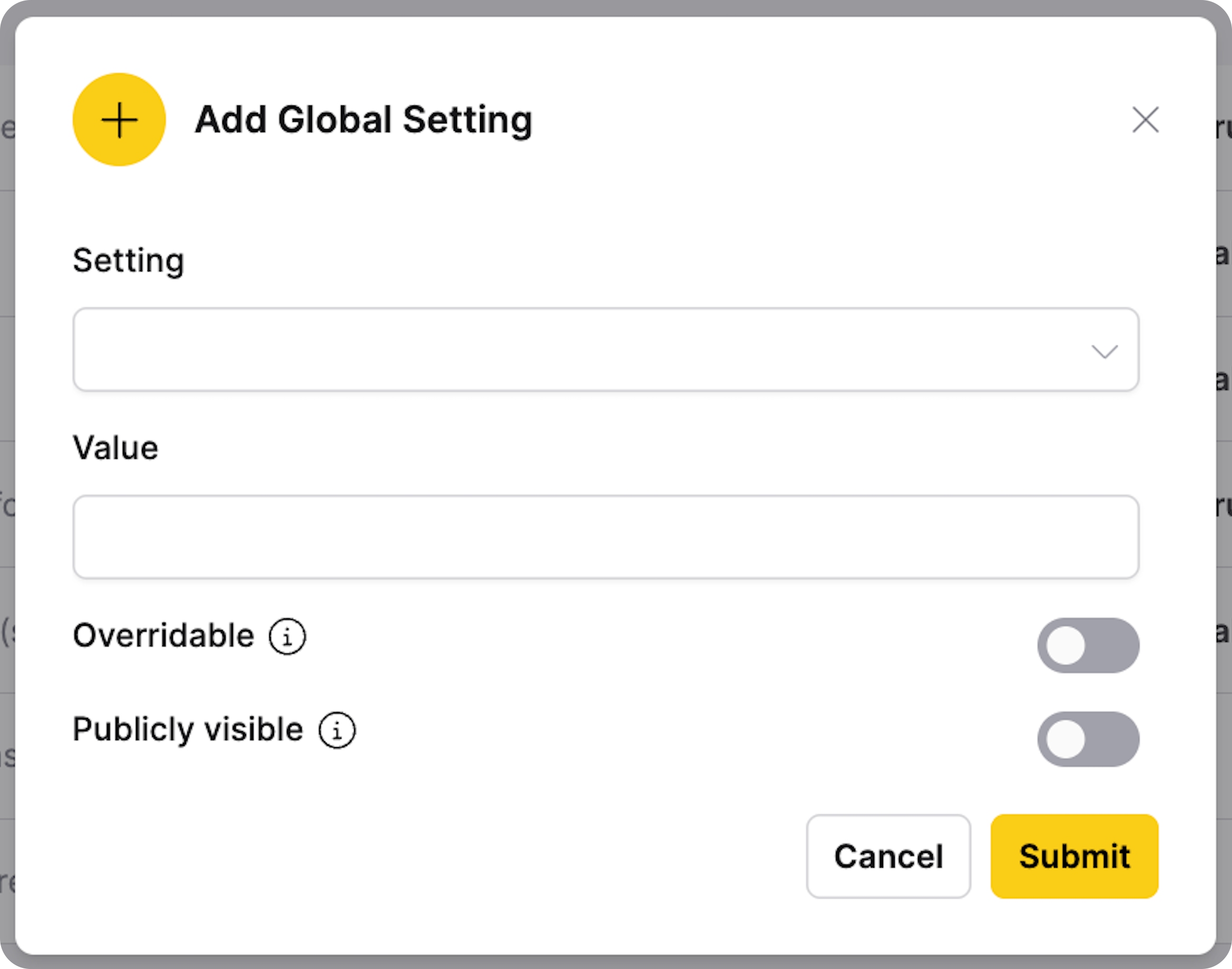
- In the Global Settings tab, click + New Setting.
- Select a setting from the dropdown.
- Enter a value for the setting. The value must not exceed the maximum limit specified for the setting.
- If applicable, configure overridable and visibility options.
- Click Submit.
If all available global settings have been configured, the + New Setting button is disabled and displays the message "All available global settings have been configured".
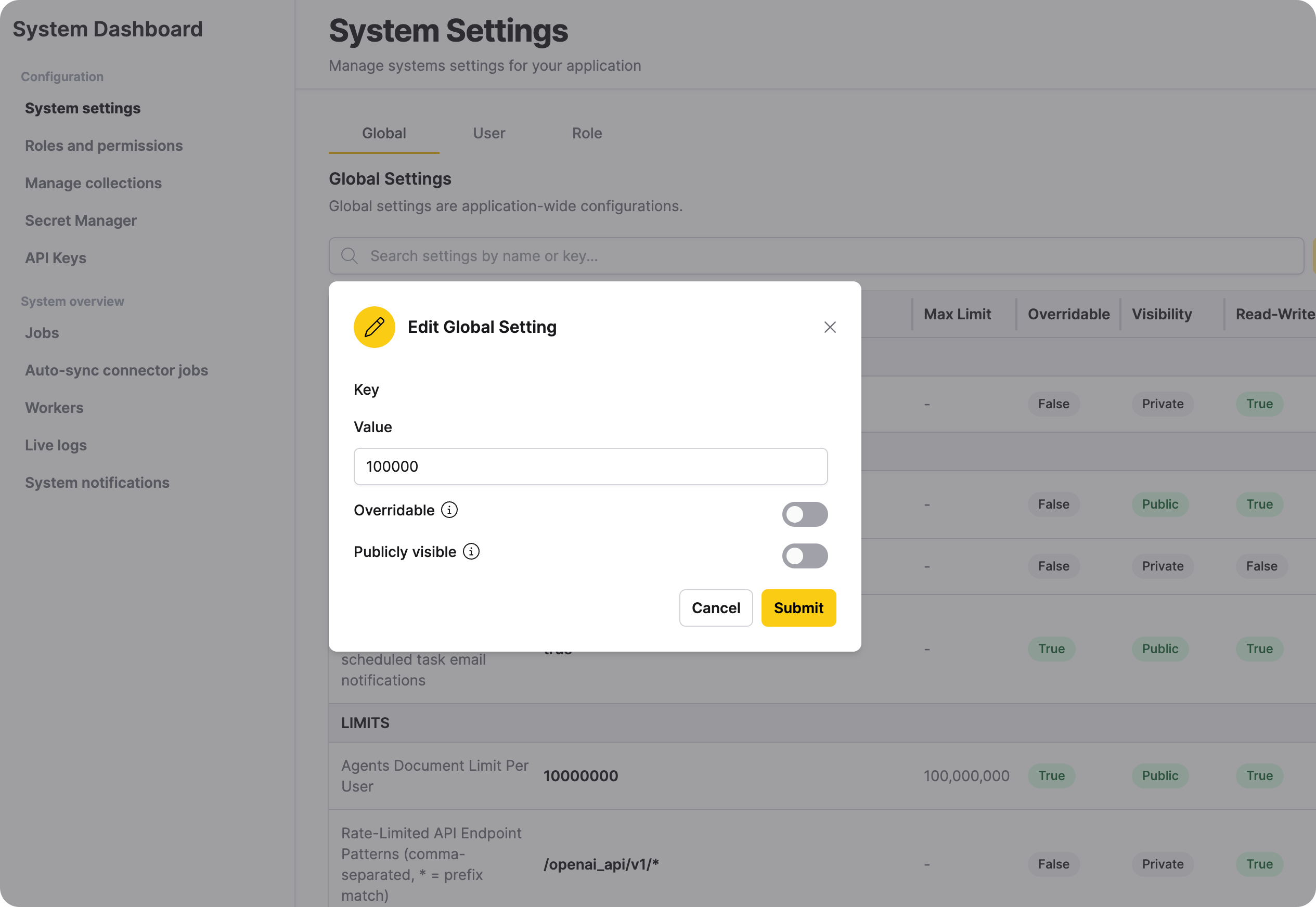
Edit a global setting
Only administrators can edit global settings. Read-only settings cannot be edited.
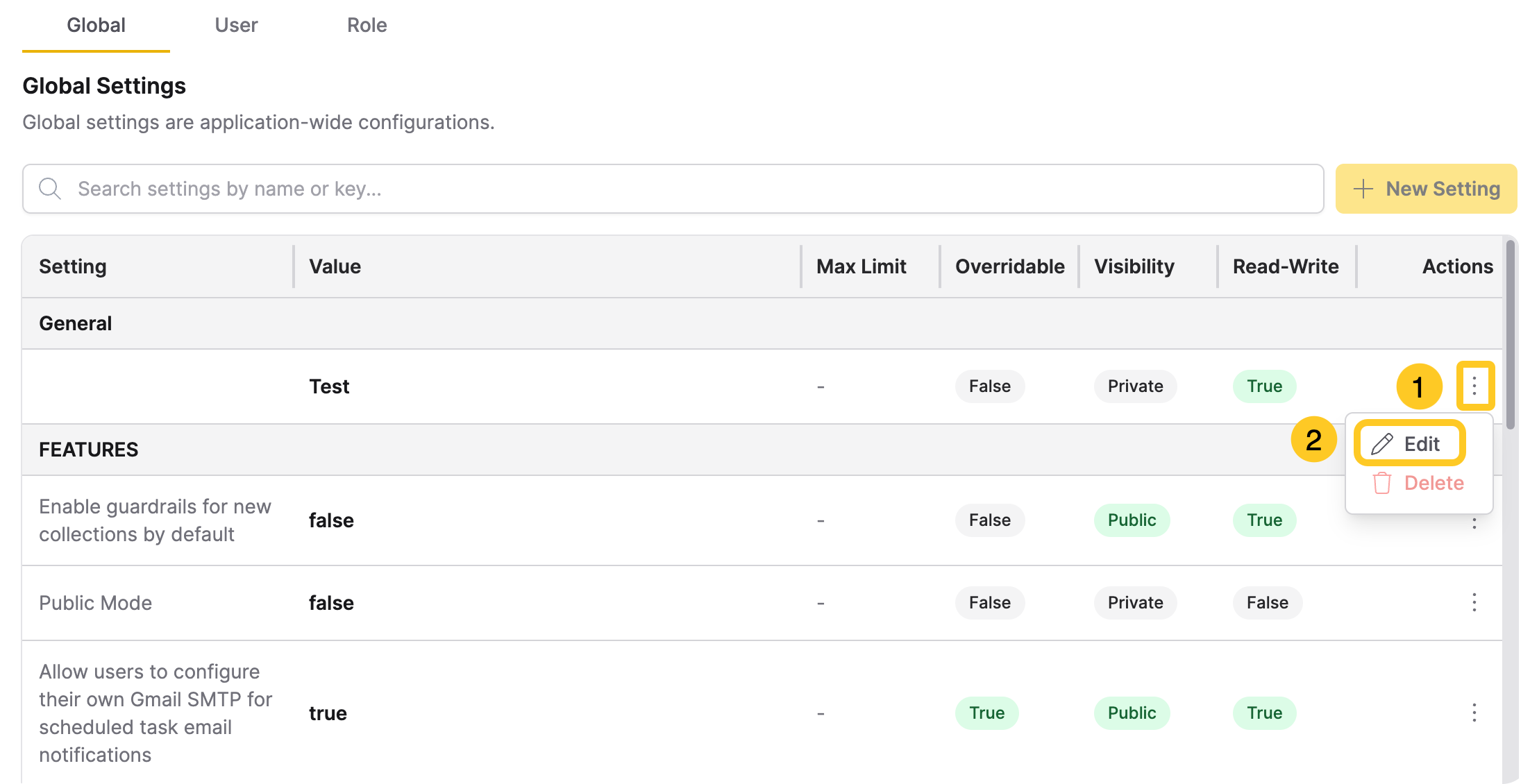
- In the Global Settings table, locate the setting you want to modify and click for that setting.
- Select Edit.
- This opens the Edit Global Setting dialog box. Update the value without exceeding the maximum limit.
- Enable Overridable to let user settings override this global setting.
- Enable Publicly visible to let users see the value for this global setting.
- Click Submit.
Remove a global setting
Only administrators can remove global settings.
- In the Global Settings table, locate the setting you want to remove.
- Click the Actions menu () for that setting.
- Select Delete.
- Confirm the deletion.
You cannot remove default global settings that are pre-configured by the system. You can only remove settings that were added manually.
Global Guardrails
Administrators can enable guardrails system-wide for new chats and new collections through the System Settings UI or by setting environment variables at deployment time.
Three settings in the FEATURES category of the Global Settings table control the guardrail defaults. Search the table for guardrails to find all three.
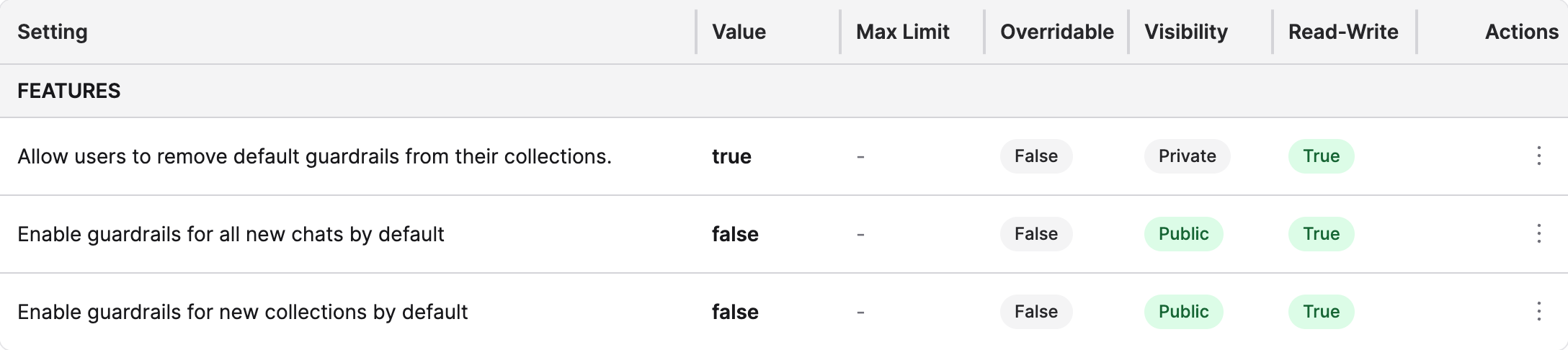
Enable guardrails for all new chats by default
Option 1: System Settings UI (Recommended)
- In the Global Settings table, find Enable guardrails for all new chats by default in the FEATURES category.
- Open the Edit Global Setting dialog for the setting. See Edit a global setting.
- Turn on Value.
- Click Submit.
Enterprise h2oGPTe applies the default guardrail categories. The change takes effect immediately, with no restart.
Option 2: Environment Variable (Deployment Time)
Set this environment variable during deployment to pre-enable the setting:
H2OGPTE_MUX_DEFAULT_CHAT_GUARDRAILS_ENABLED=true
The actual guardrails initialization happens when the setting is toggled ON in the UI or when the config is changed via API.
Enable guardrails for new collections by default
When enabled, all newly created collections automatically inherit the global guardrail settings. Users see guardrails pre-enabled when they open the collection configuration page.
- In the Global Settings table, find Enable guardrails for new collections by default in the FEATURES category.
- Open the Edit Global Setting dialog for the setting. See Edit a global setting.
- Turn on Value.
- Click Submit.
Existing collections are not affected by this setting. Only collections created after the setting is enabled will have guardrails applied by default.
Allow users to remove default guardrails
By default, users can remove the inherited default guardrails from their collections. Administrators can restrict this behavior:
- In the Global Settings table, find Allow users to remove default guardrails from their collections in the FEATURES category.
- Open the Edit Global Setting dialog for the setting. See Edit a global setting.
- Set Value:
- On (default): Users can turn off or edit the inherited guardrails on their collections.
- Off: Users can't turn off or remove the default guardrail categories on collections that inherited them.
- Click Submit.
The lock applies to administrators too. Locked categories appear read-only in the collection's guardrail settings, with no delete icon. Enterprise h2oGPTe also locks the Enable guardrails toggle and any Prompt Guard labels turned on by default.
Default guardrail categories
When you turn on global guardrails, Enterprise h2oGPTe applies these 14 categories to new chats and collections:
| Category | What it flags |
|---|---|
| Violent Crimes | Content that enables, encourages, or endorses unlawful violence against people or animals, such as terrorism, murder, assault, kidnapping, or animal abuse. Does not include: news reporting, history, fiction, or discussion that provides no instructions or encouragement. |
| Non-Violent Crimes | Content that enables, encourages, or endorses personal, financial, property, drug, weapons, or cybercrimes. Does not include: crime news, fiction, security education, or discussion of lawful activity. |
| Sex-Related Crimes | Content that enables, encourages, or endorses sex trafficking, sexual assault, sexual harassment, or prostitution. Does not include: news reporting, consent education, or support for survivors. |
| Child Sexual Exploitation | Content that contains, describes, enables, encourages, or endorses sexual abuse of children, or sexualizes minors. Does not include: child-safety education, news reporting, or clinical or legal discussion of child protection. |
| Defamation | Content that presents unverified, damaging claims about a specific real, living person as established fact, in a way likely to injure their reputation. Does not include: opinion, criticism, satire, or claims the message itself presents as unverified. |
| Specialized Advice | Content that gives or seeks tailored, directive financial, medical, or legal advice for a specific person or situation, or claims a dangerous activity, substance, or object is safe. Does not include: general educational information, a person seeking help, support, or resources about harm someone else inflicted on them, or a suggestion to consult a professional. |
| Privacy | Content that exposes a real person's contact or personal information, such as phone numbers, emails, addresses, government IDs, financial accounts, credentials, or dates of birth. The category also covers information that doesn't look sensitive on its own, any other personally identifiable information (PII), and content that seeks to locate, track, or expose a person. Does not include: information about fictional people, general discussion of privacy topics, or an organization's own public contact information. |
| Intellectual Property | Content that reproduces large portions of copyrighted or proprietary works, or enables piracy, counterfeiting, plagiarism, or DRM circumvention. Does not include: naming or discussing products, brands, or creative works, brief quotations, or IP law discussion. |
| Indiscriminate Weapons | Content that enables, encourages, or endorses creating chemical, biological, radiological, nuclear, or high-yield explosive weapons. Does not include: historical, policy, or news discussion with no technical detail. |
| Hate | Content that demeans or dehumanizes people based on protected characteristics, such as race, color, ethnicity, national origin, disability, religious affiliation, caste, sexual orientation, sex, gender identity, or a serious disease. Does not include: neutral discussion of demographics, reporting on discrimination, or education about hate speech. |
| Suicide & Self-Harm | Content that enables, encourages, or endorses suicide, self-injury, or disordered eating, or provides methods or lethality information. Does not include: expressions of distress seeking help, recovery stories, crisis resources, third-party news reporting, or preventive education. |
| Sexual Content | Explicit sexual content or erotica intended to arouse. Does not include: medical, educational, or health-related discussion of sexuality, clinical terminology, or non-graphic romance. |
| Elections | Content that could mislead voters about election mechanics, such as when, where, or how to vote, voter eligibility, or vote counting. Does not include: political opinions, discussion of candidates or issues, accurate voting information, or general commentary about elections. |
| Code Interpreter Abuse | Content that seeks to weaponize a code execution environment, such as sandbox escapes, privilege escalation, denial-of-service, or data exfiltration. Does not include: ordinary programming or system administration done for a legitimate task, even when it uses subprocesses or networking. |
A separate label, Safe, is the classification the guardrails LLM returns for benign content. It isn't a selectable category. It's the fallback result when no other category applies.
The table summarizes each category. Enterprise h2oGPTe ships the exact definitions the guardrails LLM uses. Users see and edit the full text in a collection's guardrail settings.
Changing any guardrail setting on a collection freezes its category definitions at the current text. See Guardrails.
Hierarchy and enforcement
The guardrails system uses a merge model to ensure admin-configured guardrails cannot be bypassed:
- Global settings - Admin-configured guardrails that apply system-wide as a minimum baseline
- Collection settings - Additional guardrails added at the collection level (merged with global)
- Chat-specific settings - Additional guardrails added at the chat level (merged with global + collection)
Global guardrails are enforced as a minimum. When an administrator enables global guardrails and disables the option to remove them, users cannot disable or remove those categories at the collection or chat level. Users can only add additional guardrail categories beyond the global baseline.
Example: If an administrator enables Violent Crimes and Hate globally, and a user selects only Child Sexual Exploitation for their collection, the effective guardrails will include all three categories (merged).
When guardrails are enabled for chats or collections by default, the system automatically applies all available guardrail categories configured in your deployment. Guardrails check reply text and agent steps while the response streams and scan agent-generated files before delivery. See Guardrails and streaming.
Prompt guard backend
Jailbreak detection runs when a collection or extractor selects JAILBREAK in Prompt guard. An administrator configures it with these environment variables at deployment time:
| Environment variable | Default | Description |
|---|---|---|
H2OGPTE_CORE_PROMPT_GUARD_BACKEND | llm | llm classifies prompts with the same LLM your guardrails already use, so it follows your existing guardrails model and cost settings. It adds about one to two seconds per prompt. Set to model to use the legacy, dedicated Prompt Guard model instead, which responds in under a second. |
H2OGPTE_CORE_PROMPT_GUARD_FAIL_CLOSED | true | Blocks a prompt when the reply from the LLM backend has no definitive verdict. Set to false to let the prompt through in that case and only log a warning. See Unreadable guardrail verdicts for what counts as no definitive verdict and the retry behavior. |
Upgrading changes what guardrails flag. If you upgrade from a release earlier than 1.7.5, the LLM backend and the guardrail category definitions score prompts differently than in earlier releases. The same prompts can produce different guardrail verdicts.
Unreadable guardrail verdicts
When the guardrails LLM returns no usable verdict for a guardrail category check, Enterprise h2oGPTe blocks the message by default. An unusable verdict is a reply that names no known category, such as an empty reply or a refusal. Depending on the model, Enterprise h2oGPTe retries once before it blocks. The behavior is the same whether jailbreak detection is on or off. An administrator sets the deployment default with an environment variable at deployment time:
| Environment variable | Default | Description |
|---|---|---|
H2OGPTE_CORE_GUARDRAILS_SCAN_FAILURE_ACTION | block | Blocks a message when the guardrails LLM returns no usable verdict. Set to allow to let the message through and only log the failure. |
A collection can store its own guardrails_scan_failure_action value, block or allow, in its guardrails settings. That value overrides the deployment default for the collection, so changing the environment variable doesn't affect it.
Known limitations
Agent prompts can intermittently return a guardrail violation when global guardrails are on, even for benign requests such as arithmetic or a web search. The same request can pass one time and fail the next, depending on the LLM in use. As a workaround, an administrator can turn off Enable guardrails for all new chats by default. A chat in a guarded collection stays guarded, so also turn off guardrails on that collection, or turn off Enable guardrails for new collections by default. The two default settings apply only to chats and collections created afterward.
Showcase page visibility
The showcase_page_mode setting controls who can access the Showcase page. It is found in the Features category of Global Settings and can be changed at any time without restarting the application.
| Value | Behavior |
|---|---|
disabled (default) | End users get a 404. Managers still see a full admin preview with a warning banner. |
authenticated | Signed-in users see the Showcase; guests and anonymous visitors see a login prompt. |
public | Anyone — including anonymous visitors — can view the Showcase. Tiles from private shared chats are automatically hidden from unauthenticated viewers. |
To change this setting, find showcase_page_mode in the Features category and update its value following the Edit a global setting steps above.
User settings
User settings allow you to override global settings for specific users. Only administrators can manage user settings.
View user settings
- In the User Settings tab, select a user from the User dropdown.
- View the list of settings configured for that user.
If no settings are configured, the message "Selected user has no settings" is displayed.
For settings that use per-user propagation caching (see Setting propagation and caching), the table also shows a "Last saved" timestamp indicating when the override was last updated.
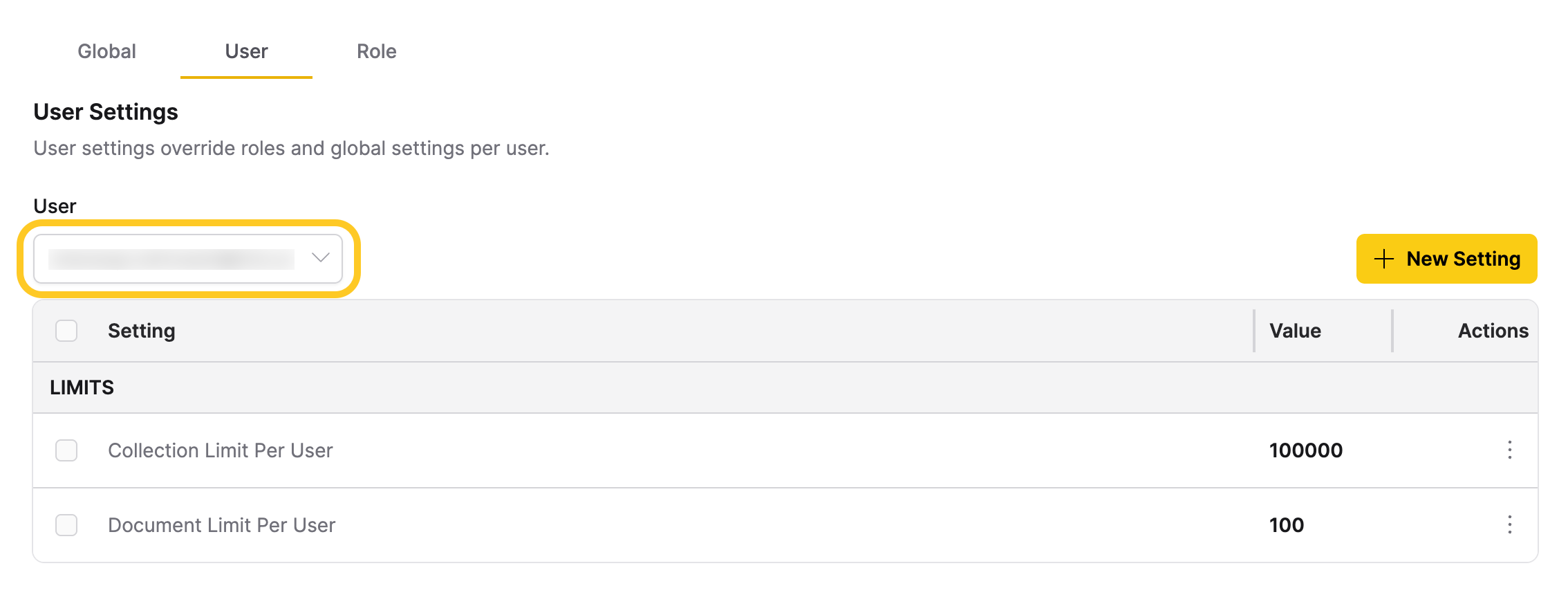
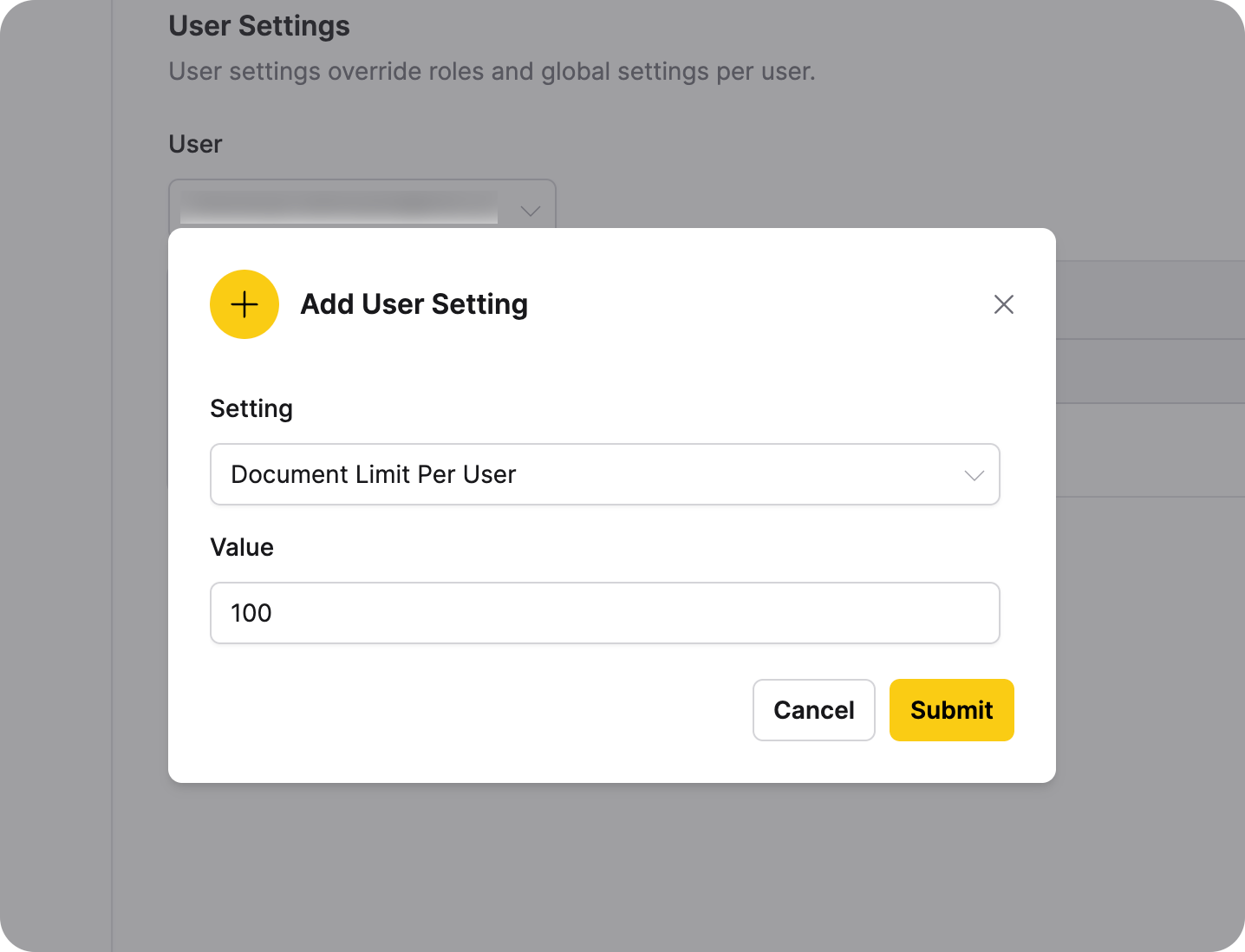
Add a user setting
Only administrators can add user settings. A setting must exist in the global configuration and must be marked as overridable (can_overwrite = true) to be added as a user setting. The setting cannot be read-only.
- In the User Settings tab, select the user from the User dropdown.
- Click + New Setting.
- Select a setting from the dropdown. Only overridable and non-read-only settings are available. The LLM Configuration setting (
runtime_llms) isn't overridable and isn't available for user overrides. LLM access has no per-user override; roles grant it instead. See LLM grants. - Enter a value for the setting. The value must not exceed the maximum limit specified in the global configuration.
- Click Submit.
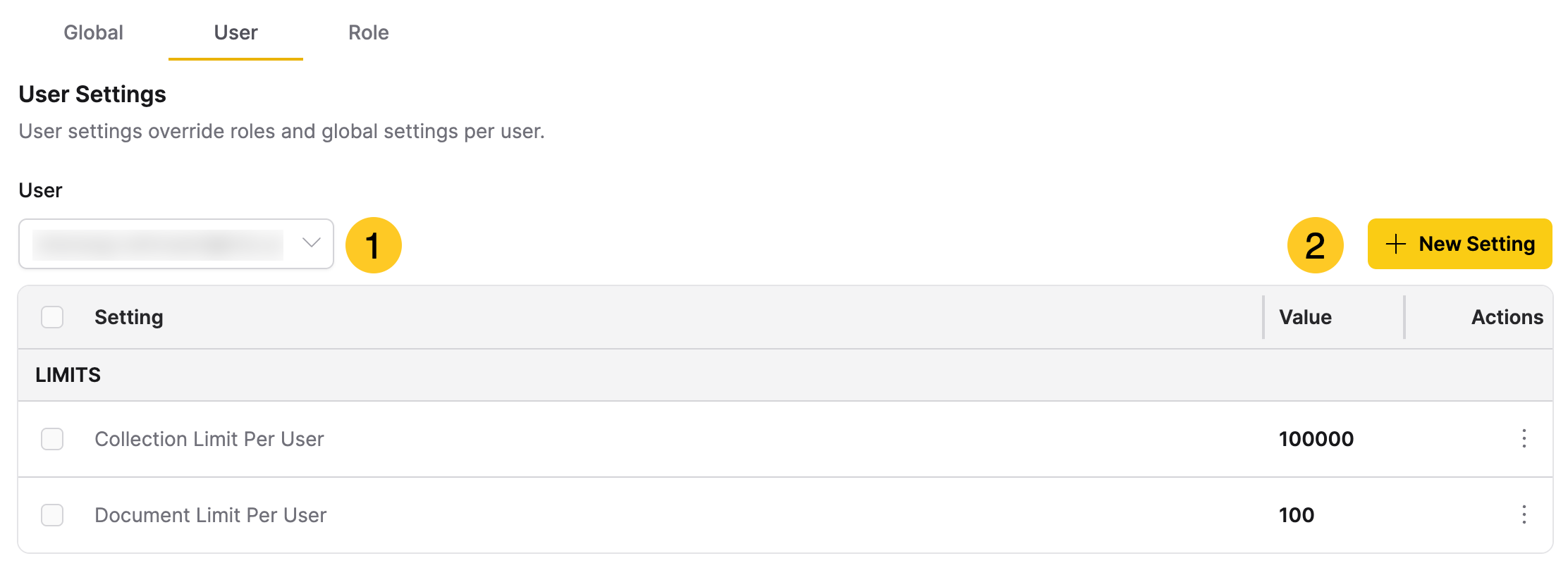
Edit a user setting
Only administrators can edit user settings.
- In the User Settings table, locate the setting you want to modify.
- Click the Actions menu () for that setting.
- Select Edit.
- Update the value as needed. Ensure the value does not exceed the maximum limit specified in the global configuration.
- Click Submit.
Remove a user setting
Only administrators can remove user settings.
- In the User Settings table, locate the setting you want to remove.
- Click the Actions menu () for that setting.
- Select Delete.
- Confirm the deletion.
Role Settings
Role settings override global settings for specific roles. Role settings apply to all users assigned to that role. Only administrators can manage role settings.
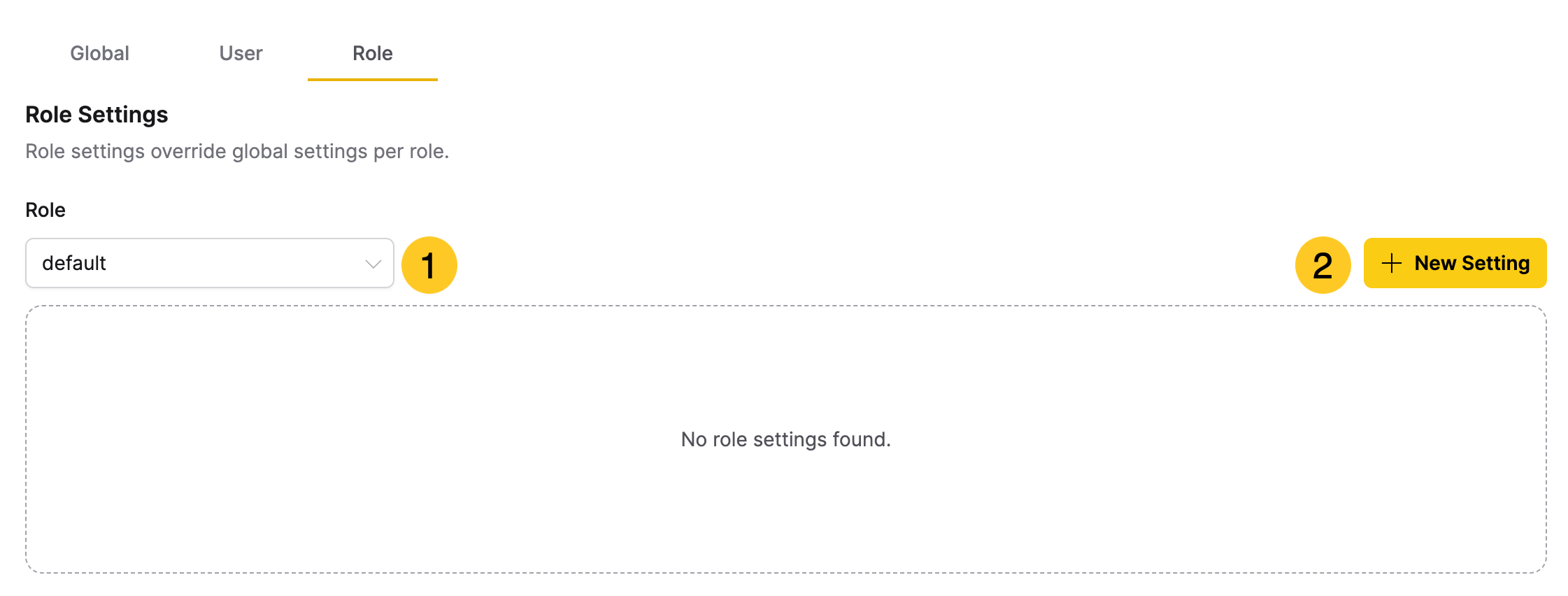
View role settings
- In the Role Settings tab, select a role from the Role dropdown.
- View the list of settings configured for that role.
If no settings are configured, the message "No role settings found" is displayed.
As with user settings, settings that use per-user propagation caching display a "Last saved" timestamp for each role override.
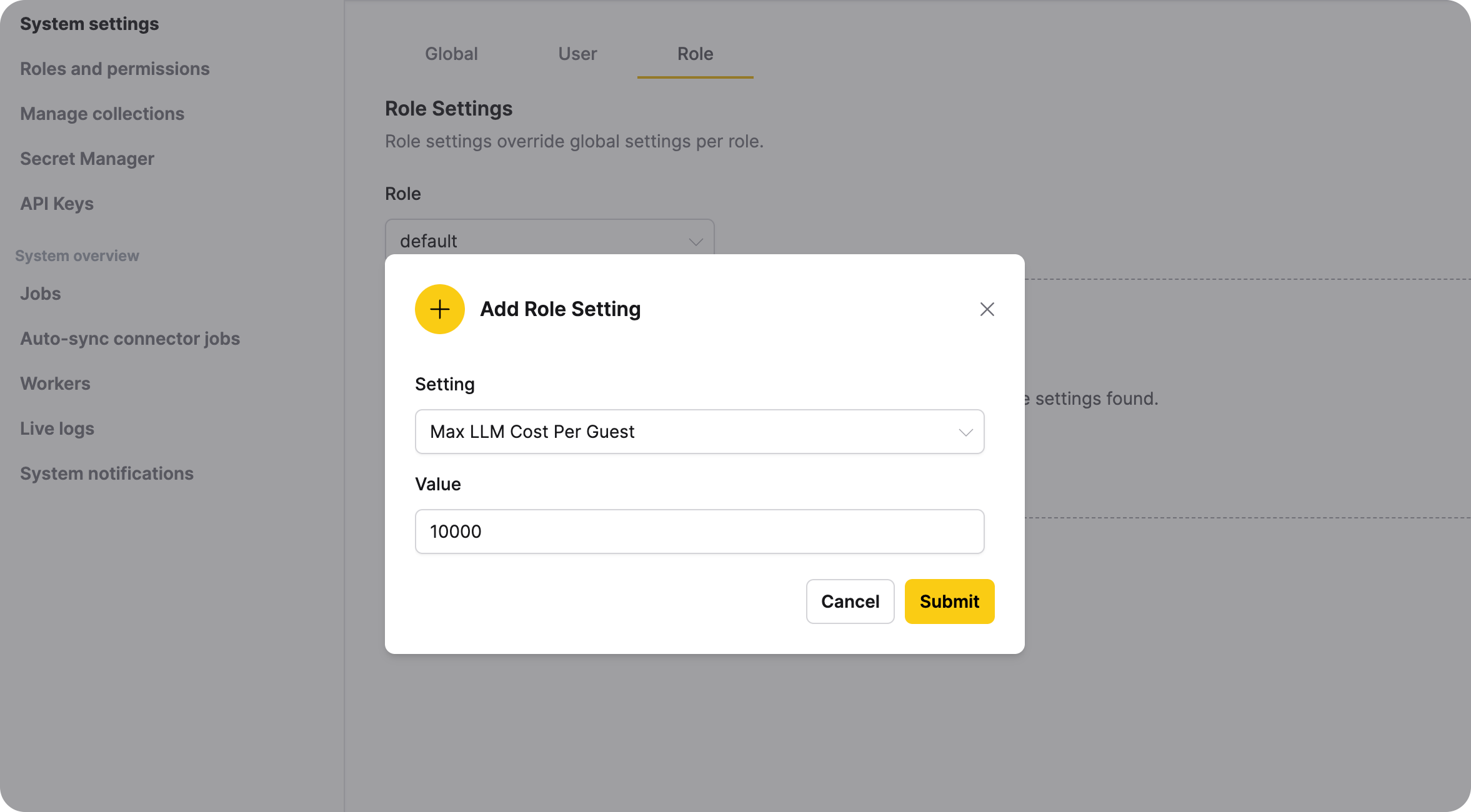
Add a role setting
Only administrators can add role settings. A setting must exist in the global configuration and must be marked as overridable (can_overwrite = true) to be added as a role setting. The setting cannot be read-only.
- In the Role Settings tab, select the role from the Role dropdown.
- Click + New Setting.
- Select a setting from the dropdown. Only overridable, non-read-only settings are available. The LLM Configuration setting (
runtime_llms) isn't overridable and isn't available as a role setting here. To control which LLMs a role can use, grant them on the role's page instead. See LLM grants. - Enter a value for the setting. The value must not exceed the maximum limit specified in the global configuration.
- Click Submit.
Edit a role setting
Only administrators can edit role settings. You must select a role before editing its settings.
- In the Role Settings table, locate the setting you want to modify.
- Click the Actions menu () for that setting.
- Select Edit. You can't edit a
runtime_llmsrow carried over from an earlier release. - Update the value as needed. Ensure the value does not exceed the maximum limit specified in the global configuration.
- Click Submit.
Remove a role setting
Only administrators can remove role settings. You must select a role before removing its settings.
- In the Role Settings table, locate the setting you want to remove.
- Click the Actions menu () for that setting.
- Select Delete. You can't delete a
runtime_llmsrow carried over from an earlier release. - Confirm the deletion.
Related topics
- System Settings Reference - Complete reference for all administrator-configurable settings, REST API, and recommended production configuration
- Roles and Permissions - Learn how to manage roles and permissions in Enterprise h2oGPTe
- Submit and view feedback for this page
- Send feedback about Enterprise h2oGPTe to cloud-feedback@h2o.ai