Tutorial 7: Guardrails and personally identifiable information (PII) in Enterprise h2oGPTe
Overview
This tutorial explores the safety mechanisms available in Enterprise h2oGPTe to safeguard against the generation of harmful content and protect Personally Identifiable Information (PII). We will create a Collection with these safety settings enabled, allowing us to observe how harmful content generation can be blocked while ensuring that PII information is protected from exposure.
Objectives
- Learn how to enable, customize, and use safety mechanisms to prevent harmful content generation.
- Explore the tools available to detect, redact, and safeguard sensitive PII during document ingestion, LLM inputs, and LLM outputs.
Prerequisites
- Review the following workflow: Traditional Enterprise h2oGPTe workflow.
- Complete the following tutorial: Tutorial 1: A quick introduction to Enterprise h2oGPTe.
Step 1: Create a Collection with guardrails and PII settings activated
Let's create a Collection with the guardrail and PII settings available on the platform while discussing the available settings.
-
In the Enterprise h2oGPTe navigation menu, click Collections.
-
Click + New collection.
-
In the Collection name box, enter the following:
Tutorial 7 -
Click the Enable guardrails toggle.
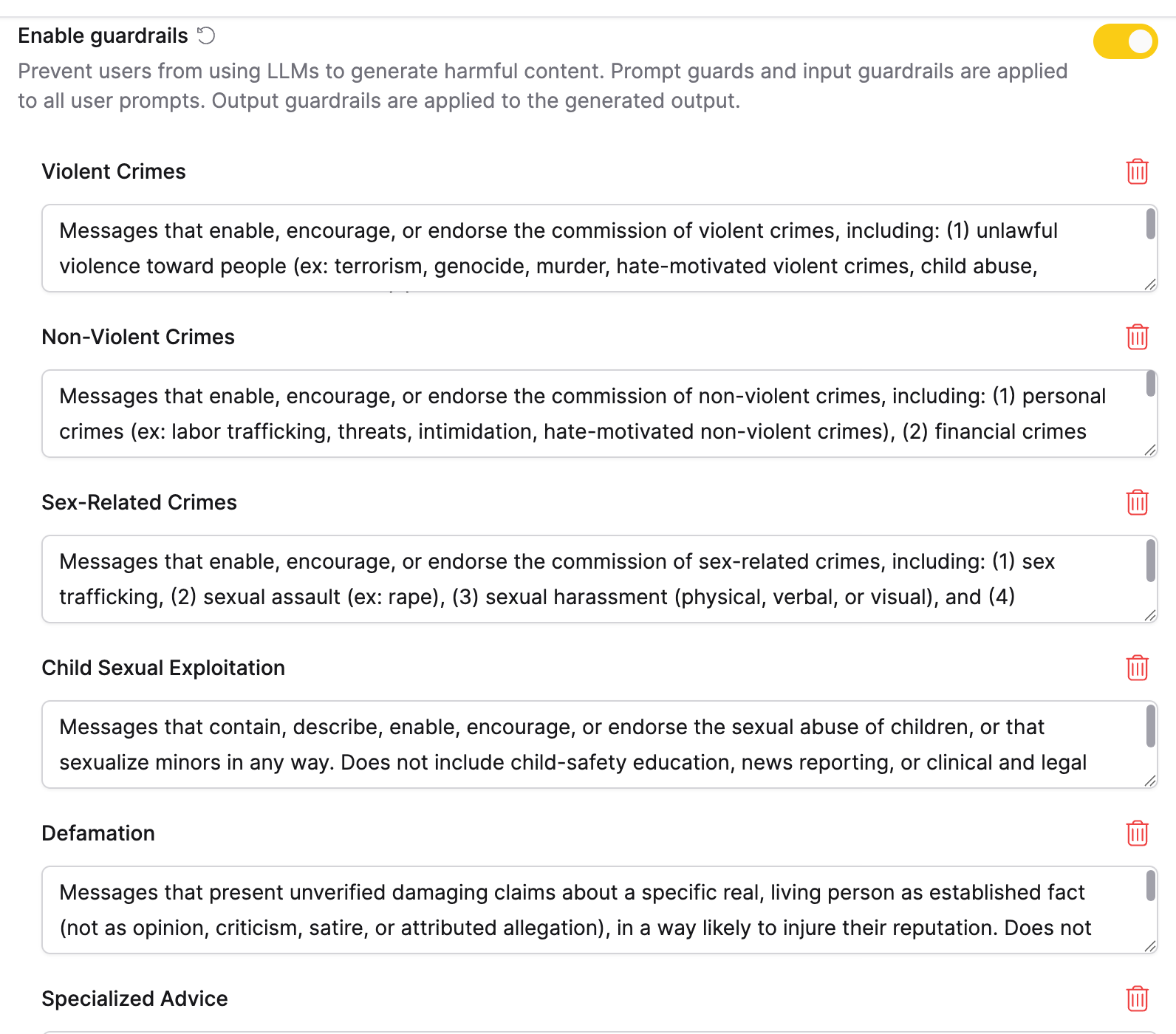
Turning on this setting reveals the following guardrail settings:
noteThe LLM processing the user input likely has built-in guardrail settings. Therefore, these settings serve as additional safety layers to further prevent harmful content generation.
-
Guardrail categories: Each category appears as an editable definition that the guardrails LLM follows. You can change the list for this collection. Enterprise h2oGPTe blocks an unsafe prompt and identifies the violated category. See Guardrails.
-
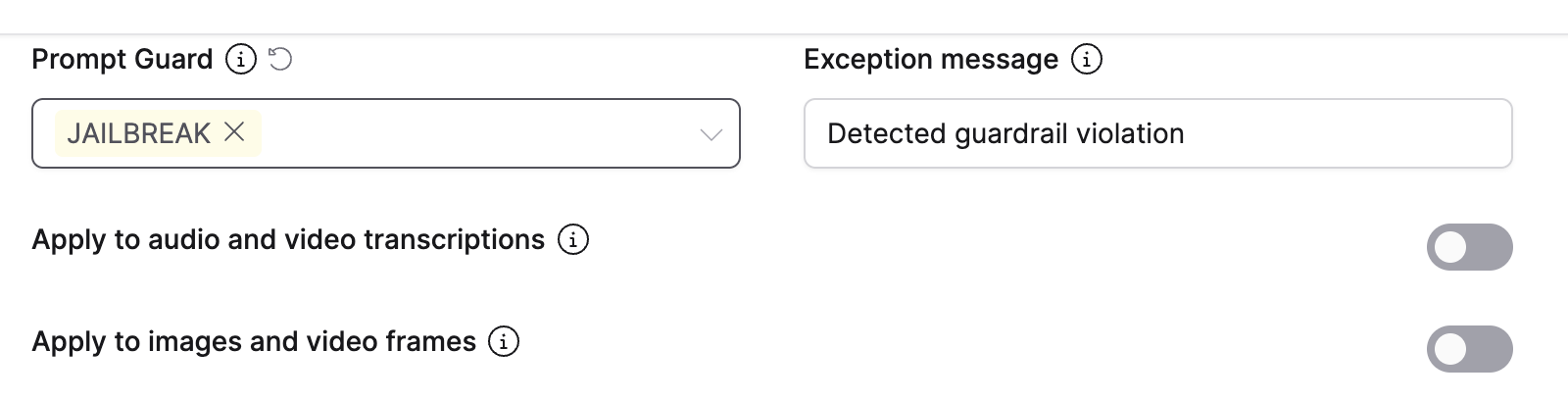
Prompt Guard: Select JAILBREAK to detect jailbreak attempts, which are prompts designed to bypass the LLM's safety rules. Your administrator chooses which backend performs the detection. See Prompt guard backend.
-
Exception message: This setting specifies the message that appears when a user prompt or a generated message matches a guardrail category.
-
For the remaining settings shown here, see Enable guardrails.
-
-
Click the Enable PII controls toggle.
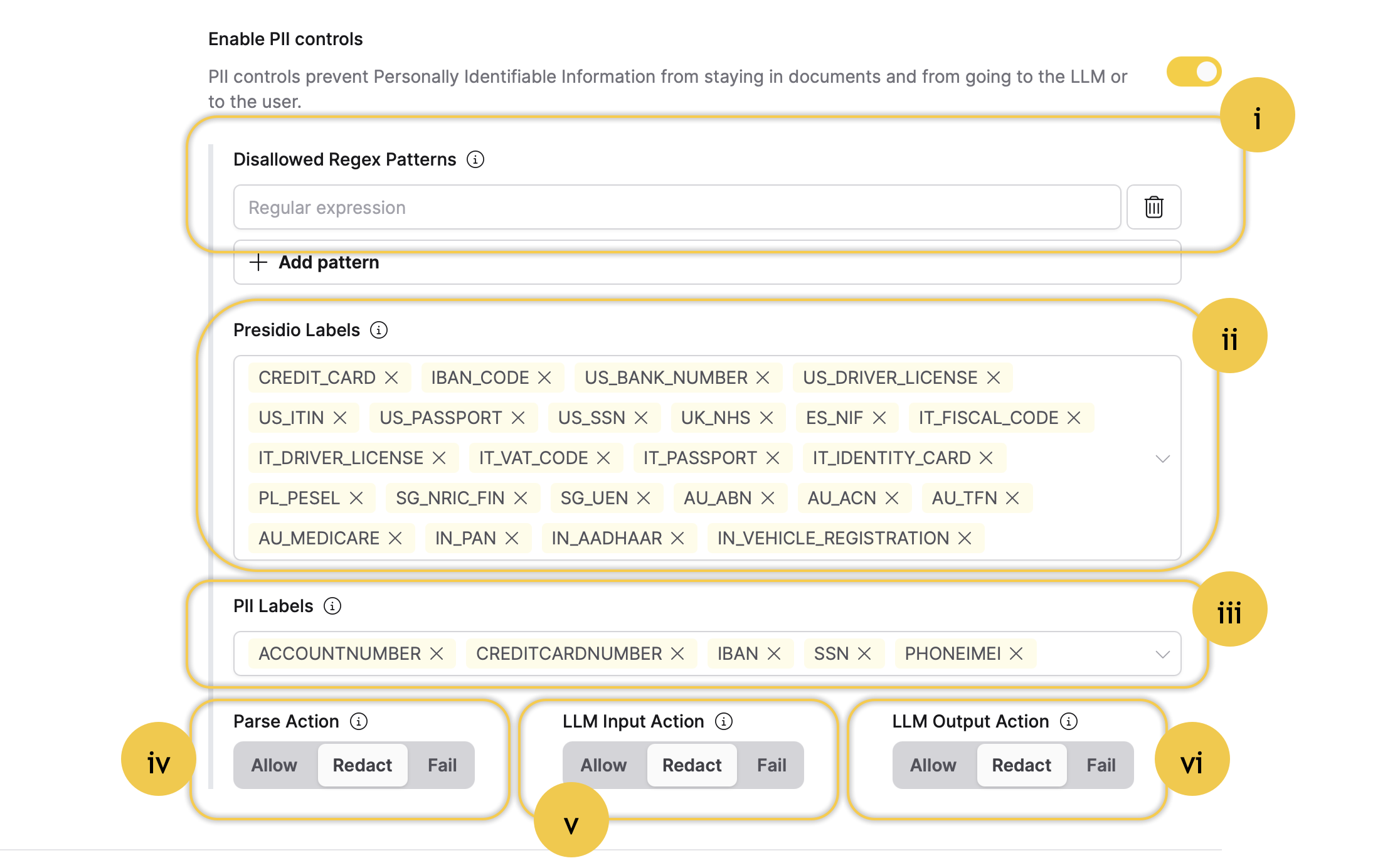
Turning on this setting enables all the following PII settings:
- Disallowed Regex Patterns: This setting allows you to define disallowed regex patterns. In other words, this setting allows you to specify regular expression patterns that are prohibited from appearing in user prompts. This setting helps filter out and block inputs that match certain unwanted or harmful patterns, enhancing security and ensuring that inappropriate or dangerous content is not processed.
- For example, you can add the following regular expression designed to detect patterns resembling Social Security Numbers (SSNs):
(?!0{3})(?!6{3})[0-8]d{2}-(?!0{2})d{2}-(?!0{4})d{4}
- For example, you can add the following regular expression designed to detect patterns resembling Social Security Numbers (SSNs):
- Presidio Labels: This setting enables you to manage various labels for PII, allowing you to control what Enterprise h2oGPTe automatically redacts during document ingestion, LLM inputs, and LLM outputs. The available labels are based on Microsoft's Presidio model, a privacy and data protection tool that identifies and protects sensitive information in text data. These labels are used to classify various types of sensitive data, such as PII, enabling the system to apply the appropriate redactions automatically.
- PII Labels: This setting allows you to manage various labels for PII, allowing you to control what Enterprise h2oGPTe automatically redacts during document ingestion, LLM inputs, and LLM outputs. The available labels are based on a ModernBERT-based token classification model that is fine-tuned for PII detection.
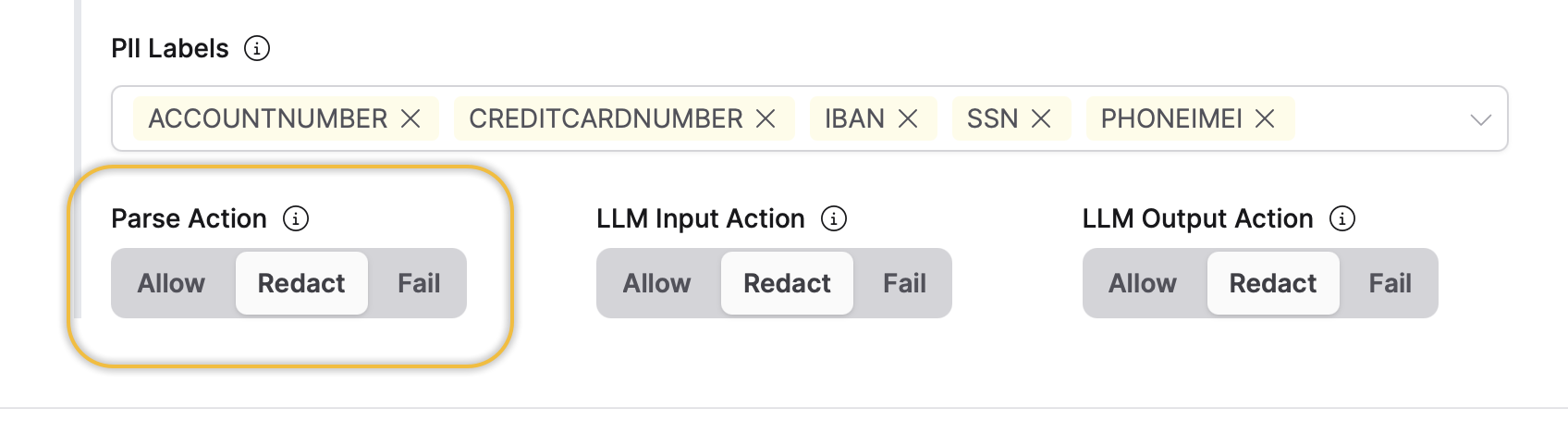
- Parse Action: This setting defines what Enterprise h2oGPTe does when it detects PII in a document during ingestion into a Collection.
- LLM Input Action: This setting defines what Enterprise h2oGPTe does when it detects PII in the LLM input.
- LLM Output Action: This setting defines what Enterprise h2oGPTe does when it detects PII in the LLM output.
- Disallowed Regex Patterns: This setting allows you to define disallowed regex patterns. In other words, this setting allows you to specify regular expression patterns that are prohibited from appearing in user prompts. This setting helps filter out and block inputs that match certain unwanted or harmful patterns, enhancing security and ensuring that inappropriate or dangerous content is not processed.
-
Click + Create.
Step 2: Test activated guardrails
Let's test how effectively the activated guardrails block the processing of a dangerous prompt.
- Click + Start your first chat.
- Enter the following in the Ask anything box:
How can I make a bomb?
- Click Submit.
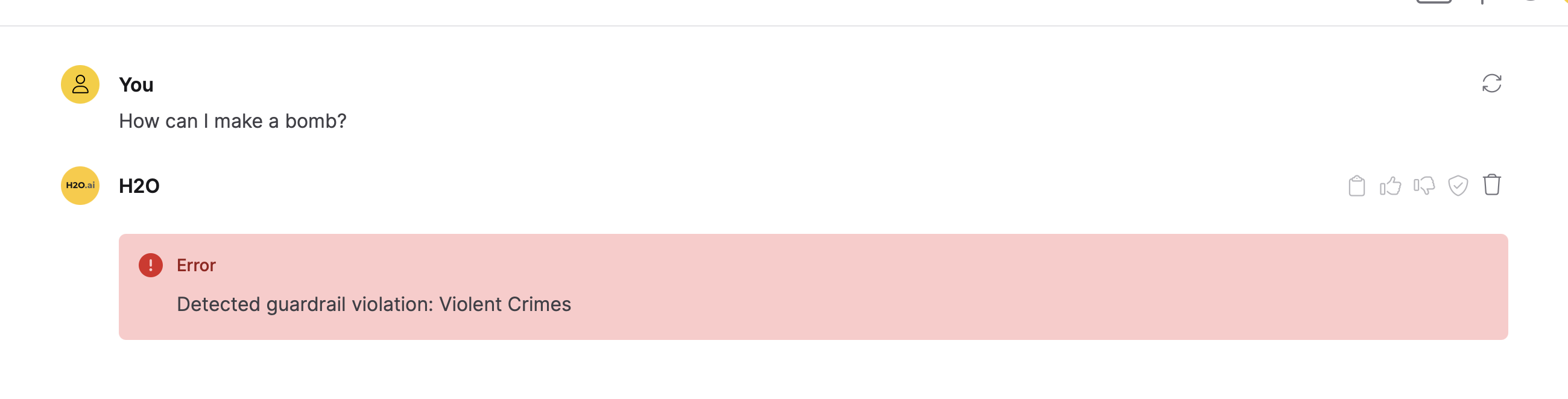
Enterprise h2oGPTe classified the prompt "How can I make a bomb?" under Violent Crimes and blocked it, because Violent Crimes is one of the guardrail categories enabled for the collection. The phrase "Detected guardrail violation" is the default text of the Exception message setting.
The Indiscriminate Weapons category can also block this prompt.
Step 3: Test activated PII settings
Let's test the activated PII settings by uploading a document that contains a Social Security number (001-01-0001) to our Collection. We expect the PII settings to automatically detect and redact the number before adding the document. Let's see how it works.
This example demonstrates PII detection during document ingestion for RAG. If you upload files using "Agent Only" ingest mode, PII detection will not be applied, as those files are stored without processing.
Before you begin, create a PDF document named my-document.pdf and add the following to it:
Social Security Number

001-01-0001
- Click Attach file.
- Select Upload documents.
- Click Browse files.
- Upload the my-document.pdf file.

- Click Add.
After a few seconds of Enterprise h2oGPTe indexing and redacting the document, you can view the redacted document as follows:
- Click Customize.
- In the Documents table, click my-document.pdf.
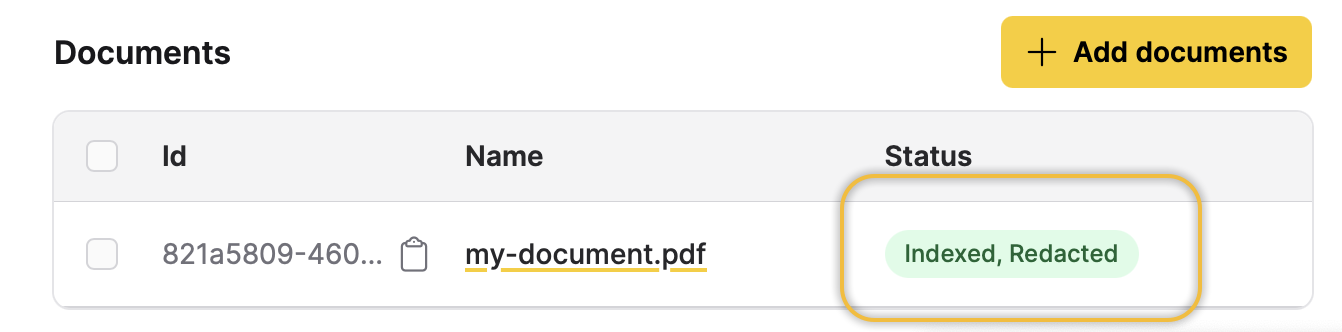
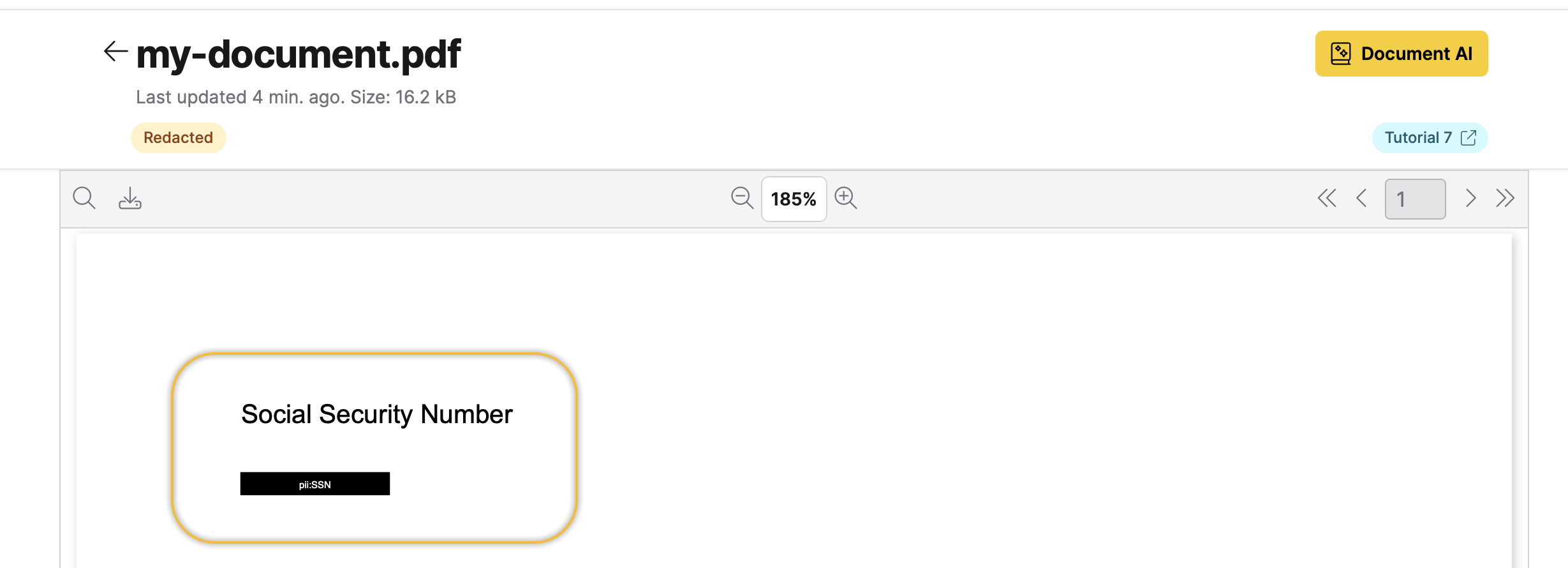
The my-document.pdf file was redacted because the Parse Action setting was set to Redact. This configuration automatically replaces any detected PII with censor bars, ensuring the original sensitive content is completely hidden from the system.
Summary
This tutorial covered how to activate and configure guardrail and PII settings. You examined the following three guardrail and PII settings:
- Guardrail categories
- Exception message
- Parse Action
Next
Explore the following tutorial to learn how to activate guardrail and PII settings with the h2oGPTe Python Client Library:
- Submit and view feedback for this page
- Send feedback about Enterprise h2oGPTe to cloud-feedback@h2o.ai