Query Feature Store data from Apache Superset
This page walks through querying Feature Store data from SQL Lab in the MLOps Monitoring Frontend, an Apache Superset deployment that ships with Feature Store integration. The rest of this page calls it the Monitoring Frontend.
Use it to explore feature sets interactively, run ad hoc SQL, or build Superset charts and dashboards on top of feature sets without writing client code.
Overview
The Monitoring Frontend ships with an auto-provisioned Feature Store database (DuckDB) that exposes your workspaces and feature sets through SQL Lab.
The Monitoring Frontend uses workspaces for top-level grouping, matching the Feature Store API's Workspaces API.
Feature Store concepts map to Superset concepts as follows:
| Feature Store concept | Superset concept |
|---|---|
| Workspace | Schema. Schema names end with the short workspace ID in brackets, for example titanic_demo [a95b440c]. |
| Feature set + version | Table. Table names end with the short feature set ID and version, for example titanic [019e1b22] / v1.2. |
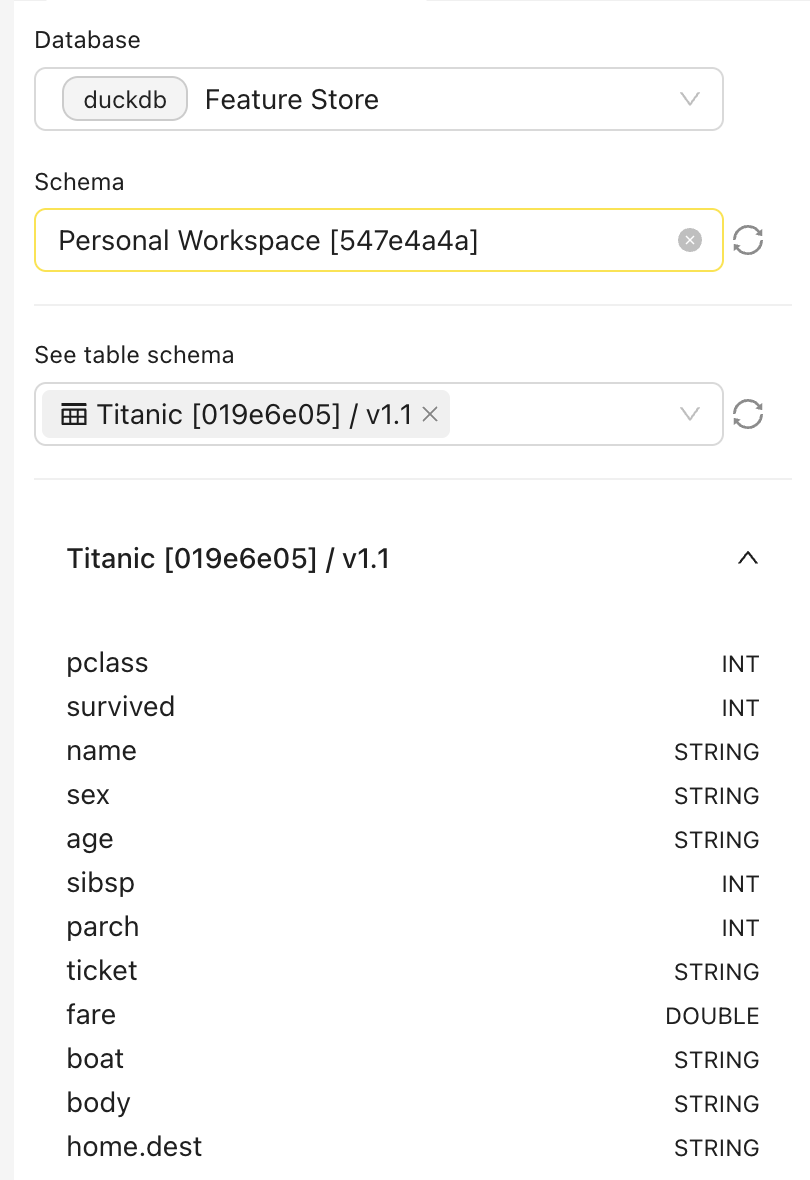
| Feature set columns | Table columns. The schema panel surfaces the Feature Store data type for each column (for example, INT, STRING, DOUBLE). |
The integration reads feature sets from the same storage backends Feature Store writes to: S3-compatible storage (AWS S3, MinIO), Azure Blob Storage, and Google Cloud Storage. For Feature Store's broader storage configuration, see Storage backend in the Concepts page.
This integration requires FEATURESTORE_ENABLED=true and a configured FS_STORAGE_BACKEND in your Monitoring Frontend deployment. If you don't see the Feature Store database in SQL Lab, the deployment hasn't enabled the integration. Contact your administrator to confirm both settings.
Entry points
You can reach SQL Lab with the Feature Store database selected in two ways:
- From the Feature Store UI: Use the Open in Superset action on a feature set. This lands you in SQL Lab with a query pre-filled against the selected feature set.
- Directly in SQL Lab: Open SQL Lab in the Monitoring Frontend and select the Feature Store database from the database picker.
Query a feature set in SQL Lab
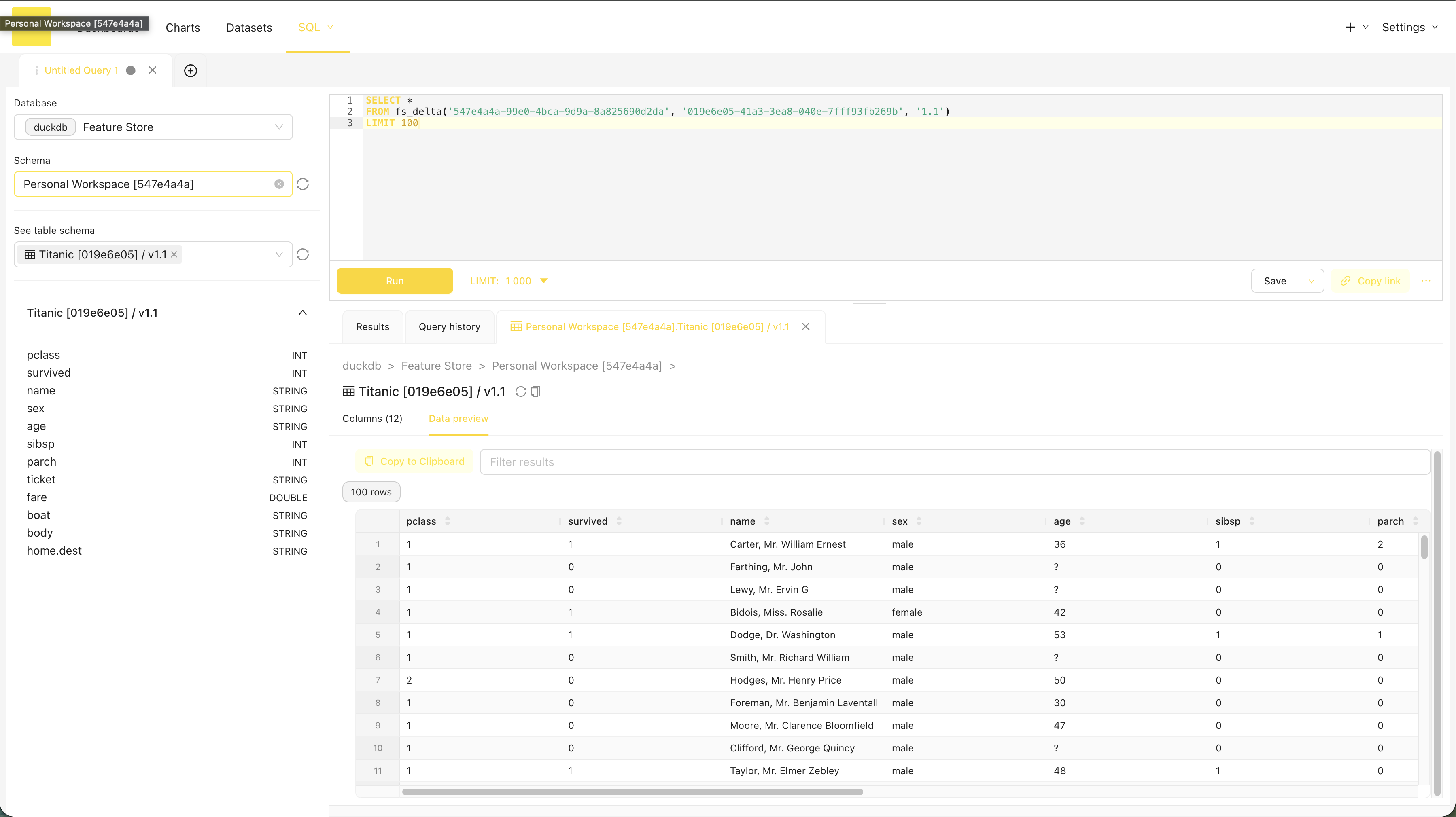
The walkthrough below ends in a working fs_delta() query against your feature set, as shown here:
-
Open SQL Lab in the Monitoring Frontend.
-
Select the Feature Store database (DuckDB).
-
Select a schema. Schemas correspond to your workspaces. The bracketed value is the short workspace ID.
-
Select a table. Tables correspond to feature sets; their names end with the short feature set ID and version, for example
titanic [019e1b22] / v1.2. -
Inspect the table schema panel for column names and Feature Store data types.
-
Use the Data preview tab to sample the first rows. The data preview honors the same permission check as a manual query.
-
Click Run to execute the auto-generated query, or edit the SQL before running it.
Helper macros
Use the fs_delta() macro to query feature sets backed by Delta tables. fs_delta() is currently the only supported helper macro. The macro accepts only Feature Store identifiers, so bucket paths never appear in your SQL.
-- Query a feature set version
SELECT *
FROM fs_delta('<workspace_id>', '<feature_set_id>', '<version>')
LIMIT 100;
The macro requires the full workspace and feature set UUIDs, not the short IDs in the Schema and Table selector brackets. Use the Open in Superset action from the Feature Store UI to get a query pre-filled with the correct identifiers. You can also join feature sets or combine them with UNION ALL. Each referenced workspace must be accessible to you, or the query fails.
Permissions and access control
- You can only query workspaces and feature sets you have read access to. The Monitoring Frontend reuses the per–feature-set permissions enforced by the Feature Store API.
- Workspace-level access doesn't imply every feature set inside is queryable. Sensitive feature sets stay hidden from users without explicit access.
Limits and notes
- Queries run synchronously against the DuckDB engine that backs the Feature Store database in the Monitoring Frontend. There's no results backend, so large result sets can time out the request. Use
LIMITto keep result sets manageable. - Column names and data types come from the underlying Delta or Parquet schema. If the schema changes, the table in SQL Lab reflects the new shape on the next query.
- Submit and view feedback for this page
- Send feedback about H2O Feature Store to cloud-feedback@h2o.ai