Install H2O on the Google Cloud Platform offering
This section describes how to install and start H2O-3 Secure in a Google Compute environment using the available Cloud Launcher offering.
Before you begin
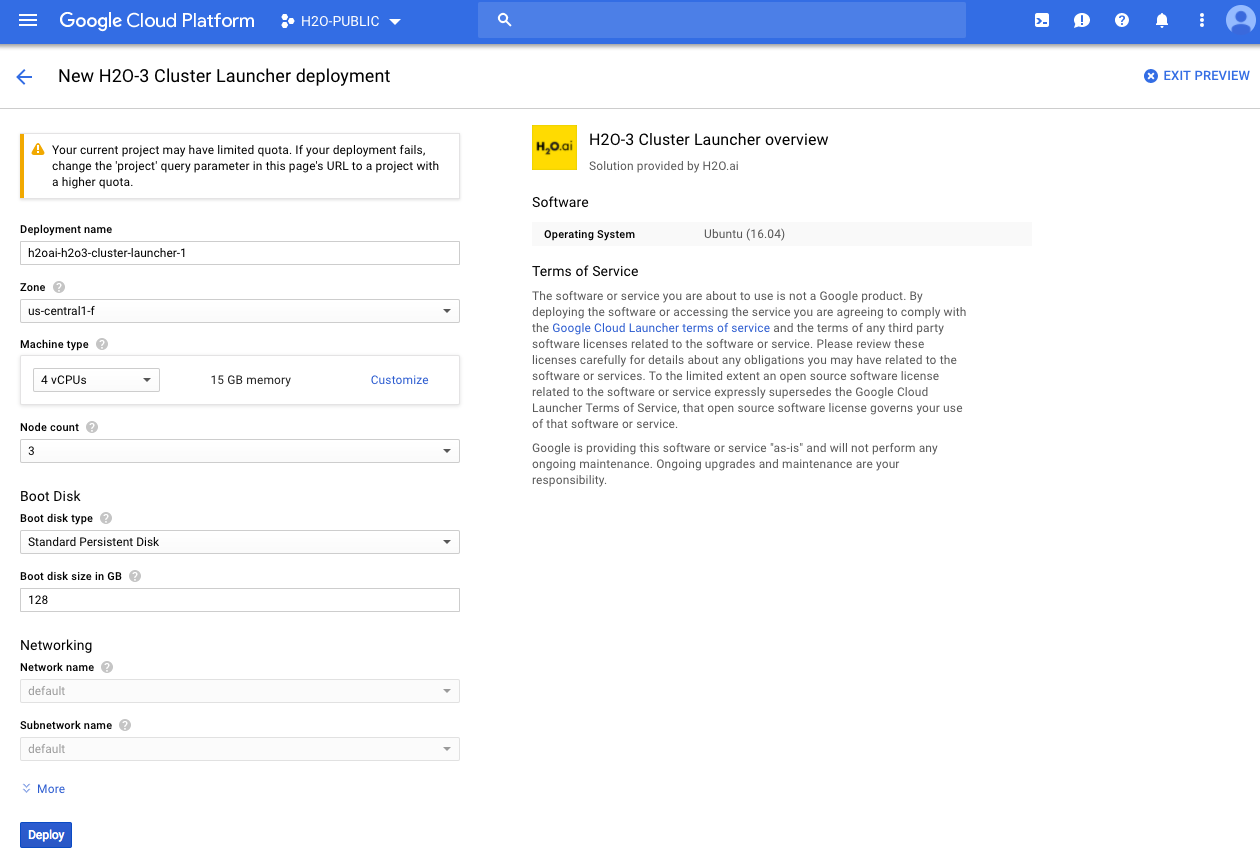
If you are trying GCP for the first time and have just created an account, please check your Google Compute Engine (GCE) resource quota limits. Our default recommendation for launching H2O-3 Secure is 4 CPUs, 15 GB RAM, and 3 nodes. By default, GCP allocates a maximum of 8 CPUs, so most H2O-3 Secure users can easily run without reaching a quota limit. Some users of H2O, however, may require more resources. If necessary, you can change these settings to match your quota limit, or you can request more resources from GCP. Refer to https://cloud.google.com/compute/quotas for more information, including information on how to check your quota and request additional quota.
Installation procedure
-
In your browser, log in to the Google Compute Engine Console at https://console.cloud.google.com/.
-
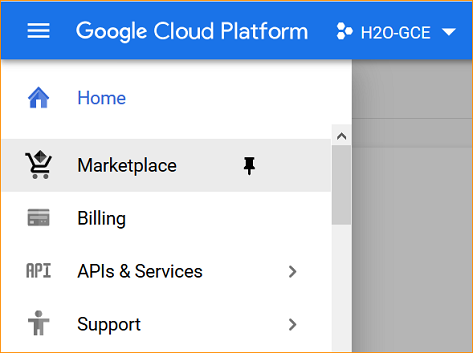
In the left navigation panel, select Marketplace.
-
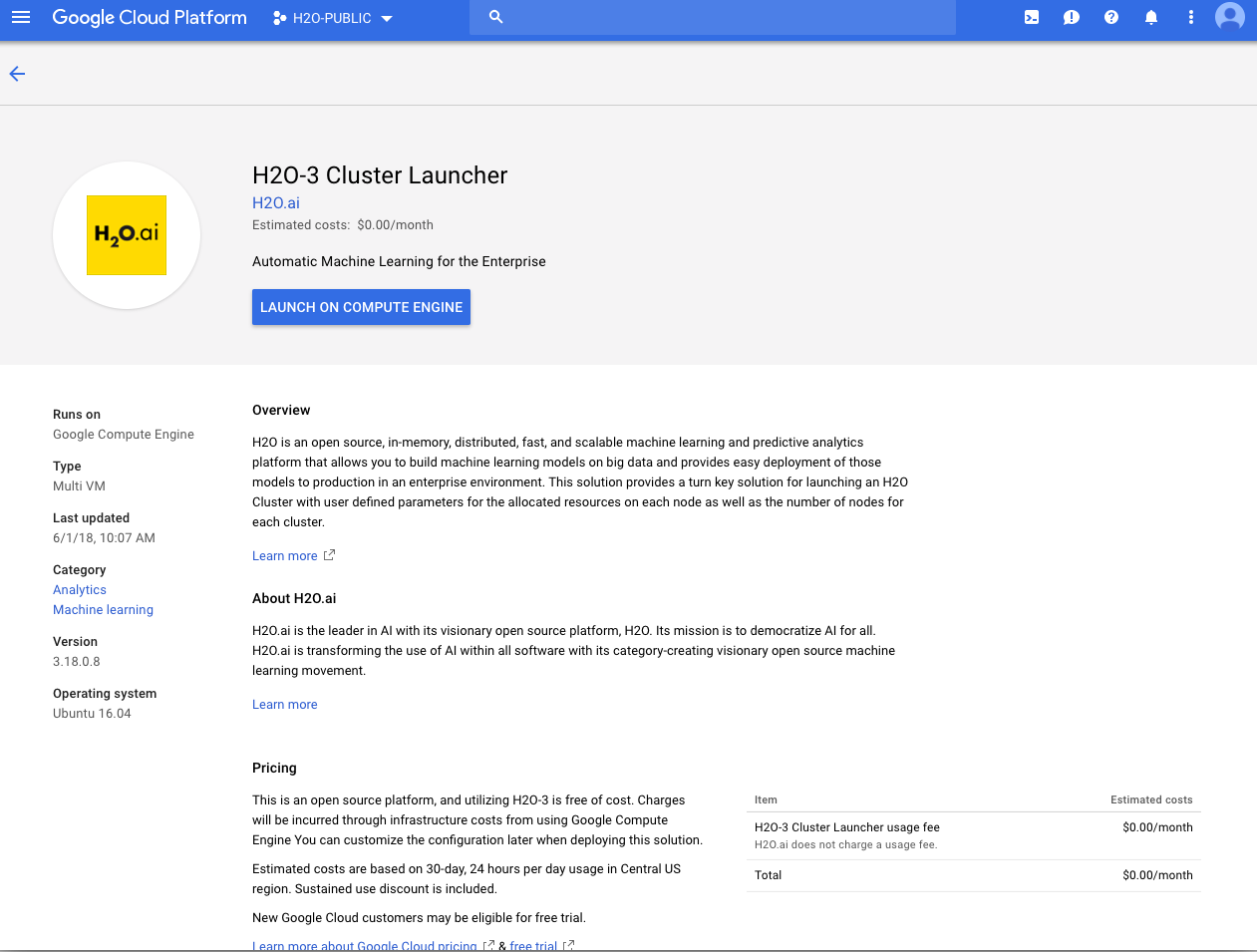
On the Cloud Launcher page, search for H2O and select the H2O-3 OSS offering.
-
Click Launch on Compute Engine.
- Specify a name for this deployment.
- Select a zone for the deployment.
- Select or customize a machine type and memory amount.
- Specify the number of nodes for the virtual machine.
- Specify the boot disk type and size (in GB).
- Specify the network and subnetwork names.
Click Deploy when you are done. H2O-3 Secure will begin deploying. Note that this can take several minutes.
-
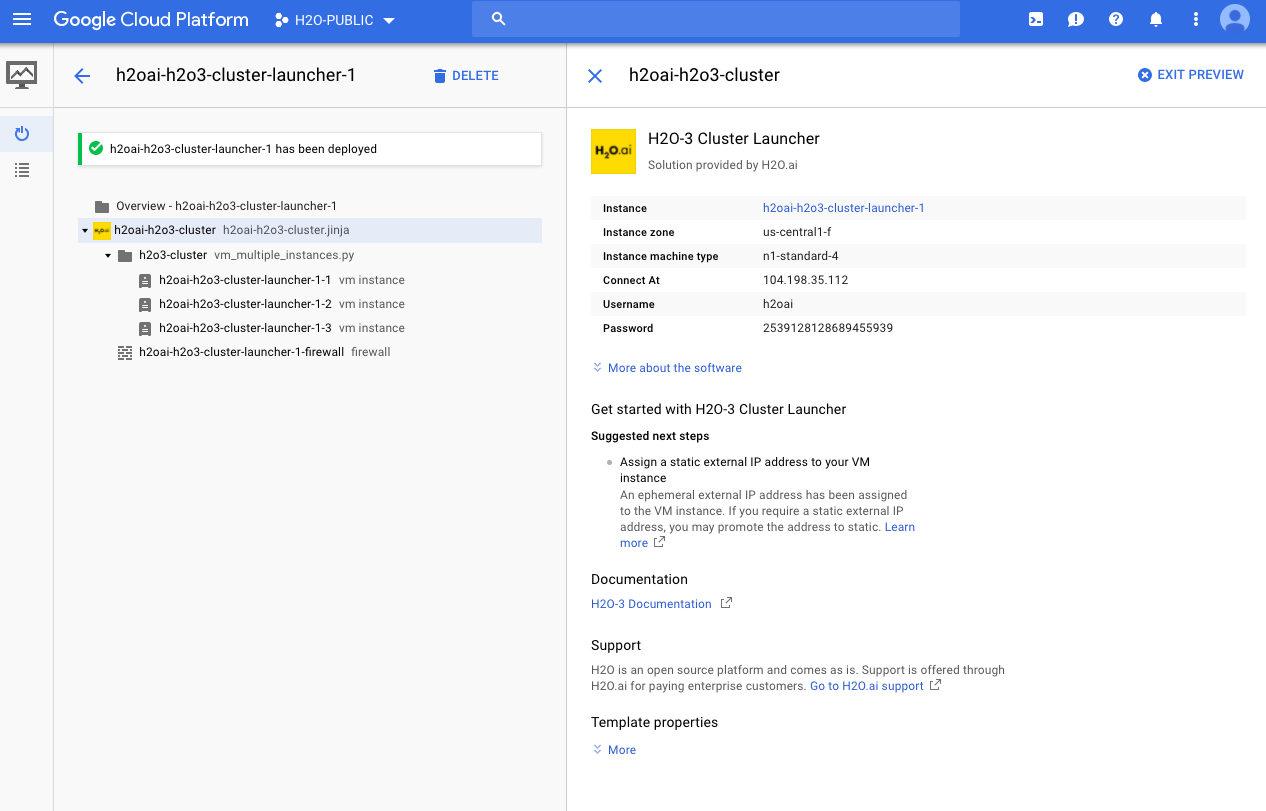
A summary page displays when the compute engine is successfully deployed. This page includes the instance ID and the username (always h2oai) and password that will be required when starting H2O-3 Secure. Click on the Instance link to retrieve the external IP address for starting H2O-3 Secure.
-
Connect to the H2O-3 Secure cluster using one of the following methods:
- R
- Python
h2o.connect(ip="[external ip]", port=54321, https=TRUE, username=username, password=password)
h2o.connect(url="https://[external ip]:54321", auth=(username, password))
- Submit and view feedback for this page
- Send feedback about H2O-3 Secure to cloud-feedback@h2o.ai