Identity and Access Management
Identity and Access Management (IAM) gives administrators a central place to manage who can access H2O AI Cloud and what they're allowed to do using the UI (instead of the CLI).
IAM isn't enabled by default in every deployment. Contact H2O Support if the Identity and Access Management section isn't visible in your environment.
Accessing Identity and Access Management
IAM is only visible to users with Administrator access. In the left navigation, expand the Admin section and select Identity & Access Management, then choose one of its sub-screens (Users, Groups, Policies, Roles, Role Bindings, or Permissions Matrix).
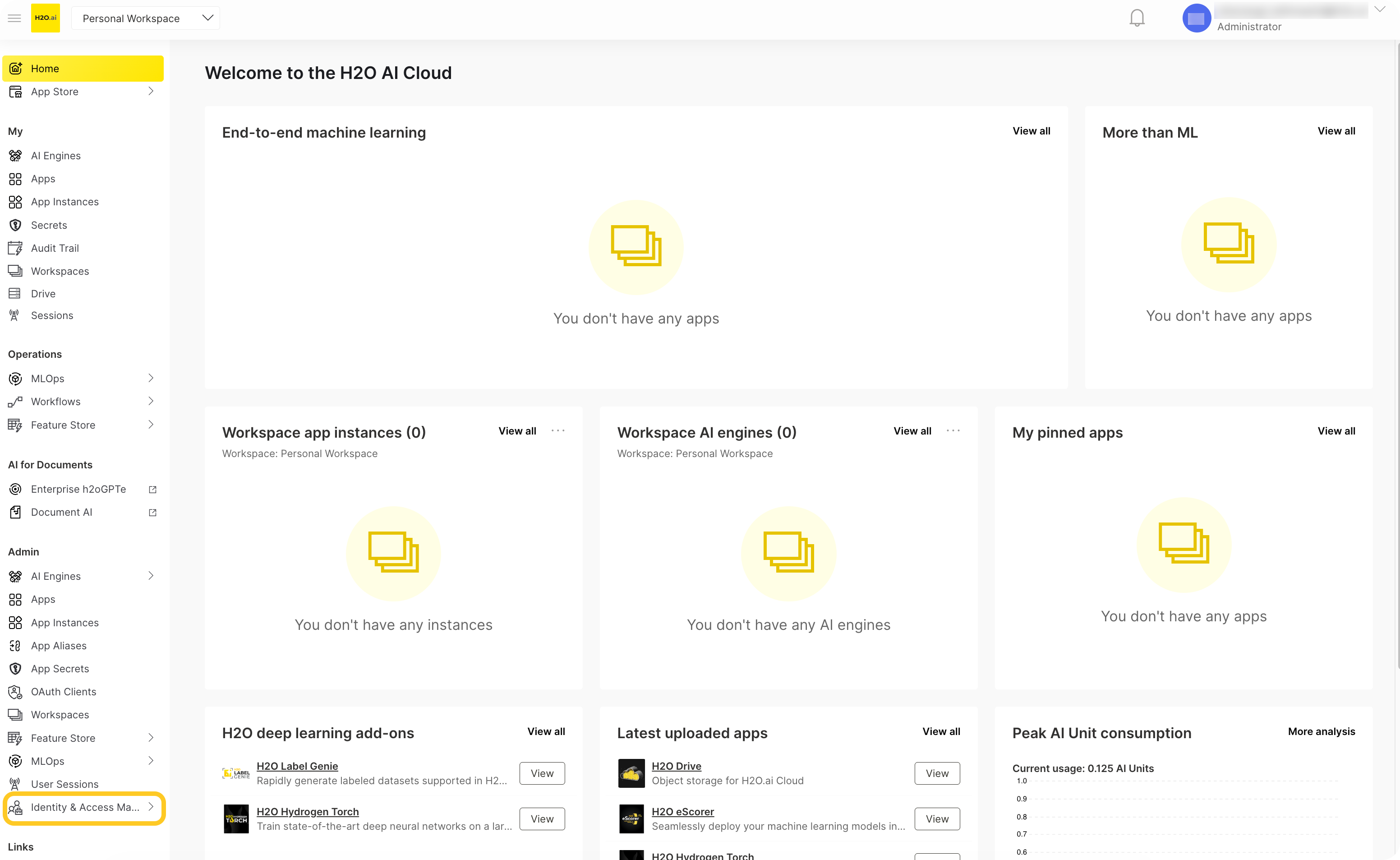
The IAM section is organized into the following sub-screens:
- Users: browse platform users.
- Groups: browse user groups.
- Policies: view and manage IAM policies (see IAM policies in the Authorization guide).
- Roles: view, create, edit, and delete roles and the permissions they grant.
- Role Bindings: see which subjects (users or groups) are bound to which roles, on which resources.
- Permissions Matrix: a cross-tab view of roles against the actions they grant.
Roles
The Roles screen lets administrators manage roles and the set of permissions ("actions") each role grants, instead of managing them through the CLI.
A role consists of:
- A Name and Description.
- A set of Permissions it grants, expressed as action statements (for example,
actions/mlops/deployments/READ). Permissions are always chosen from a catalog of available actions rather than typed by hand, which prevents granting an action that doesn't exist.
Viewing roles
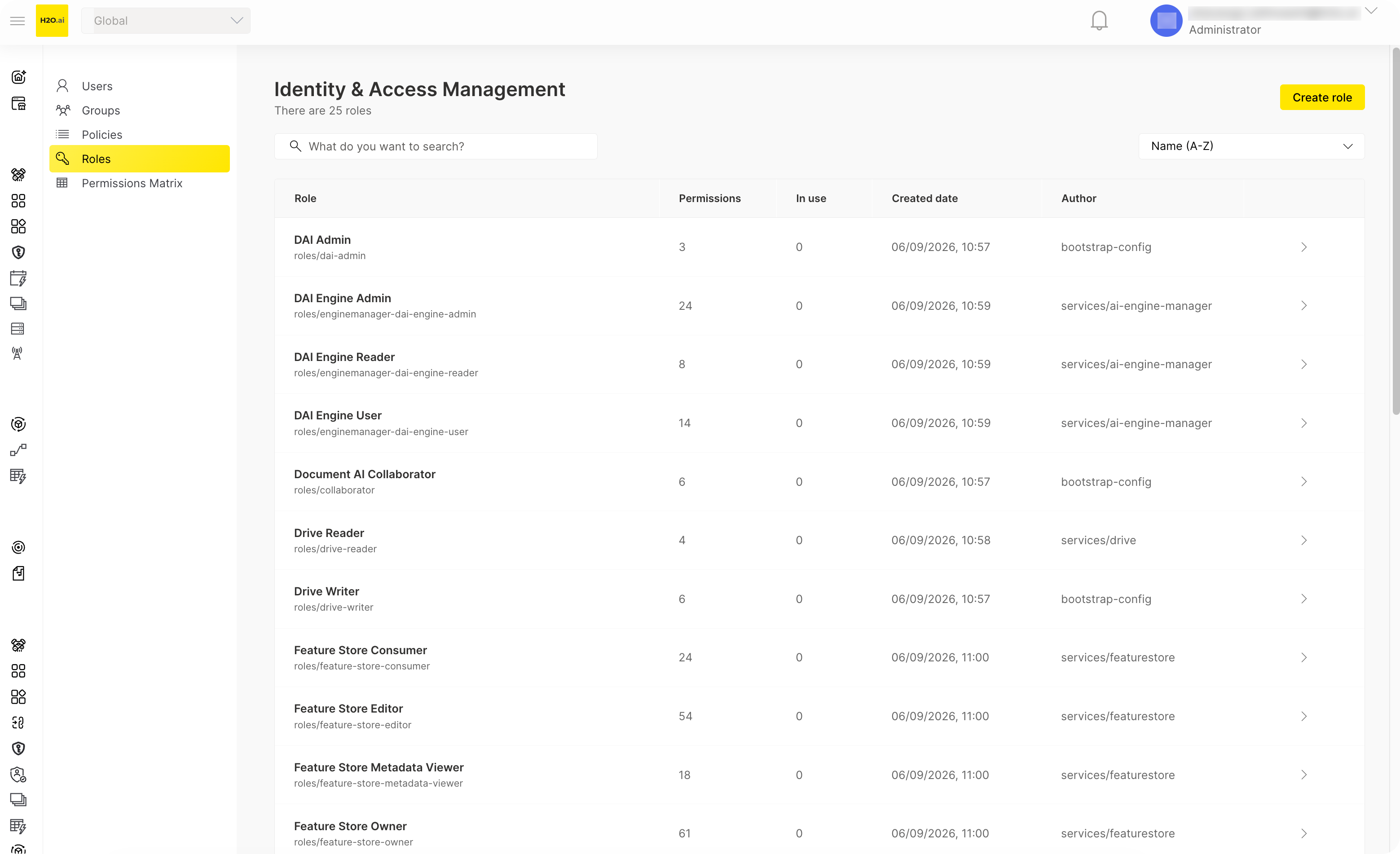
Select Roles from the Identity and Access Management sub-navigation to see the list of roles. You can:
- Search roles by name.
- Sort roles by name (A-Z / Z-A) or by created date (newest / oldest first).
- Expand a role to see its details:
- Description, creator, and creation date.
- Usage: the number of role bindings that use this role, linked through to the Role Bindings screen filtered to that role.
- Permissions: the full list of action statements the role grants.
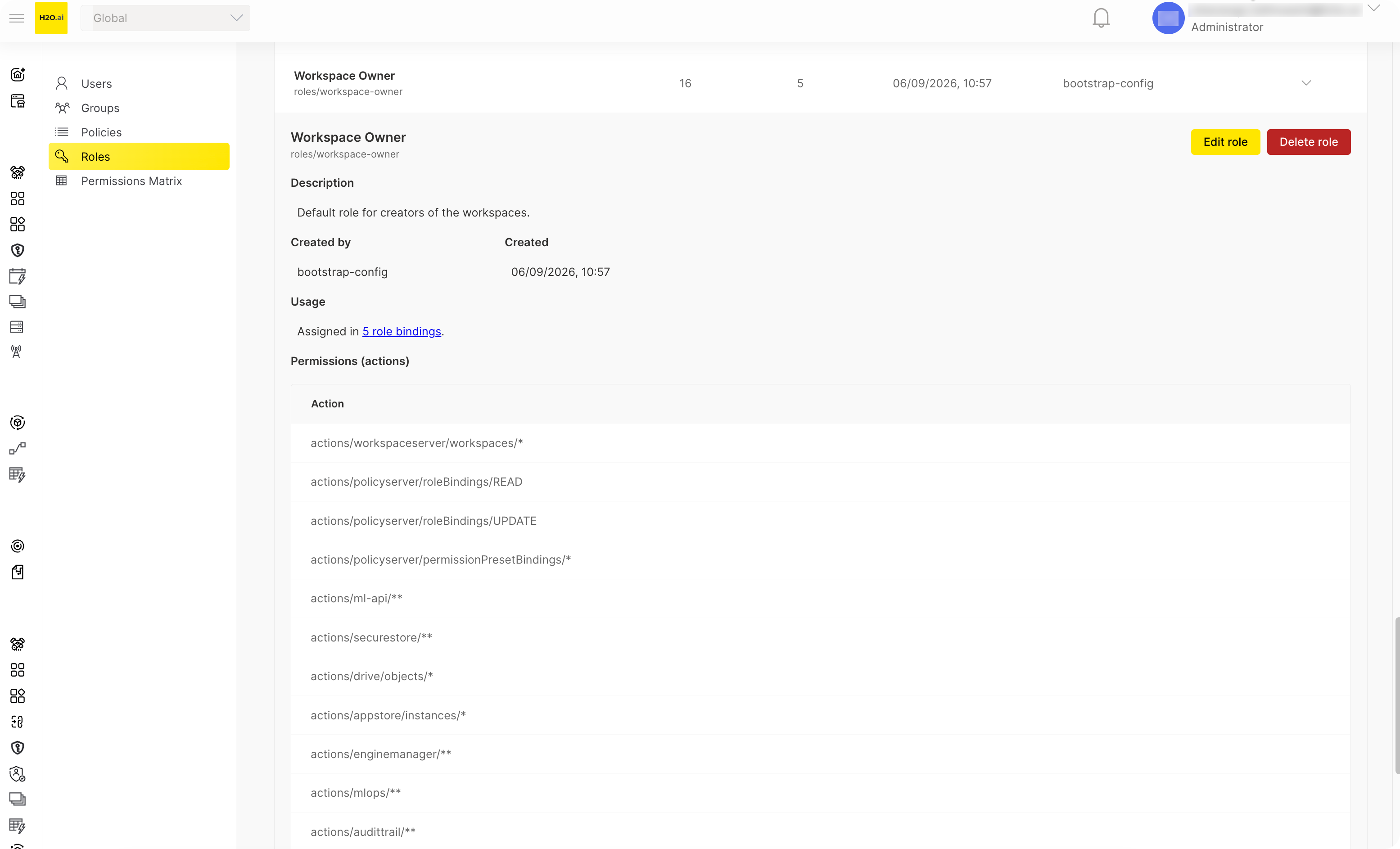
You can also deep-link directly to a specific role with ?role=<role-id> appended to the Roles screen URL, where <role-id> is the role's ID shown under its name (for example, dai-admin, from roles/dai-admin) rather than its display name. The matching role is automatically expanded and highlighted.
Creating a role
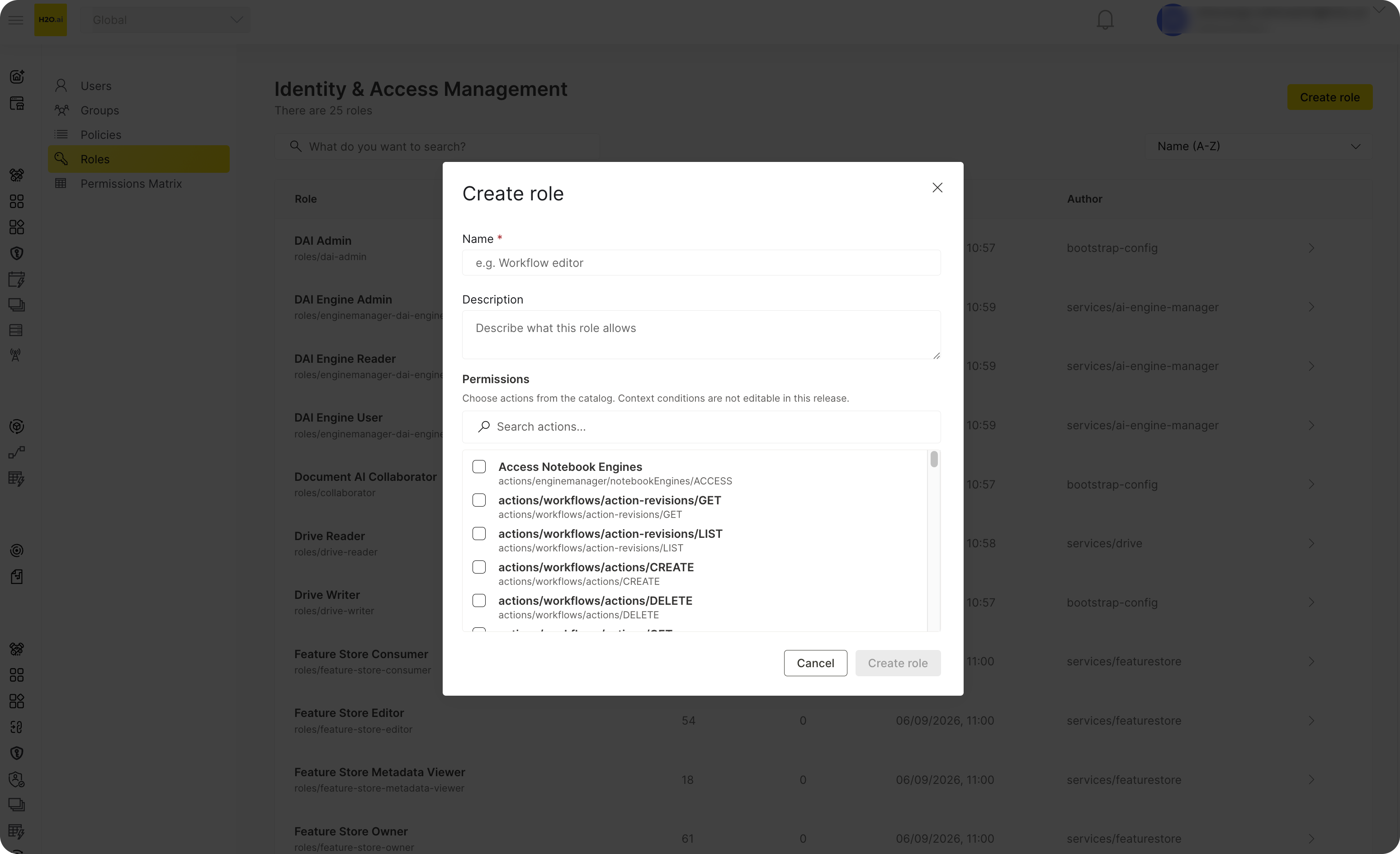
Administrators with the required permission can create a new role from the Roles screen:
- Select Create role.
- Enter a Name and Description.
- Choose the initial set of Permissions from the action catalog.
- Save the role.
Editing a role
Administrators with the required permission can edit an existing role's Name, Description, and Permissions (adding or removing actions from the catalog) using the same dialog used for creation.
Deleting a role
Administrators with the required permission can delete a role. Deleting a role requires a confirmation step, and you're warned if the role is still in use (that is, still referenced by one or more role bindings) before you can proceed.
Permissions
Access to the Roles screen and its actions is controlled per user:
| Action | What it requires |
|---|---|
| View roles | Read permission on roles |
| Create a role | Create permission on roles, plus read permission on the action catalog |
| Edit a role | Update permission on roles, plus read permission on the action catalog |
| Delete a role | Delete permission on roles |
Users without the relevant permission see a read-only view: the Create role, edit, and delete controls are hidden or disabled for them. If an operation fails (for example, due to a naming conflict or a permissions error), an error message pops up.
- Submit and view feedback for this page
- Send feedback about AI App Store to cloud-feedback@h2o.ai