Create a new experiment
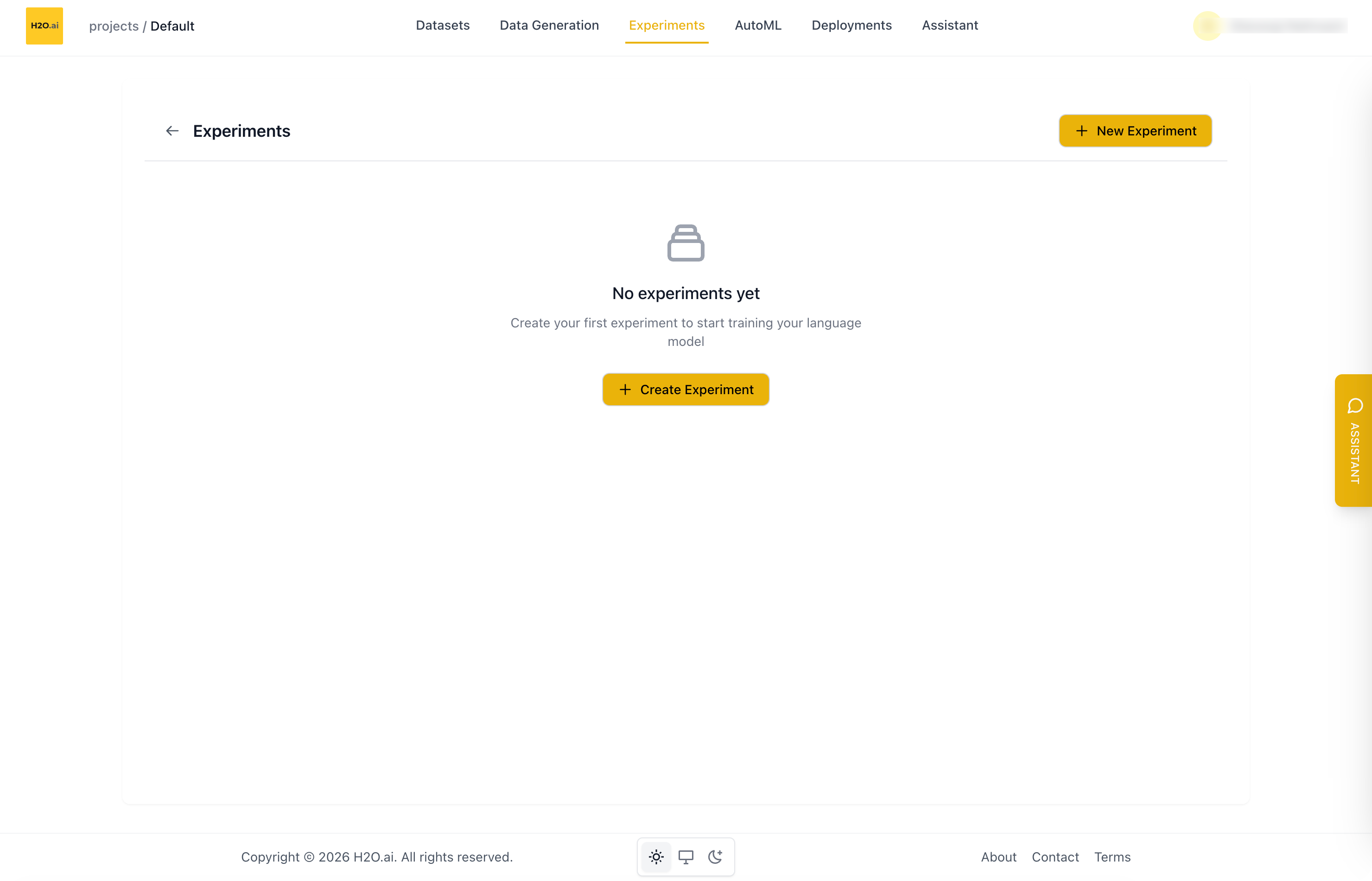
To start a new training run, click New Experiment in the top-right corner of the Experiments page. If your project has no experiments yet, you can also click Create Experiment in the empty state. Both buttons open the New Experiment page. You can also create an experiment from a Dataset page.
The New Experiment page shows only the most commonly used settings. You can configure everything else in the Advanced Configuration YAML editor at the bottom of the page, regardless of which Training Mode is selected. This includes LoRA adapter parameters (rank, alpha, dropout, target modules), tokenizer, architecture, environment, and inference parameters. For details, see Advanced configuration.
Before you start, make sure the project has at least one dataset. To add one, upload your own data or use a demo dataset.
To create an experiment:
- Select a Train Dataset and confirm the column mapping. The problem type is set from the dataset.
- (Optional) Click the pencil icon next to the page title to rename the experiment.
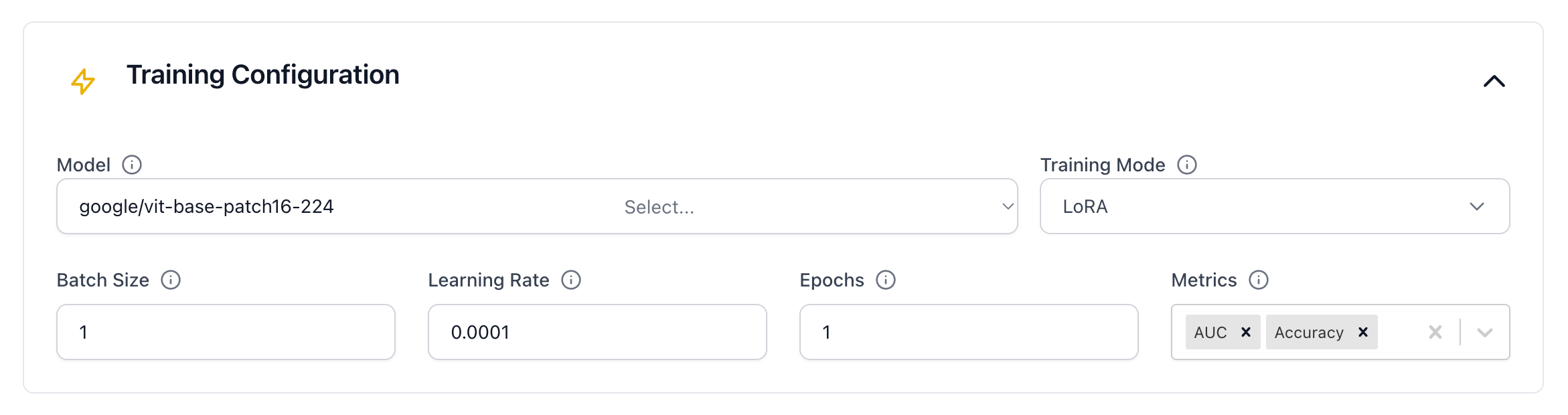
- Pick a Model and Training Mode, then adjust Batch Size, Learning Rate, and Epochs as needed.
- Select evaluation Metrics.
- Click Start Training.
To restore the default settings at any time, click Reset Settings at the top of the page. This resets the training settings and the YAML, but keeps the experiment name, dataset, and column mapping.
The sections below cover each of these settings in detail.
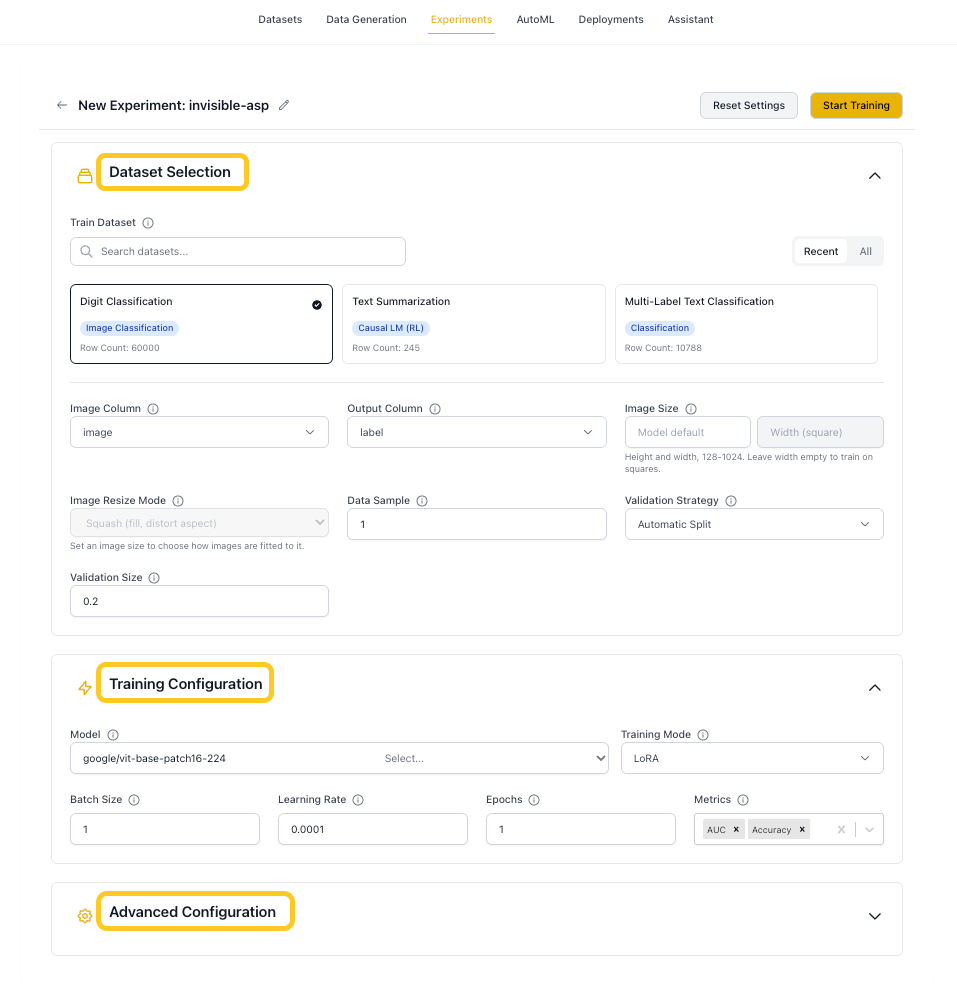
The page has three sections: Dataset Selection, Training Configuration, and Advanced Configuration. For details on the Advanced Configuration section, see Advanced configuration.
Experiment details
Experiment name
A label for this training run. A random name (for example, alert-flea) is generated for each new experiment. To rename it, click the pencil icon next to the page title. The name can't be empty. Use a descriptive name to make the experiment easy to find in the list.
YAML key: experiment_name
Problem type
Determines the model head, loss function, and evaluation metrics, and controls which dataset columns are used. There is no problem type field on the page. The problem type is set from the Train Dataset, which gets its problem type when you upload it.
YAML key: problem_type
Options:
- Causal LM (
text_causal_language_modeling): Text generation, completion, and chat. Output is free-form text. - Causal LM (RL) (
text_rl_causal_language_modeling): Fine-tunes a model with a reward instead of reference answers. See Reinforcement learning. - Classification (
text_causal_classification_modeling): Text classification (for example, sentiment or topic) with encoder (BERT-family) or decoder backbones. Output is a class label such as0or1. See Text classification. - Image Classification (
image_classification): Classifies images into predefined categories. See Image classification. - Multimodal Causal LM (
multimodal_causal_language_modeling): Image-and-text tasks such as visual QA and OCR. - Object Detection (
object_detection): Detects and locates objects in images using bounding boxes. See Object detection.
Dataset selection
Train dataset
The dataset to use for training. Select from the available datasets in the current project.
YAML key: dataset.train_dataset_id
Input column
The column containing the input text (the prompt or instruction for the model). Not used for image_classification or object_detection, which use the Image Column instead.
YAML key: dataset.input_column | Default: input
Output column
The column containing the expected answer or label. What it holds depends on the problem type:
- Causal LM: The expected answer. Select None if the Input Column holds whole conversations.
- Classification: The field is called Output Columns, and you can select more than one column. Select one column for binary or multi-class labels, or one
0/1column per label for multi-label classification. - Object Detection: Bounding box annotations in COCO format (a dictionary with
bboxandcategoryfields).
This field isn't shown for Causal LM (RL), which trains without reference answers.
YAML key: dataset.output_column | Default: output
Image column
The column containing image data. Only used for image_classification, multimodal_causal_language_modeling, and object_detection.
YAML key: dataset.image_column | Default: image
System prompt column
An optional column containing a system prompt that is added to each sample. Select None to turn it off. Shown for all text-based problem types.
YAML key: dataset.system_column | Default: null
Image size
The image resolution used for training, from 128 to 1024 pixels. Leave it empty to use the model's default resolution. For image_classification, you can also set a width to train on rectangular images. Shown only for image-based problem types.
YAML key: training.image_resolution | Default: null
For details, see Image resolution.
Image resize mode
How images are fitted to the Image Size: Squash, Pad, or Crop. Only shown for image_classification, and only available after you set an Image Size. Pad and Crop need a timm/ model.
YAML key: training.image_resize_mode | Default: squash
For details, see Image resize mode.
Max token length
The maximum number of tokens for the input and output combined. Longer inputs are truncated, and shorter inputs are padded. Higher values use more memory and can slow training, but may improve accuracy on long-context tasks. If the value is larger than the model's max_position_embeddings, it is lowered to match.
The page fills in 2048 and suggests a recommended value based on your dataset, which you can apply with one click.
YAML key: tokenizer.max_length | Default: 2048 on the page (512 if not set)
Data sample
The fraction of the dataset to use, from 0.01 to 1. For example, 0.1 uses 10% of the data. A smaller fraction speeds up testing but may lower model quality. Use 1.0 for final training runs.
YAML key: dataset.data_sample | Default: 1.0
Data sample choice
When Data Sample is less than 1.0, controls which splits are reduced: Train, Validation, or both. Set it in the Advanced Configuration YAML.
YAML key: dataset.data_sample_choice | Default: [Train, Validation]
Validation strategy
Controls how the validation set is created.
YAML key: dataset.validation_strategy | Default: automatic
Options:
- Automatic Split (
automatic): A part of the training data is set aside for validation, as set by Validation Size. - Custom Validation Dataset (
custom): Use a separate dataset for validation. Select it in the Validation Dataset field.
Validation size
The fraction of training data to set aside for validation when Validation Strategy is Automatic Split, from 0.01 to 0.99. For example, 0.2 uses 20% of the data. Ignored when you use a custom validation dataset.
YAML key: dataset.validation_size | Default: 0.2
Validation dataset
The dataset to use for validation when Validation Strategy is Custom Validation Dataset.
YAML key: dataset.validation_dataset_id
Number of classes
The number of output classes. If not set, the value is inferred from the dataset. Applies to text_causal_classification_modeling, image_classification, and object_detection. Set it in the Advanced Configuration YAML.
YAML key: dataset.num_classes | Default: inferred from the dataset
Training configuration
Model
The pretrained backbone model to start fine-tuning from. H2O Cascade supports popular open-source models, including Meta Llama, Qwen, Google Gemma, DeepSeek, OpenAI gpt-oss, and H2O Danube.
| Model family | Examples | Typical size range |
|---|---|---|
| H2O Danube | h2o-danube3-500m-chat, h2o-danube3-4b-chat | 500M–4B |
| Meta Llama | Llama-3.2-1B-Instruct, Llama-3.2-3B-Instruct | 1B–70B+ |
| Qwen | Qwen3-0.6B, Qwen3-1.7B, Qwen3-4B, Qwen3-8B, Qwen3-14B, Qwen3-32B | 0.6B–32B |
| Google Gemma | gemma-2-2b-it, gemma-2-9b-it | 2B–27B |
| DeepSeek | DeepSeek-R1-Distill-Qwen-1.5B, DeepSeek-R1-Distill-Llama-8B | 1.5B–8B |
| OpenAI gpt-oss | gpt-oss-20b | 20B |
Your administrator decides which models are listed by default. You can also type any Hugging Face model path (for example, organization/model-name) in the Model field, or pick one of your own trained experiments. Contact your administrator to add models to the default list.
If your administrator has configured a model hub, the Model dropdown lists the models the hub holds, in two groups:
- Pretrained models: The default models that are in the hub.
- Other models in model hub: All other models in the hub.
If the hub doesn't hold the default model for the problem type, the first model it does hold is selected instead.
A notice under the field appears when:
- The hub can't be reached. The default models are listed, but they might not download.
- The hub holds no models, or none of the default models.
- The hub holds more models than the list shows.
If you open the page by copying an experiment, you can select Continue from this experiment's trained weights to start from that experiment's checkpoint instead of the original base model.
The transformers class used to load the model is selected automatically based on the problem type:
AutoModelForCausalLMfortext_causal_language_modelingAutoModelForSequenceClassificationfortext_causal_classification_modelingAutoModelForImageClassificationforimage_classificationAutoModelForImageTextToTextformultimodal_causal_language_modelingAutoModelForObjectDetectionforobject_detection
YAML key: llm_backbone
The default model depends on the problem type:
- Text problem types:
h2oai/h2o-danube3-500m-chat image_classification:google/vit-base-patch16-224multimodal_causal_language_modeling:google/gemma-3-4b-itobject_detection:facebook/detr-resnet-50
Training mode
Controls how model weights are updated during training.
YAML key: architecture.training_mode | Default: lora
Options:
- Full Model Training (
full): Updates all model weights. Needs the most memory and compute. - LoRA (
lora): Adds small trainable matrices to the model weights. Fastest option, with a small memory footprint. - QLoRA (
qlora): A quantized version of LoRA. Uses the least GPU memory.
For an overview of these techniques, see LoRA and quantization. To set LoRA parameters (rank, alpha, dropout, target modules), see Advanced configuration.
Batch size
The number of training samples processed per step on each GPU. Larger batches train faster but need more GPU memory.
YAML key: training.batch_size | Default: 1 (4 for object detection)
Learning rate
Controls how much the model weights change at each step. Too high a value can make training unstable. Too low a value makes training slow. If you're unsure, use AutoML to find a good starting value.
YAML key: training.learning_rate | Default: 0.0001
Epochs
The number of full passes through the training dataset. More epochs can improve the fit but may cause overfitting. Adjust it together with Learning Rate, and watch the validation metrics.
YAML key: training.epochs | Default: 1
Metrics
Evaluation metrics calculated on the validation set during training. You can select more than one metric per experiment.
YAML key: prediction.metrics
Available metrics by problem type and their defaults:
- Causal LM: Perplexity, BLEU, LLM-as-a-Judge, QA Accuracy (default: Perplexity)
- Causal LM (RL): LLM-as-a-Judge only
- Multimodal Causal LM: Perplexity, BLEU, QA Accuracy (default: BLEU)
- Classification: AUC, Accuracy, Log Loss, MAP@3 (default: AUC and Accuracy)
- Image Classification: AUC, Accuracy, Log Loss, MAP@3 (default: AUC and Accuracy)
- Object Detection: mAP, mAP@50, mAP@75, mAR (default: mAP and mAP@50)
In the YAML, use the metric names as shown, except for QA Accuracy (QA_Accuracy) and Log Loss (LogLoss).
LLM-as-a-Judge settings
When you select LLM-as-a-Judge as a metric, an external LLM scores each model output by comparing it with the reference answer.
LLM judge model
The model used to score outputs. Your administrator sets the default on the Settings page. To use a different model for this experiment, set training.llm_judge_model in the YAML. A copied experiment keeps its judge model in the YAML.
YAML key: training.llm_judge_model | Default: set by your administrator
LLM judge prompt template
The prompt sent to the judge model. It appears on the page as LLM-as-a-Judge Prompt Template when you select the metric. Use the placeholders {PROMPT}, {PREDICTED_TEXT}, and {TARGET_TEXT} to add experiment data. Always include {PREDICTED_TEXT}, or the judge can't see the output it needs to score. Click Reset to default template to restore the default. The template on the page replaces any training.llm_judge_prompt_template value in the YAML.
YAML key: training.llm_judge_prompt_template | Default: built-in H2O evaluation template
- Submit and view feedback for this page
- Send feedback about H2O Cascade to cloud-feedback@h2o.ai