View and manage an experiment
Click any row in the experiment list to open its detail page.
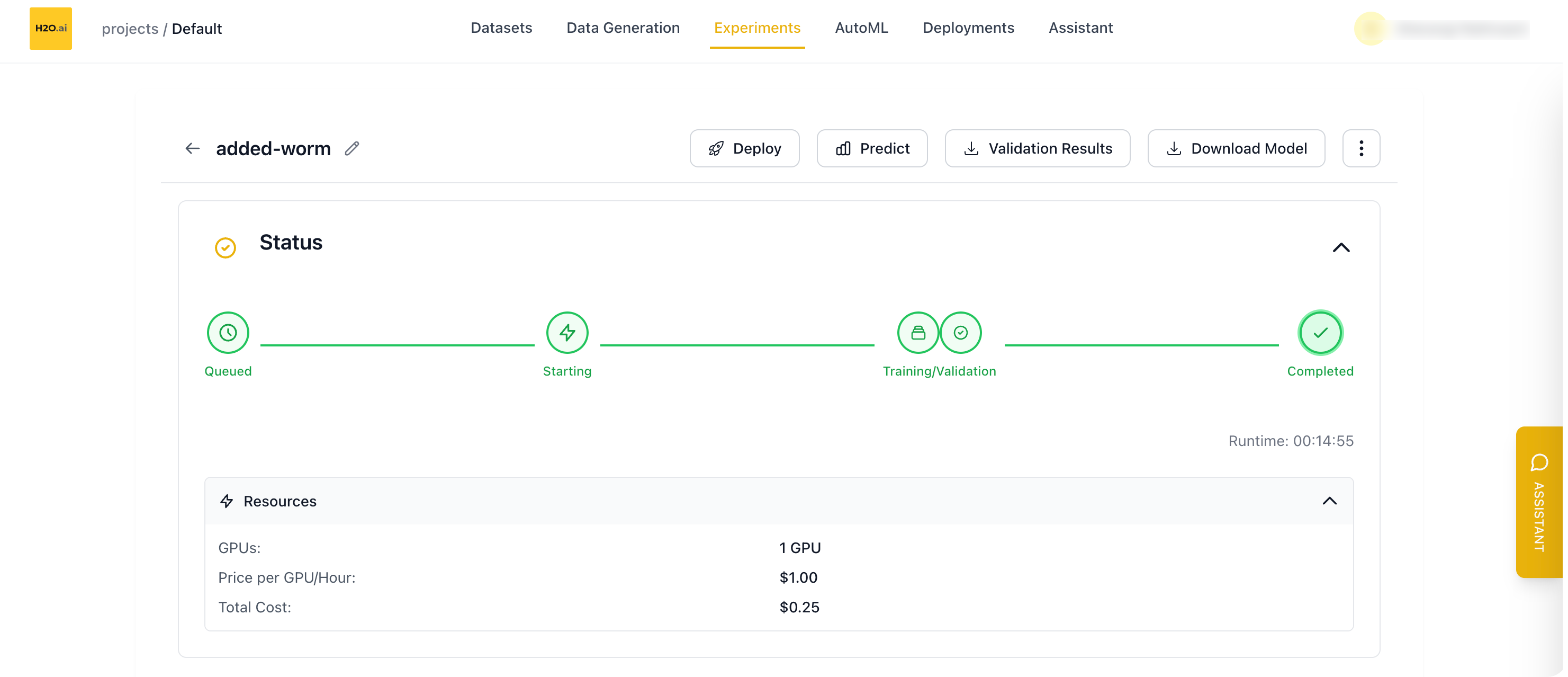
Status and resources
The status bar updates in real time as the experiment runs. The stages are:
- Queued
- Starting
- Training/Validation
- Completed
If an experiment fails or is stopped, the status bar shows Failed or Cancelled instead.
The Runtime is shown below the status bar, along with an ETA while the experiment runs.
If GPU information is available, expand the Resources section to view:
- GPUs: The number of GPUs used
- Price per GPU/Hour
- Total Cost: Shown when a GPU price is set
Charts
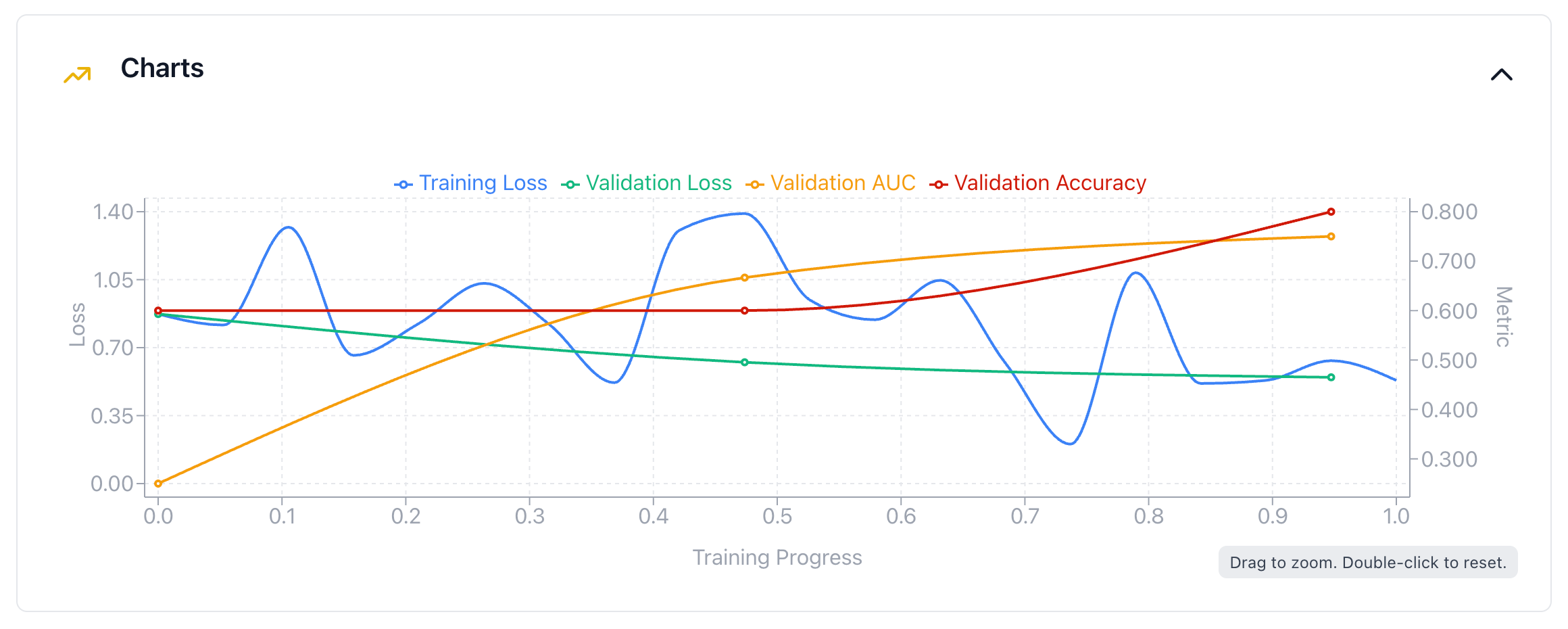
The chart shows training and validation progress over time:
- Training Loss and Validation Loss: Always shown, on the left (Loss) axis
- Your selected validation Metrics: Shown on the right (Metric) axis
The metrics depend on the problem type. For example, text generation shows Validation Perplexity, and classification shows Validation AUC and Validation Accuracy, as in the example below.
In a healthy run, training and validation loss both go down and stay close together. A growing gap between them means the model is overfitting.
Validation results
For completed experiments, the Validation Results section shows the model's predictions on the validation set.
Configuration
The Configuration section shows the full YAML configuration used to run the experiment.
Connected experiments
The Connected Experiments section shows experiments linked to this run through AutoML, Ask KGM, or Copy. For a standalone experiment, only the current experiment is shown.
Hugging Face
After you push a model with Push to HuggingFace, the HuggingFace section shows a link to the model repository.
Training logs
The Training Logs section records the model's learning progress, including:
- Epoch progress
- Metric values at each evaluation step
- Fine-tuning details (for example, LoRA rank and target modules)
System logs
The System Logs section records infrastructure events during the run, including hardware activity, warnings, and errors.
Experiment actions
While an experiment is queued or running, click Stop at the top right to stop it.
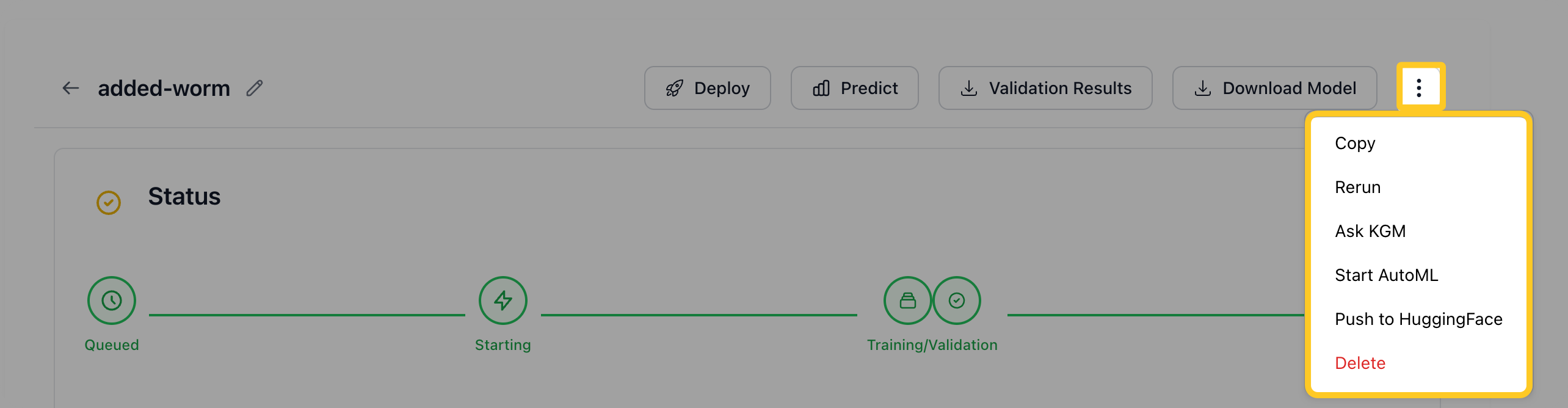
At the top right of the page, you can use these actions. Most of them appear only after the experiment is Completed:
- Deploy: Deploy the trained model. See Deployments. Not available for Image Classification or Multimodal Causal LM experiments. For Object Detection, the button is shown but the deployment fails.
- Predict: Run predictions with the trained model without deploying it.
- Validation Results: Download the model's predictions on the validation set.
- Download Model: Download the trained model files.
- Open the action menu (⋮) to access:
- Copy: Open a new experiment with the settings from this run filled in.
- Rerun: Run the experiment again with the same settings.
- Ask KGM: Get a recommendation for the next experiment. See Ask KGM.
- Start AutoML: Start an AutoML series based on this experiment. See AutoML.
- Push to HuggingFace: Publish the model to the Hugging Face Hub. You need your Hugging Face credentials.
- Delete: Permanently remove this experiment.
Copy, Rerun, and Delete are available for any experiment.
Ask KGM
Ask KGM opens the Start Next Best Experiment dialog with a recommended next experiment from an AI assistant. To learn what KGM stands for, see AutoML and Ask KGM.
Suggestions may include:
- A different model backbone
- A different learning rate
- Other hyperparameter changes based on your training metrics
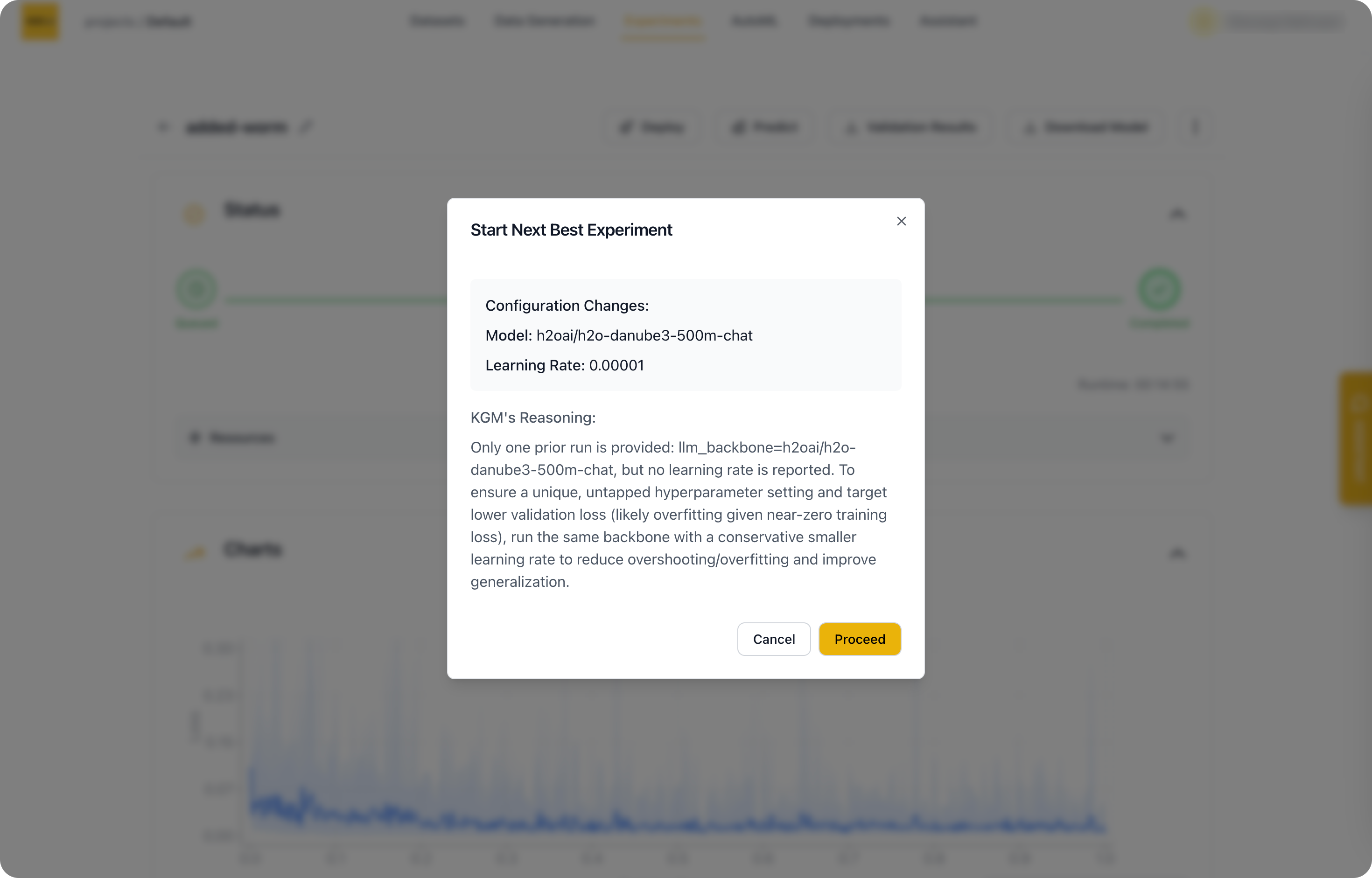
Review the changes and the reasoning, then click Proceed to start the suggested experiment right away.
- Submit and view feedback for this page
- Send feedback about H2O Cascade to cloud-feedback@h2o.ai