Datasets
Overview
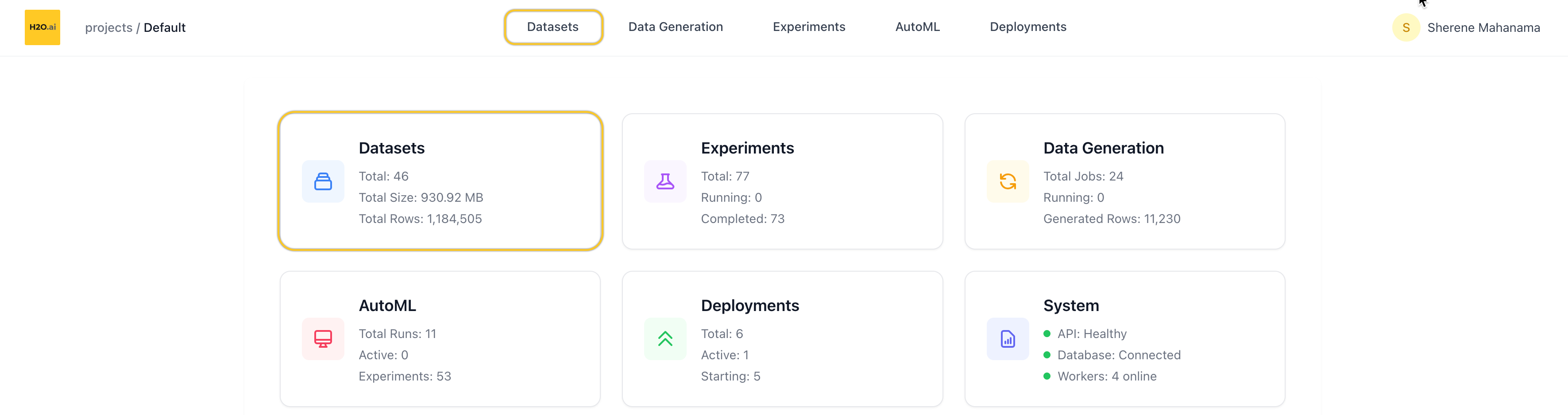
The Datasets page lets you manage all datasets within your current project. From here, you can view, search, filter, and take actions on individual datasets — including launching experiments directly from the dataset view.
You can access Datasets from:
- The top navigation tabs, or
- The Datasets card on the homepage of a project
List datasets
When you open the Datasets page, you’ll see a table showing all datasets in the current project.
Table columns
Each row represents one dataset and includes:
- Name
- Number of rows
- File size (e.g. KB, MB)
- File type (e.g. CSV, Parquet)
- Created date
You can:
- Search by name
- Search by file type
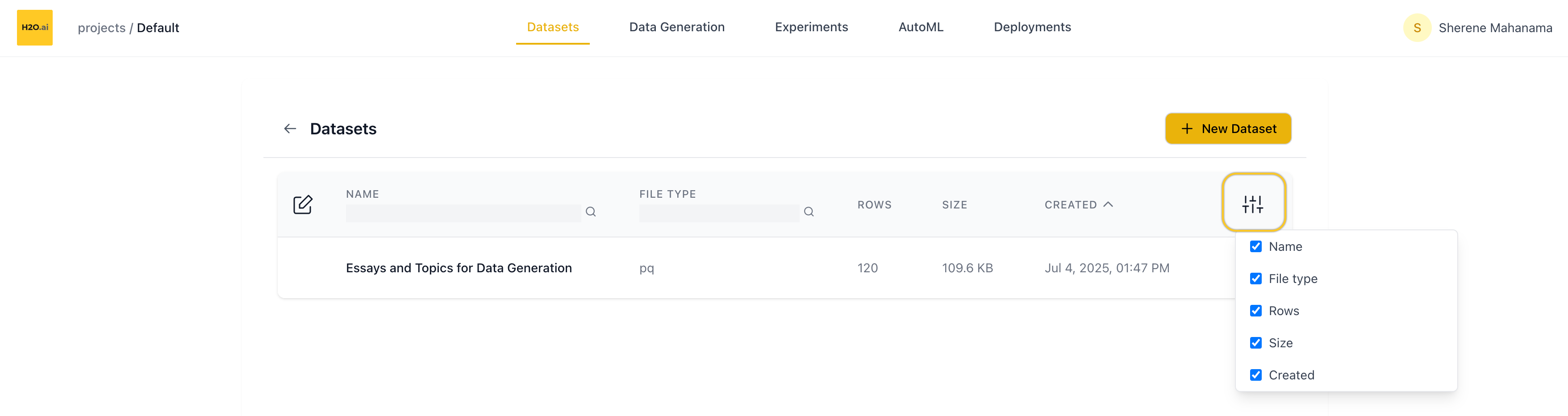
- Customize columns using the column visibility toggle (top-right of the table)
Edit dataset
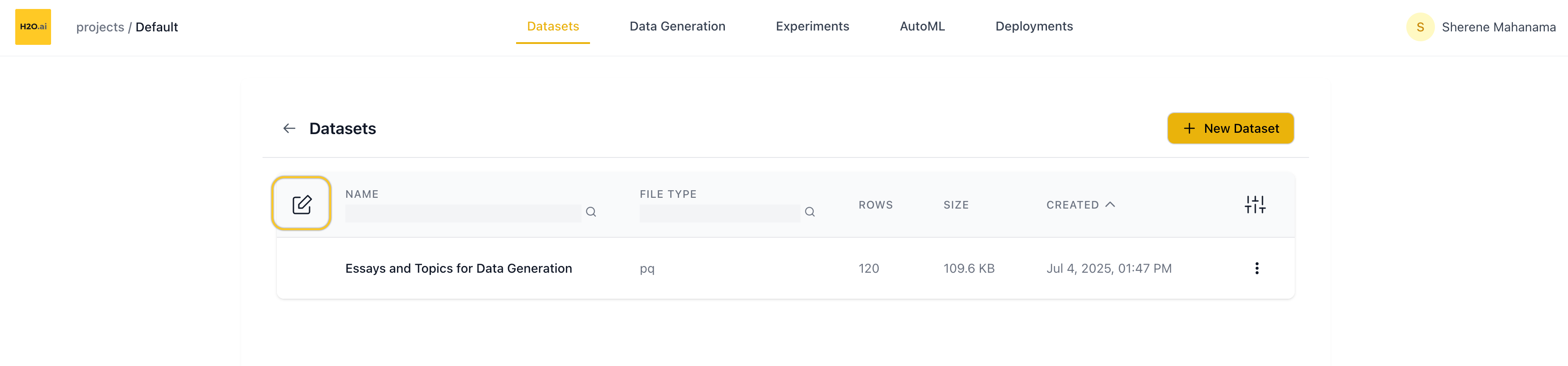
Click the Edit button (top-left) to:
- Select multiple datasets
- Bulk delete selected datasets
Use the Cancel button (bottom of the screen) to exit edit mode.
Row actions
Each dataset row includes a dropdown menu with:
- Rename — opens a rename dialog
- Delete — removes the dataset from the project
Add new dataset
Click the ➕ New Dataset button (top of the page) to upload your own data.
In the New Dataset screen, you can:
- Name your dataset (optional — a default name will be auto-generated if left blank)
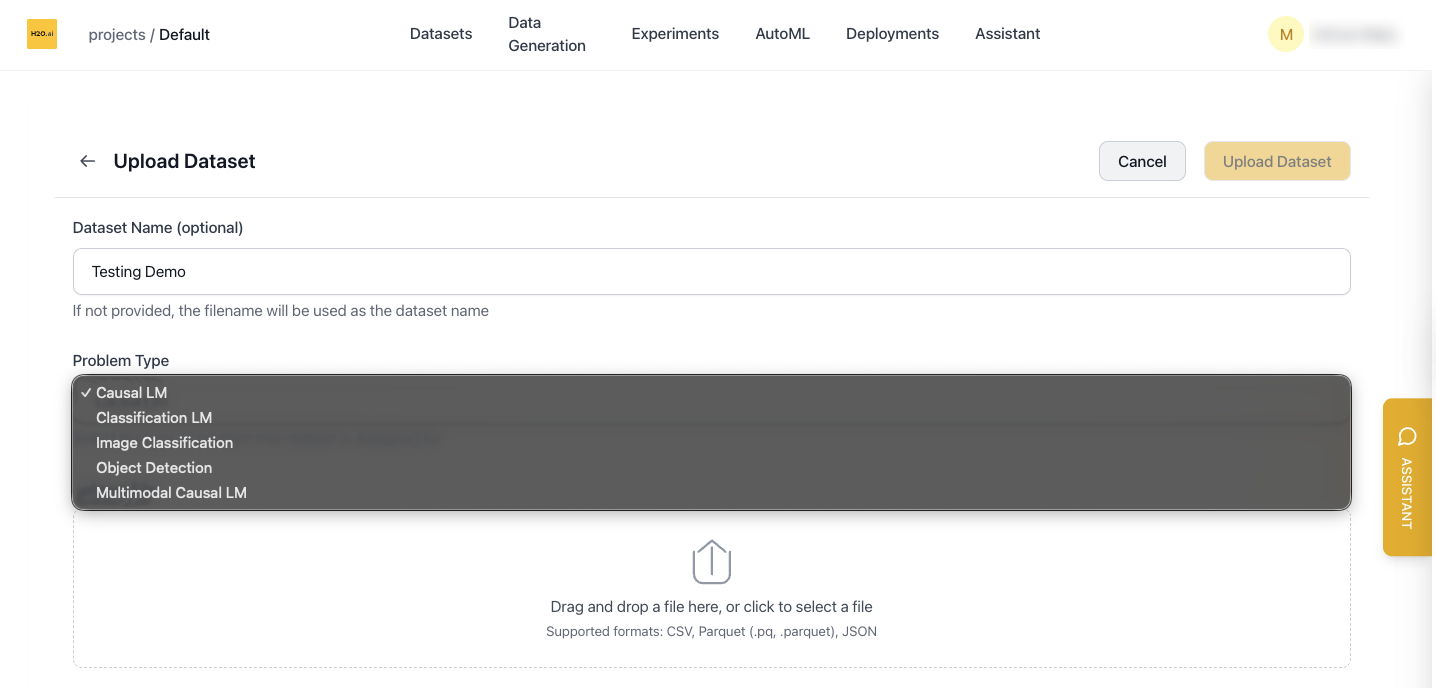
- Select a Problem Type from the dropdown
- Upload a file via drag-and-drop or file picker
Problem type
The Problem Type dropdown determines how the dataset is interpreted during training and which settings are shown when you create an experiment from the Experiments page.
Supported problem types and dataset requirements:
Causal LM
- Requires an input column.
- The output column is optional for conversation-style datasets.
- If your dataset contains only input text (without labels), you can generate outputs using Data Generation before fine-tuning.
- In experiment setup, this uses text fields (for example,
input_columnand optionaloutput_column).
Classification LM
- Requires an input column and an output (label) column.
- Output labels are validated as classification labels during training.
- In experiment setup, this uses text-based
input_columnandoutput_columnfields.
Image Classification
- Requires an image column containing base64-encoded or binary image data.
- Requires an output (class-label) column.
- Unlike object detection, this does not require a COCO annotation column.
- In experiment setup, this uses image-specific fields such as Image Column instead of text-only input fields.
Object Detection
- Requires an image column and a single annotation output column.
- Each annotation must include
bboxandcategoryfields (COCO-style structure). - The output column must be a single column name (not a list).
- In experiment setup, this uses
image_columnandoutput_column(annotation) fields, not text input fields.
Multimodal Causal LM
- Requires an input column, an output column, and an image column.
- The optional system column is supported if provided.
- In experiment setup, this uses both text and image fields.
Tabular
- Used for tabular prediction tasks (classification and regression) powered by TabH2O.
- Requires a target column to predict.
- Tabular datasets do not support training — predictions are run directly using a foundation model from the Predictions page.
- Supported use cases include binary classification, multi-class classification, and regression.
Supported file formats
.csv— Comma-separated values.parquetor.pq— Parquet format.json— JSON structured data
Once uploaded, you’ll be returned to the Datasets page and your new dataset will appear in the list.
Use a demo dataset
If you don’t have a dataset handy, you can start with one of our pre-configured demo datasets.
On the New Dataset screen, scroll down to find:
“…or get started quickly with our demo datasets”
Clicking any of the demos will immediately import that dataset into your project.
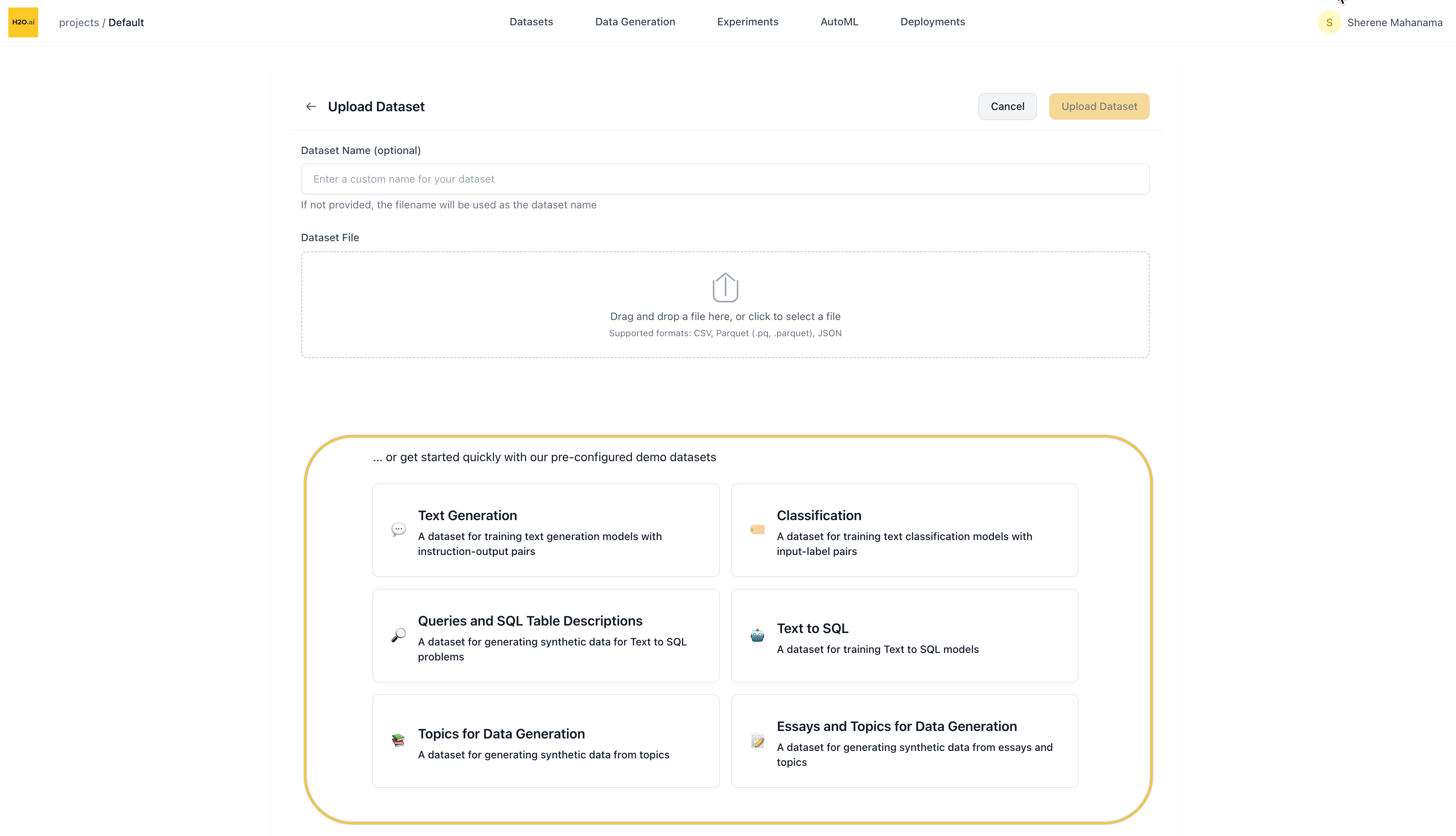
Available demo datasets
- Text Datasets
- Image Datasets
- Multimodal Datasets
- Tabular Datasets
- Data Generation
| Dataset | Problem Type | Size | Description |
|---|---|---|---|
| Chatbot Conversations | Causal LM | 14 MB • ~12K rows | Instruction-output pairs for training conversational AI models (OASST2) |
| Text-to-SQL | Causal LM | 3.7 MB • 3K rows | Question-SQL pairs for training models to convert natural language to SQL |
| Sentiment Classification | Classification LM | 20 MB • ~25K rows | IMDB movie reviews for binary sentiment classification |
| Multi-Label Text Classification | Classification LM | 5.1 MB • ~10K rows | Financial news with multiple category labels (Reuters-21578) |
| Dataset | Problem Type | Size | Description |
|---|---|---|---|
| Digit Classification | Image Classification | 15 MB • ~60K rows | Handwritten digit images for classification (MNIST) |
| Mini ImageNet | Image Classification | 99 MB • 800 rows | Generic image dataset with 50 categories from ImageNet |
| VOC 2012 | Object Detection | 109 MB • 1K rows | Object detection dataset with bounding box annotations for 20 object categories (PASCAL VOC) |
| Dataset | Problem Type | Size | Description |
|---|---|---|---|
| Mini TextVQA | Multimodal Causal LM | 250 MB • 650 rows | Visual question answering with images and text-based questions (TextVQA) |
| Dataset | Problem Type | Size | Description |
|---|---|---|---|
| Customer Churn | Tabular | 3K rows | Telecom customer data for predicting churn (Splunk) |
| Bank Marketing | Tabular | 313 KB • 45K rows | Bank marketing campaign data for predicting term deposit subscriptions (OpenML) |
| Maternal Health Risk | Tabular | 9 KB • 1K rows | Maternal health data with vitals and risk levels collected from hospitals and clinics (UCI) |
| QSAR Fish Toxicity | Tabular | 24 KB • 907 rows | Molecular descriptors for predicting acute aquatic toxicity (LC50) in fathead minnow (UCI) |
| Dataset | Problem Type | Size | Description |
|---|---|---|---|
| Topic-Based Data Generation | Data Generation | 7 KB • 120 rows | Simple topic prompts for synthetic content generation |
| Essay-Enhanced Data Generation | Data Generation | 110 KB • 120 rows | Essay samples with topics for advanced synthetic data generation |
| Text-to-SQL Queries | Data Generation | 2.1 MB • 10K rows | Natural language queries mapped to SQL table schemas |
The specific demos available may change over time — they’re designed to help you quickly test and explore LLM fine-tuning in the platform.
After importing a demo, you’ll be redirected back to the Datasets list where you can explore and use it like any other dataset.
Dataset overview page
Clicking on a dataset opens its Overview page.
Header actions
At the top of the page:
- Rename the dataset via the edit icon next to the name
- Create Experiment to kick off a fine-tuning run using this dataset
- Delete the dataset
Metadata summary
Right below the header, you’ll see metadata about the dataset:
- File size
- Row and column count
- Token count (total tokens in the dataset)
- Created date
- Number of experiments launched using this dataset
Column details
Scroll down to view the Column Details section:
- Each column is listed with:
- Column name
- Max token length for that column (useful for prompt planning)
- You can collapse/expand this section as needed
Dataset sample
Below the column details is the Dataset Sample table:
- Shows up to 20 preview rows
- You can expand individual rows to view full text if it’s truncated
- Especially helpful for verifying formatting and text content in large-language tasks
- Submit and view feedback for this page
- Send feedback about H2O Cascade to cloud-feedback@h2o.ai