Custom Groups
The Custom Groups page allows you to create and manage user groups for your H2O AI Managed Cloud (HAMC) environment. Custom groups help organize users and assign permissions across your applications and services.
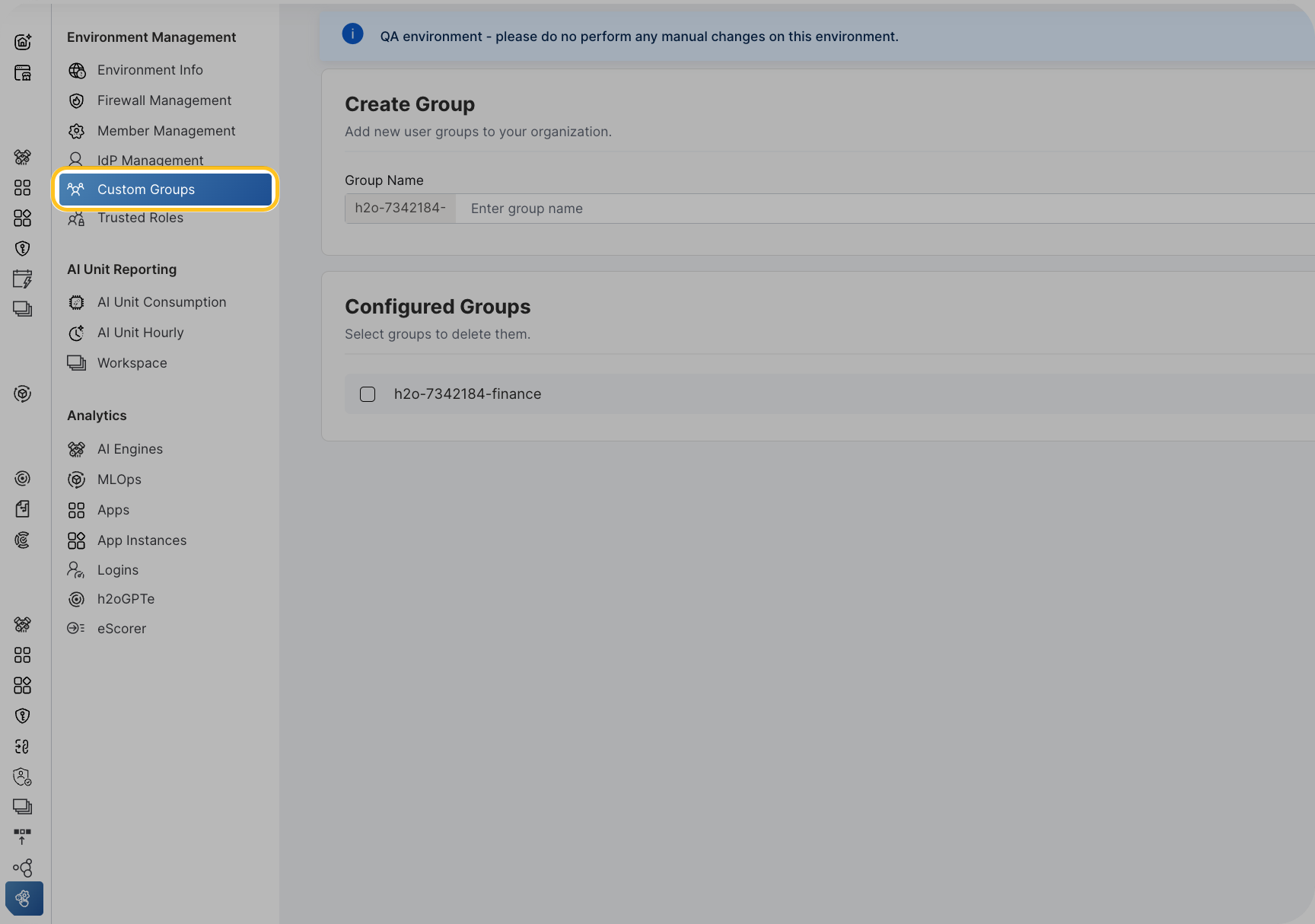
Click Custom Groups under Environment management on the left-navigation bar to open the Custom Groups page.
- The Custom Groups page is available to all customers, regardless of whether an external Identity Provider (IdP) is configured.
- Only environment admins can access and manage custom groups.
- Custom groups were previously part of the IdP Management page but are now available as a standalone feature.
Overview
Custom groups allow you to:
- Create up to 30 custom groups for your environment
- Organize users based on teams, departments, or access levels
- Assign group-based permissions across H2O AI applications
- Synchronize groups with your identity provider and authentication systems
How group naming works
When you create a group:
- You enter only the logical group name. For example:
data_science. - H2O automatically prefixes the name with
h2o-<environment-id>-(H2O-dash-environment-ID). - You do not need to type the prefix.
For example, if you enter data_science, the stored group name might be h2o-1234-data_science, where 1234 is your environment ID.
Group names cannot contain spaces. Use hyphens or underscores instead. For example: data-science or data_science.
Create groups
You can create one or more custom groups at the same time.
To create groups:
- Enter the group names
In the Create Group section, enter one or more group names in the input field.
- Separate multiple names with commas
To create multiple groups at once, separate group names with commas. For example:
data_science, analytics_team, ml_engineers. - Create the groups
Click Create Group.
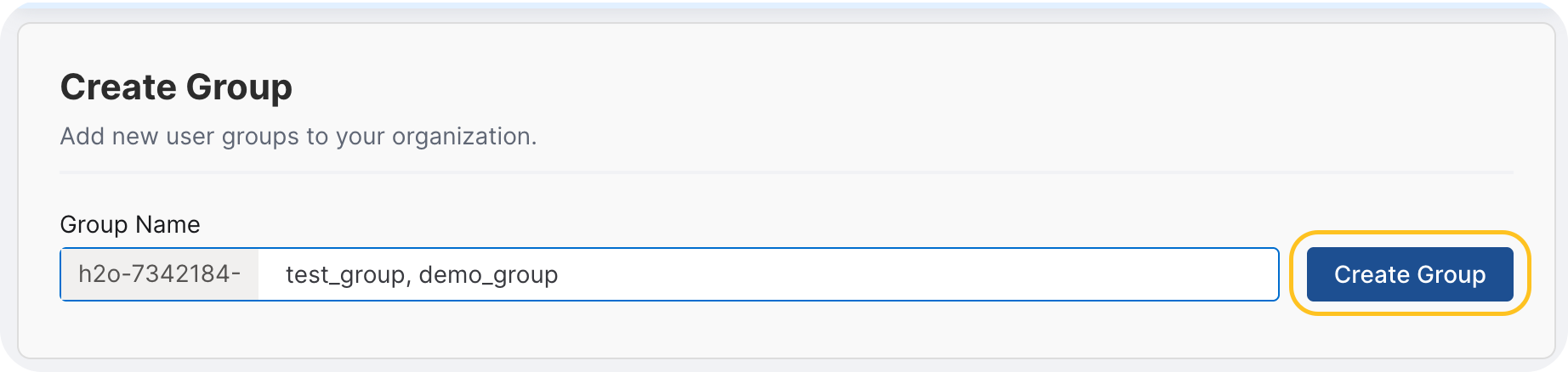
When you click Create Group:
- Each comma-separated value becomes a new group.
- The system automatically applies the
h2o-<environment-id>-prefix to each group. - Newly created groups appear in the Configured Groups section.
- The system validates group names and provides feedback if any names are invalid.
The system includes validation and retry support to ensure reliable creation of groups. If a group creation fails, you will be notified and can attempt to create the group again.
Configured Groups
The Configured Groups section lists all custom groups you have created for your environment. This section helps you:
- Review all existing custom groups
- See the full group names with the automatic
h2o-<environment-id>-prefix - Manage groups by removing those that are no longer needed
View group details
The Configured Groups table displays:
- Group name: The full group identifier including the
h2o-<environment-id>-prefix.
Manage groups
You can remove individual groups or multiple groups at the same time when they are no longer required.
To remove groups:
- Select the groups to remove
In the Configured Groups section, select the checkbox next to each group you want to remove.
- Select multiple groups to perform bulk deletion.
- Delete the selection
Click Delete Selected.

When you delete a group:
- The group is removed from the list immediately.
- Users who were mapped only to that group will lose access associated with that group.
- Users with multiple group memberships will retain access from their other groups.
- Group deletion includes validation and retry support to ensure reliable removal.
Group synchronization
Custom groups are synchronized across your identity provider and authentication systems, including Keycloak. This synchronization ensures:
- Consistent access control across all applications
- Automatic propagation of group changes to authentication systems
- Unified group management from a single interface
Group synchronization happens automatically. Changes made in the Custom Groups page are reflected in your authentication systems within a few minutes.
Use groups for permissions
After creating custom groups, you can use them to:
- Assign users to groups through the Member management page
- Configure group-based access policies in your applications
- Implement role-based access control (RBAC) across your environment
- Simplify permission management by assigning permissions to groups rather than individual users
- Submit and view feedback for this page
- Send feedback about H2O Admin Center to cloud-feedback@h2o.ai