DAI Connector Configuration
The DAI Connector Configuration page lets you manage the connector configuration files that Driverless AI engines use in your H2O AI Managed Cloud (HAMC) environment. Previously, these files were uploaded manually to the S3 bucket by the Managed Cloud team, and changes were reflected only after a pipeline run. This page removes that overhead by letting you upload the files yourself: the file is pushed to the S3 bucket, the related Kubernetes secrets and environment variables are updated automatically, and new Driverless AI engines pick up the change within seconds.
Click DAI Connector Config on the left-navigation bar to open the DAI Connector Configuration page.
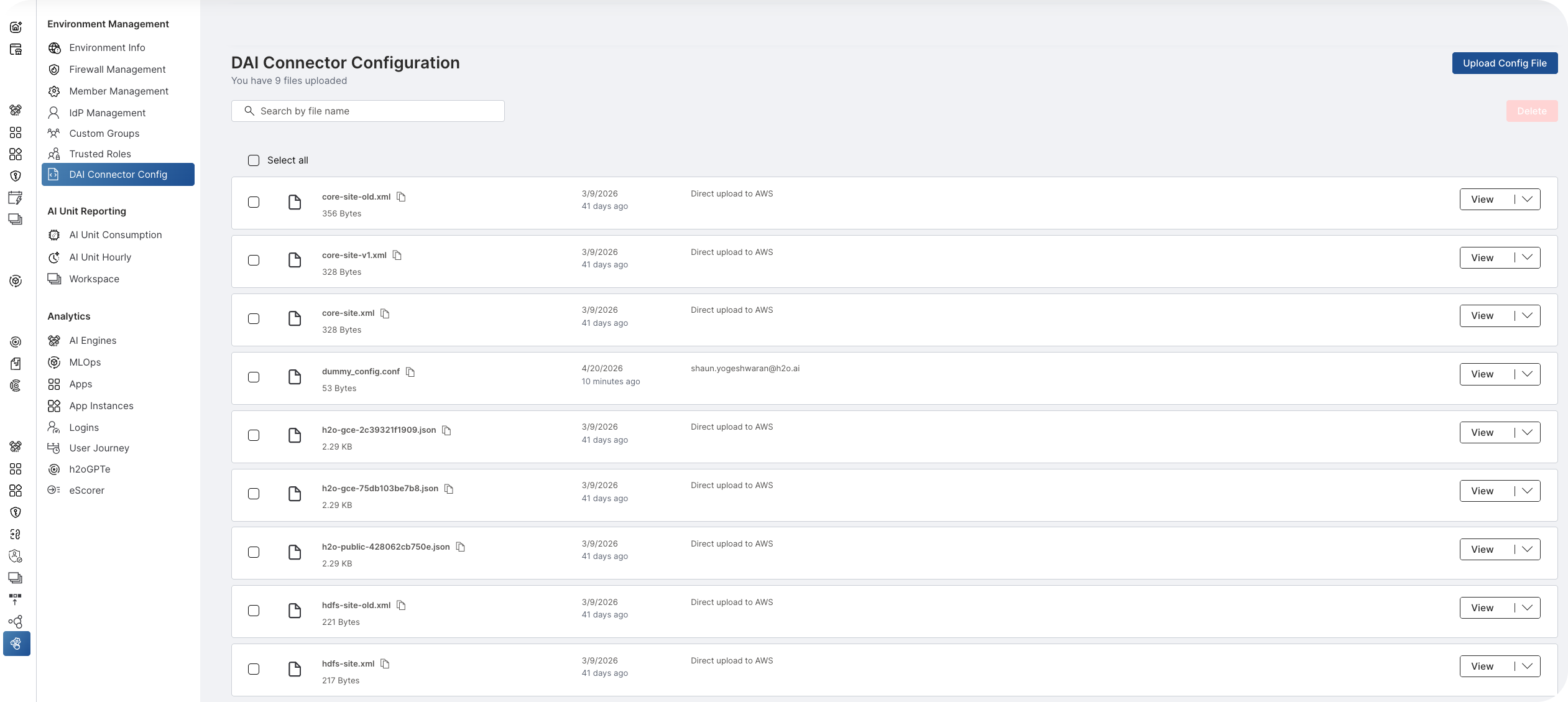
The main features of this subsection are:
- Upload a configuration file
- View a configuration file
- Download a configuration file
- Delete configuration files
File list
The file list shows every connector configuration file available to Driverless AI in your environment, including both files uploaded through the legacy flow and files uploaded through this page.
For each file, the list displays:
- File name and size.
- Upload date and relative time (for example,
Just nowor41 days ago). - Status:
Direct upload to AWSfor files uploaded through the legacy flow by the Managed Cloud team.- The uploader's email address for files uploaded through the Admin Center UI.
- View button with a dropdown for file actions.
Use the search box to filter the list by filename.
Upload a configuration file
To upload a new connector configuration file:
- Open the upload panel
Click Upload Config File.
The Upload Configuration Files side panel appears.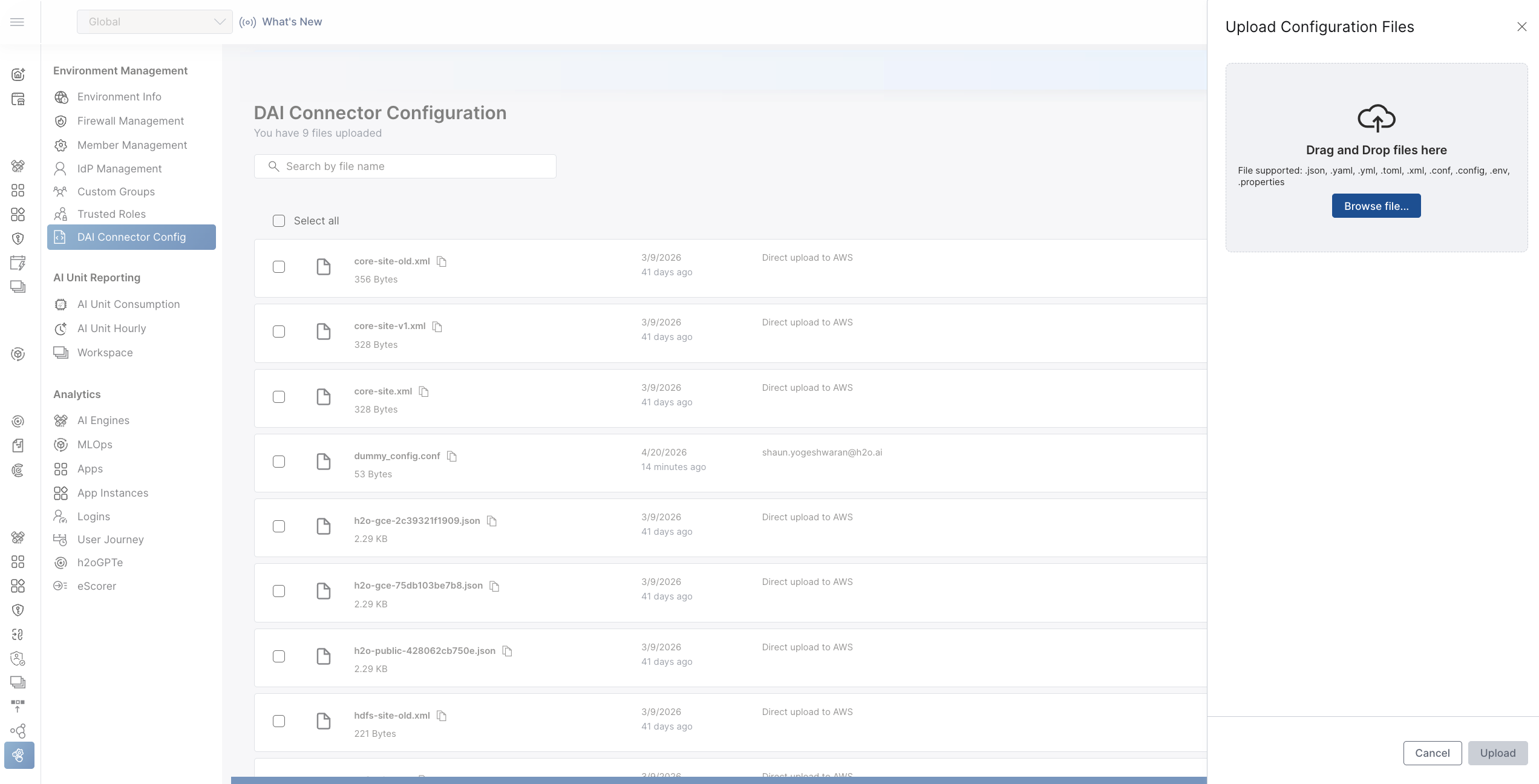
- Choose a file
Drag and drop a file into the panel, or click Browse file and select a file.
Supported file types:.json,.yaml,.yml,.toml,.xml,.conf,.config,.env,.properties.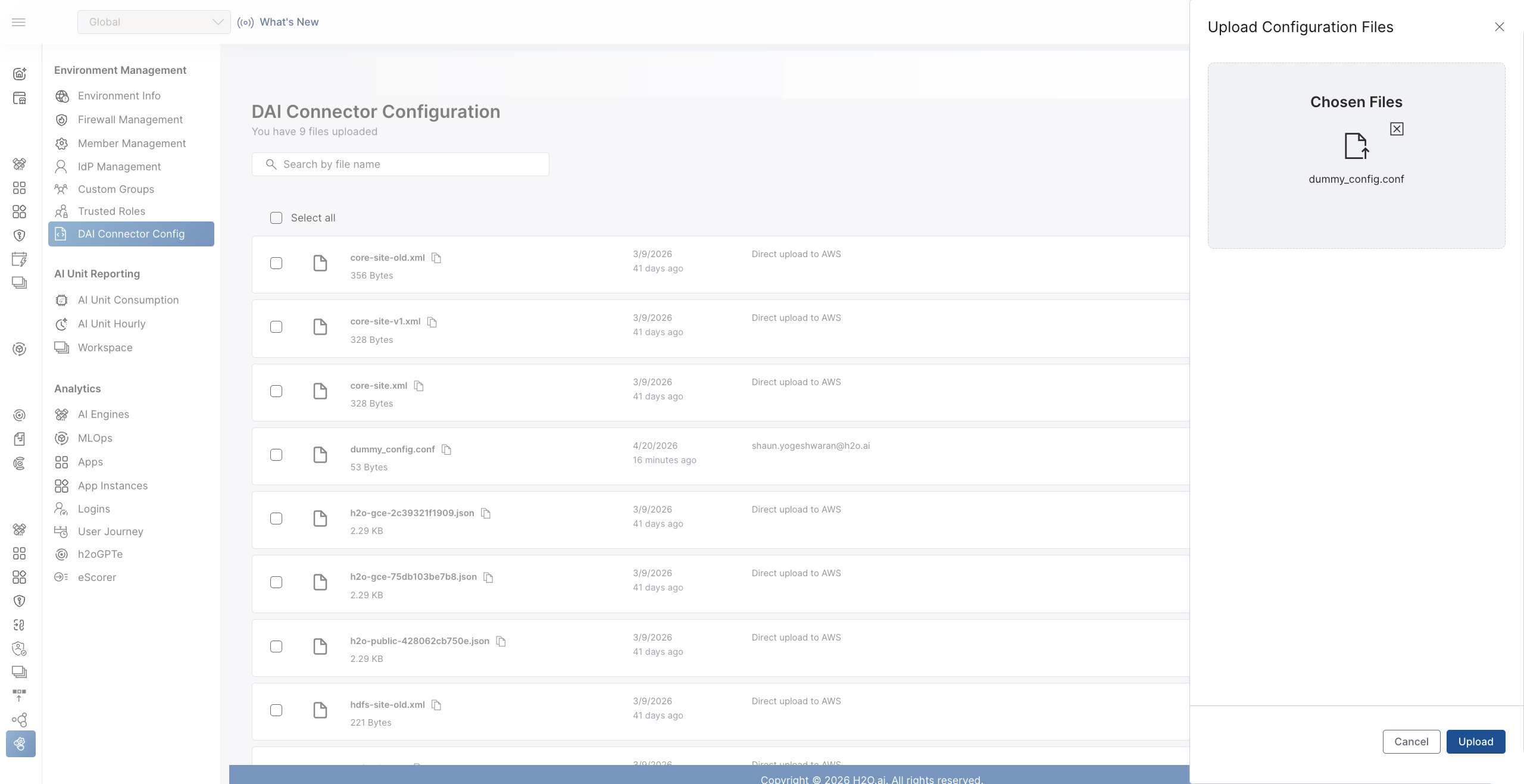
- Upload the file
Click Upload.
The file appears in the list with your email address as the status. The change is reflected in the S3 bucket and the related Kubernetes secrets within seconds.
View a configuration file
To view the contents of a configuration file:
- Open the file
In the file's row, click View.
A dialog opens showing the filename and its contents.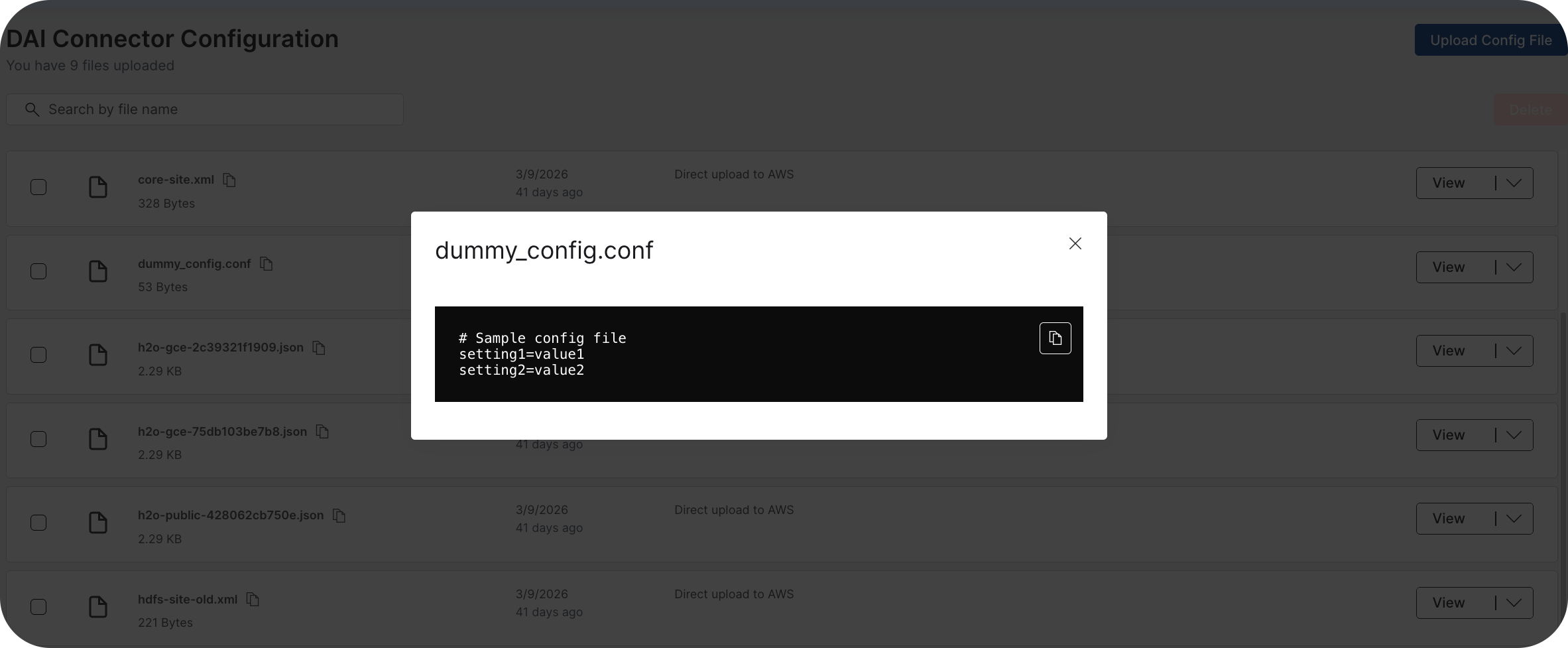
- Copy the contents
Click the copy icon to copy the file contents to your clipboard.
- Close the dialog
Click the close icon to dismiss the dialog.
Download a configuration file
To download a configuration file to your local machine:
- Open the file actions
In the file's row, click the dropdown arrow next to View.
- Download the file
Select Download.
Delete configuration files
You can delete one or more configuration files in a single action.
To delete a single file:
- Open the file actions
In the file's row, click the dropdown arrow next to View.
- Select Delete
Select Delete.
- Confirm the deletion
In the confirmation dialog, confirm the deletion.
To delete multiple files:
- Select the files
Select the checkbox for each file you want to delete, or select the Select all checkbox to select every file.
- Delete the selection
Click Delete.
- Confirm the deletion
In the confirmation dialog, confirm the deletion.
Changes to the file list are applied in real time. As soon as you upload or delete a file, the underlying S3 bucket and Kubernetes secrets are updated automatically.
- Submit and view feedback for this page
- Send feedback about H2O Admin Center to cloud-feedback@h2o.ai