H2O Driverless AI Databricks Connector
Authentication
The Driverless AI Databricks Connector supports two authentication methods:
Personal Access Token (PAT)
The Driverless AI Databricks Connector utilizes the Databricks REST API, which uses Bearer token-based authentication. The Databricks Personal Access Token (PAT) serves as the token here and users can generate their own PAT. If PATs are disabled in your Databricks workspace, refer to the token authentication documentation to enable them.
To obtain a PAT, follow these steps:
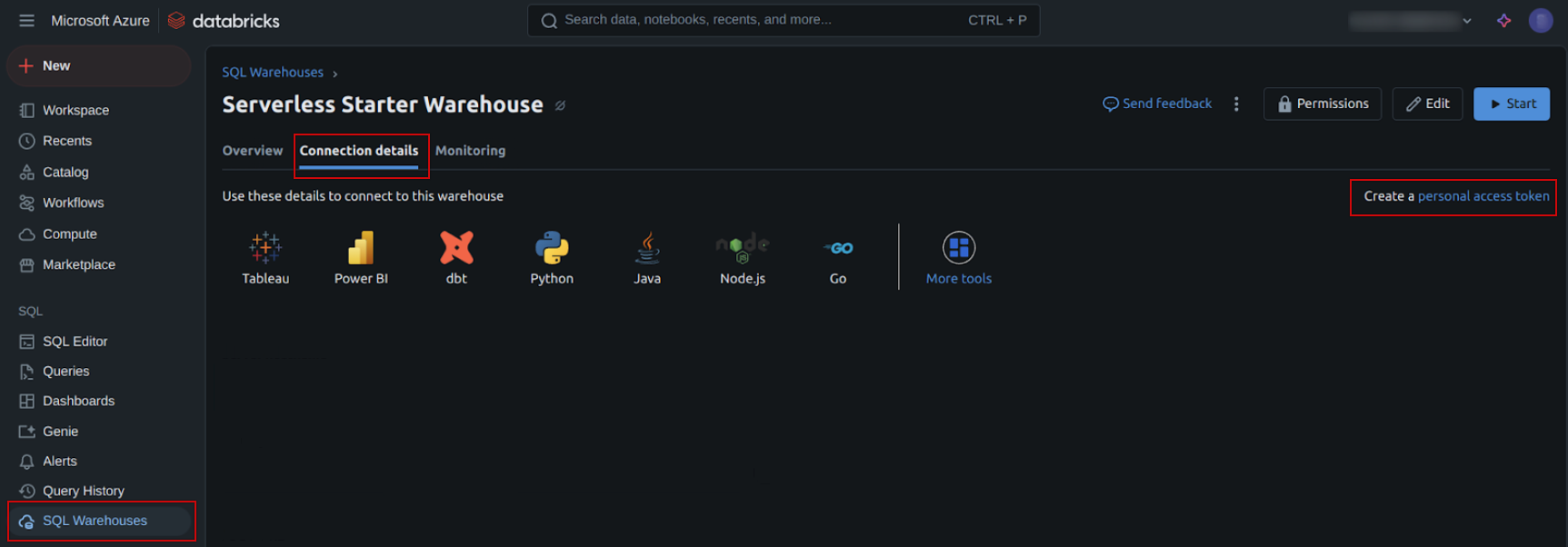
In the UI, click on the SQL Warehouses menu item in the left side pane and navigate to the Connection details tab.
Click on the Create a personal access token link found on the top-right of the screen. This will take you to the Access tokens page.
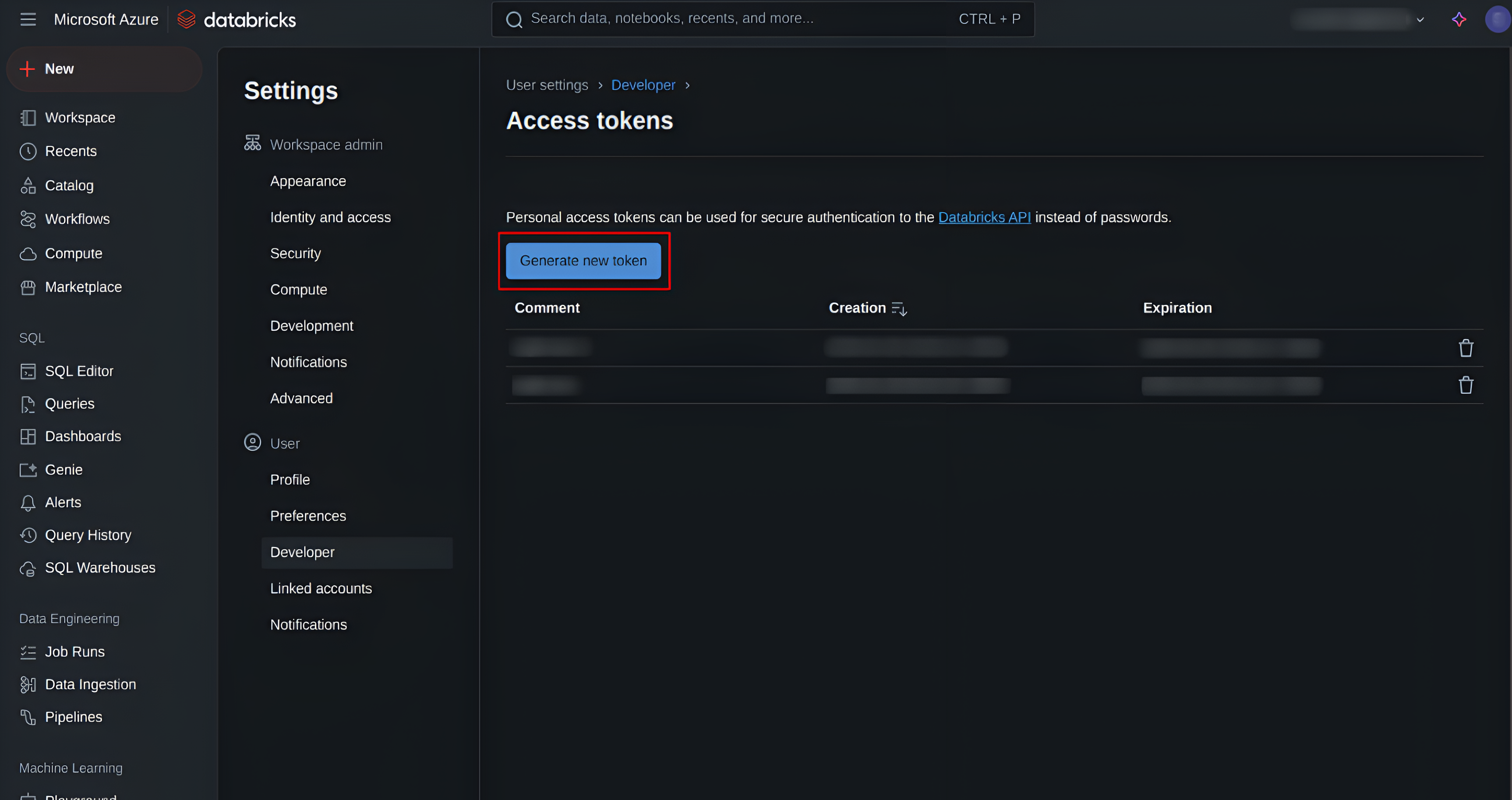
On the Acess tokens page, Click on the Generate new token button. Enter a comment and the token lifetime, then click on the Generate button.
Copy the displayed token. This is your personal access token (PAT).
Azure Workload Identity
For environments running on Azure Kubernetes Service (AKS), you can use Azure Workload Identity for authentication. This method allows the Connector to use the identity of the Kubernetes pod for authentication, eliminating the need to manage PATs.
For more information on Azure Workload Identity, refer to the Azure documentation.
For more information about scopes, see the Azure Entra Scopes.
참고
There can be only one Workload Identity (WI) for a given instance/container/pod.
To enable Azure Workload Identity authentication, the following configurations must be set in the
config.tomlfile:
# Azure Workload Identity shared configurations
azure_workload_identity_tenant_id = "your-tenant-id"  # The Microsoft Entra tenant (directory) ID for the application.
azure_workload_identity_client_id = "your-client-id"  # The client ID of the Microsoft Entra app registration.
azure_workload_identity_token_file_path = "/path/to/token/file"  # The path to a Kubernetes service account token file used for authentication.

# Databricks-specific configuration
databricks_azure_workload_identity_scopes = "your-scopes"  # The desired access token scopes when using Azure Workload Identity authentication. At least one scope must be specified.
Configuring H2O Driverless AI
Enable the Connector in the config.toml file:
enabled_file_systems = "['upload', 'file', 'hdfs', 's3', 'recipe_file', 'recipe_url', 'databricks']"
Using the Connector
Prerequisites
The following information from your Databricks setup is required:
Databricks workspace instance name
SQL warehouse ID
Personal Access Token (PAT) if Azure Workload Identity is not configured for authentication.
You can obtain these values from the Databricks UI.
Steps to obtain information from Databricks
참고
If you are using Azure Workload Identity for authentication, you do not need to obtain the Personal Access Token (PAT) and can skip the steps to obtain it.
Log in to your Databricks instance.
Click on the SQL Warehouses menu item in the left side pane.
Click on your SQL warehouse on the SQL warehouses page.
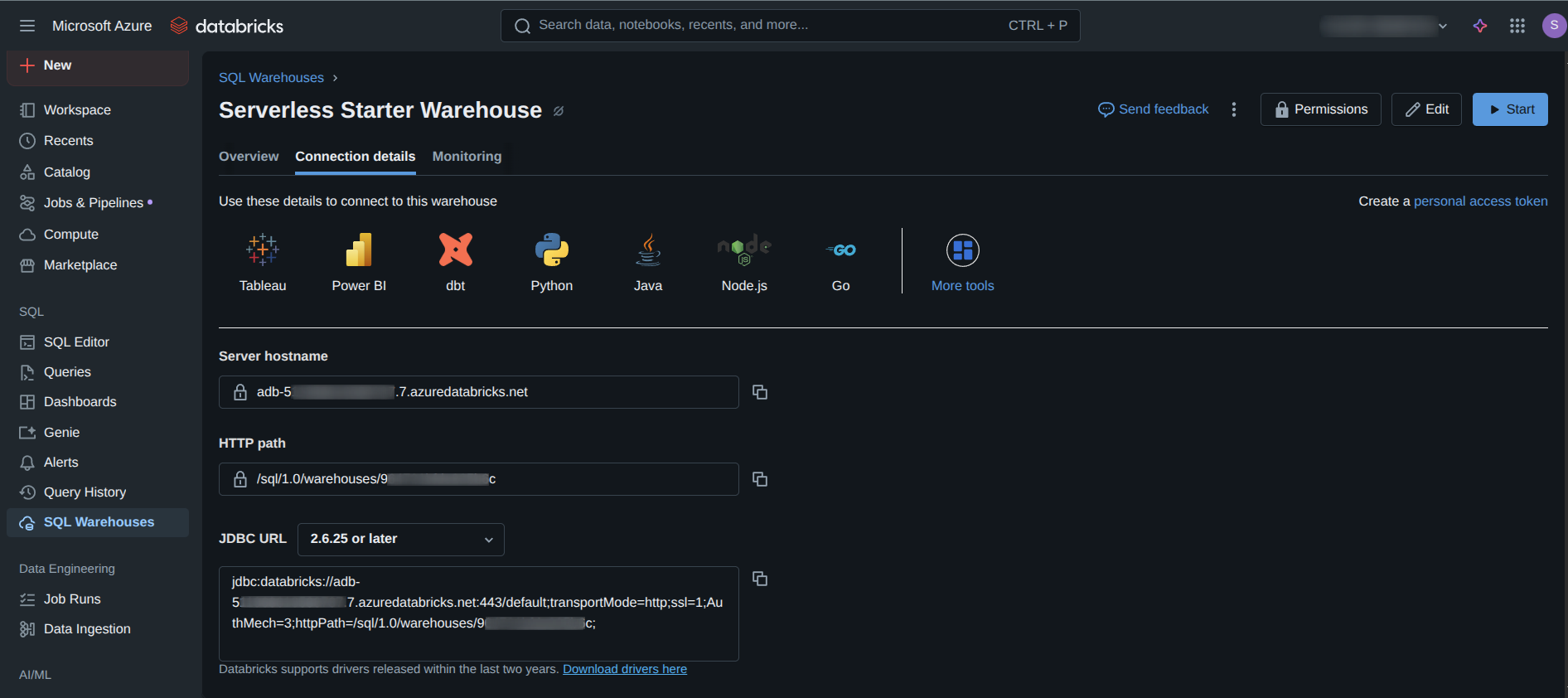
Click on the Connection details tab. You will see a screen similar to the following:
Copy the Server hostname. This is your Databricks workspace name.
Copy the HTTP path. This is your warehouse HTTP path.
Configuring the Connector in Driverless AI
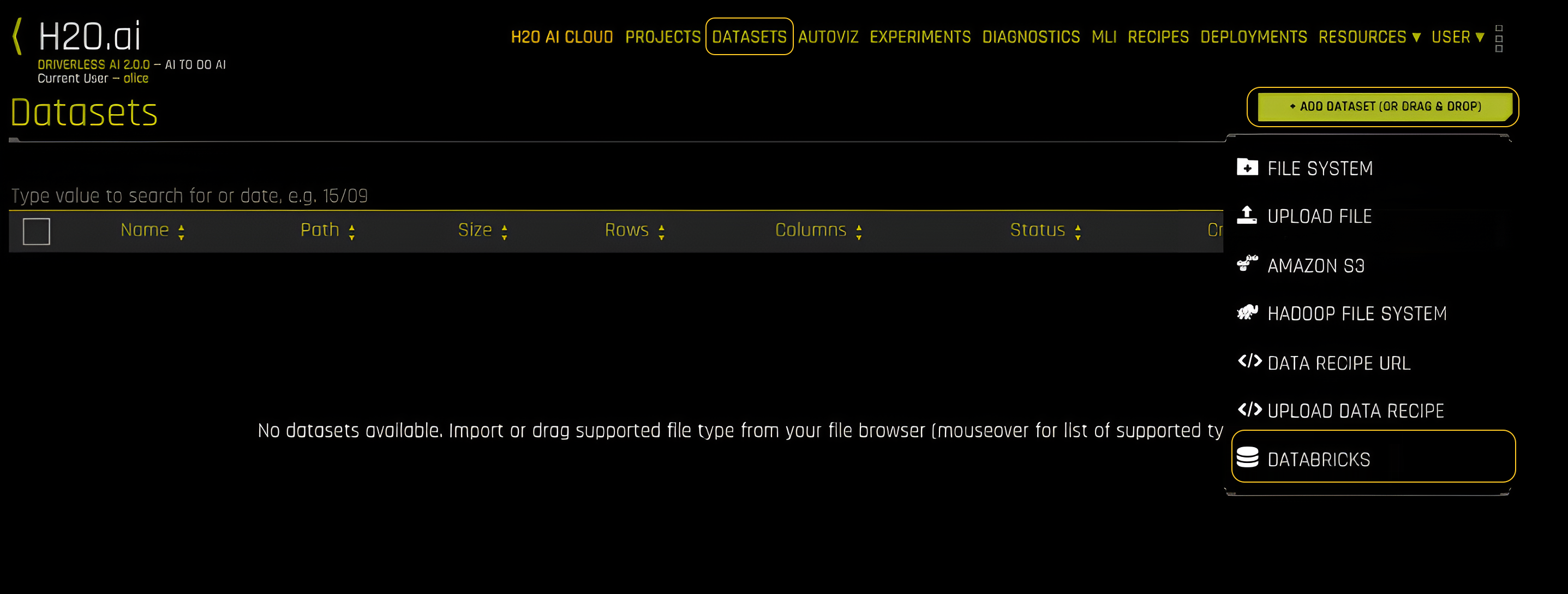
In the Driverless AI UI, click on the DATASETS tab.
Click on the + ADD DATASET (OR DRAG & DROP) button and select the DATABRICKS option.
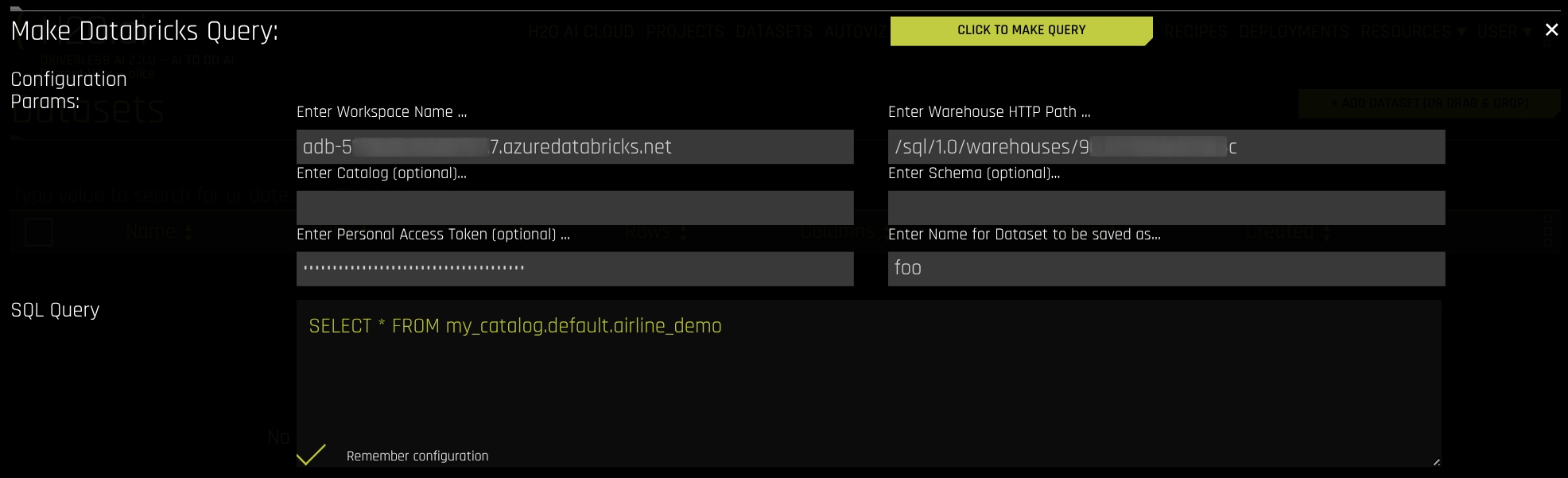
Enter the following information to run a Databricks query:
Enter Warehouse: Enter the Warehouse name.
Enter Catalog (optional): Enter the Catalog name.
Enter Schema (optional): Enter the schema.
Enter Name for Dataset to be saved as: Enter the name of the dataset.
Enter Workspace Name: Enter the workspace name.
Enter Personal Access Token (optional): Enter the personal access token.
참고
If you are using Azure Workload Identity to authenticate, you do not need to enter a Personal Access Token.
Based on the configuration in the
config.tomlfile, Driverless AI will authenticate using the Azure Workload Identity associated with the Kubernetes pod.
Enter SQL Query: Enter a valid SQL query to retrieve data from Databricks.
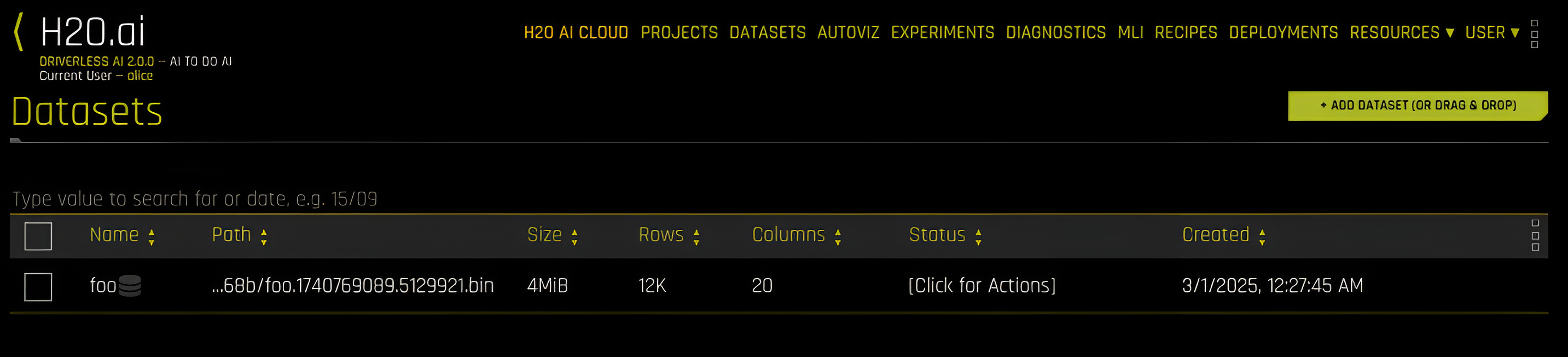
After configuring the Connector and importing the data, you can view the dataset in the DATASETS tab.