S3 Setup
Driverless AI lets you explore S3 data sources from within the Driverless AI application. This section provides instructions for configuring Driverless AI to work with S3, including support for authentication via AWS credentials, EC2 instance roles, IRSA (IAM Roles for Service Accounts), and IAM Role Chaining.
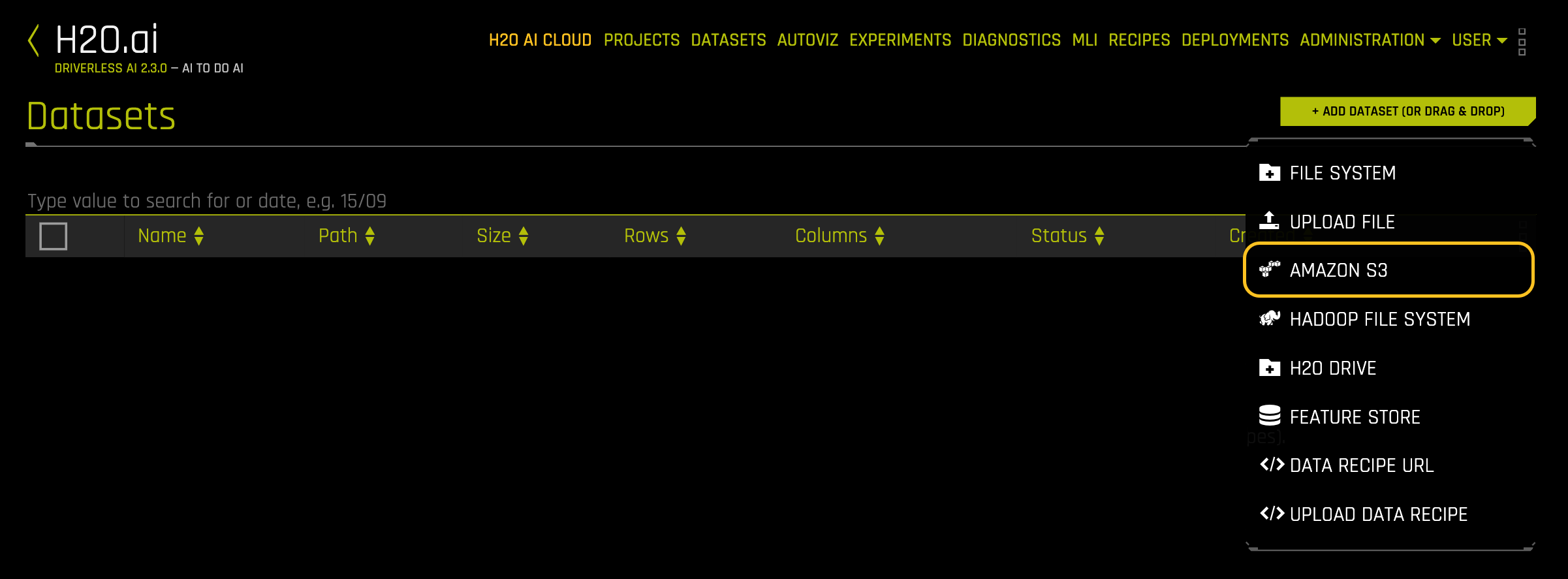
ADD DATASET > AMAZON S3: overview of the S3 connector.
참고
For Docker 19.03 and later, use the --gpus all flag with docker run to enable GPU support. The older nvidia-docker wrapper is deprecated and no longer recommended. Ensure that the NVIDIA Container Toolkit is installed. To check your Docker version, run docker version.
Description of Configuration Attributes
aws_access_key_id: The S3 access key ID.aws_secret_access_key: The S3 secret access key.aws_role_arn: The Amazon Resource Name (ARN) for the IAM role to assume.aws_default_region: The AWS region to use whenaws_s3_endpoint_urlis not set. Ignored whenaws_s3_endpoint_urlis set.aws_s3_endpoint_url: The endpoint URL for accessing S3.aws_use_ec2_role_credentials: When set totrue, the S3 connector obtains credentials from the IAM role attached to the EC2 instance.s3_init_path: The starting S3 path displayed in the S3 browser.enabled_file_systems: The file systems to enable. You must configure this option for data connectors to function properly.
Example 1: Enable S3 with No Authentication
This example enables the S3 data connector without authentication. It configures Docker DNS by passing the name and IP of the S3 name node. You can then reference data stored in S3 directly using the name node address, for example: s3://name.node/datasets/iris.csv.
 docker run --gpus all \
            --shm-size=2g --cap-add=SYS_NICE --ulimit nofile=131071:131071 --ulimit nproc=16384:16384 \
            --add-host name.node:172.16.2.186 \
            -e DRIVERLESS_AI_ENABLED_FILE_SYSTEMS="file,s3" \
            -p 12345:12345 \
            --init -it --rm \
            -v /tmp/dtmp/:/tmp \
            -v /tmp/dlog/:/log \
            -v /tmp/dlicense/:/license \
            -v /tmp/ddata/:/data \
            -u $(id -u):$(id -g) \
            h2oai/dai-ubi8-x86_64:2.5.1-cuda12.8.1.xx
This example shows how to configure S3 options in the config.toml file and then specify that file when starting Driverless AI in Docker. This example enables S3 without authentication.
Configure the Driverless AI config.toml file. Set the following configuration options.
enabled_file_systems = "file, upload, s3"
Mount the config.toml file into the Docker container.
   docker run --gpus all \
      --pid=host \
      --init \
      --rm \
      --shm-size=2g --cap-add=SYS_NICE --ulimit nofile=131071:131071 --ulimit nproc=16384:16384 \
      --add-host name.node:172.16.2.186 \
      -e DRIVERLESS_AI_CONFIG_FILE=/path/in/docker/config.toml \
      -p 12345:12345 \
      -v /local/path/to/config.toml:/path/in/docker/config.toml \
      -v /etc/passwd:/etc/passwd:ro \
      -v /etc/group:/etc/group:ro \
      -v /tmp/dtmp/:/tmp \
      -v /tmp/dlog/:/log \
      -v /tmp/dlicense/:/license \
      -v /tmp/ddata/:/data \
      -u $(id -u):$(id -g) \
      h2oai/dai-ubi8-x86_64:2.5.1-cuda12.8.1.xx
This example enables the S3 data connector without authentication.
Export the Driverless AI config.toml file or add it to ~/.bashrc:
# DEB and RPM
export DRIVERLESS_AI_CONFIG_FILE="/etc/dai/config.toml"

# TAR SH
export DRIVERLESS_AI_CONFIG_FILE="/path/to/your/unpacked/dai/directory/config.toml"
Specify the following configuration options in the config.toml file.
# File System Support
# upload : standard upload feature
# file : local file system/server file system
# hdfs : Hadoop file system, remember to configure the HDFS config folder path and keytab below
# dtap : Blue Data Tap file system, remember to configure the DTap section below
# s3 : Amazon S3, optionally configure secret and access key below
# gcs : Google Cloud Storage, remember to configure gcs_path_to_service_account_json below
# gbq : Google Big Query, remember to configure gcs_path_to_service_account_json below
# minio : Minio Cloud Storage, remember to configure secret and access key below
# snow : Snowflake Data Warehouse, remember to configure Snowflake credentials below (account name, username, password)
# kdb : KDB+ Time Series Database, remember to configure KDB credentials below (hostname and port, optionally: username, password, classpath, and jvm_args)
# azrbs : Azure Blob Storage, remember to configure Azure credentials below (account name, account key)
# jdbc: JDBC Connector, remember to configure JDBC below. (jdbc_app_configs)
# hive: Hive Connector, remember to configure Hive below. (hive_app_configs)
# recipe_url: load custom recipe from URL
# recipe_file: load custom recipe from local file system
enabled_file_systems = "file, s3"
Save your changes, then restart Driverless AI.
Example 2: Enable S3 with Authentication
This example enables the S3 data connector with authentication by passing an S3 access key ID and an access key. It also configures Docker DNS by passing the name and IP of the S3 name node. You can then reference data stored in S3 directly using the name node address, for example: s3://name.node/datasets/iris.csv.
      docker run --gpus all \
                     --shm-size=2g --cap-add=SYS_NICE --ulimit nofile=131071:131071 --ulimit nproc=16384:16384 \
                     --add-host name.node:172.16.2.186 \
                     -e DRIVERLESS_AI_ENABLED_FILE_SYSTEMS="file,s3" \
                     -e DRIVERLESS_AI_AWS_ACCESS_KEY_ID="<access_key_id>" \
                     -e DRIVERLESS_AI_AWS_SECRET_ACCESS_KEY="<access_key>" \
                     -p 12345:12345 \
                     --init -it --rm \
                     -v /tmp/dtmp/:/tmp \
                     -v /tmp/dlog/:/log \
                     -v /tmp/dlicense/:/license \
                     -v /tmp/ddata/:/data \
                     -u $(id -u):$(id -g) \
                     h2oai/dai-ubi8-x86_64:2.5.1-cuda12.8.1.xx
This example shows how to configure S3 options with authentication in the config.toml file and then specify that file when starting Driverless AI in Docker.
Configure the Driverless AI config.toml file. Set the following configuration options.
enabled_file_systems = "file, upload, s3"
aws_access_key_id = "<access_key_id>"
aws_secret_access_key = "<access_key>"
Mount the config.toml file into the Docker container.
     docker run --gpus all \
        --pid=host \
        --init \
        --rm \
        --shm-size=2g --cap-add=SYS_NICE --ulimit nofile=131071:131071 --ulimit nproc=16384:16384 \
        --add-host name.node:172.16.2.186 \
        -e DRIVERLESS_AI_CONFIG_FILE=/path/in/docker/config.toml \
        -p 12345:12345 \
        -v /local/path/to/config.toml:/path/in/docker/config.toml \
        -v /etc/passwd:/etc/passwd:ro \
        -v /etc/group:/etc/group:ro \
        -v /tmp/dtmp/:/tmp \
        -v /tmp/dlog/:/log \
        -v /tmp/dlicense/:/license \
        -v /tmp/ddata/:/data \
        -u $(id -u):$(id -g) \
        h2oai/dai-ubi8-x86_64:2.5.1-cuda12.8.1.xx
This example enables the S3 data connector with authentication by passing an S3 access key ID and an access key.
Export the Driverless AI config.toml file or add it to ~/.bashrc:
# DEB and RPM
export DRIVERLESS_AI_CONFIG_FILE="/etc/dai/config.toml"

# TAR SH
export DRIVERLESS_AI_CONFIG_FILE="/path/to/your/unpacked/dai/directory/config.toml"
Specify the following configuration options in the config.toml file.
# File System Support
# upload : standard upload feature
# file : local file system/server file system
# hdfs : Hadoop file system, remember to configure the HDFS config folder path and keytab below
# dtap : Blue Data Tap file system, remember to configure the DTap section below
# s3 : Amazon S3, optionally configure secret and access key below
# gcs : Google Cloud Storage, remember to configure gcs_path_to_service_account_json below
# gbq : Google Big Query, remember to configure gcs_path_to_service_account_json below
# minio : Minio Cloud Storage, remember to configure secret and access key below
# snow : Snowflake Data Warehouse, remember to configure Snowflake credentials below (account name, username, password)
# kdb : KDB+ Time Series Database, remember to configure KDB credentials below (hostname and port, optionally: username, password, classpath, and jvm_args)
# azrbs : Azure Blob Storage, remember to configure Azure credentials below (account name, account key)
# jdbc: JDBC Connector, remember to configure JDBC below. (jdbc_app_configs)
# hive: Hive Connector, remember to configure Hive below. (hive_app_configs)
# recipe_url: load custom recipe from URL
# recipe_file: load custom recipe from local file system
enabled_file_systems = "file, s3"

# S3 Connector credentials
aws_access_key_id = "<access_key_id>"
aws_secret_access_key = "<access_key>"
Save your changes, then restart Driverless AI.
Example 3: Enable S3 with IRSA Authentication
IAM Roles for Service Accounts (IRSA) lets Driverless AI pods get AWS IAM role credentials from the cluster’s OIDC provider. It removes static credentials and scopes S3 access. Use it when you want a dedicated service account role that can also assume other roles for cross-account access. See IAM Roles for Service Accounts.
중요
From Driverless AI 2.3.0, IRSA works automatically in properly configured Kubernetes clusters with service accounts. The aws_use_irsa_authentication parameter is deprecated and no longer needed.
Prerequisites:
Kubernetes with an OIDC provider (for example, Amazon EKS)
A service account annotated with an IAM role ARN
An IAM role with S3 permissions
참고
IRSA is tested on Amazon EKS. OpenShift compatibility is not verified.
IRSA credentials reach the container through the pod’s service account, so set serviceAccountName on the pod and annotate that service account with the IAM role ARN. The cluster injects the role credentials, and the S3 connector picks them up.
apiVersion: v1
kind: ServiceAccount
metadata:
  name: driverless-ai
  annotations:
    eks.amazonaws.com/role-arn: arn:aws:iam::<account_id>:role/<dai_s3_role>
---
apiVersion: v1
kind: Pod
metadata:
  name: driverless-ai
spec:
  serviceAccountName: driverless-ai
  containers:
    - name: driverless-ai
      image: h2oai/dai-ubi8-x86_64:2.5.1-cuda12.8.1.xx
      env:
        - name: DRIVERLESS_AI_ENABLED_FILE_SYSTEMS
          value: "file,s3"
      ports:
        - containerPort: 12345
This example sets the S3 options in config.toml instead of an environment variable. Store the file in a ConfigMap and mount it into the pod.
Add the following option to your config.toml file:
# Enable S3 file system
enabled_file_systems = "file, upload, s3"
Create a ConfigMap from the file:
kubectl create configmap dai-config --from-file=config.toml
Mount the ConfigMap and set the service account on the pod:
apiVersion: v1
kind: Pod
metadata:
  name: driverless-ai
spec:
  serviceAccountName: driverless-ai
  containers:
    - name: driverless-ai
      image: h2oai/dai-ubi8-x86_64:2.5.1-cuda12.8.1.xx
      env:
        - name: DRIVERLESS_AI_CONFIG_FILE
          value: /etc/dai/config.toml
      ports:
        - containerPort: 12345
      volumeMounts:
        - name: dai-config
          mountPath: /etc/dai
  volumes:
    - name: dai-config
      configMap:
        name: dai-config
On EC2 with an attached IAM role or in Kubernetes with IRSA configured, authentication is automatic:
Export the Driverless AI config.toml file or add it to ~/.bashrc:
# DEB and RPM
export DRIVERLESS_AI_CONFIG_FILE="/etc/dai/config.toml"

# TAR SH
export DRIVERLESS_AI_CONFIG_FILE="/path/to/your/unpacked/dai/directory/config.toml"
Add the following option to the config.toml file:
# Enable S3 file system
enabled_file_systems = "file, s3"
Save the file and restart Driverless AI.
Using IRSA in the UI:
In Driverless AI 2.3.0 and later, IRSA is detected automatically in properly configured Kubernetes environments. To authenticate in the UI:
Click ADD DATASET, then select AMAZON S3.
Click AUTHENTICATE.

Click AUTHENTICATE to display the authentication method dropdown.
In Select Authentication Method, choose Use IRSA.

Select Authentication Method dialog.
In Configuration Params, optionally configure role chaining:
AWS Role ARN (Optional): Leave empty to use the service account role directly, or enter an ARN to assume a different role through IAM Role Chaining.
AWS External ID (Optional): Enter the external ID if the target role requires it.
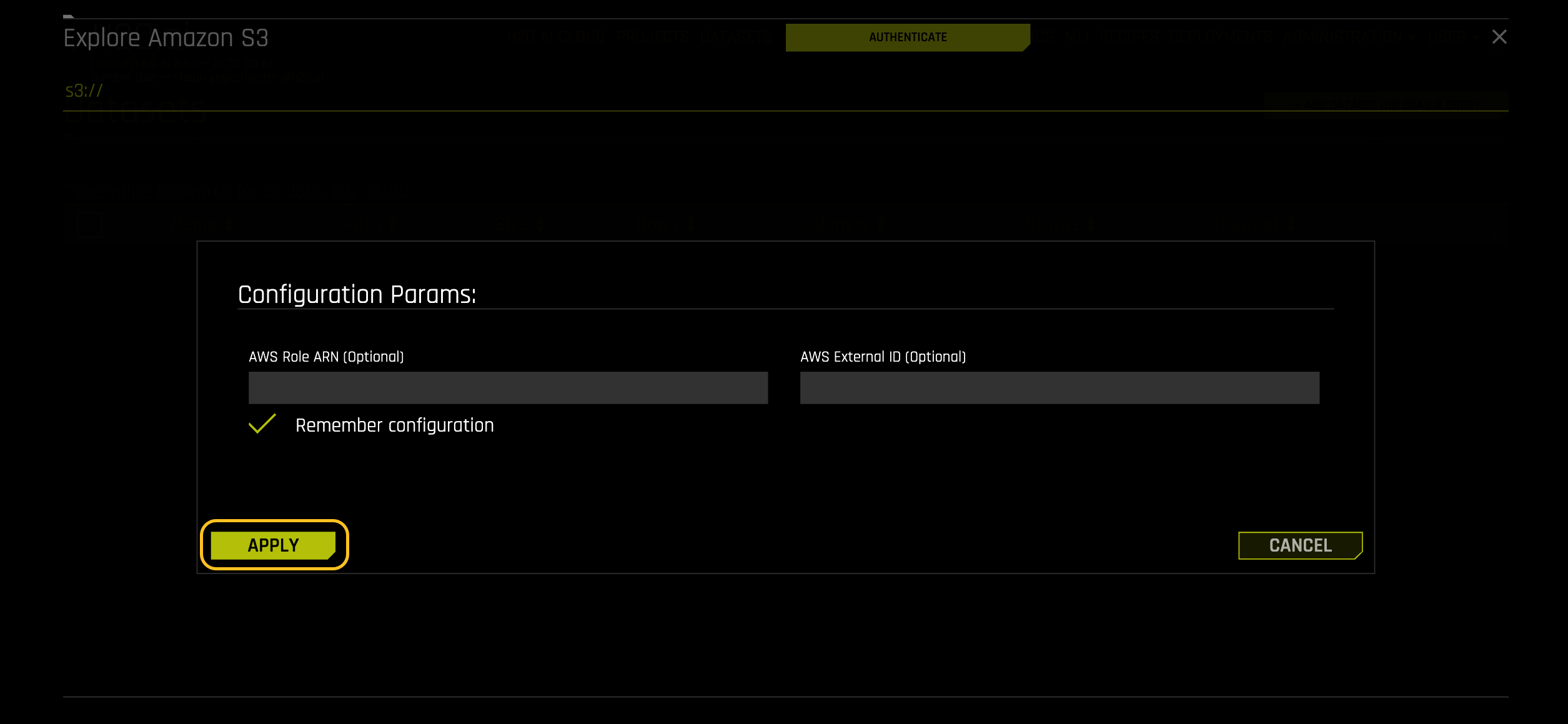
Configuration Params dialog for IRSA authentication.
Click APPLY.
When using IRSA authentication:
By default, Driverless AI uses the pod’s service account to obtain credentials.
If an Assume Role ARN is provided, Driverless AI performs role chaining: it first obtains credentials from the pod’s service account, then uses those credentials to assume the specified target role.
Use role chaining when:
You need cross-account access to S3 buckets in different AWS accounts.
참고
For role chaining, ensure the pod’s service account IAM role has permission to assume the target role, and the target role’s trust policy allows assumption from the service account role. If the target role denies the assume-role call, Driverless AI falls back to the service account credentials and S3 access continues under the pod’s own role.
Field descriptions:
AWS Role ARN (Optional): The Amazon Resource Name of the IAM role to assume through role chaining. Leave empty to use the service account role directly.
AWS External ID (Optional): A unique identifier used when assuming the target role. Provide this when the target role’s trust policy requires an external ID to mitigate the Confused Deputy problem.
Using AWS Credentials Authentication
To authenticate with static AWS credentials instead of IRSA:
Click ADD DATASET, then select AMAZON S3.
Click AUTHENTICATE, then select Use AWS Credentials from the dropdown menu.
In the Configuration Params dialog, enter your credentials:
AWS Access Key ID: Your AWS access key ID.
AWS Secret Access Key: Your AWS secret access key.
AWS Role ARN (Optional): An IAM role to assume using your credentials.
AWS Session Token (Optional): A temporary session token for temporary credentials.
Click APPLY to authenticate.