Applications with Prompt2App
Overview
This tutorial guides you through the process of using GenAI AppStudio's Prompt2App to transform textual prompts into fully functional web applications. By the end of this tutorial, you will have a better understanding of Prompt2App's key functionalities.
Prerequisites
Ensure you have access to GenAI AppStudio.
Step 1: Import a prompt
To start the application creation process, import a prompt into GenAI AppStudio. Follow these steps:
- Launch GenAI AppStudio.
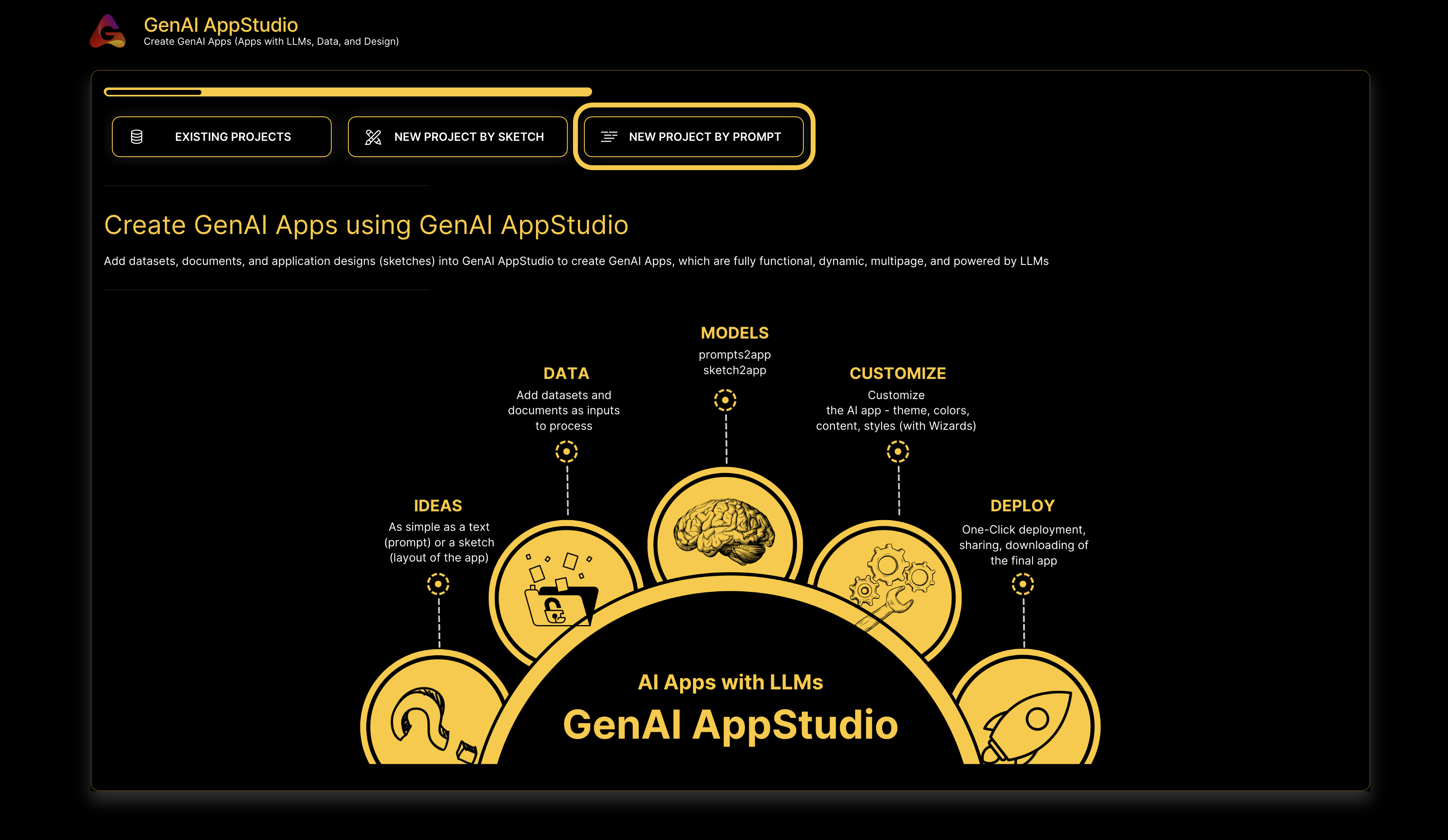
- Navigate to the Prompt2App section by clicking the NEW PROJECT BY PROMPT tab, as shown below:
- Define the layout prompt of your expected application, select a prompt at random, or explore examples before choosing a relevant option from the Choose Industry dropdown list. Proceed by clicking NEXT.
- Opt to provide your own dataset; if not, synthetic data will be generated. Click NEXT when complete.
- Opt to add your own document; if not, pre-existing documents will be generated. Click NEXT when complete.
The provided prompts should be clear and detailed to ensure the desired accuracy.
Step 2: Edit application using Wizard and Code Editor
Once the prompt is input, the Prompt2App pipeline processes it using natural language processing and LLMs.
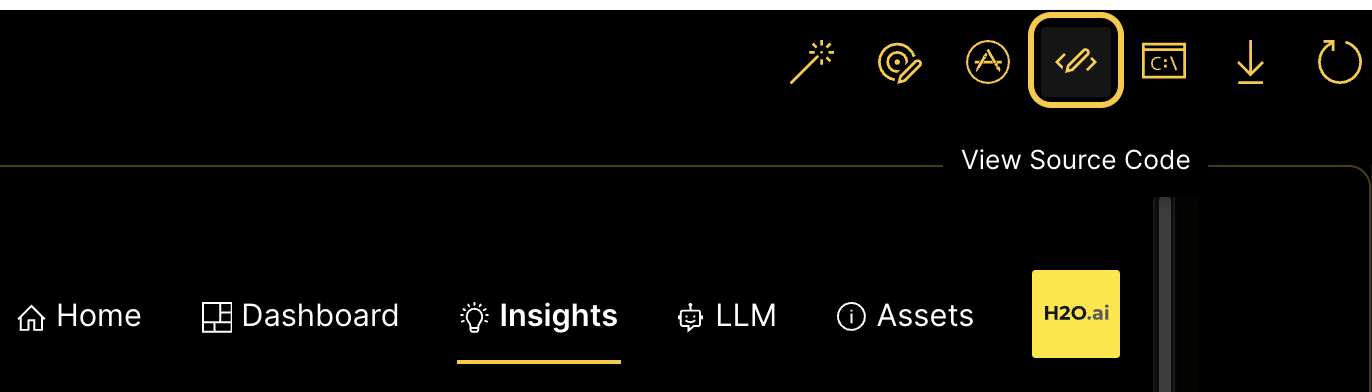
You can choose to further refine and personalize the generated application code by using the built-in editing options within the app. Click the View Source Code button on the tab bar, as shown below:
Step 3: Deployment and download
- After the job is finished and the source code has been generated, you can choose to either view the app by clicking the VIEW APP icon or the PREVIEW button.
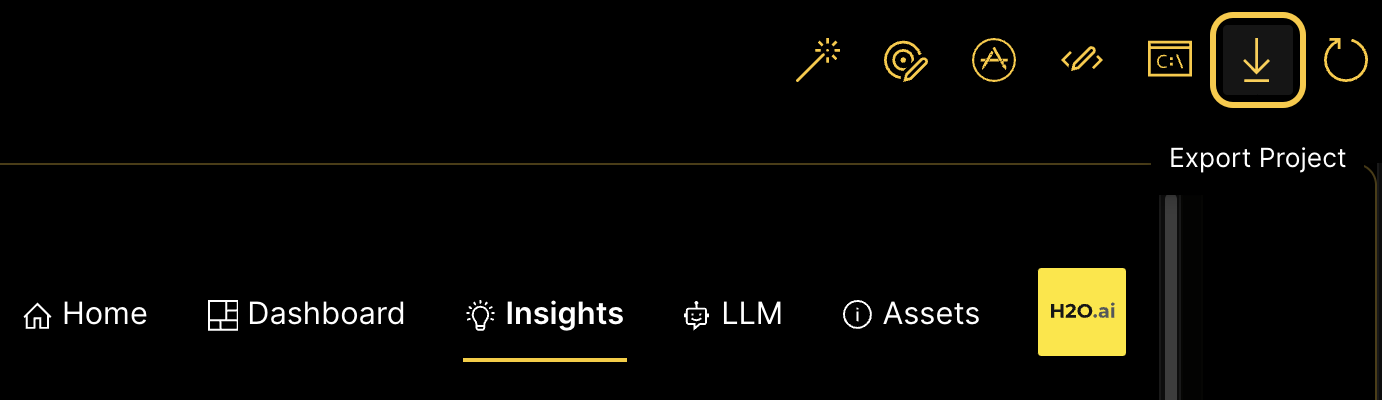
- The code and the application can be downloaded, which provides the flexbility to run them on alternative platforms. You can directly download it onto your machine by clicking the Export Project icon on the tab bar, as shown below:
Step 4: Dynamic content generation with LLMs
Explore how GenAI AppStudio integrates with LLMs like h2oGPT or any other LLM or GPT models for content generation.
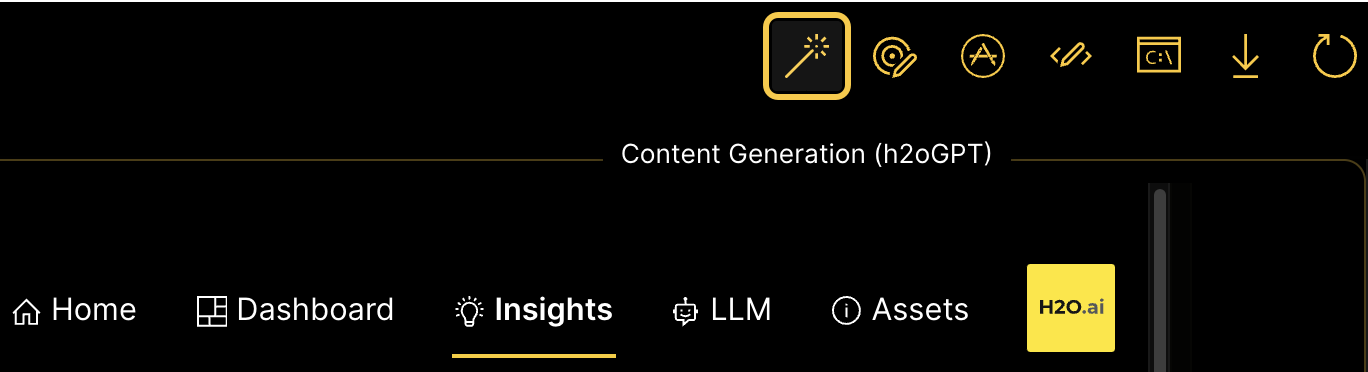
- Navigate to the Content Generation (h2oGPT) icon on the tab bar, as shown below:
- After clicking on GENERATE TEXT, you can either input one of the pre-existing prompts or choose your own by clicking Enter your own Text and entering your prompt.
- h2oGPT then generates text for you and you can choose to decide which application card to update by choosing from the dropdown list.
The integration of h2oGPT allows users to generate content for their web applications with ease. This capability inlcudes various elements, including title/header text, descriptions to be added in markdown cards, report generation, synthetic data for application use, and summarization of information.
Change web application theme
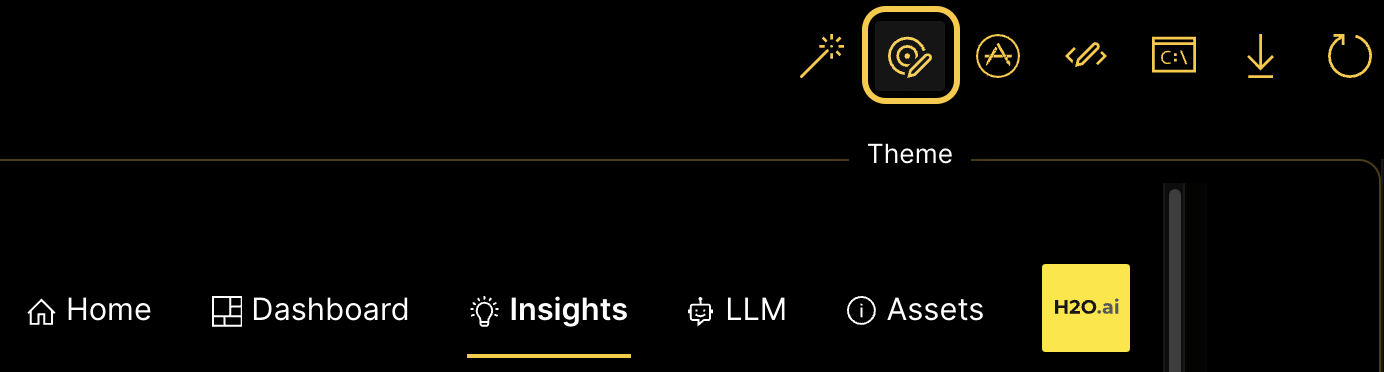
Prompt2App allows you to change the theme of your web application. Click on the Theme icon on the tab above to navigate to the App Editing Wizard as shown below:
You can now successfully create web applications with Prompt2App.
- Submit and view feedback for this page
- Send feedback about GenAI AppStudio | Docs to cloud-feedback@h2o.ai