Create a new Driverless AI Engine
This guide walks you through creating a new Driverless AI Engine via the H2O AI Cloud web interface.
What is Driverless AI?
Driverless AI is an automated machine learning platform that provides:
- Automation of the machine learning process
- Feature creation and selection
- Algorithm selection and hyperparameter tuning
- Built-in explainability and model insights
- Deployment and monitoring capabilities
- Integration with h2oGPTe for advanced AI Agents capabilities
For more information about Driverless AI capabilities, features, and use cases, see the official Driverless AI documentation.
Prerequisites
Before creating a Driverless AI Engine, ensure you have:
- Access to H2O AI Cloud web UI. See Access AI Engines for details.
- Appropriate permissions allocated to your workspace. You need at least the DAI Engine User role (
enginemanager-dai-engine-user) assigned in the target workspace. See RBAC roles and permissions for the full role breakdown and Engine profile security configuration for how administrators configure profiles and versions. - (Optional) Resource requirements: Driverless AI engines typically require significant computational resources. Consider your data size and model complexity when configuring resources.
Create a new Driverless AI Engine
To set up a Driverless AI Engine using the H2O Cloud user interface, follow these steps:
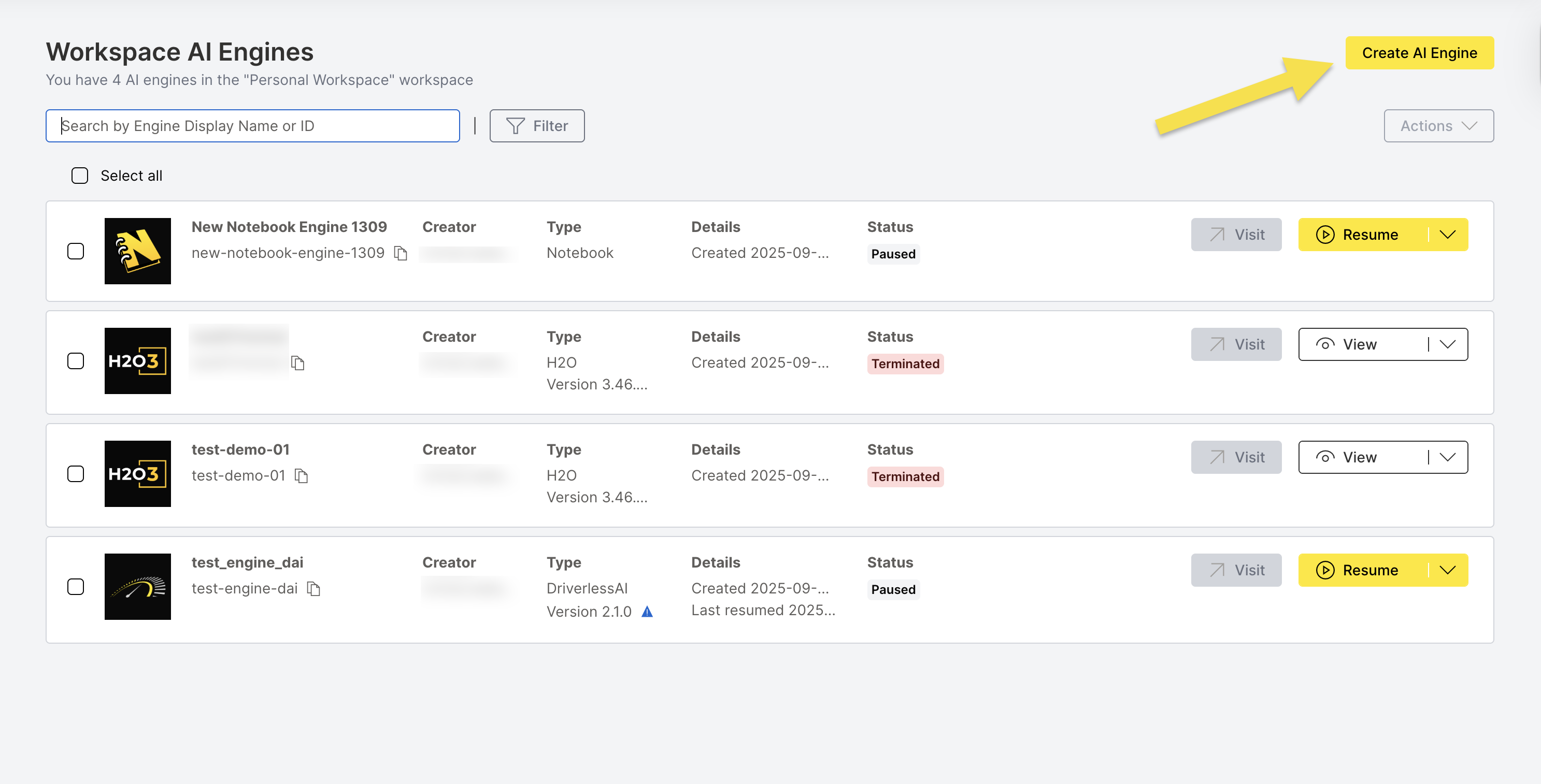
Step 1: Navigate to Create AI Engine
On the AI Engines page, click Create AI Engine.
Step 2: Select Engine Type
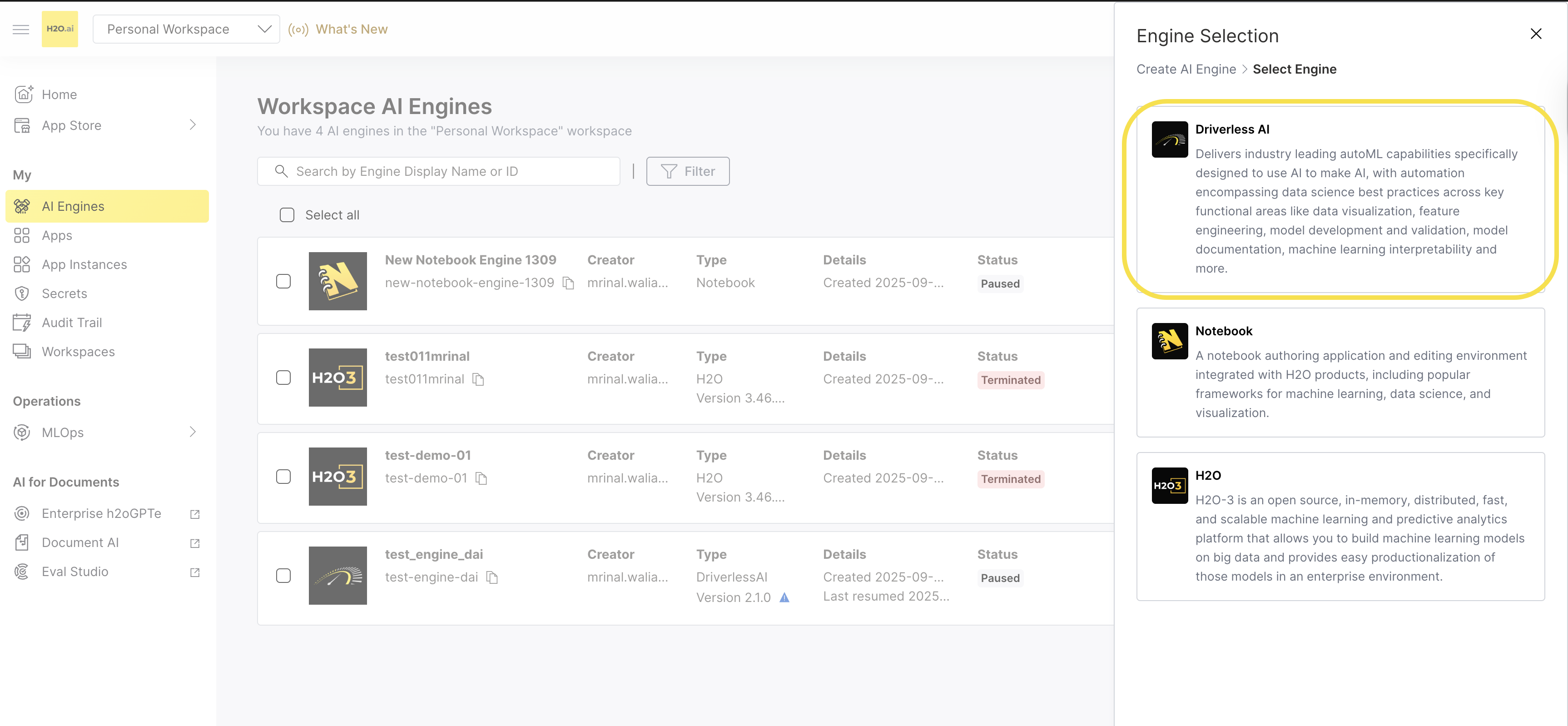
On the Engine Selection tab, select Driverless AI.
Step 3: Configure Engine Details
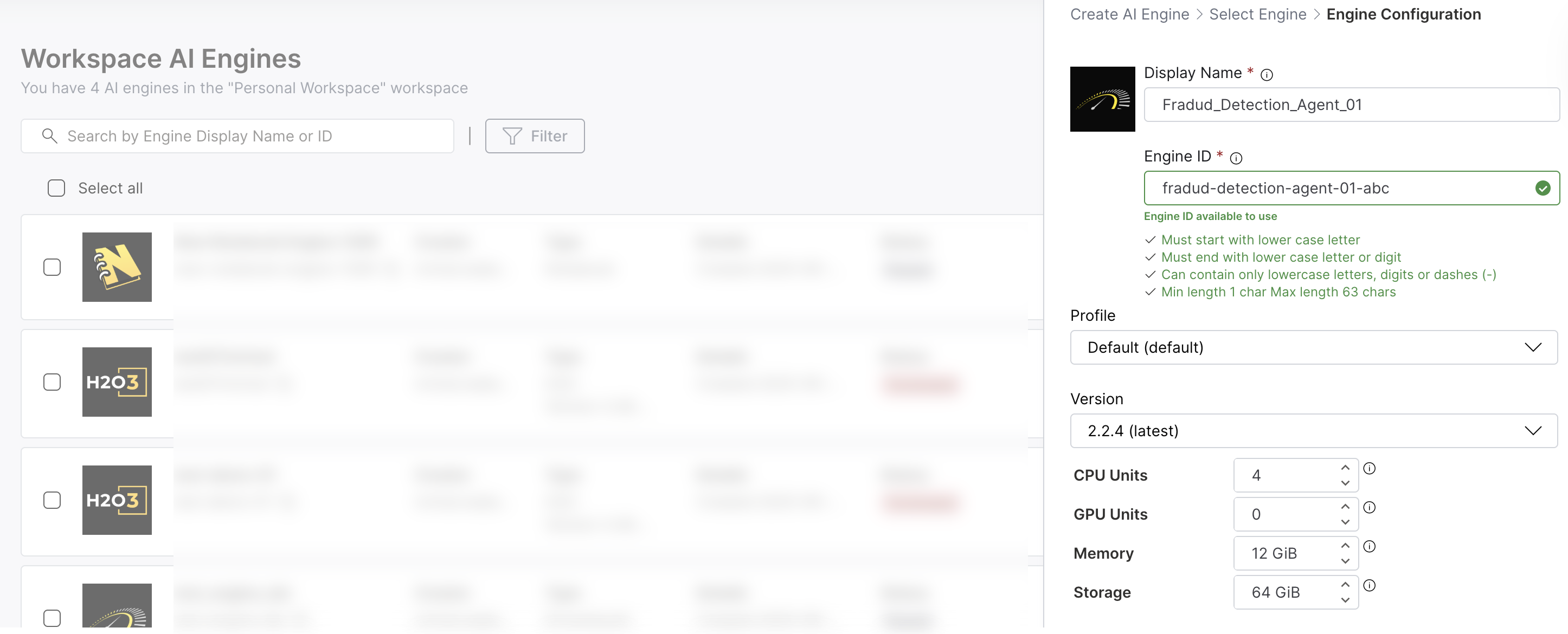
On the Create AI Engine > Select Engine > Engine Configuration page, provide the following information:
Display Name: Enter a descriptive name for your Driverless AI engine.
Engine ID: The system automatically generates a unique ID based on your display name. However, it is recommended to use a secure ID for your use case. Click the Edit (Pencil icon) icon to customize it.
Profile: Select a Profile from the dropdown. The profile determines the allowed ranges for CPU, GPU, memory, storage, and timeout settings. For more information, see Driverless AI Engine profiles.
Version: Select the Driverless AI version from the dropdown. The latest version is recommended unless you have specific requirements.
Display Name:
- Can include special characters and alphanumeric characters
- Character limit: 63 characters
- Use a clear, descriptive name for easy identification
Engine ID:
- Must start with lower case letter
- Must end with lower case letter or digit
- Can contain only lowercase letters, digits or dashes (-)
- Min length: 1 char, Max length: 63 chars
Step 4: Configure Resources
Configure the computational resources for your Driverless AI engine:
- CPU Units: Set the number of CPU units
- GPU Units: Configure GPU units if needed
- Memory: Allocate memory in GiB
- Storage: Set storage capacity in GiB
- The default values and range for CPU, GPU, Memory, and Storage are set by administrators. Contact your administrator or the H2O support team for more details.
Step 5: Configure Timeout Settings
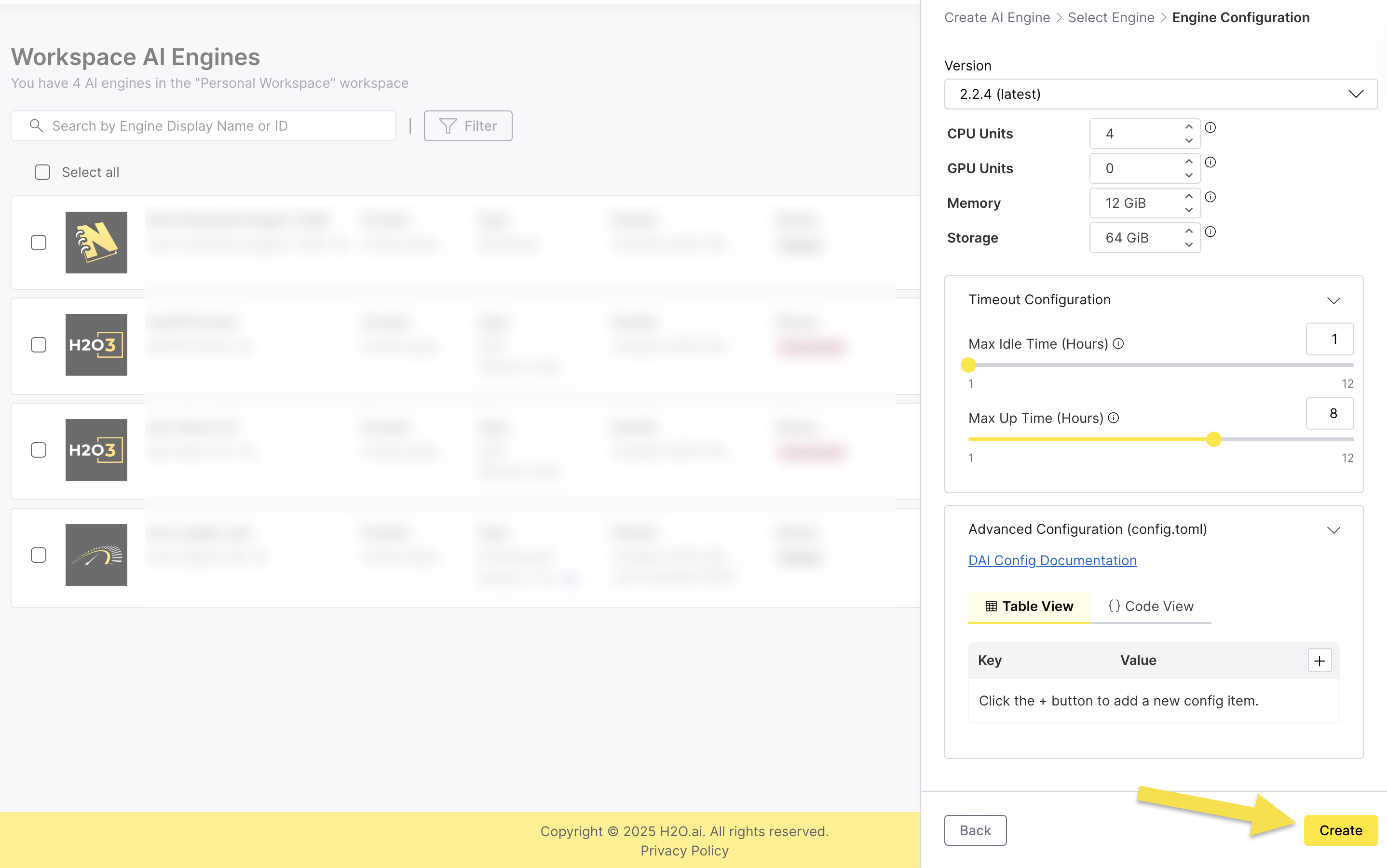
Expand the Timeout Configuration section to set:
- Max Idle Time (Hours): Set how long the engine can be idle before automatically pausing.
- Max Up Time (Hours): Set the maximum duration an engine can run before automatically pausing.
- Set appropriate idle time based on your usage patterns
- Consider cost optimization vs. convenience
- Longer idle times reduce restart overhead but increase costs
Step 6: Advanced Configuration (Optional)
Expand the Advanced Configuration (config.toml) section for advanced settings:
- Table View: Add configuration parameters using a user-friendly table interface
- Code View: Edit the configuration file directly in TOML format
For detailed information about Driverless AI configuration options, see the DAI Config Documentation.
Step 7: Create the Engine
- Review all your configuration settings.
- Click Create to create the Driverless AI engine.
- The engine will be provisioned and appear in your AI Engines list.
- Submit and view feedback for this page
- Send feedback about AI Engine Manager to cloud-feedback@h2o.ai