Admin License Management
View the current license status and update the license key directly from the Driverless AI web UI.
Note
You must have administrator privileges to access this feature.
Access license management
To open the License Management dialog:
In the top navigation bar, click Administration.

Select LICENSE MANAGEMENT.
View license information
The License Management dialog displays the following information about your current license:
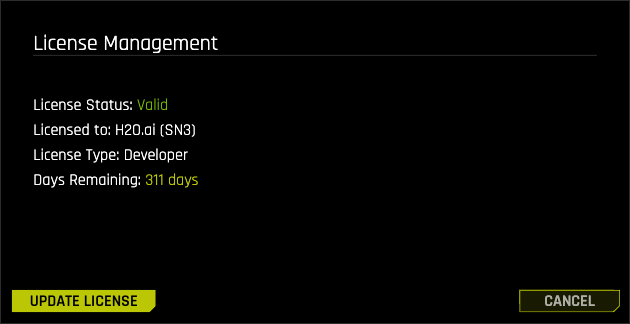
License Status: Whether the current license is valid (green) or invalid (red).
Licensed to: The registered organization name and serial number (for example,
H2O.ai (SN3)). If the license is not registered, this displaysUnregistered Copyin red.License Type: The type of license installed. Possible values:
Production
Cloud
Developer
Academic
Evaluation (includes Pilot and Trial licenses)
Days Remaining: The number of days until the license expires. This value is displayed in a warning color when the license is approaching its expiration date.
Click CANCEL to close the dialog without making changes.
Update a license
To update the license key from the License Management dialog:
Click UPDATE LICENSE. The Update License dialog opens.

In the License Key field, paste a valid license key. To obtain a new license key, contact sales@h2o.ai.
The Status field displays real-time validation results as the key is validated.
When the license key is valid, the SAVE button becomes active.
Click SAVE to apply the new license. The page reloads automatically with the updated license.
Note
If the license key is invalid, the SAVE button remains disabled. Verify that you pasted the complete license key.
For other methods of updating a license (such as replacing the
license.sigfile or using environment variables), refer to Updating Licenses.