Admin Task Manager
Monitor and manage queued tasks across all users in Driverless AI.
Note
You must have administrator privileges to access this feature.
Overview
The Admin Task Manager provides a centralized dashboard for monitoring and managing tasks scheduled in the CPU and GPU execution queues, regardless of which user started them. Use this page to:
View tasks waiting in the CPU and GPU execution queues
View detailed execution metadata for a task
Change the priority of a queued task
Abort one or more tasks to free up resources
Note
The Task Manager currently lists experiment tasks only. Tasks appear in the queue while they wait for resources and leave the queue when a worker picks them up for execution.
Access the Task Manager
To open the Task Manager:
In the top navigation bar, click Administration.

Select TASK MANAGER.
The Task Manager displays the list of tasks in the selected queue. The list refreshes automatically every 30 seconds.
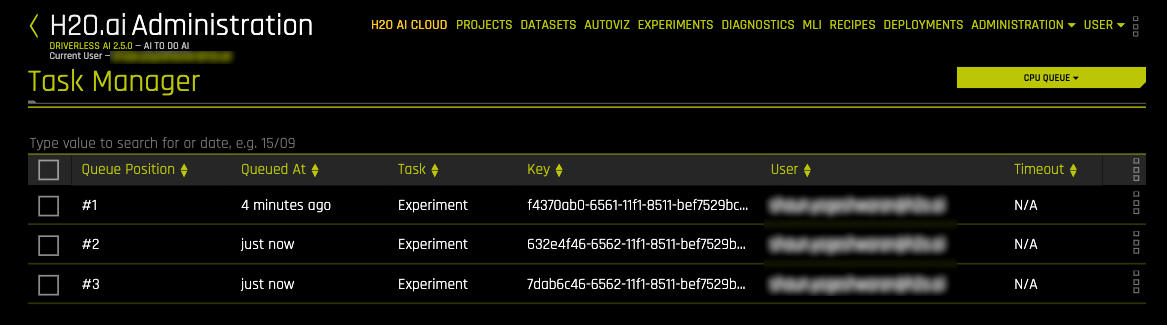
Page layout
Queue selector
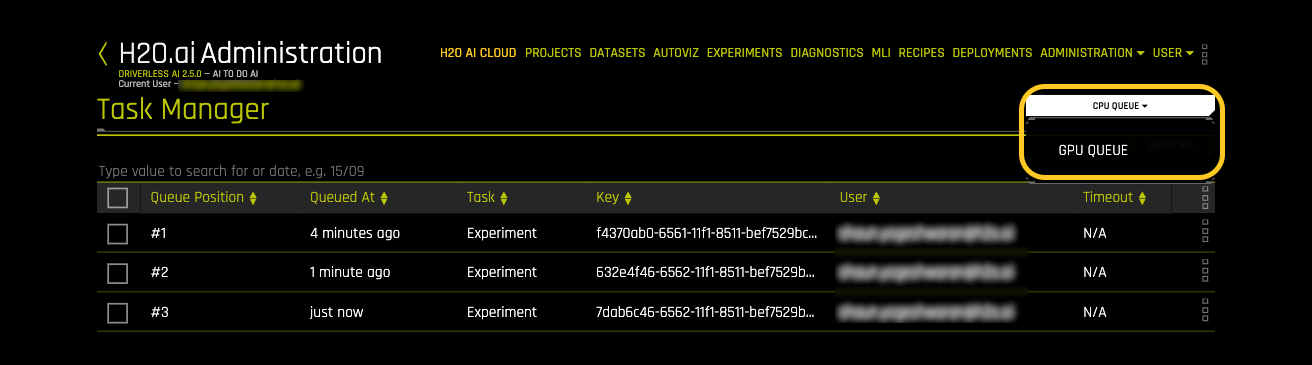
Use the queue selector in the top-right corner of the page to switch between execution queues:
CPU Queue: Tasks scheduled on CPU resources (default view)
GPU Queue: Tasks scheduled on GPU resources
Task list
Each task in the list shows the following columns:
Queue Position: The task’s position in the queue. Position #1 runs first.
Queued At: When the task entered the queue, shown as relative time. Hover over the value to see the exact timestamp.
Task: The task type
Key: The unique key of the experiment
User: The user who started the task
Timeout: The task’s timeout setting
Use the search box to filter tasks by key, user, or procedure. Click column headers to sort.
The task list shows 10 tasks per page. Use the pagination controls below the list to move between pages.
If the selected queue is empty, the page displays No running tasks available.
View task details
To view detailed information about a task:
Click the actions menu next to the task.
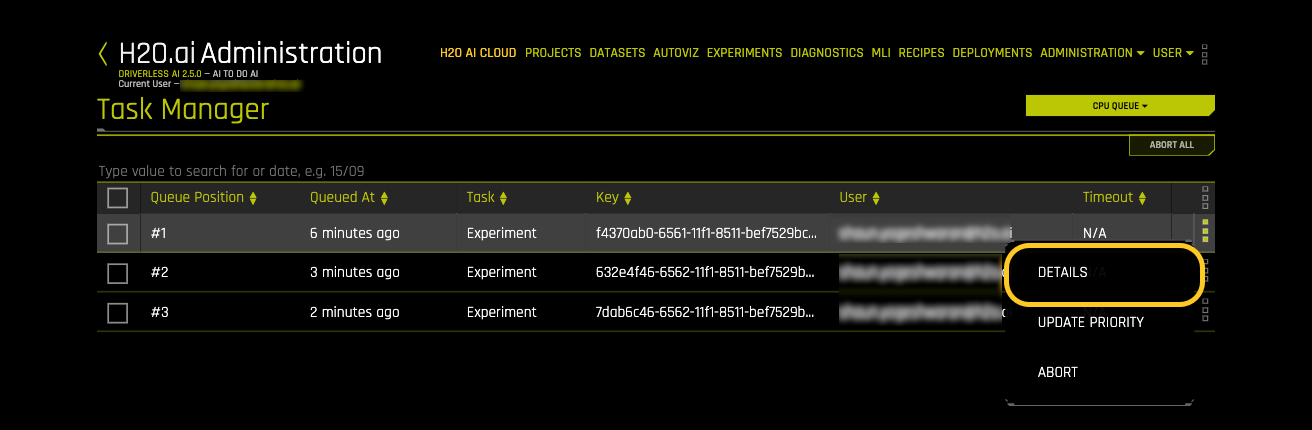
Select DETAILS.
The More Details dialog displays:
Queue Position: The task’s position in the queue
Queued At: When the task entered the queue
Entity ID: The key of the experiment associated with the task
Task ID: The unique identifier of the task
Procedure: The internal procedure the task runs
User: The user who started the task
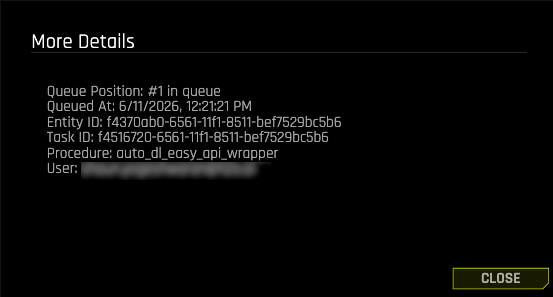
Click CLOSE when finished.
Update task priority
Adjust a task’s position in the queue to manage resource contention. Priority #1 runs first, and higher numbers run later.
Note
Updating task priority requires the experiments priority queue. The priority queue is available when the worker_mode configuration option is set to singlenode or multinode and the enable_experiments_priority_queue configuration option is enabled. If the priority queue is not available on your instance, priority updates fail with the error Cannot change the priority of experiment '<key>' because priority queue is not available.
To update a task’s priority:
Click the actions menu next to the task.
Select UPDATE PRIORITY.
In the Update Task Priority dialog, use the arrows to set the new priority:
Up arrow: Higher priority (runs sooner)
Down arrow: Lower priority (runs later)
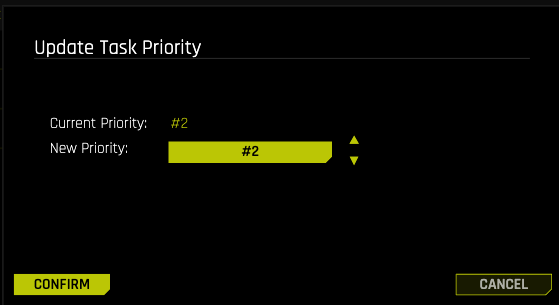
Click CONFIRM.
The task list reloads with the updated queue order.
Abort tasks
Abort runaway or low-priority tasks to free up resources.
Caution
Aborting a task terminates the experiment. You cannot undo this action.
Abort a single task
Click the actions menu next to the task.
Select ABORT.
In the confirmation dialog, click OK to abort the task, or CANCEL to keep it.
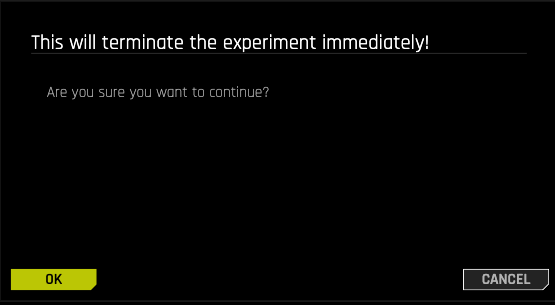
The aborted experiment shows the Aborted by user status on the Experiments page.
Abort multiple tasks
Select tasks using the checkboxes in the task list. The abort button in the top-right corner of the page shows the number of selected tasks.
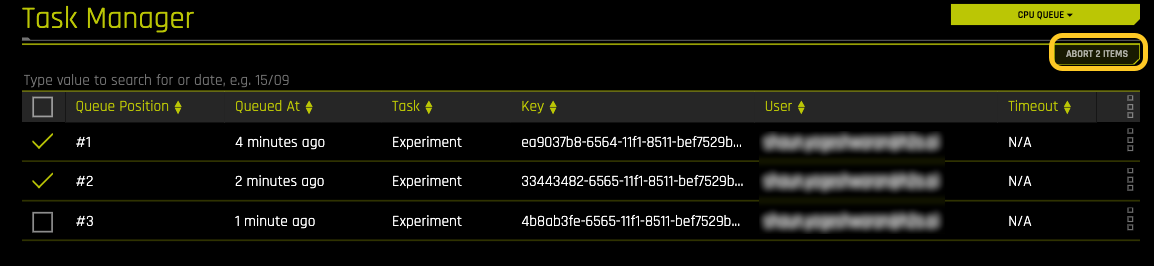
Click the abort button.
In the confirmation dialog, click OK to abort the selected tasks, or CANCEL to keep them.
Troubleshooting
Task Manager option not visible
If the TASK MANAGER option does not appear in the Administration menu:
Confirm you have administrator privileges
If your instance uses external authorization, confirm your role grants the
user/tasks/LISTaction. Loading the queue data after you open the page also requires theadmin/experiments/GETaction.
Update Priority or Abort options missing
If the UPDATE PRIORITY or ABORT options do not appear in the task actions menu:
Confirm you have administrator privileges
If your instance uses external authorization, confirm your role grants the
admin/experiments/UPDATEaction (for priority updates) or theadmin/tasks/ABORTaction (for aborting tasks)
Priority update fails
If updating a task’s priority fails with the error Cannot change the priority of experiment '<key>' because priority queue is not available:
Confirm the
enable_experiments_priority_queueconfiguration option is set totrueon your instanceConfirm the
worker_modeconfiguration option is set tosinglenodeormultinodeContact your system administrator if the issue persists
Task list appears empty
If the page displays No running tasks available:
Check both the CPU and GPU queues using the queue selector
Clear any text in the search box
Verify that tasks are currently waiting in the queue. Tasks that are already running on a worker do not appear in the queue list.