Delta Table Setup
Use the Driverless AI Delta Table connector to explore data stored in Delta Lake. This page shows how to configure the connector and run queries.
Note
The Delta Table connector makes Driverless AI the SQL query execution engine. When querying large Delta Tables, allocate sufficient memory to avoid out-of-memory (OOM) errors.
Performance
For best performance, use the Delta Table connector only when other data connectors aren’t viable. If your Delta Tables are hosted on a platform with a SQL query engine (for example, Databricks), use an appropriate connector (such as the Databricks connector or JDBC connector) to offload query execution to that engine.
By default, the JVM heap size for the connector is
"-Xmx4g". Increase this for large tables usingdelta_table_app_jvm_args. For example:delta_table_app_jvm_args = "-Xmx10g"
Configuration
Enable the connector
Enable the Delta Table connector by adding delta_table to the list of enabled file systems:
enabled_file_systems = "upload, file, hdfs, s3, recipe_file, recipe_url, delta_table"
Note
Enabling this option uses No Auth Authentication by default.
Azure Workload Identity (optional)
If your Delta Tables are stored in Azure and you authenticate using Microsoft Entra Workload Identity, set the following values:
azure_workload_identity_tenant_id = "12345678-1234-1234-1234-123456789012"
azure_workload_identity_client_id = "87654321-4321-4321-4321-210987654321"
azure_workload_identity_token_file_path = "/var/run/secrets/azure/tokens/azure-identity-token"
Use the connector
To add the Delta Table connector, complete the following steps:
Go to the DATASETS page.
Click + ADD DATASET (OR DRAG & DROP).
Select DELTA TABLE.
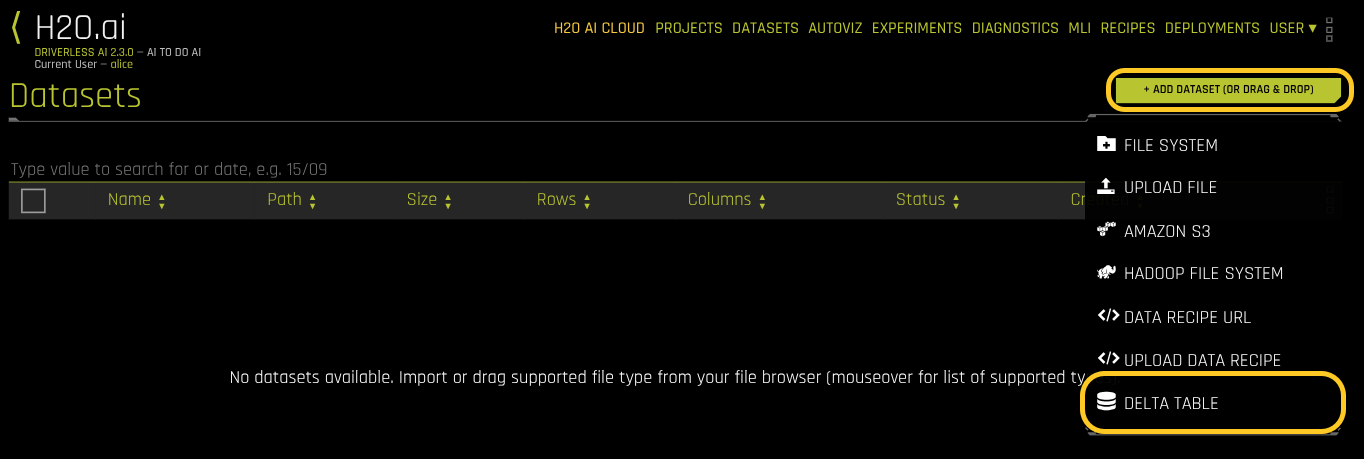
Select Delta Table from the data source options
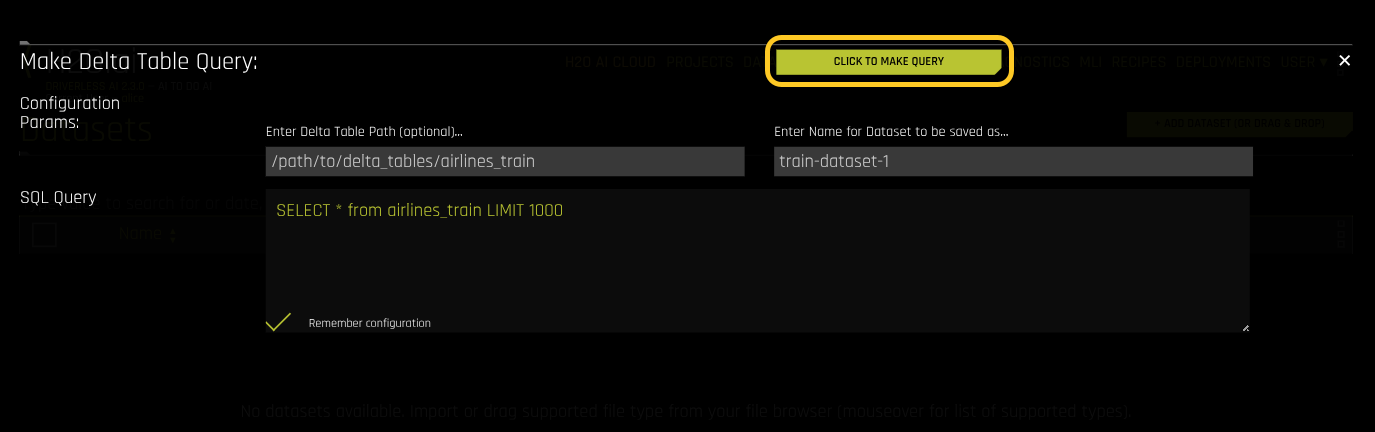
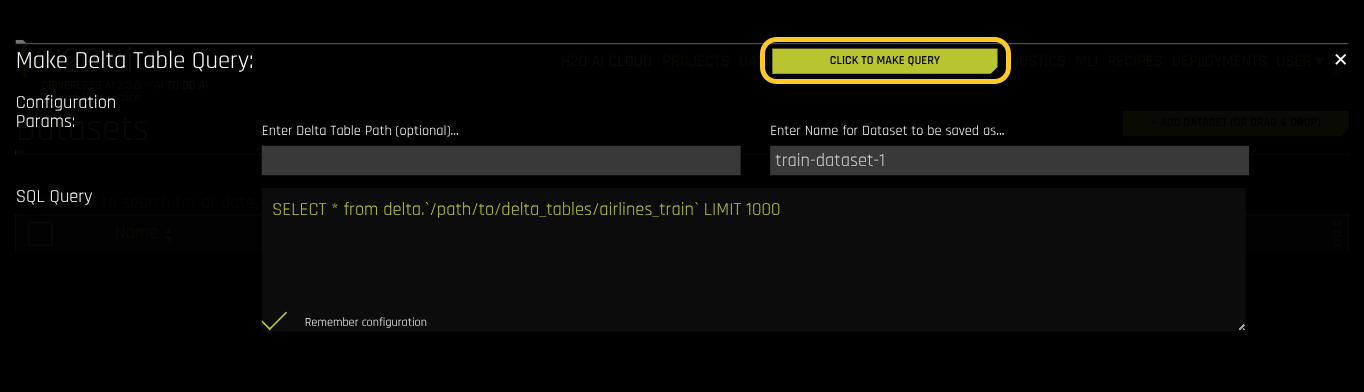
Enter the Delta Table path and the SQL query.
After you set the configuration parameters and SQL query, click CLICK TO MAKE QUERY. The query executes, and the results are displayed.
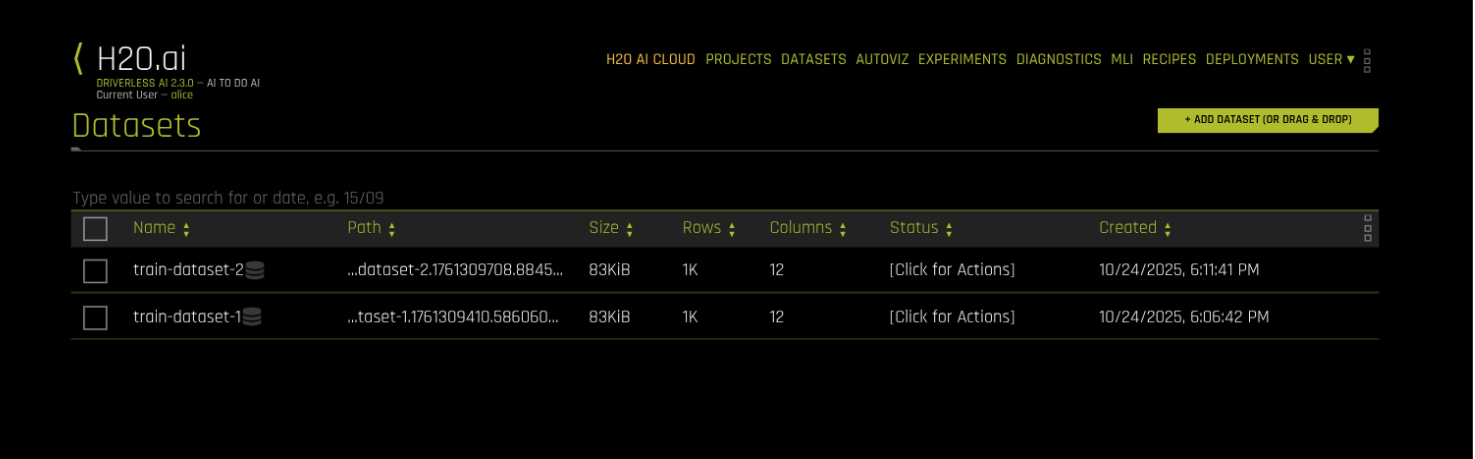
Query results displayed after successful execution