Datasets
Overview
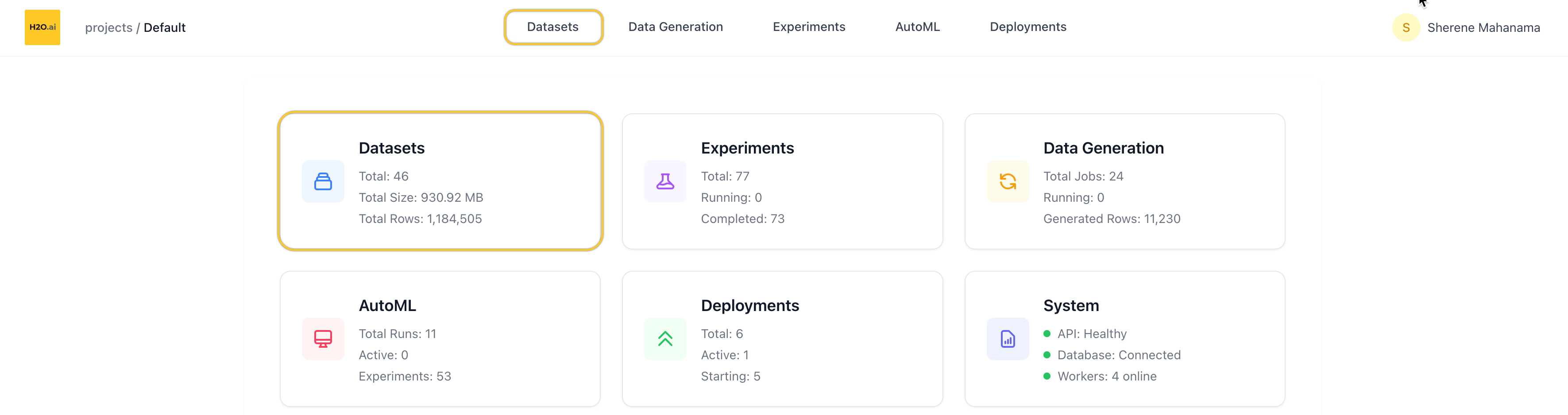
The Datasets page lets you manage all datasets within your current project. From here, you can view, search, filter, and take actions on individual datasets — including launching experiments directly from the dataset view.
You can access Datasets from:
- The top navigation tabs, or
- The Datasets card on the homepage of a project
List datasets
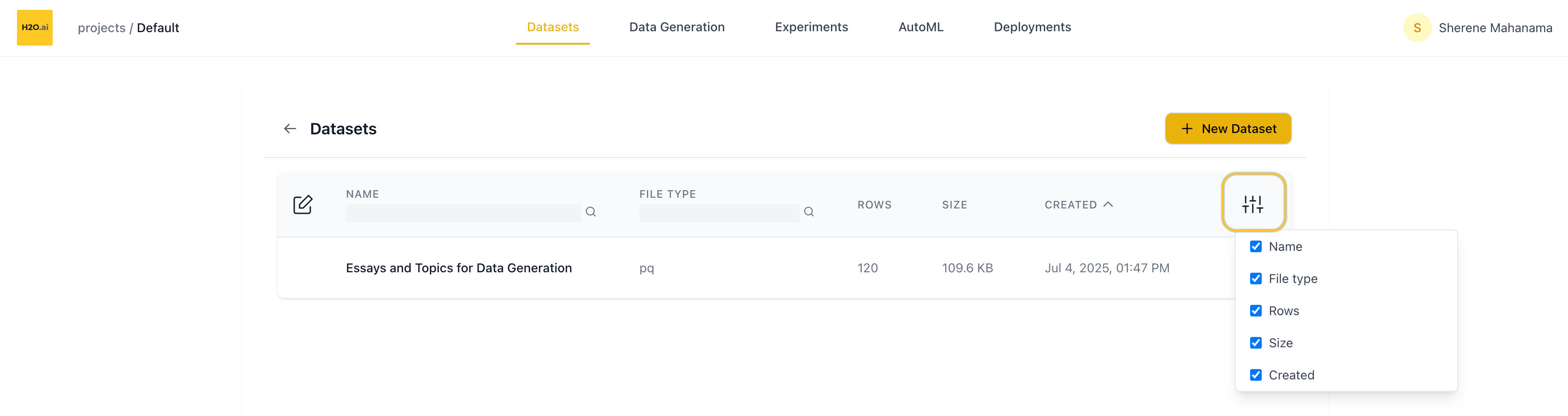
When you open the Datasets page, you’ll see a table showing all datasets in the current project.
Table columns
Each row represents one dataset and includes:
- Name
- Number of rows
- File size (e.g. KB, MB)
- File type (e.g. CSV, Parquet)
- Created date
You can:
- Search by name
- Search by file type
- Customize columns using the column visibility toggle (top-right of the table)
Edit dataset
Click the Edit button (top-left) to:
- Select multiple datasets
- Bulk delete selected datasets
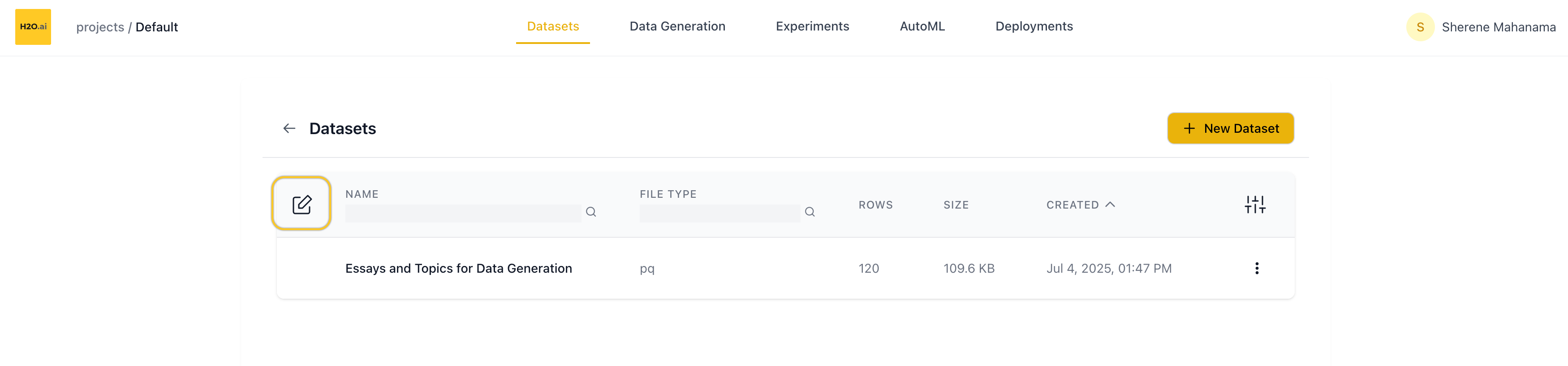
Use the Cancel button (bottom of the screen) to exit edit mode.
Row actions
Each dataset row includes a dropdown menu with:
- Rename — opens a rename dialog
- Delete — removes the dataset from the project
Add new dataset
Click the ➕ New Dataset button (top of the page) to upload your own data.
You’ll be taken to a new screen where you can:
- Name your dataset (optional — a default name will be auto-generated if left blank)
- Upload a file via drag-and-drop or file picker
Supported file formats
.csv— Comma-separated values.parquetor.pq— Parquet format.json— JSON structured data
- For text-based problem types (Language Modeling, Classification), datasets should contain at least one column of text data.
- For vision-based problem types (Image Classification, Object Detection, Multimodal), datasets should contain a column with image data (base64-encoded or binary). Object detection datasets additionally require an annotation column with bounding box annotations in COCO format.
- If your dataset contains only input text (without labels), you can generate outputs using the Data Generation feature before fine-tuning.
Once uploaded, you’ll be returned to the Datasets page and your new dataset will appear in the list.
Use a demo dataset
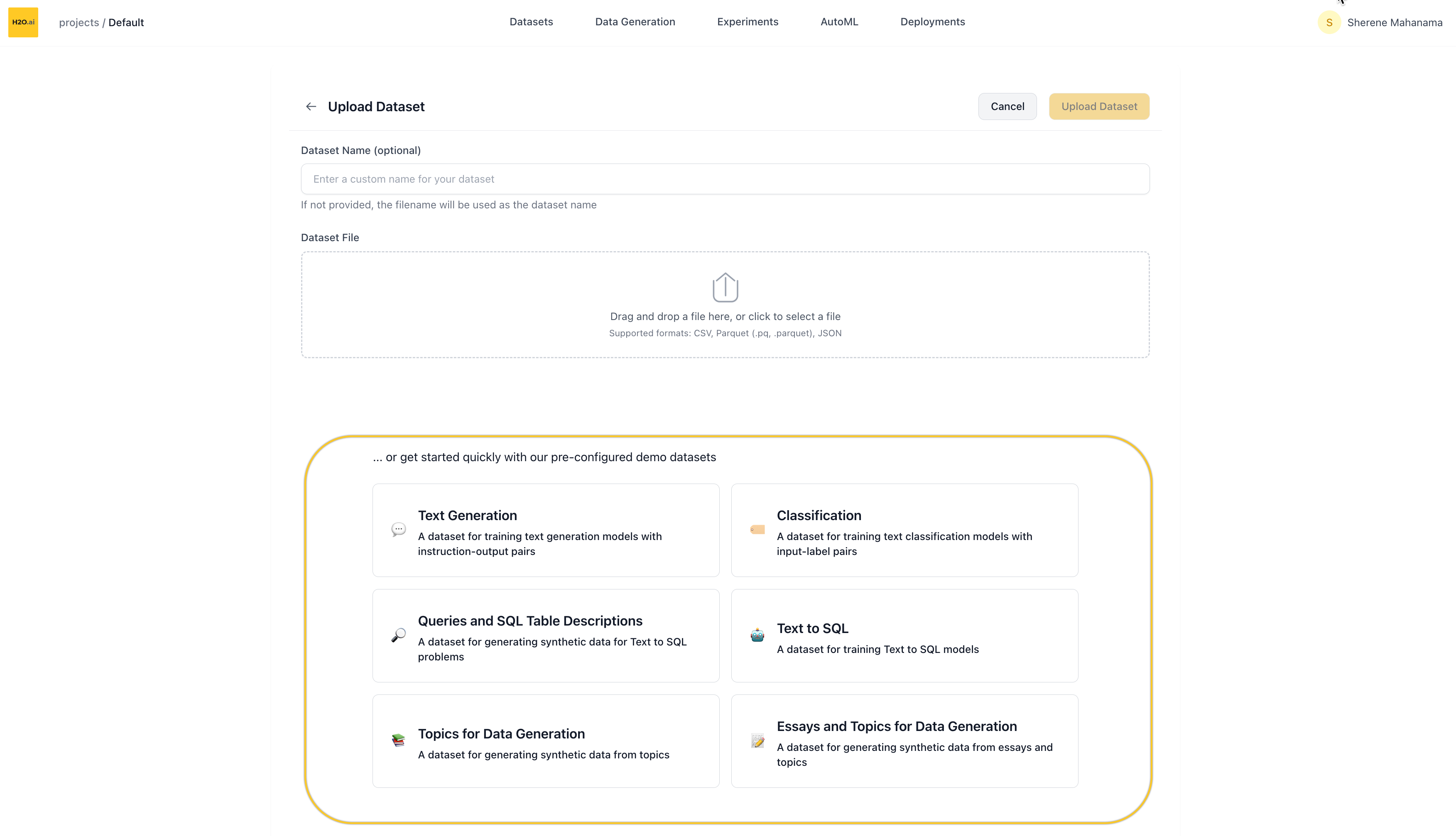
If you don’t have a dataset handy, you can start with one of our pre-configured demo datasets.
On the New Dataset screen, scroll down to find:
“…or get started quickly with our demo datasets”
Clicking any of the demos will immediately import that dataset into your project.
Available demo datasets
- Text Datasets
- Image Datasets
- Multimodal Datasets
- Data Generation
| Dataset | Problem Type | Size | Description |
|---|---|---|---|
| Chatbot Conversations | Language Modeling | 14 MB • ~12K rows | Instruction-output pairs for training conversational AI models (OASST2) |
| Text-to-SQL | Language Modeling | 3.7 MB • 3K rows | Question-SQL pairs for training models to convert natural language to SQL |
| Sentiment Classification | Classification | 20 MB • ~25K rows | IMDB movie reviews for binary sentiment classification |
| Multi-Label Text Classification | Classification | 5.1 MB • ~10K rows | Financial news with multiple category labels (Reuters-21578) |
| Dataset | Problem Type | Size | Description |
|---|---|---|---|
| Digit Classification | Image Classification | 15 MB • ~60K rows | Handwritten digit images for classification (MNIST) |
| Mini ImageNet | Image Classification | 99 MB • 800 rows | Generic image dataset with 50 categories from ImageNet |
| VOC 2012 | Object Detection | 109 MB • 1K rows | Object detection dataset with bounding box annotations for 20 object categories (PASCAL VOC) |
| Dataset | Problem Type | Size | Description |
|---|---|---|---|
| Mini TextVQA | Visual Question Answering | 250 MB • 650 rows | Visual question answering with images and text-based questions (TextVQA) |
| Dataset | Problem Type | Size | Description |
|---|---|---|---|
| Topic-Based Data Generation | Data Generation | 7 KB • 120 rows | Simple topic prompts for synthetic content generation |
| Essay-Enhanced Data Generation | Data Generation | 110 KB • 120 rows | Essay samples with topics for advanced synthetic data generation |
| Text-to-SQL Queries | Data Generation | 2.1 MB • 10K rows | Natural language queries mapped to SQL table schemas |
The specific demos available may change over time — they’re designed to help you quickly test and explore LLM fine-tuning in the platform.
After importing a demo, you’ll be redirected back to the Datasets list where you can explore and use it like any other dataset.
Dataset overview page
Clicking on a dataset opens its Overview page.
Header actions
At the top of the page:
- Rename the dataset via the edit icon next to the name
- Create Experiment to kick off a fine-tuning run using this dataset
- Delete the dataset
Metadata summary
Right below the header, you’ll see metadata about the dataset:
- File size
- Row and column count
- Token count (total tokens in the dataset)
- Created date
- Number of experiments launched using this dataset
Column details
Scroll down to view the Column Details section:
- Each column is listed with:
- Column name
- Max token length for that column (useful for prompt planning)
- You can collapse/expand this section as needed
Dataset sample
Below the column details is the Dataset Sample table:
- Shows up to 20 preview rows
- You can expand individual rows to view full text if it’s truncated
- Especially helpful for verifying formatting and text content in large-language tasks
- Submit and view feedback for this page
- Send feedback about H2O Enterprise LLM Studio to cloud-feedback@h2o.ai