Agents
What's the H2O AI super agent?
Enterprise h2oGPTe agents are general-purpose, code-first AI agents that analyze your input, decide which tools to use, write and execute code, read error messages, revise their approach, and iterate until they solve the problem. This differs fundamentally from specific-purpose agents built in frameworks like LangGraph or CrewAI, where each agent handles a single workflow.
H2O agents can do anything. Given the same request twice, an agent might solve it differently each time—adapting its strategy based on context, available tools, and intermediate results.
In h2oGPTe, the agent toggle moves the platform from chat mode (question-and-answer) to agent mode (autonomous task execution). When you enable the agent, the LLM stops simply responding and starts doing.
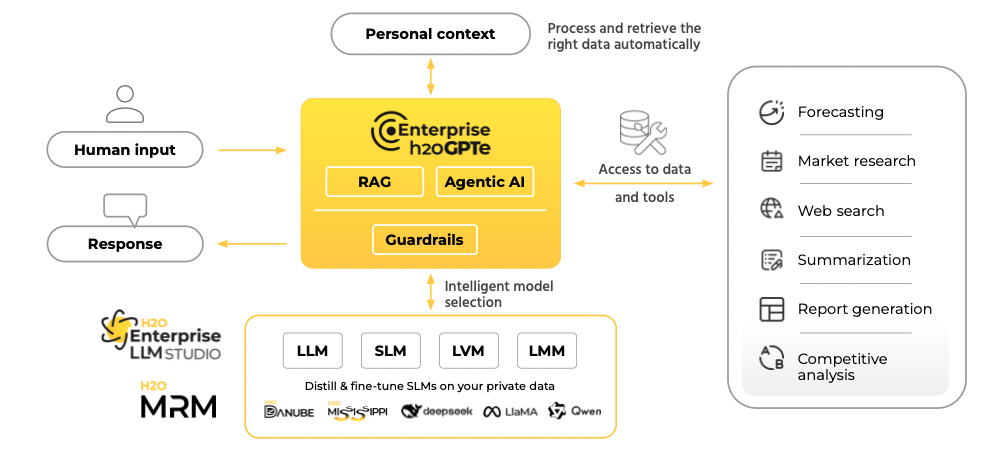
What agents can do out of the box
With no configuration, agents have access to a broad set of built-in tools:
See Agent tool configuration for the full list of built-in tools and their configuration parameters.
Agent flavors
The General Agent is the core H2O AI Super Agent. Through settings and prompting, it can handle virtually any task. To simplify common workflows, h2oGPTe includes purpose-built flavors that work out of the box:
To select an agent flavor:
- From the h2oGPTe dashboard, click + New chat.
- Enable the Agent toggle.
- In the agent dropdown, select the flavor that matches your task.
Start with General if you're unsure. It can do everything the specialized flavors do—the flavors just get there faster for their target tasks.
Accuracy levels
Each agent flavor supports accuracy levels that control how much effort the agent puts into solving your request:
Higher accuracy means the agent can take more steps and spend more time per step, which improves results for complex tasks but takes longer.
Customize agents with collections
Collections turn a general-purpose agent into a domain-specific one. When you connect an agent to a collection, it can search and reason over your documents alongside its built-in tools.
RAG modes
How the agent interacts with your documents depends on the RAG (retrieval-augmented generation) mode:
| Mode | How it works | Best for |
|---|---|---|
| Agentic RAG | Agent decides when to query documents using a tool call | Complex questions that combine document knowledge with other tools |
| RLM RAG | Retrieval-language model approach, limited to two retrieval iterations | Focused document questions where you want concise, grounded answers |
| Fast Agentic RAG | Document chunks load directly into the agent's context | Speed-sensitive queries over smaller document sets |
Custom tools
Extend what agents can do by uploading your own code as tools:
- Accept structured inputs (for example, a company name)
- Execute custom business logic (for example, look up brand colors)
- Return results the agent uses in its workflow (for example, apply colors to a chart)
Add custom tools to collections and configure them through prompt settings. See Tool calling for details.
Custom agents
For workflows that require a specific orchestration pattern, you can build and upload custom agents using popular frameworks:
- LangGraph—graph-based agent workflows
- CrewAI—multi-agent collaboration
- OpenAI Agents SDK—OpenAI-compatible agents
- Claude—Anthropic Claude-based agents
You can package custom agents as ZIP files and manage them from the Agents tab. You can create them directly in h2oGPTe using natural language by describing what you want, and the Agents Builder will generate the code.
How the pieces connect
An agent in h2oGPTe brings together these platform capabilities:
Review agent behavior
Understand how an agent completes your request:
- Monitor in real time — While the agent runs, expand the row in the chat view. Watch as it generates and executes code step by step.
- Enable Show thoughts — Turn on the Show thoughts toggle to see the agent's reasoning—how it chooses tools and plans its approach.
- View agentic analysis — After the task completes, open the Agentic analysis tab for a detailed breakdown of every step, including generated code, tool invocations, and execution results.
- Review agent planning — Review the agent's planned approach before execution begins. Approve or modify the plan to ensure it meets your requirements.
- Download outputs — Go to the Downloadable files tab to access scripts, charts, documents, and other generated files.
Tutorials
- Submit and view feedback for this page
- Send feedback about Enterprise h2oGPTe to cloud-feedback@h2o.ai