IDP Management
The IDP Management page lets you view your SAML configuration details for external identity providers (IdPs) such as Okta and Keycloak.
Click IDP Management on the left-navigation bar to open the IDP Management page.
The IDP Management page is available under Environment management only for environments that use their own external IdPs. If your environment has no external IdPs configured, the IDP Management option will appear in the navigation but cannot be accessed.
Custom group creation and management functionality has been moved to the Custom Groups page. The Custom Groups page is now available to all customers under Environment management, regardless of whether an external IdP is configured.
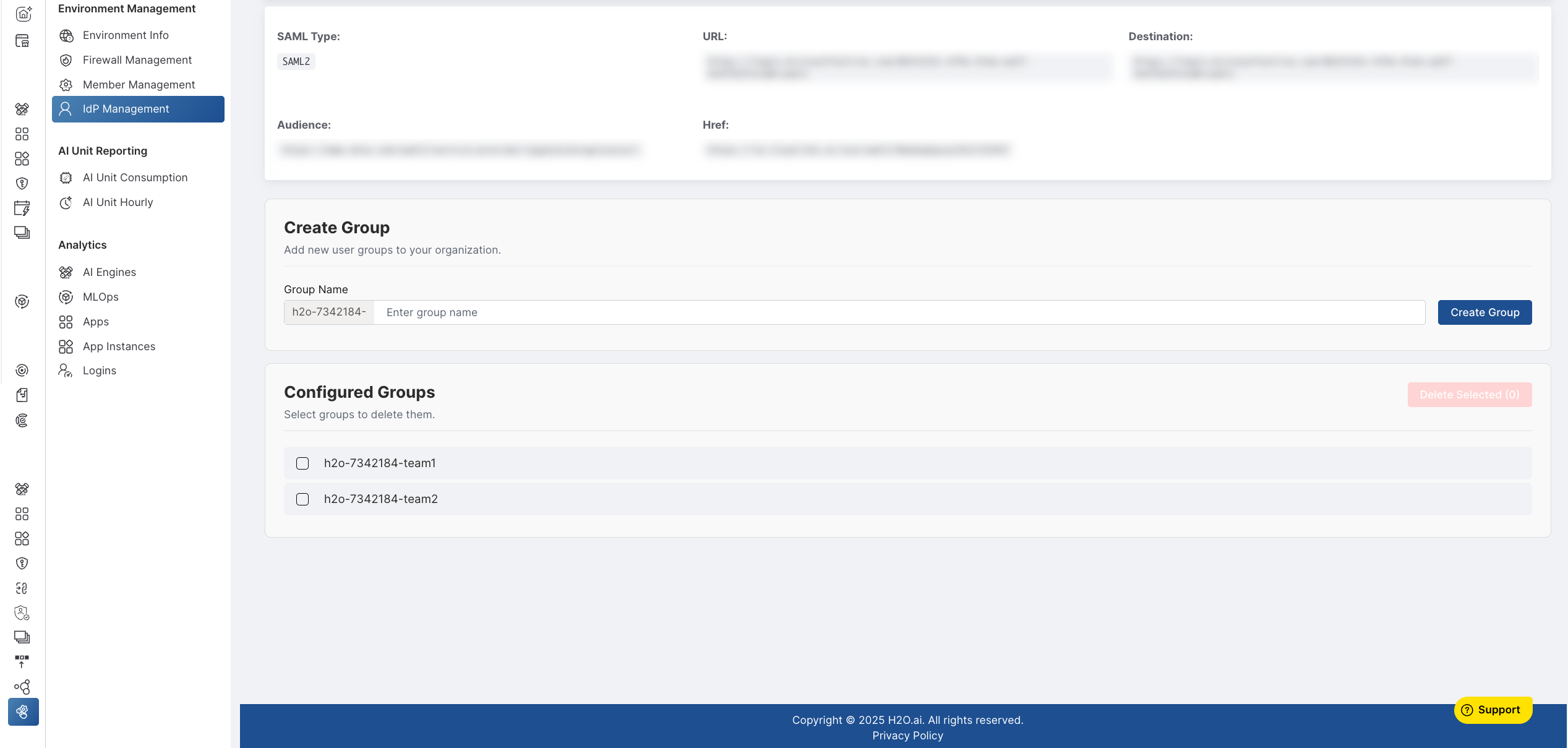
The IDP Management page displays SAML type configuration information.
SAML configuration information
The SAML configuration section shows read-only metadata about your current SAML IdP configuration. Use this section to verify that Admin Center settings match your IdP setup.
This section displays:
- SAML Type (for example, SAML 2.0)
- URL fields (such as SSO URL or metadata URL)
- Destination details
- Audience
- HREFs for certificates and other SAML attributes

The values are read-only and cannot be modified from Admin Center.
Manage custom groups
To create and manage custom user groups, use the Custom Groups page. The Custom Groups page is now available to all customers under Environment management and provides:
- Creation of up to 30 custom groups
- Group management with automatic
h2o-<environment-id>-prefixing - Synchronization across identity providers and authentication systems
- Validation and retry support for reliable group operations
For more information, see Custom Groups.
- Submit and view feedback for this page
- Send feedback about H2O Admin Center to cloud-feedback@h2o.ai