Use memory blocks in chat
Attach a memory block to a chat to give the LLM or agent persistent context across sessions. Depending on the access mode, the LLM or agent can also update the memory block during the conversation.
Attach a memory block to a chat
- Open the Customize chat panel.
- Select the Configuration tab.
- From the Memory Block dropdown, select a memory block.
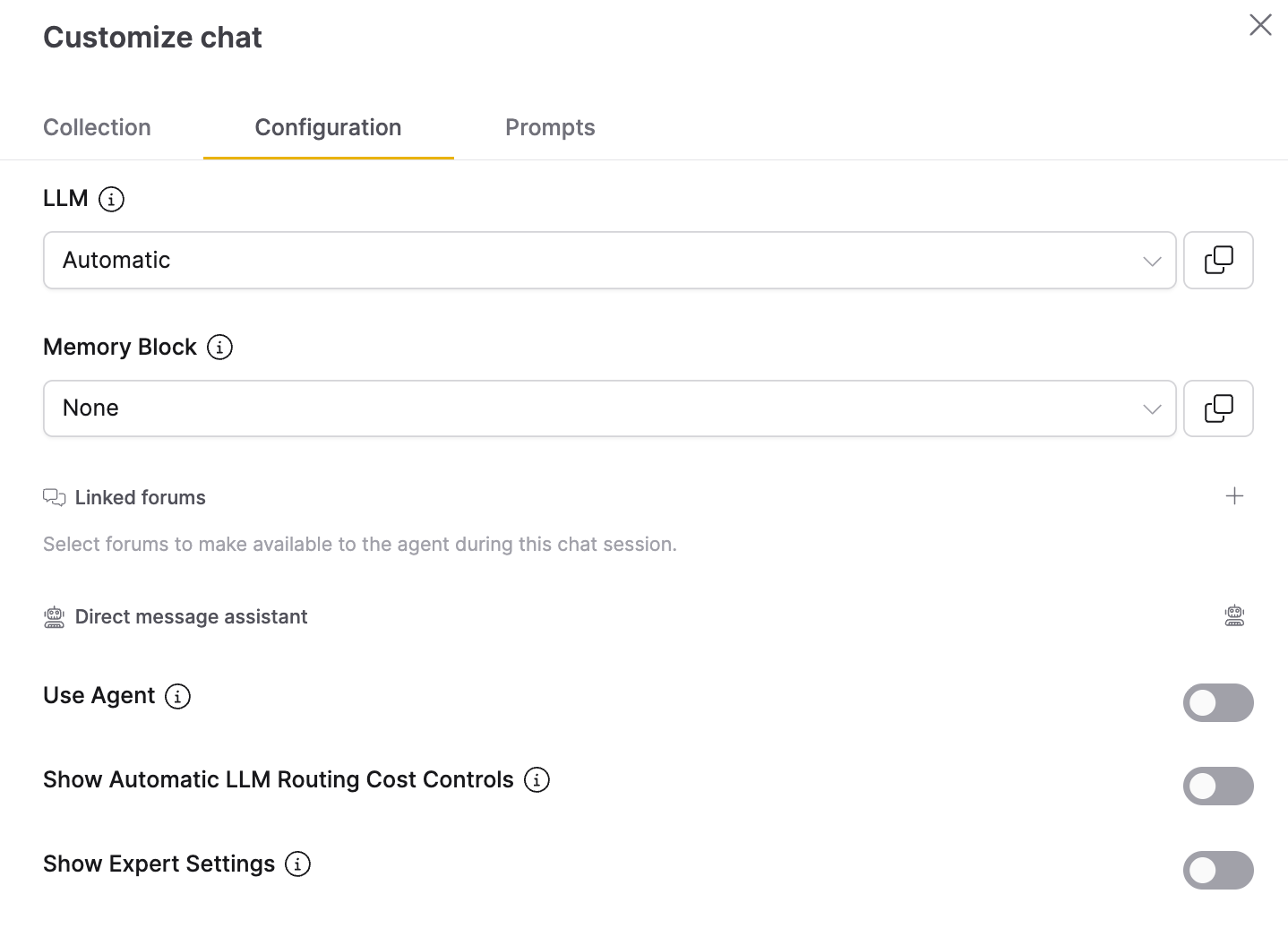
You can also attach a memory block through llm_args when sending a query. Reference the memory block by ID or name.
By ID:
with client.connect(chat_session_id) as session:
    reply = session.query(
        message="What is our project reference number?",
        llm_args={"memory_block_id": "your-memory-block-uuid"},
        timeout=120,
    )
By name:
with client.connect(chat_session_id) as session:
    reply = session.query(
        message="What is our project reference number?",
        llm_args={"memory_block_name": "Project Knowledge"},
        timeout=120,
    )
Name lookup matches only memory blocks owned by the current user with that exact name. To use a shared or public memory block, pass its memory_block_id instead.
Use a memory block with an agent
Include both the memory block reference and use_agent: True in llm_args:
with client.connect(chat_session_id) as session:
    reply = session.query(
        message="Analyze our Q1 sales data and save key findings.",
        llm_args={
            "memory_block_id": "your-memory-block-uuid",
            "use_agent": True,
            "max_time": 90,
        },
        timeout=180,
    )
Use a memory block with an AI Assistant
When creating an AI Assistant, select a memory block from the Memory Block dropdown. All chat sessions with that assistant use the selected memory block automatically without passing it in llm_args.
Injection modes
| Mode | Value | Behavior | Best for |
|---|---|---|---|
| System prompt | system_prompt (default) | Wraps content in <agent_memory name="..."> XML tags and appends it to the system prompt. | Persistent background context. |
| User instruction | user_instruction | Wraps content in <agent_memory name="..."> XML tags and prepends it to the user's message. | When memory should take precedence over system prompt instructions. |
| Agent file | agent_file | Writes content to an AGENTS.md file in the agent's working directory. The agent reads and updates this file directly. | Agent chats where the agent manages memory structure. |
Agent file mode only works with agent chats. In non-agent chats, the memory content is not injected into the prompt. The LLM can still write to the memory block if the access mode allows it, but existing content is not provided as context.
Access modes
The access mode determines whether the LLM or agent can read the memory, write to it, or both.
| Mode | Value | LLM chats | Agent chats | Best for |
|---|---|---|---|---|
| Read & Write | read_write (default) | Content injected; LLM uses <memory_update> tags to save new information. | AGENTS.md created with content; agent reads and updates it. | General-purpose memory that accumulates knowledge. |
| Read only | read | Content injected; <memory_update> tags ignored. | AGENTS.md created as read-only. | Stable reference data (style guides, compliance rules). |
| Write only | write | Content not injected; LLM can write with <memory_update> tags. | Header-only AGENTS.md created for the agent to populate. | Note-taking without influence from previous content. |
How LLMs update memory
In non-agent LLM chats with write or read-write access, the LLM wraps new information in <memory_update> XML tags:
<memory_update>Customer confirmed budget of $50,000 for Q2.</memory_update>
Enterprise h2oGPTe extracts the content from these tags, appends it to the existing memory block, and strips the tags from the visible response.
If the LLM places its entire response inside <memory_update> tags, the visible reply appears empty. The memory block still updates correctly.
How agents update memory
Enterprise h2oGPTe writes the memory block content to an AGENTS.md file in the agent's working directory before execution. The agent reads and modifies this file during its run. After execution, Enterprise h2oGPTe saves the final AGENTS.md content back to the memory block.
In agent mode, AGENTS.md content replaces the memory block entirely (no append). The agent must preserve any existing information it needs to keep.
Content truncation
The max_content_length field controls how much content the memory block stores. When content exceeds this limit, Enterprise h2oGPTe truncates it and keeps the most recent content. Set to 0 to turn off truncation. Default: 10,000 characters.
Larger memory blocks consume more of the model's context window. Choose a limit that balances context richness with prompt size.
- Submit and view feedback for this page
- Send feedback about Enterprise h2oGPTe to cloud-feedback@h2o.ai