Customize a Chat session
Overview
Using various settings, you can customize a Chat session. These settings, for example, let you adjust the system prompt and choose which Large Language Model (LLM) to use to generate responses.
Instructions
- In the Enterprise h2oGPTe navigation menu, click Chats.
- In the Recent chats table, click the Chat session you want to customize.
- Click Customize.
- In the Collection, Configuration, and Prompts tabs, you can customize the Chat session to suit your needs. For example, you can adjust the information source (Documents), configuration settings, and prompt template.

- Watch Customizing Chat Settings and Prompts in h2oGPTe to learn how to adjust token limits, enable self-reflection, configure metadata, and set prompt options from the Chats UI.
Tabs
Collection
The Collection tab includes the following settings:
Collection to use
This setting enables you to choose a Collection to use as a source of information that provides context for the Chat session.
Description
This setting defines the description of the Collection.
Documents
This section displays the available Documents currently part of the selected Collection.
You can add more Documents to the Collection using the + Add documents button.
Configuration
The Configuration tab includes the following settings:
LLM
This setting lets you choose the Large Language Model (LLM) to generate responses. The model selection dropdown supports search functionality to help you quickly find and select the desired model.
Disable automatic chat session renaming
This setting allows you to disable the automatic renaming of chat sessions. When enabled, chat sessions will retain their original names instead of being automatically renamed based on the conversation content.
Enable vision
In addition to sending document context to the normal Large Language Model (LLM), this setting allows you to pass document context as images to a vision-capable LLM.
- Off: Sends document context as text only to the regular LLM.
- Automatic: Automatically determines whether to use a vision-capable LLM based on the document context and the selected LLM.
- On: Always passes document context as images to the vision-capable LLM.
Enabling vision mode can lead to higher latency and cost.
Vision LLM
This setting allows you to select the LLM to process images. Selecting Automatic mode picks a vision LLM based on availability and configuration. It typically selects the same LLM for vision-capable models and the default LLM for non-vision models.
Use Agent
When Use Agent is toggled On, this setting enhances the functionality and versatility of the selected large language model (LLM) by enabling it to execute a broader range of tasks autonomously. These tasks include running code, generating plots, searching the web, and conducting research. Additional controls are available to influence how deeply the agent explores a topic.
Agent Type
This setting lets you choose the agent type best suited for your workflow. The options available depend on your Enterprise h2oGPTe configuration.
The following table lists each agent type, its capabilities, when to use it, and available user personas (see User Persona for details):
| Agent type | Capabilities | When to select | User personas |
|---|---|---|---|
| General Agents (default) | Versatile assistant for research, content creation, web automation, and document analysis | Default for most conversational and analytical tasks | Auto, General, Power, Student, Enterprise |
| Deep Research | General agent with self-critique and maximum-depth exploration | In-depth research, competitive analysis, or when thorough, well-reasoned answers are needed | Auto, General, Researcher, Academic, Journalist, Investigator, Fact-Checker |
| Task Agent | General agent with todo-based task management for long-horizon, multi-step work | Multi-step projects, task tracking, or goal-oriented workflows | Auto, General, Researcher, Academic, Journalist, Investigator, Fact-Checker |
| Data Science Agent | Specialized agent for data analysis, EDA, model building, and H2O Driverless AI integration | Data analysis, machine learning experiments, or DAI workflows | Auto, General, Business Analyst, Citizen Data Scientist, Kaggle Expert, Kaggle Master, Kaggle Grandmaster |
| Web Search | Agent focused on web search and real-time information lookup | Fact-checking, current events, or finding information online | Auto, General, Researcher, Journalist |
| Tool Builder | Agent for building custom tools (Local MCP, Browser Action, General Code) | Creating custom tools for use in agent workflows | Auto, General, Developer, Architect, Integration Specialist, Toolchain Engineer, Devops Engineer, UI Engineer |
| Agents Builder | Agent for generating custom agents using frameworks such as LangGraph, OpenAI Agents SDK, CrewAI, and Claude agents (via Claude Agent SDK) | Building custom agent configurations and multi-agent workflows | Auto, General, Developer, Architect, Integration Specialist, Toolchain Engineer, Devops Engineer, UI Engineer |
| MCP-only Runner | Lightweight agent that executes MCP (Model Context Protocol) tools only | Executing MCP tools without full agent reasoning | Auto, General, Researcher |
| Code Agent | Specialized agent for code generation, debugging, reviews, and software development | Writing code, debugging, code review, or software development | Auto, General, Software Engineer, Full-Stack Developer, Backend Developer, Frontend Developer, Devops Engineer, Code Reviewer |
The available agent types depend on your Enterprise h2oGPTe deployment.
User Persona
This setting allows you to select your role or persona, which tailors the agent's responses to match your expertise level and communication preferences. Available personas are tailored to the chosen Agent Type, and the agent adjusts its communication style, level of technical detail, and recommendations based on your selected persona.
Common available persona options:
- Auto: Automatically selects the appropriate persona based on the agent type
- General: Standard persona for general use cases
- Power: Optimized for power users and advanced workflows
- Student: Tailored for educational and learning contexts
- Enterprise: Designed for enterprise and professional use cases
For the user personas available for each agent type, see the table above.
Agent accuracy
This setting defines how thoroughly the agent investigates a query before responding. You can choose from the following presets:
- Quick: Optimized for speed. Suitable for simple or time-sensitive queries.
- Basic (default): Balances speed and research depth. Ideal for general use.
- Standard: Prioritizes deeper analysis. Useful for complex or nuanced queries.
- Maximum: Enables full-depth exploration. Suitable for detailed technical or strategic questions.
The accuracy level influences the agent’s behavior in terms of response length, the number of intermediate steps, and the likelihood of invoking external tools (like code execution or web search).
In Enterprise h2oGPTe, the agents utilize automatic model routing to select the most suitable models based on accuracy requirements, thereby ensuring that the agents employ models capable of managing complex agent tasks.
Max Agent Turns
This setting controls the maximum number of reasoning steps (or "turns") the agent can take before producing a final response. Higher values allow for deeper problem-solving, but may increase latency.
The system tracks agent conversation turns to help monitor agent usage and performance.
Max Agent Turn Time
This setting defines the maximum time (in seconds) the agent can spend researching and reasoning. Like Max Agent Turns, this helps you control how exhaustive the agent is when exploring solutions.
Deep Research mode
This toggle enables maximum-depth exploration for the chat. When enabled:
- Sets Agent accuracy to Maximum
- Increases the default max turns and max time (described below)
- Directs the agent to prioritize finding the best possible answer, even if it takes longer
note
If the agent reaches a satisfactory answer before the turn/time limits, it stops early. It does not always use the maximum values.
Dedicated Pod
This toggle setting enables dedicated pod allocation for agent execution. When enabled, the agent runs in an isolated, dedicated pod environment, providing enhanced resource isolation and performance consistency for agent tasks.
Final Answer Mode
This dropdown setting controls how agents deliver final responses. It allows users to control the format and style of agent final responses. You can choose from the following options:
- Auto: Automatically determines the response format based on the query and context
- Detailed: Provides comprehensive responses with full details
- Detailed No File Links: Detailed responses without file links
- Detailed No Image Links: Detailed responses without image links
- Detailed No Links: Detailed responses without any links
- File Template: Uses a file-based template format for responses
- Raw Llm: Returns the raw LLM output without additional formatting
Tools
This setting lets you select the tools that the agent can use to assist in generating responses. The agent automatically determines which tools to use and when to use them. For more information about available tools and their settings, see Agent tool configuration.
Generation approach
Select the generation approach for responses. Enterprise h2oGPTe provides the following approaches:
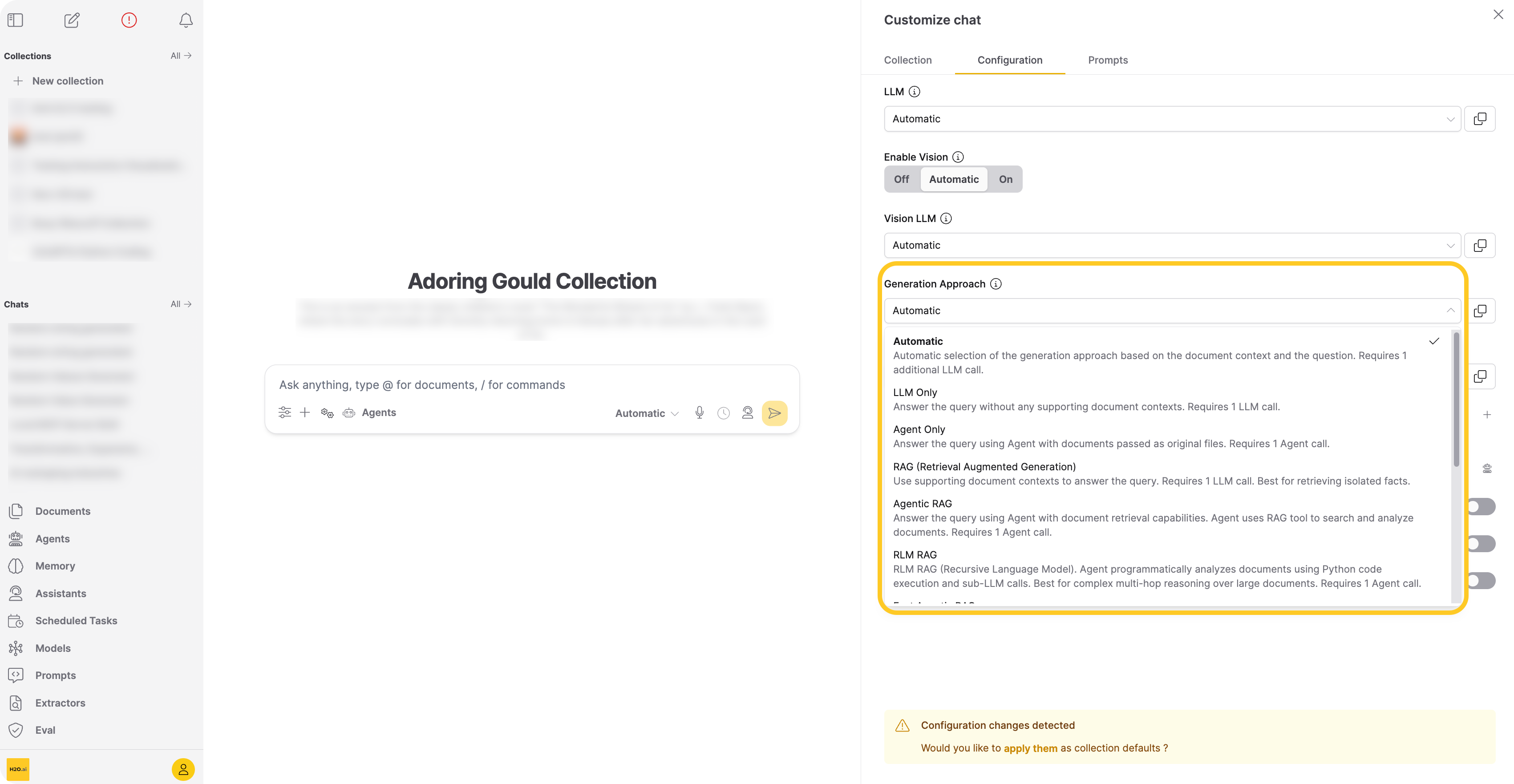
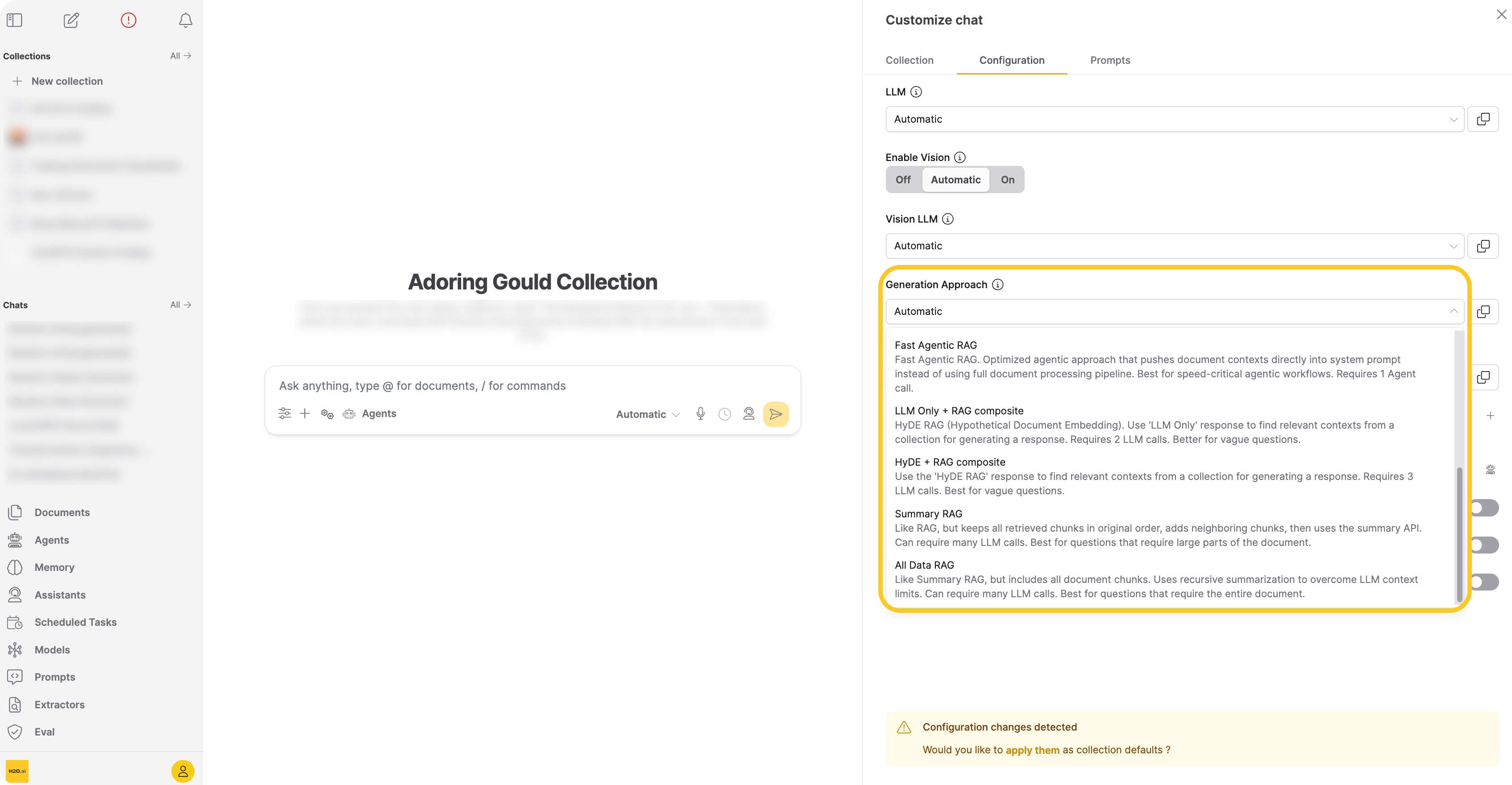
-
Automatic (api:
"auto")Selects the best generation approach based on the query and available resources. Use Automatic when you want the system to choose the optimal approach for each query. Automatic does not select LLM Only for chats with collections. Requires one extra LLM call to select the generation approach, in addition to the calls required by the chosen approach.
-
LLM Only (api:
"llm_only")Sends the query directly to the LLM without retrieving document context from the collection. Use LLM Only when you want the model's general knowledge without document context. Requires one LLM call.
-
Agent Only (api:
"agent_only")Passes the original uploaded files directly to an agent that reads, analyzes, and reasons over full documents without relying on pre-indexed chunks. Use Agent Only when you need the agent to reason over complete documents rather than pre-indexed chunks. Requires one agent call. When using the API, set
"use_agent": trueinllm_args(see REST API guide). -
RAG (Retrieval Augmented Generation) (api:
"rag")Performs a neural/lexical hybrid search to find relevant chunks from the collection, then passes them to the LLM. Use RAG when the query is straightforward and the retrieved context contains enough information for a correct answer. Requires one LLM call.
By default, Enterprise h2oGPTe retrieves the top 25 chunks by lexical distance and top 25 by neural distance, then re-ranks them using a cross-encoder model.
-
Agentic RAG (api:
"agentic_rag")Gives an agent access to a document search tool that retrieves and analyzes collection documents across multiple reasoning steps. Each reasoning step has a minimum timeout of 360 seconds. Use Agentic RAG when the query requires multiple search-and-analyze cycles across the collection. Requires one agent call.
-
RLM RAG (api:
"rlm_rag")RLM RAG (Recursive Language Model) uses an agent that programmatically analyzes documents through Python code execution and follow-up LLM calls. The agent performs up to two reasoning steps, which helps answer complex multi-hop questions where a single retrieval pass misses connections across the text. Each reasoning step has a minimum timeout of 360 seconds. Requires one agent call.
RLM RAG works with both standard chunked collections and collections using agent-only file ingestion.
tipUse RLM RAG when your question requires synthesizing information from multiple parts of a document or performing step-by-step logical analysis. For simpler fact-retrieval questions, RAG is faster and more efficient.
For API usage examples, see Send an RLM RAG query.
-
Fast Agentic RAG (api:
"fast_agentic_rag")Pushes document contexts directly into the agent's system prompt, bypassing the full document processing pipeline. Use Fast Agentic RAG when your agentic workflow requires lower latency. Requires one agent call.
-
LLM Only + RAG composite (api:
"hyde1")Extends RAG using HyDE (Hypothetical Document Embeddings). First asks the LLM to answer the query, then searches for chunks similar to both the query and the LLM-generated answer. This approach broadens retrieval when the query is ambiguous or the context alone is insufficient. Requires two LLM calls.
Example: "What are the implications of high interest rates?"
-
RAG: Searches for chunks close to the query embedding.
-
LLM Only + RAG composite:
- Asks the LLM: "What are the implications of high interest rates?"
- LLM answers: "High interest rates can have several implications, including: higher borrowing cost, slower economic growth, increased savings rate, higher returns on investment, exchange rate fluctuation…"
- Searches for chunks close to the embeddings of both the query and the answer from step 2, increasing the pool of relevant chunks.
-
-
HyDE + RAG composite (api:
"hyde2")Adds a second retrieval round on top of LLM Only + RAG composite, using the first-round response as an additional search input. This extra round further broadens the retrieved context. Requires three LLM calls. Use HyDE + RAG composite when the query is highly ambiguous or the context contains conflicting information.
-
Summary RAG (api:
"rag+")Retrieves chunks like RAG, adds neighboring chunks for broader context, sorts them in document order, then recursively summarizes. Use Summary RAG when the query asks for a summary or a lengthy answer that draws on large portions of the document. Requires multiple LLM calls.
Enterprise h2oGPTe applies the prompt to each context-filling chunk, joins answers in pairs, and recursively reduces until one answer remains. Because this approach includes neighboring chunks, it captures information spread throughout the document that RAG might miss.
-
All Data RAG (api:
"all_data")Processes all document chunks regardless of collection size, then recursively summarizes to overcome the LLM's context limitations. Use All Data RAG when the answer requires the entire document. Requires multiple LLM calls.
-
Graph RAG
This option uses a knowledge graph built from document entities and relationships to augment retrieval. It combines standard chunk retrieval with graph-based entity expansion, surfacing documents connected through entity relationships that vector search alone would miss. Requires building a knowledge graph first. Best for questions requiring cross-document reasoning.
Show Automatic LLM Routing Cost Controls
This toggle setting routes the chat request to the optimal LLM based on cost/performance considerations when "Automatic" is selected in the LLM setting. Turning this setting on, displays the following settings:
Upper Limit on Cost per LLM call
This setting defines the maximum allowable cost in U.S. dollars (USD) per LLM call during Automatic model routing (when "Automatic" selected in the LLM setting). If the estimated cost, based on input and output token counts, exceeds this limit, the request will fail as early as possible.
Willingness to Pay for Accuracy
This setting specifies the amount you're willing to pay, in U.S. dollars (USD), for each additional 10% or more increase in model accuracy when performing automatic routing for every LLM call. Automatic routing refers to "Automatic" selected in the LLM setting.
Enterprise h2oGPTe starts with the least accurate model. For each more accurate model, it is accepted if the increase in estimated cost divided by the increase in estimated accuracy is no more than this value divided by 10%, up to the upper limit on cost per LLM call.
Setting a lower value for this setting will try to keep the cost as low as possible; higher values will approach the cost limit to increase accuracy.
Willingness to Wait for Accuracy
This setting determines how long you're willing to wait for a more accurate model during automatic routing, measured in seconds per 10% or more increase in accuracy. Automatic routing refers to "Automatic" selected in the LLM setting. The process starts with the least accurate model and progresses to more accurate ones. A model is accepted if the increase in estimated time divided by the increase in estimated accuracy does not exceed this value divided by 10%. Lower values prioritize faster processing, while higher values allow more time to improve accuracy.
Show Expert Settings
This toggle setting determines whether to display expert settings for retrieval, chat, and generation. Turning this toggle displays the following settings:
Temperature
This setting lets you adjust the temperature parameter, which affects the model's text generation variability. By softening the probability distribution over the vocabulary, you encourage the model to produce more diverse and creative responses.
A higher temperature value makes the model more willing to take risks and explore less likely word choices. This can result in more unpredictable but more imaginative outputs. Conversely, lower temperatures produce more conservative and predictable responses, favoring high-probability words.
Adjusting the temperature parameter is particularly useful when injecting more variability into the generated text. For example, a higher temperature can inspire a broader range of ideas in creative writing or brainstorming scenarios. However, a lower temperature might be preferable to ensure accuracy in tasks requiring precise or factual information.
Output Token Limit
This setting lets you control the maximum number of tokens the model can generate as output. There's a constraint on the number of tokens (words or subwords) the model can process simultaneously. This includes both the input text you provide and the generated output.
This setting is crucial because it determines the length of the responses the model can provide. By default, the model limits the number of tokens in its output to ensure it can handle the input text and generate a coherent response. However, for detailed answers or to avoid incomplete responses, you may need to allow for longer responses.
Increasing the number of output tokens expands the model's capacity to generate longer responses. However, this expansion comes with a trade-off: it may require sacrificing some input context. In other words, allocating more tokens to the output might mean reducing the number of tokens available for processing the input text. This trade-off is important to consider because it can affect the quality and relevance of the model's responses.
Include Self-Reflection
This setting lets you engage in self-reflection with the model's responses. With self-reflection, the model reviews both the prompt you've given and the response it generates. It's particularly useful for spot checks, especially when working with less computationally expensive models.
Self-reflection lets you assess the quality and relevance of the model's output in the context of the input prompt. Reviewing both the prompt and the generated response, you can quickly identify any inconsistencies, errors, or areas for improvement.
Self-reflection uses the most powerful model for spot checks of less expensive models.
The h2oGPTe API allows complete control over the model and parameters.
Document Metadata to include
This setting lets you to include metadata for the uploaded documents as part of the document context. Including metadata is useful for creating custom prompt templates. The additional metadata helps LLMs better understand the documents.
Standard Metadata Fields:
The following standard metadata fields are always available:
name: Document name and unique identifieruri: Document source URI or file pathconnector: Source connector type (for example, upload, web crawl, S3)original_mtime: Original modification time of the documentage: Document age relative to query timepage: Page number (for multi-page documents)score: Retrieval relevance scoretext: Text content of the document chunkcaptions: Image captions (available when vision mode is enabled)
Custom Metadata Fields:
In addition to the standard fields, you can include custom metadata fields that were added to your documents during ingestion. Custom metadata fields allow you to:
- Include domain-specific attributes (for example, email subject lines, document categories, compliance tags)
- Provide additional context to the LLM
- Filter and organize documents using custom attributes
When you select a collection, Enterprise h2oGPTe automatically discovers any custom metadata fields present in the collection's documents and displays them alongside the standard fields. Custom fields are sourced from the metadata_dict or meta_data_dict properties of your documents.
Example: Custom metadata for email documents
If you ingested emails with custom metadata:
{
  "metadata_dict": {
    "SUBJECT": "Q4 Financial Report",
    "REPORT_TYPE": "Quarterly",
    "SECTOR": "Technology"
  }
}
These custom fields (SUBJECT, REPORT_TYPE, SECTOR) will automatically appear in the Document Metadata to include settings when that collection is selected. Enabling these fields includes them in the document context passed to the LLM:
<doc>
<name>email.pdf (uuid)</name>
<page>1</page>
<SUBJECT>Q4 Financial Report</SUBJECT>
<REPORT_TYPE>Quarterly</REPORT_TYPE>
<SECTOR>Technology</SECTOR>
<text>Document content here...</text>
</doc>
To add custom metadata to your documents, include the metadata_dict field when uploading documents via the API. The UI will automatically discover and display these custom fields when you select the collection in chat settings.
Prompts
The Prompts tab includes the following settings:
Prompt template to use
This setting lets you choose a prompt template to use within the Chat session. You can create your prompt template on the Prompts page and apply it to your Collection.
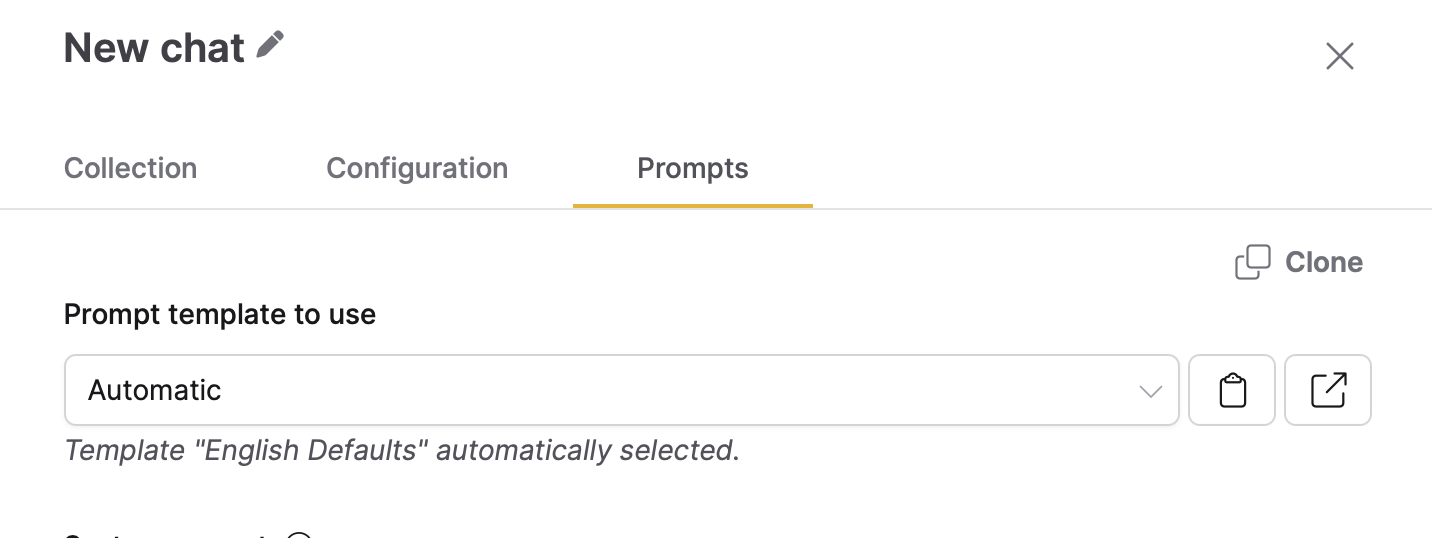
Click Clone to duplicate the selected prompt template and create another template with the same or similar configuration. This feature helps you quickly create a prompt template tailored to your specific needs. For more information, see Clone a prompt template.
- Submit and view feedback for this page
- Send feedback about Enterprise h2oGPTe to cloud-feedback@h2o.ai