Create a Collection
Overview
To create a Collection, you only need to specify the following required setting: Collection name.
- There are many strategies for importing and creating Collections so that you get the best responses for your use case. For guidance on how to use Collections, see Collections usage overview.
- Watch Creating and Managing Collections in h2oGPTe to learn how to create a collection, upload documents, and explore the initial indexing process in the UI.
Instructions
The following steps describe how to create a Collection.
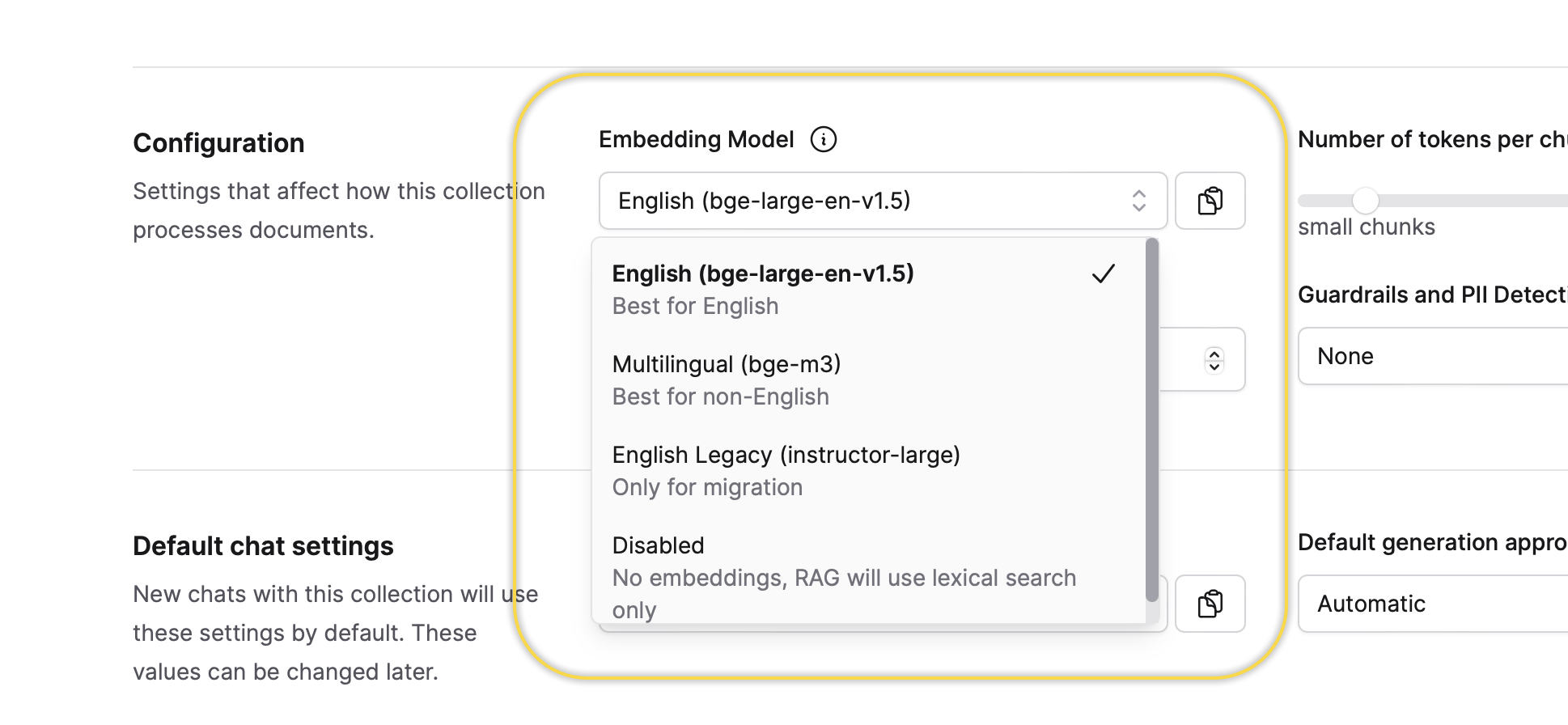
You can select an embedding model for the Collection only once and that is during the process of creating a new Collection. In other words, you can utilize the default selected embedding model or change it to one of the available options. You can not change this setting after it is defined during the creation process of the Collection.
- On the Enterprise h2oGPTe navigation menu, click Collections.
- Click + New collection.
- In the Collection name box, enter a name for the Collection.
- Click + Create.
- You can modify/define the other Collection settings when creating the Collection or after its creation. For example, you can add documents to the Collection during or after its creation.
- To learn about each of the Collection settings, see Collection settings.
You can pin a collection to keep it at the top of your collections list. See Pin a collection.
Collection settings
The Collection settings section includes the following settings:
General
Collection name
This setting defines the name of the Collection.
Description
This setting defines the description of the Collection.
If the Description box is left empty, the system will auto-generate a description based on the uploaded documents, configurable prompts, and the number of chunks of the Collection.
Configuration
Embedding model
This setting defines the embedding model for the Collection. You can select an embedding model only once when creating a new Collection. In other words, you can utilize the default selected embedding model or change it to one of the available options.
You can not change this setting after it is defined during the creation process of the Collection.
Number of tokens per chunk
This setting defines the desired target size of document context chunks in a number of tokens. Larger values improve the retrieval of large, contiguous pieces of information, while smaller values improve the retrieval of fine-grained details. Text extracted from large images will generally stay together in one chunk, no matter the value of this setting.
Chunk overlap tokens
This setting defines (or controls) the number of overlapping tokens between consecutive document context chunks. Increasing this value results in greater overlap, providing more context for challenging questions and leading to more duplicated data. The default (and recommended) value of 0 ensures that chunks have no overlapping tokens.
Guardrails and PII Detection
This setting establishes guardrails for prompts and the detection and redaction of personally identifiable information (PII). Options:
-
None
This option does not apply guardrails for prompts and the detection and redaction of PII. In other words, Enterprise h2oGPTe does not redact PII when it is detected in the document during ingestion, input to the LLM, or output from the LLM.
-
Enable guardrails, allow PII
This option enables guardrails for prompts but does not address PII. In other words, Enterprise h2oGPTe does not redact PII when it is detected in the document during ingestion, input to the LLM, or output from the LLM.
-
Enable guardrails, redact sensitive PII
This option enables guardrails for prompts and the detection and redaction of sensitive PII. In other words, Enterprise h2oGPTe redacts sensitive PII when it is detected in the document during ingestion, input to the LLM, or output from the LLM.
Sensitive PII: Sensitive PII is data that, if improperly disclosed or accessed, could potentially lead to substantial harm for an individual. Due to its sensitive nature, this data is highly susceptible to misuse, such as identity theft, fraud, or discrimination. For example, Social Security Numbers (SSNs).
-
Enable guardrails, redact any PII
This option enables guardrails for prompts and the detection and redaction of any PII. In other words, Enterprise h2oGPTe redacts any PII when it is detected in the document during ingestion, input to the LLM, or output from the LLM.
Any: Any PII refers to any information that can be used to identify an individual, either directly or indirectly. It includes both sensitive and non-sensitive information. For example, email addresses or Social Security Numbers (SSNs).
-
Customize guardrails and PII settings
This option lets you view/edit all the guardrail settings for prompts and the settings for the detection and redaction of PII.
Prompt guard
This setting specifies the entities that Enterprise h2oGPTe should identify in all user prompts, including prompt templates and queries. The Prompt Guard model determines the available options for this setting. If a prompt template triggers a JAILBREAK detection, adjust it as necessary. Jailbreaks are harmful instructions intended to bypass the safety and security mechanisms of the model.
This setting is displayed when you select the following option for the Guardrails and PII Detection setting: Customize guardrails and PII settings.
Guardrails
This setting specifies the entities to flag in all user prompts. The available options are based on the Llama Guard 3 model. If no custom guardrails are configured, the same LLM used to perform the query will also handle the guardrails task.
This setting is displayed when you select the following option for the Guardrails and PII Detection setting: Customize guardrails and PII settings.
Disallowed Regex patterns
This setting specifies regular expression patterns that are prohibited from appearing in user inputs. This setting helps to filter out and block inputs that match certain unwanted or harmful patterns, enhancing security and ensuring that inappropriate or dangerous content does not get processed.
This setting is displayed when you select the following option for the Guardrails and PII Detection setting: Customize guardrails and PII settings.
Presidio labels
This setting defines the entities to label as personally identifiable information (PII). The available choices are based on the Presidio model.
Presidio labels refer to the classification tags used by Microsoft's Presidio, a privacy and data protection tool. Presidio helps in identifying and protecting sensitive information within text data by applying various labels. These labels are used to classify types of sensitive data such as PII.
This setting is displayed when you select the following option for the Guardrails and PII Detection setting: Customize guardrails and PII settings.
PII Labels
This setting defines the entities to label as personally identifiable information (PII). The available options are based on a ModernBERT based token classification model fine-tuned for PII detection.
This setting is displayed when you select the following option for the Guardrails and PII Detection setting: Customize guardrails and PII settings.
Parse Action
This toggle defines what Enterprise h2oGPTe should do when personally identifiable information (PII) is detected in the document at the time of ingestion.
- "Allow" does nothing.
- "Redact" will redact the document and put censor bars over detected PII in the resulting document, and the original PII content will not be visible to any parts of the system.
- "Fail" will abort the document ingestion process with an error message.
Parse Action only applies to documents ingested in Standard or Lite modes. Agent-only files are not parsed or scanned for PII.
This setting is displayed when you select the following option for the Guardrails and PII Detection setting: Customize guardrails and PII settings.
LLM Input Action
This toggle defines what Enterprise h2oGPTe should do when personally identifiable information (PII) is detected in the input to the LLM. This can be either document context or user prompts, including prompt templates.
- "Allow" does nothing.
- "Redact" will redact the input to the LLM. For example, it replaces PII with either "XXXXXXX" or "US_SSN", effectively removing PII.
- "Fail" will abort the generation process with an error message, before the context is sent to the LLM.
This setting is displayed when you select the following option for the Guardrails and PII Detection setting: Customize guardrails and PII settings.
LLM Output Action
This toggle defines what Enterprise h2oGPTe should do when personally identifiable information (PII) is detected in the output coming from the LLM.
- "Allow" does nothing.
- "Redact" will redact the LLM output. For example, it replaces PII with either "XXXXXXX" or "US_SSN", effectively removing PII from the generated output.
- "Fail" will abort the output generation process with an error message.
This setting is displayed when you select the following option for the Guardrails and PII Detection setting: Customize guardrails and PII settings.
Default chat settings
Default prompt template
This setting defines the prompt template to customize the prompts utilized within the Collection. You can create your prompt template on the Prompts page and apply it to your Collection.
Default generation approach
Set the default generation approach for chats in this collection. For detailed descriptions of each approach, see Generation approach.
- Automatic (api:
"auto"): Selects the best generation approach based on the query and available resources. Does not select LLM Only for chats with collections. Requires one additional LLM call to select the generation approach, in addition to the calls required by the chosen approach. - LLM Only (api:
"llm_only"): Sends the query directly to the LLM without retrieving document context. Requires one LLM call. - Agent Only (api:
"agent_only"): Passes original uploaded files to an agent that reads, analyzes, and reasons over full documents without pre-indexed chunks. Requires one agent call. - RAG (Retrieval Augmented Generation) (api:
"rag"): Performs a neural/lexical hybrid search for relevant chunks, then passes them to the LLM. Requires one LLM call. - Agentic RAG (api:
"agentic_rag"): Gives an agent access to a document search tool that retrieves and analyzes collection documents across multiple reasoning steps. Requires one agent call. - RLM RAG (api:
"rlm_rag"): Uses an agent that programmatically analyzes documents through Python code execution and follow-up LLM calls for multi-step reasoning. Requires one agent call. - Fast Agentic RAG (api:
"fast_agentic_rag"): Pushes document contexts into the agent's system prompt, bypassing the full document processing pipeline. Requires one agent call. - LLM Only + RAG composite (api:
"hyde1"): Extends RAG using HyDE (Hypothetical Document Embeddings) to search with both the query and an LLM-generated answer. Requires two LLM calls. - HyDE + RAG composite (api:
"hyde2"): Adds a second retrieval round on top of LLM Only + RAG composite. Requires three LLM calls. - Summary RAG (api:
"rag+"): Retrieves chunks, adds neighboring chunks for context, sorts in document order, then recursively summarizes. Requires multiple LLM calls. - All Data RAG (api:
"all_data"): Processes all document chunks regardless of collection size, then recursively summarizes. Requires multiple LLM calls. - Graph RAG (api:
"graph_rag"): Uses a knowledge graph built from document entities and relationships to augment retrieval. Combines standard chunk retrieval with graph-based entity expansion, surfacing documents connected through entity relationships that vector search alone would miss. Requires building a knowledge graph first. Best for questions requiring cross-document reasoning.
- Submit and view feedback for this page
- Send feedback about Enterprise h2oGPTe to cloud-feedback@h2o.ai