Secret manager
Overview
The Secret Manager provides centralized, secure credential management for Enterprise h2oGPTe services and connectors. It enables secure access to cloud storage systems without storing credentials directly in the database.
Access the secret manager
To access the Secret Manager:
- In Enterprise h2oGPTe, click Account Circle.
- Select System Dashboard.
- Click Secret Manager in the Configuration section.

The Secret Manager feature must be enabled before you can access it. If the Secret Manager option is not visible, refer the section below.
Enabling Secret Manager
If the Secret Manager option is not visible in the System Dashboard, administrators will need to enable it first. Choose one of the following methods based on your deployment setup.
Option A: Environment variables
For local development or direct environment variable configuration:
export H2OGPTE_SECRET_MANAGER_ENABLED=true
export H2OGPTE_SECRET_MANAGER=securestore  # or "filebased"
Option B: Helm configuration
For Kubernetes deployments using Helm charts:
objectStorage:
  secretManager:
    enabled: true
    manager: "securestore"
Option C: Assign permissions via UI
For assigning Secret Manager permissions to users through the Enterprise h2oGPTe UI:
Only administrators can assign Secret Manager permissions to users through the UI.
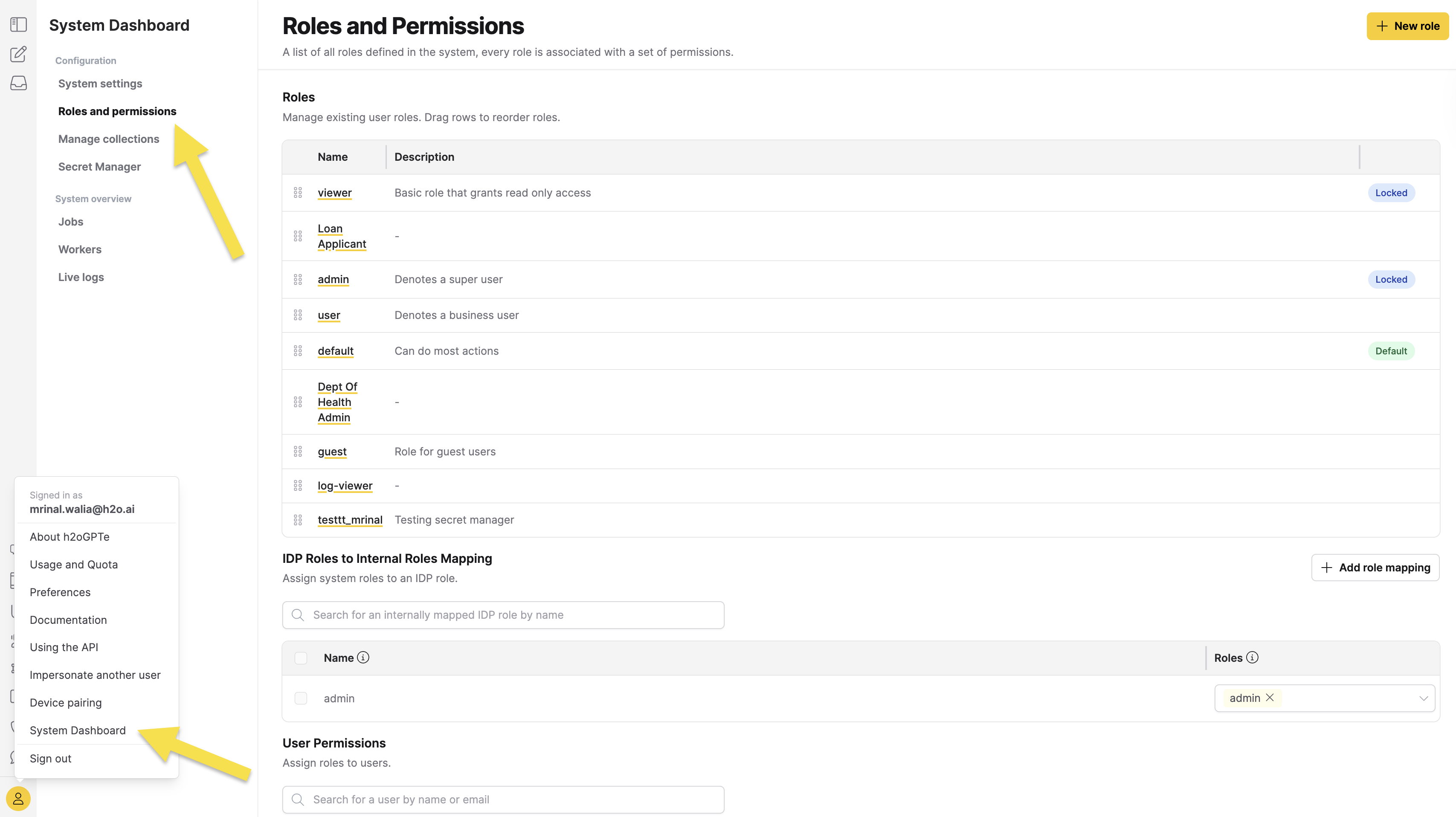
Step 1: Access roles and permissions
- Click Account Circle.
- Select System Dashboard.
- Click Roles and permissions.
Step 2: Create or update a role
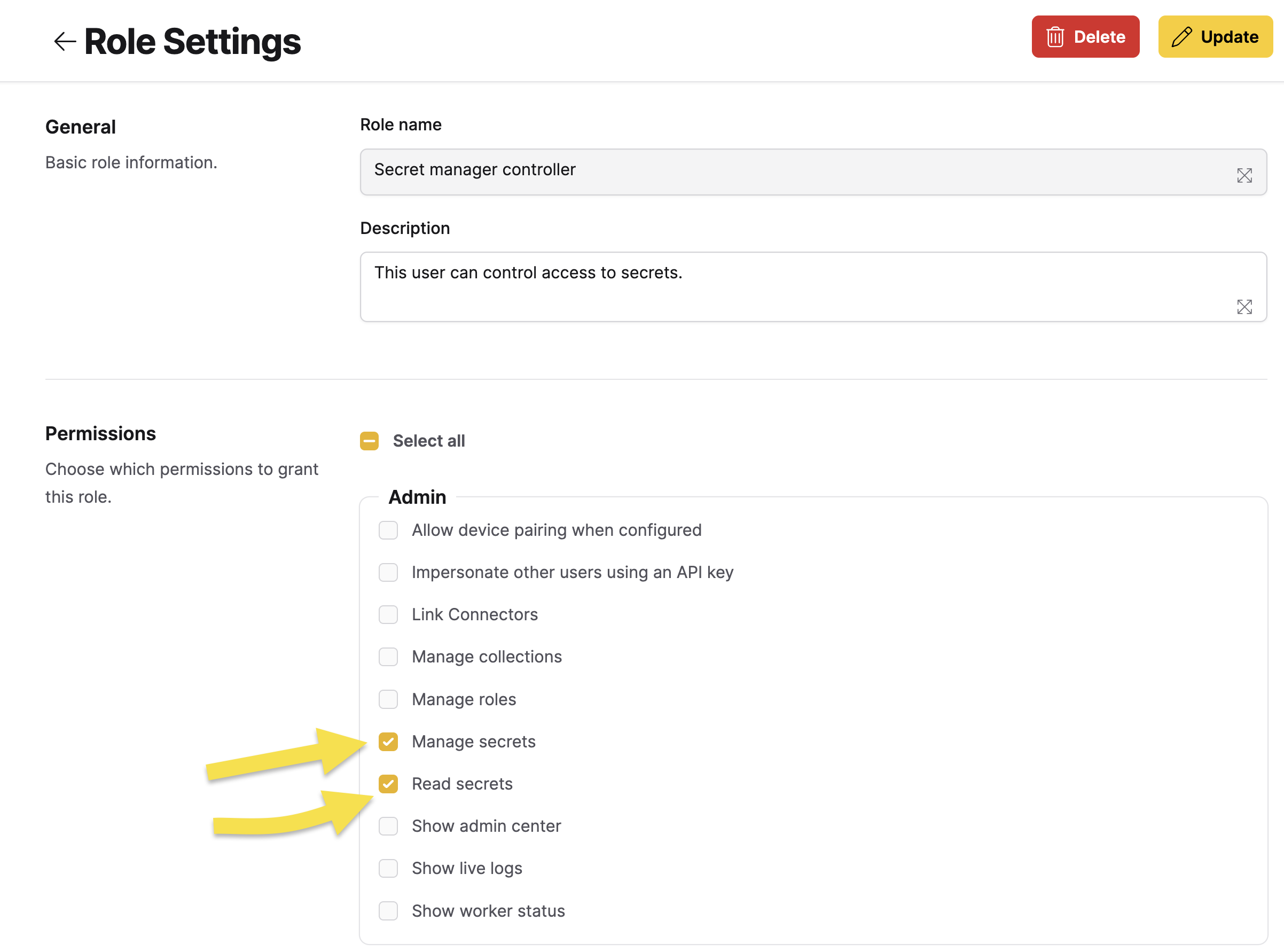
- Click + New role (top-right corner).
- Enter a Role name (e.g., "Secret Manager User").
- Add an optional Description.
- In the Permissions section, search for and select:
- Manage secrets
- Read secrets
- Click + Create.
Step 3: Assign role to user
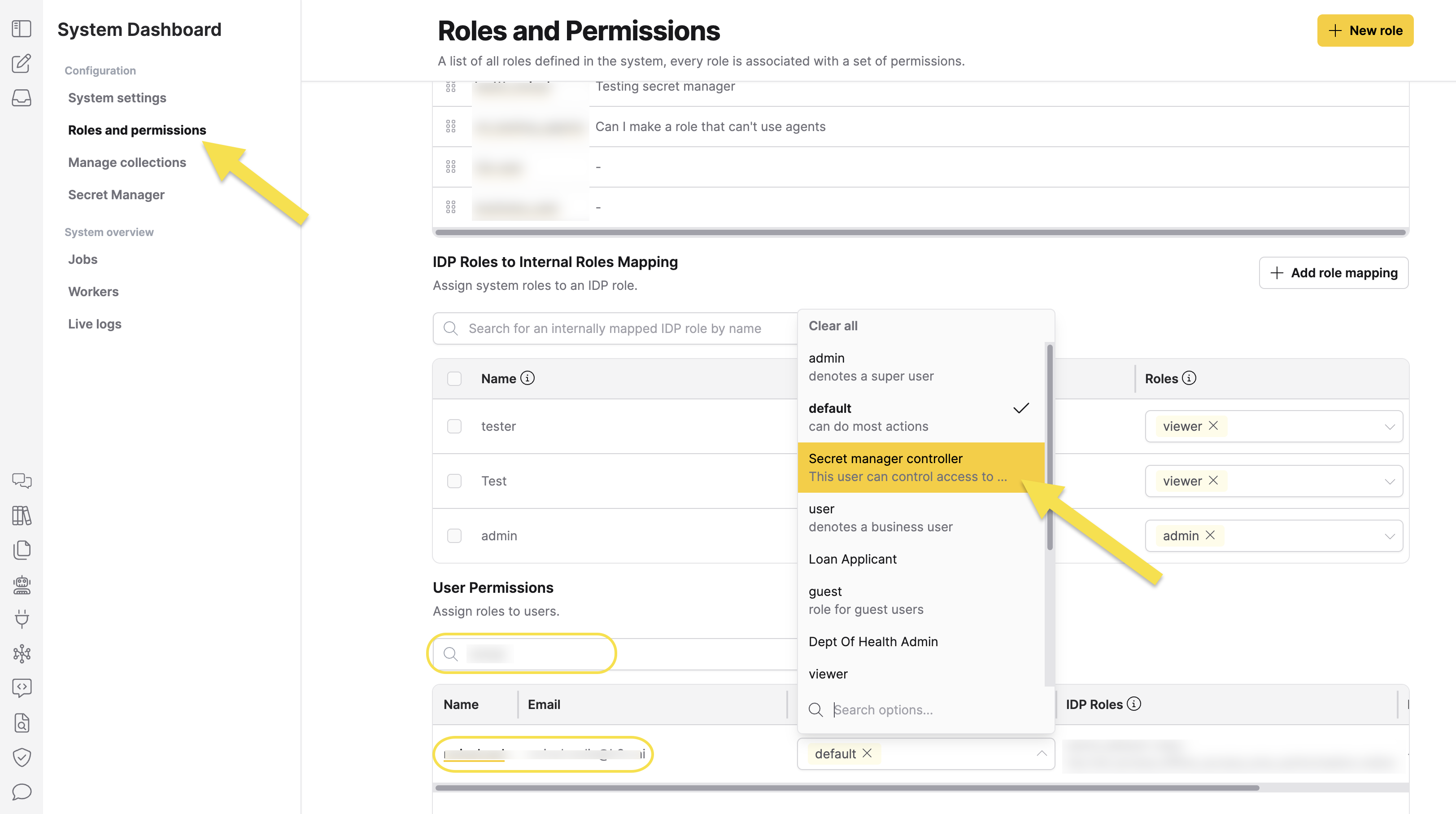
- In the User Permissions table, locate the user.
- In the Roles list, select the role with the secret manager permission.
- The user will now have access to Secret Manager.
Supported connector types
The Secret Manager supports credentials for the following cloud storage connectors:
- AWS S3: Amazon S3 storage
- Azure Blob Storage: Microsoft Azure blob storage
- GCS: Google Cloud Storage
- SharePoint Online: Microsoft SharePoint Online
- SharePoint On-Premise: Microsoft SharePoint Server
- Confluence: Atlassian Confluence
Migrate Slack integration credentials to SecureStore
A Slack integration is a workspace bot registration that an administrator creates so Enterprise h2oGPTe can receive events from Slack. It's separate from the Slack connector on the Data Connectors page, which links an individual user's own Slack account.
When the secret_manager_enabled platform setting is on, the platform writes Slack integration credentials (the bot token and signing secret) to the SecureStore backend instead of the database. Existing Slack integrations continue to work without any change.
To bulk-migrate existing Slack integrations to SecureStore, set the environment variable H2OGPTE_MUX_MIGRATE_SLACK_INTEGRATIONS_TO_SECURE_STORE=true (Helm: mux.config.migrateSlackIntegrationsToSecureStore). The migration runs once at startup, requires secret_manager_enabled to be active, and is off by default.
This migration is one-way and has no down-migration. Rolling back to a build released before SecureStore support treats the migrated reference itself as the credential, which breaks outbound Slack calls and inbound request verification for every migrated integration. Recovering from that state needs manual intervention.
Before you turn on this migration in production:
- Back up your database.
- Turn on SecureStore and confirm new Slack credentials resolve correctly.
- Set the migration flag.
- Verify migrated integrations work before you treat SecureStore as the source of truth for existing ones.
Two sibling flags migrate other credential types the same way, both off by default: H2OGPTE_MUX_MIGRATE_AGENT_KEYS_TO_SECURE_STORE for agent keys, and H2OGPTE_MUX_MIGRATE_CONNECTOR_TOKENS_TO_SECURE_STORE for the connector tokens behind the Data Connectors page. Those are separate credentials from the Slack integration covered here.
If SecureStore isn't enabled, Slack integration credentials are stored in the database and keep working. You don't need to migrate.
Create a new secret
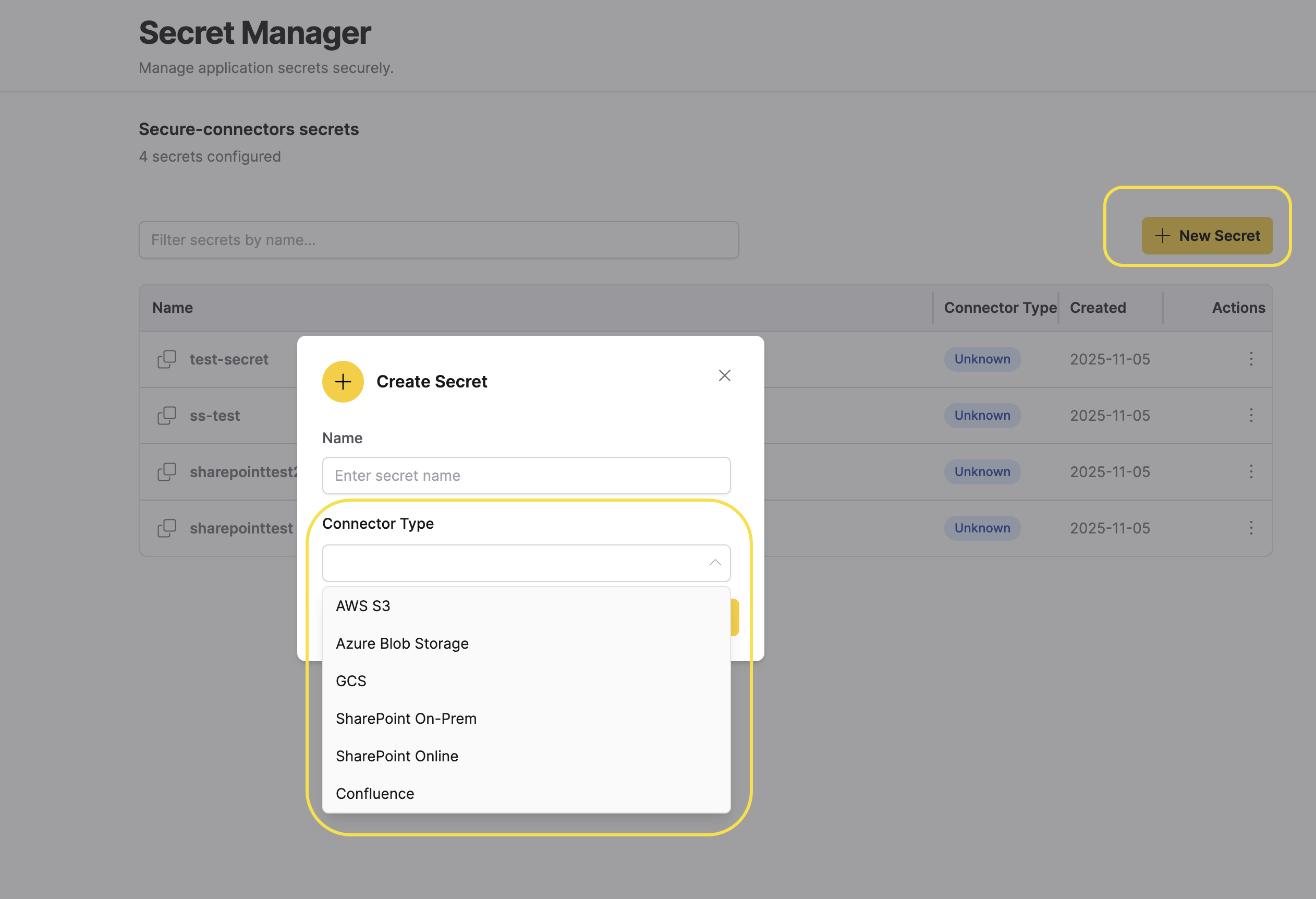
- Click + New Secret.
- Select the Connector type from the dropdown.
- Configure the connector-specific credentials:
- AWS S3: Access Key ID, Secret Access Key, Region
- Azure SAS: Account Name, Account Key
- GCS: Project ID, Service Account JSON
- SharePoint Online: Site URL, Tenant ID, Client ID, Client Secret
- SharePoint On-Premises: Site URL, Username, Password
- Confluence: Username, Password (or API token)
- Click Create Secret.
Manage secrets
You can Reveal, Edit, or Delete a secret. Click Actions (three dots) button to view options.
Reveal secrets
The Secret Manager displays all configured secrets in a JSON: key-value format showing:
- Account name: The secret identifier.
- Connector type: The type of cloud storage (S3, Azure Blob, GCS, etc.).
- Name: The storage identifier.
- SAS Token: The secret key.

Filter secrets
Use the Search bar filter to narrow the list of secrets by Connector type (for example, S3, Azure Blob, GCS, SharePoint, Confluence).
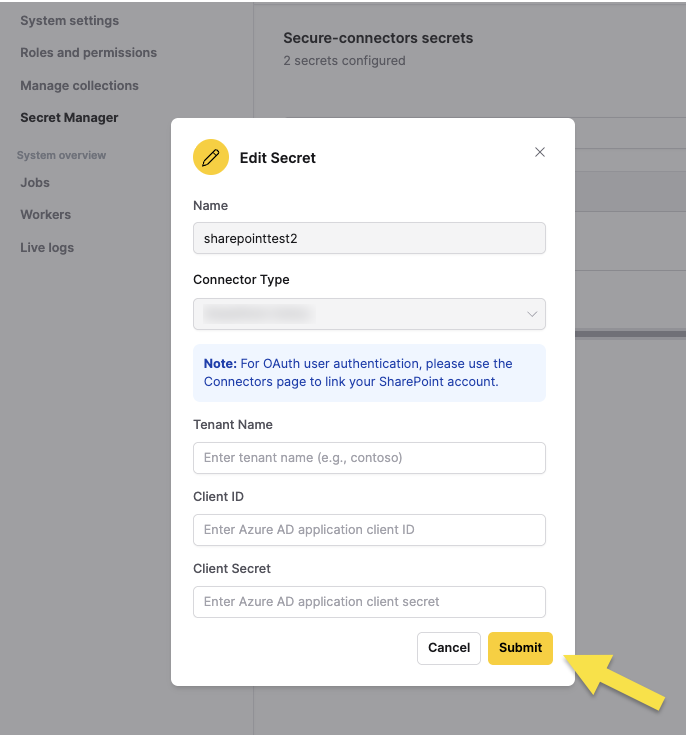
Edit a secret
- Click the Edit icon next to the secret name.
- Update the credential values as needed.
- Click Submit.
Delete a secret
- Click the Delete icon next to the secret name.
- Confirm the deletion in the dialog box.
- Click Delete.
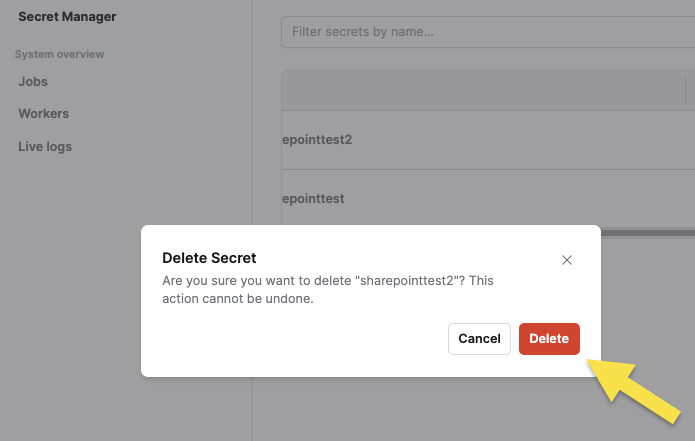
Deleting a secret will break any existing connectors that use it. Ensure no active connectors are using the secret before deletion.
Use secrets with secure connectors
For detailed instructions on using secrets with secure connectors, see the Tutorial 11: Secure Connectors and Secret Manager.
API usage
Use the Secret Manager API to programmatically manage secrets and integrate with your applications.
from h2ogpte.secret_manager import SecretManagerFactory, SecretType

secret_manager = SecretManagerFactory.create()
secret_ids = secret_manager.list_secret_ids(SecretType.USER_SECRET, "s3")
credentials = secret_manager.get_secret("my-secret-id")
Secrets management permissions
Understand the role-based access control for managing secrets and the specific permissions required for different operations.
1. Permissions created
Two separate permissions have been created for secrets management:
- ReadSecrets (
h2ogpte/secrets/read) - Permission for reading secrets - ManageSecrets (
h2ogpte/secrets/manage) - Permission for creating, updating, and deleting secrets
2. Permission assignments
Roles and their associated permissions:
| Permission | Admin | Default | User |
|---|---|---|---|
| ReadSecrets | ✓ | ✓ | ✓ |
| ManageSecrets | ✓ |
3. API endpoint separation
Read operations (requires canReadSecrets permission)
GET /secrets/ids- List all secretsGET /secrets/{id}- Get secret metadataGET /secrets/{id}/value- Get secret value
Management operations (requires canManageSecrets permission)
POST /secrets- Create a new secretPUT /secrets/{id}- Update an existing secretDELETE /secrets/{id}- Delete a secret
Next steps
For using Secret Manager with Cloud storage, see the Tutorial 11: Secure Connectors and Secret Manager.
- Submit and view feedback for this page
- Send feedback about Enterprise h2oGPTe to cloud-feedback@h2o.ai